



 本文介绍了AndroidCompose中的Lazy表格(包括Fixed和Adaptive布局)、垂直和水平懒加载网格、弹窗(Dialog和AlertDialog)、滑动界面(HorizontalPager和VerticalPager)、选项卡(TabRow和ScrollableTabRow)、卡片(Card)、下拉菜单(DropdownMenu)、Surface以及流式布局(FlowRow和FlowColumn)。
一、延迟表格 LazyVerticalGrid、LazyHorizontalGrid
| Fixed | 设置一个固定数量的行或列。 |
| FixedSize | 为行或列指定一个固定的大小。 |
| Adaptive | 根据内容和可用空间调整行或列的大小。 |

@Preview(showBackground = true, name = "Fixed")
@Composable
fun Show1() {
    Demo(GridCells.Fixed(5))
}

@Preview(showBackground = true, name = "Adaptive")
@Composable
fun Show() {
    Demo(GridCells.Adaptive(60.dp))
}

@Composable
fun Demo(style: GridCells) {
    val dataList = listOf("香菜", "酒鬼花生", "酱油酱油酱油", "海鲜酱海鲜酱", "陈醋陈醋", "小葱花", "大蒜泥", "辣椒", "老干妈", "耗油", "芝麻酱")
    val lazyGridState = rememberLazyGridState()
    LazyVerticalGrid(
        columns = style,    //描述单元格展现形式:fixed设置固定尺寸、Adaptive设置最小尺寸后内容自适应网格大小
        modifier = Modifier.fillMaxWidth(),
        state = lazyGridState,
        contentPadding = PaddingValues(0.dp),   //边距
        reverseLayout = false,  //是否反转显示
        verticalArrangement = Arrangement.Top,
        horizontalArrangement = Arrangement.Start,
        flingBehavior = ScrollableDefaults.flingBehavior(),
        userScrollEnabled = true    //是否允许滑动
    ){
        itemsIndexed(dataList){index: Int, item: String ->
            Text(text = "${index}:$item", maxLines = 1, modifier = Modifier
                .padding(1.dp)
                .background(Color.Red))
        }
    }
}
二、 LazyVerticalStaggeredGrid、LazyHorizontalStaggeredGrid

@Preview(showBackground = true, name = "Fixed")
@Composable
fun Show1() {
    Demo(StaggeredGridCells.Fixed(5))
}

@Preview(showBackground = true, name = "Adaptive")
@Composable
fun Show() {
    Demo(StaggeredGridCells.Adaptive(60.dp))
}

@Composable
fun Demo(style: StaggeredGridCells) {
    val dataList = listOf("香菜", "酒鬼花生", "酱油酱油酱油", "海鲜酱海鲜酱", "陈醋陈醋", "小葱花", "大蒜泥", "辣椒", "老干妈", "耗油", "芝麻酱")
    val state = rememberLazyStaggeredGridState()
    LazyVerticalStaggeredGrid(
        columns = style,//描述单元格展现形式:fixed设置固定尺寸、Adaptive设置最小尺寸后内容自适应网格大小
        modifier = Modifier.fillMaxWidth(),
        state = state,
        contentPadding = PaddingValues(0.dp),   //边距
        reverseLayout = false,  //是否反转显示
        verticalItemSpacing = 0.dp, //行间距
        horizontalArrangement = Arrangement.Start,
        flingBehavior = ScrollableDefaults.flingBehavior(),
        userScrollEnabled = true    //是否允许滑动
    ) {
        itemsIndexed(dataList){index: Int, item: String ->
            Text(text = "${index}:$item", maxLines = 1, modifier = Modifier
                .padding(1.dp)
                .background(Color.Red))
        }
    }
}
六、底部动作条 ModalBottomSheet
底部弹窗,并不能常驻用来上滑。
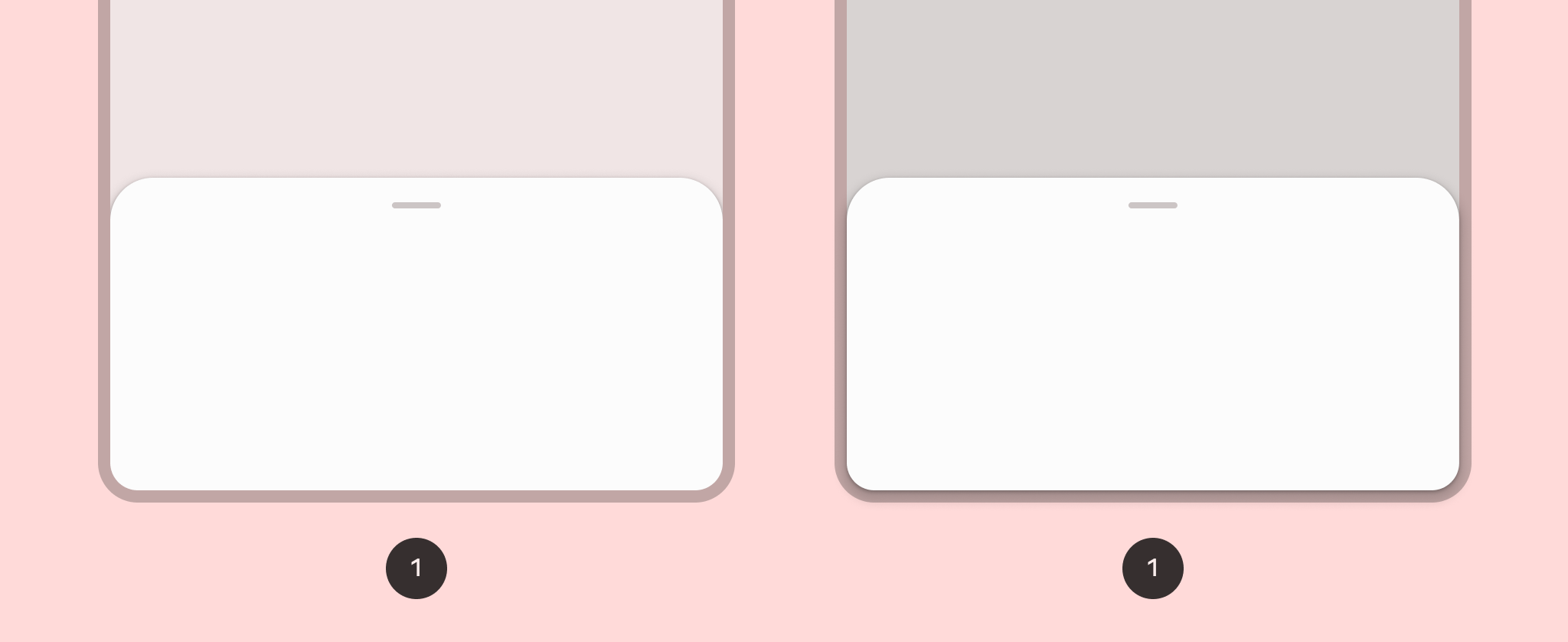
| ModalBottomSheet() | @Composable // 隐藏时的回调。 // 定义弹窗最大宽度的 Dp 值。传入 Dp.Unspecified 表示弹窗占满整个屏幕宽度。 // 底部弹窗是否允许通过手势进行交互。 // 底部弹窗的形状。 // 底部弹窗背景所使用的颜色。 // 底部弹窗内部内容的偏好颜色。默认值为:如果 containerColor 是主题中的颜色,则使用其对应的内容颜色;否则使用当前的 LocalContentColor。 // 当 containerColor 为 ColorScheme.surface 时,会在容器上方叠加一层半透明的主色覆盖层。更高的色调 elevation 值在浅色主题中会产生更深的颜色,在深色主题中会产生更浅的颜色。 // 底部弹窗打开时用于遮挡内容的遮罩层颜色。 // 用于滑动底部弹窗的可选视觉标记。 // 提供窗口边衬区的回调,这些边衬区将通过 Modifier.windowInsetsPadding 传递给底部弹窗内容。ModalBottomSheet 会根据其当前偏移量预先消耗顶部边衬区,以确保内容在任何位置都不会超出预期的窗口边衬区。 // 用于进一步自定义此模态底部弹窗窗口行为 |
| rememberModalBottomSheetState() | @Composable // false 先显示部分,true直接全显示 |
七、选项卡 TabRow

var selectedIndex by remember { mutableStateOf(0) }
TabRow(
    modifier = Modifier,
    selectedTabIndex = selectedIndex,    //选中的索引
    containerColor = Color.Green, //背景色
    contentColor = Color.Yellow, //内容色(子Tab设置未选中颜色会覆盖这个)
    indicator = {},  //设置指示器
    divider = {}    //设置分割线
) {
    //图片和文字是横向的
    LeadingIconTab(
        modifier = Modifier,
        selected = selectedIndex == 0,  //是否选中
        onClick = { selectedIndex = 0 },    //点击监听
        text = { Text(text = "选项0") },  //选项文字
        icon = { Icon( imageVector = Icons.Default.AccountBox, contentDescription = null ) },   //选项图片
        enabled = true, //是否启用
        selectedContentColor = Color.Red,    //选中颜色
        unselectedContentColor = Color.Blue, //未选中颜色
    )
    //图片和文字是纵向的
    Tab(
        modifier = Modifier,
        selected = selectedIndex == 1,  //是否选中
        onClick = { selectedIndex = 1 },    //点击监听
        text = { Text(text = "选项1") },    //选项文字
        icon = { Icon( imageVector = Icons.Default.AccountBox, contentDescription = null ) },   //选项图片
        enabled = true, //是否启用
        selectedContentColor = Color.Red,    //选中颜色
        unselectedContentColor = Color.Blue, //未选中颜色
    )
}
八、可滑动选项卡 ScrollableTabRow

val dataList = listOf("热点", "世界杯", "数码科技", "英雄联盟", "视频", "在线直播", "娱乐圈")
var selectedIndex by remember { mutableStateOf(0) }
ScrollableTabRow(
    modifier = Modifier,
    selectedTabIndex = selectedIndex,    //选中的索引
    containerColor = Color.Green, //背景色
    contentColor = Color.Yellow, //内容色(子Tab设置未选中颜色会覆盖这个)
    indicator = {},  //设置指示器
    divider = {}    //设置分割线
) {
    dataList.onEachIndexed { index, str ->
        Tab(
            selected = selectedIndex == index,  //是否选中
            text = { Text(text = dataList[index]) },    //选项文字
            onClick = { selectedIndex = index },    //点击监听
            selectedContentColor = Color.Red,    //选中颜色
            unselectedContentColor = Color.Blue, //未选中颜色
        )
    }
}
九、卡片 Card
Card(
    modifier = Modifier,
    shape = CircleShape,
    colors = CardDefaults.cardColors(),
    elevation = CardDefaults.cardElevation(),
    border = BorderStroke(width = 1.dp, color = Color.Red),
) {
    //子元素
}
十一、平面 Surface

Surface(
    modifier = Modifier.size(50.dp).padding(5.dp),
    shape = RectangleShape, //形状(RectangleShape矩形、CircleShape圆形、RoundedCornerShape圆角、CutCornerShape切角)
    color = Color.Red,  //背景色(默认是主题中的surface颜色)
    contentColor = Color.Blue,  //内容主色
    tonalElevation = 0.dp,  //当color=ColorScheme.surface时,值越大,浅色主题越深,深色主题越浅
    shadowElevation = 0.dp, //阴影大小
    border = BorderStroke(width = 1.dp, color = Color.Black),   //边框粗细和颜色
) {
    //子元素
}





 扫一扫
扫一扫


 4539
4539

 被折叠的 条评论
为什么被折叠?
被折叠的 条评论
为什么被折叠?
 到【灌水乐园】发言





