



 本文介绍如何在PC端和移动端实现元素的拖拽功能,通过监听鼠标和触摸事件,并结合元素定位属性,使元素能在限定范围内自由移动。
首先看效果图
PC端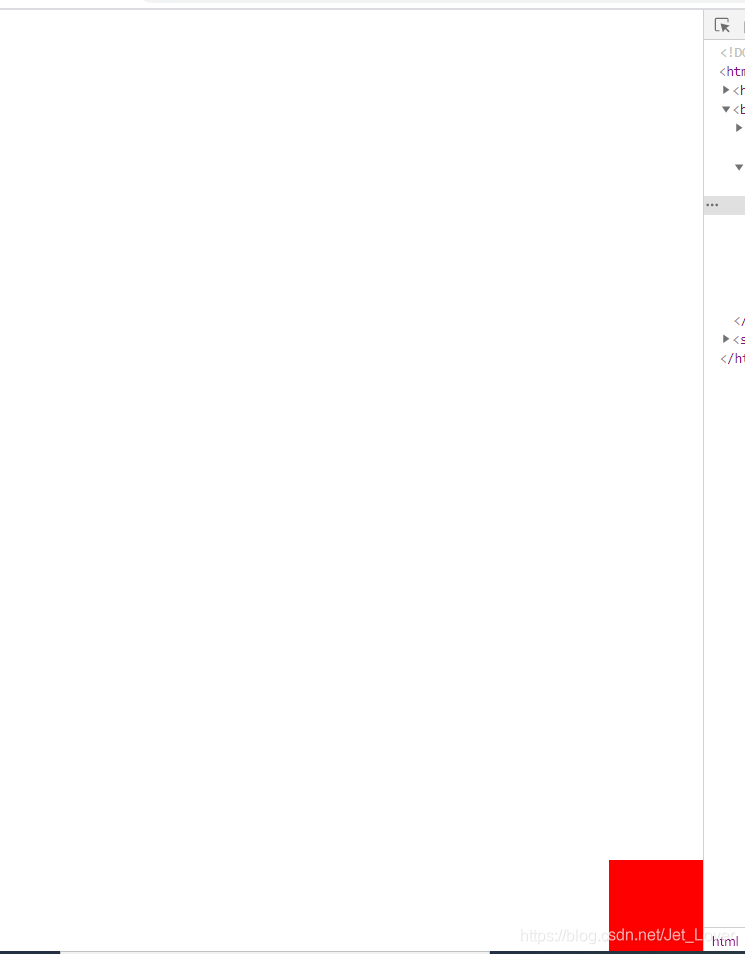
移动端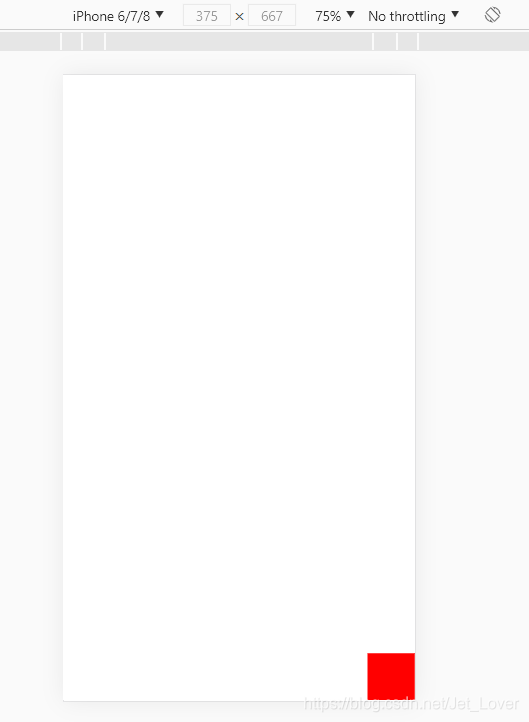
首先实现拖拽需要知道三个事件,按下,移动和抬起
PC端
鼠标按下事件:onmousedown

鼠标移动事件:onmousemove

鼠标抬起事件:onmouseup
移动端
1、当在屏幕上按下手指时触发:touchstart

2、当在屏幕上移动手指时触发:touchmove

3、当在屏幕上抬起手指时触发:touchend

4、touchcancel 当一些更高级别的事件发生的时候(如电话接入或者弹出信息)会取消当前的touch操作,即触发
touchcancel。一般会在touchcancel时暂停游戏、存档等操作。
其次知道几个概念
window.outerWidth与window.outerHeight:获得的是加上工具条与滚动条窗口的宽度与高度。
window.innerWidth与window.innerHeight:获得的是可视区域的宽高,但是宽度包含了纵向滚动条的宽度。
document.documentElement.clientWidth与document.documentElement.clientHeight:获得的是屏幕可视区域的宽高,不包括滚动条与工具条,
- clientY 指的是距离可视页面左上角的距离
- pageY 指的是距离可视页面左上角的距离(不受页面滚动影响)
- screenY 指的是距离屏幕左上角的距离
- layerY 指的是找到它或它父级元素中最近具有定位的左上角距离
- offsetY 指的是距离它自己左上角的距离
接下来上代码,先绑定PC端的托拽事件
<template>
    <div
        id="app"
        @mousedown="move"
    >
    </div>
</template>
<script>

export default {
    name: "Drag",
    data() {
        return {};
    },
    methods: {
        move(e) {
            e.preventDefault();
            let odiv = e.target; //获取目标元素
            //算出鼠标相对元素的位置
            let disX = e.clientX - odiv.offsetLeft;
            let disY = e.clientY - odiv.offsetTop;
            console.log("x======" + disX, "y======" + disY);
            console.log(
                "offsetLeft======" + odiv.offsetLeft,
                "offsetTop======" + odiv.offsetTop
            );
            console.log(window.innerWidth,window.innerHeight);//可视区域的宽高,但是宽度包含了纵向滚动条的宽度
            console.log(document.documentElement.clientWidth);//可视区域的宽高,但是宽度不包含了纵向滚动条的宽度
            console.log(odiv.offsetWidth, odiv.offsetHeight); //元素宽高
            document.onmousemove = (e) => {
                //鼠标事件
                //鼠标按下并移动的事件
                //用鼠标的位置减去鼠标相对元素的位置,得到元素的位置
                let left = e.clientX - disX;
                let top = e.clientY - disY;
                if (left < 0) {
                    left = 0;
                }
                if (left >document.documentElement.clientWidth - odiv.offsetWidth) { //如果元素移动宽度超过屏幕可视高度则为屏幕高度
                    left = document.documentElement.clientWidth - odiv.offsetWidth;
                }//判断与左边的距离不能超出屏幕可见区域外
                if (top <0) {
                    top = 0;
                }
                if (top >document.documentElement.clientHeight - odiv.offsetHeight) { //如果元素移动高度超过屏幕可视高度则为屏幕高度
                    top =document.documentElement.clientHeight - odiv.offsetHeight;
                }
                console.log("left======" + left, "top======" + top);

                //移动当前元素
                odiv.style.left = left + "px";
                odiv.style.top = top + "px";
            };
            document.onmouseup = (e) => {
                document.onmousemove = null;
                document.onmouseup = null;
            };
        },
    },
};
</script>
<style lang="scss" scoped>
#app {
    position: absolute; /*定位*/
    top: 30px;
    left: 30px;
    width: 100px;
    height: 100px;
    background: red; /*设置一下背景*/
    z-index: 999;
    cursor: pointer;
}
</style>
移动端的拖拽事件有点特殊,点击元素获取可视左边的位置的方法不是e.clientX而是e.changedTouches[0].pageX
按下、拖动、松开事件也改变了,接下来上代码
<template>
    <div
        id="app"
        @touchstart="touchStart"
        @touchmove="touchMove"
        @touchend="touchEnd"
    >
    </div>
</template>

<script>

export default {
    name: "Drag",
    data() {
        return {
            touchX: 0,//移动端点击时距左边的距离
            touchY: 0,
            odiv: "",
        };
    },
    methods: {
         //手指按下
        touchStart(e) {
            e.preventDefault();
            this.odiv = e.target; //获取目标元素
            //算出鼠标相对元素的位置
            this.touchX = e.changedTouches[0].pageX - this.odiv.offsetLeft;
            this.touchY = e.changedTouches[0].pageY - this.odiv.offsetTop;
            console.log("x======" + this.touchX, "y======" + this.touchY);
            console.log(e);
            console.log(
                "offsetLeft======" + this.odiv.offsetLeft,
                "offsetTop======" + this.odiv.offsetTop
            );
            console.log("innerWidth====="+window.innerWidth,"innerHeight====="+window.innerHeight);
            console.log(this.odiv.offsetWidth, this.odiv.offsetHeight); //元素宽高
        },
        //手指拖动事件
        touchMove(e) {
            //用手指的位置减去手指相对元素的位置,得到元素的位置
            let left = e.changedTouches[0].pageX - this.touchX;
            let top = e.changedTouches[0].pageY - this.touchY;
            console.log("left======" + left, "top======" + top);

             if (left < 0) {
                    left = 0;
                }
                if (left > window.innerWidth - this.odiv.offsetWidth) {
                    left = window.innerWidth - this.odiv.offsetWidth;
                }//可视区域宽度
                if (top < 0) {
                    top = 0;
                }
                if (top >window.innerHeight - this.odiv.offsetHeight) {
                    top = window.innerHeight - this.odiv.offsetHeight;
                }//可视区域高度

            //移动当前元素
            this.odiv.style.left = left + "px";
            this.odiv.style.top = top + "px";
        },
        //手指抬起
        touchEnd() {
           console.log(123)
        },
    },
};
</script>
<style lang="scss" scoped>
#app {
    position: absolute; /*定位*/
    top: 30px;
    left: 30px;
    width: 100px;
    height: 100px;
    background: red; /*设置一下背景*/
    z-index: 999;
}
</style>
TouchEvent事件

综合起来的代码
<template>
    <div
        id="app"
        @mousedown="move"
        @touchstart="touchStart"
        @touchmove="touchMove"
        @touchend="touchEnd"
    >
    </div>
</template>

<script>

export default {
    name: "Drag",
    data() {
        return {
            touchX: 0,//移动端点击时距左边的距离
            touchY: 0,
            odiv: "",
        };
    },
    methods: {
        move(e) {
            e.preventDefault();
            let odiv = e.target; //获取目标元素
            //算出鼠标相对元素的位置
            let disX = e.clientX - odiv.offsetLeft;
            let disY = e.clientY - odiv.offsetTop;
            console.log("x======" + disX, "y======" + disY);
            console.log(
                "offsetLeft======" + odiv.offsetLeft,
                "offsetTop======" + odiv.offsetTop
            );
            console.log(window.innerWidth,window.innerHeight);//可视区域的宽高,但是宽度包含了纵向滚动条的宽度
            console.log(document.documentElement.clientWidth);//可视区域的宽高,但是宽度不包含了纵向滚动条的宽度
            console.log(odiv.offsetWidth, odiv.offsetHeight); //元素宽高
            document.onmousemove = (e) => {
                //鼠标事件
                //鼠标按下并移动的事件
                //用鼠标的位置减去鼠标相对元素的位置,得到元素的位置
                let left = e.clientX - disX;
                let top = e.clientY - disY;
                if (left < 0) {
                    left = 0;
                }
                if (left >document.documentElement.clientWidth - odiv.offsetWidth) { //如果元素移动宽度超过屏幕可视高度则为屏幕高度
                    left = document.documentElement.clientWidth - odiv.offsetWidth;
                }//判断与左边的距离不能超出屏幕可见区域外
                if (top <0) {
                    top = 0;
                }
                if (top >document.documentElement.clientHeight - odiv.offsetHeight) { //如果元素移动高度超过屏幕可视高度则为屏幕高度
                    top =document.documentElement.clientHeight - odiv.offsetHeight;
                }
                console.log("left======" + left, "top======" + top);

                //移动当前元素
                odiv.style.left = left + "px";
                odiv.style.top = top + "px";
            };
            document.onmouseup = (e) => {
                document.onmousemove = null;
                document.onmouseup = null;
            };
        },
         //手指按下
        touchStart(e) {
            e.preventDefault();
            this.odiv = e.target; //获取目标元素
            //算出鼠标相对元素的位置
            this.touchX = e.changedTouches[0].pageX - this.odiv.offsetLeft;
            this.touchY = e.changedTouches[0].pageY - this.odiv.offsetTop;
            console.log("x======" + this.touchX, "y======" + this.touchY);
            console.log(e);
            console.log(
                "offsetLeft======" + this.odiv.offsetLeft,
                "offsetTop======" + this.odiv.offsetTop
            );
            console.log("innerWidth====="+window.innerWidth,"innerHeight====="+window.innerHeight);
            console.log(this.odiv.offsetWidth, this.odiv.offsetHeight); //元素宽高
        },
        //手指拖动事件
        touchMove(e) {
            //用手指的位置减去手指相对元素的位置,得到元素的位置
            let left = e.changedTouches[0].pageX - this.touchX;
            let top = e.changedTouches[0].pageY - this.touchY;
            console.log("left======" + left, "top======" + top);

             if (left < 0) {
                    left = 0;
                }
                if (left > window.innerWidth - this.odiv.offsetWidth) {
                    left = window.innerWidth - this.odiv.offsetWidth;
                }
                if (top < 0) {
                    top = 0;
                }
                if (top >window.innerHeight - this.odiv.offsetHeight) {
                    top = window.innerHeight - this.odiv.offsetHeight;
                }

            //移动当前元素
            this.odiv.style.left = left + "px";
            this.odiv.style.top = top + "px";
        },
        //手指抬起
        touchEnd() {
           console.log(123)
        },
    },
};
</script>
<style lang="scss" scoped>
#app {
    position: absolute; /*定位*/
    top: 30px;
    left: 30px;
    width: 100px;
    height: 100px;
    background: red; /*设置一下背景*/
    z-index: 999;
    cursor: pointer;
}
</style>
==========5.20号跟新
上面的版本虽然能实现拖动,但是假如给元素加个比如子元素比如像这样
<template>
    <div
        id="app"
        @mousedown="move"
        @touchstart="touchStart"
        @touchmove="touchMove"
        @touchend="touchEnd"
    >
      <div>
           <h1>
              我爱我的祖国
           </h1>
           <p>请不要点到我了</p>
      </div>
    </div>
</template>
用之前的办法取到的e.target是你点到哪个元素就是哪个元素的dom节点,显然这样是不对的,甚至你点击到子元素会使父元素失效。
那么就要用jq来获取元素节点
修改后的代码
<!--此组件需要传入id则可以使用,传入的拖拽功能需在不同页面上-->
<template>
    <div
        id="app-div"
        @mousedown="move"
        @touchstart="touchStart"
        @touchmove.prevent="touchMove"
        @touchend="touchEnd"
    >
        <slot></slot>//插槽,这里可以放子元素
    </div>
</template>

<script>
export default {
    name: "Drag",
    data() {
        return {
            touchX: 0, //移动端点击时距左边的距离
            touchY: 0,
            odiv: "",
            timer: 0,
        };
    },
    methods: {
        //点击事件
        click() {
        //判断是点击事件还是拖动事件
        },
        move(e) {
            e.stopPropagation(); //阻止事件传播
            // e.preventDefault(); //禁用默认事件,如点击
            let app = document.getElementById(this.id);
            let odiv = app; //获取目标元素
            //算出鼠标相对元素的位置
            let disX = e.clientX - odiv.offsetLeft;
            let disY = e.clientY - odiv.offsetTop;

            this.timer = setTimeout(() => {
                this.timer = 0;
                //执行长按事件
            }, 1000);
            document.onmousemove = (e) => {
                //鼠标事件
                //鼠标按下并移动的事件
                //用鼠标的位置减去鼠标相对元素的位置,得到元素的位置
                let left = e.clientX - disX;
                let top = e.clientY - disY;
                if (left < 0) {
                    left = 0;
                }
                if (
                    left >
                    document.documentElement.clientWidth - odiv.offsetWidth
                ) {
                    //如果元素移动宽度超过屏幕可视高度则为屏幕高度
                    left =
                        document.documentElement.clientWidth - odiv.offsetWidth;
                } //判断与左边的距离不能超出屏幕可见区域外
                if (top < 0) {
                    top = 0;
                }
                if (
                    top >
                    document.documentElement.clientHeight - odiv.offsetHeight
                ) {
                    //如果元素移动高度超过屏幕可视高度则为屏幕高度
                    top =
                        document.documentElement.clientHeight -
                        odiv.offsetHeight;
                }
                // console.log("left======" + left, "top======" + top);

                //移动当前元素
                odiv.style.left = left + "px";
                odiv.style.top = top + "px";
            };
            document.onmouseup = (e) => {
                document.onmousemove = null;
                document.onmouseup = null;
                clearTimeout(this.timer);
                if (this.timer != 0) {
                    //执行单次点击事件
                    this.click();
                }
                return false;
            };

            return false;
        },
        //手指按下
        touchStart(e) {
            // e.preventDefault();   //禁用默认事件比如点击
            e.stopPropagation(); //阻止事件传播
            let app = document.getElementById(this.id);

            this.odiv = app; //获取目标元素
            //算出鼠标相对元素的位置
            this.touchX = e.changedTouches[0].pageX - this.odiv.offsetLeft;
            this.touchY = e.changedTouches[0].pageY - this.odiv.offsetTop;
            this.timer = setTimeout(() => {
                this.timer = 0;
                //执行长按事件
            }, 1000);
            return false;
        },
        //手指拖动事件
        touchMove(e) {
            //用手指的位置减去手指相对元素的位置,得到元素的位置
            let left = e.changedTouches[0].pageX - this.touchX;
            let top = e.changedTouches[0].pageY - this.touchY;
            // console.log( "window.innerWidth==375")
            // console.log(this.odiv.offsetWidth)
            // console.log("left======" + left, "top======" + top);

            if (left < 0) {
                left = 0;
            }
            if (left > window.innerWidth - this.odiv.offsetWidth) {
                left = window.innerWidth - this.odiv.offsetWidth;
            }
            if (top < 0) {
                top = 0;
            }
            if (top > window.innerHeight - this.odiv.offsetHeight) {
                top = window.innerHeight - this.odiv.offsetHeight;
            }

            //移动当前元素
            this.odiv.style.left = left + "px";
            this.odiv.style.top = top + "px";
        },
        //手指抬起
        touchEnd() {
            clearTimeout(this.timer);
            if (this.timer != 0) {
                //执行单次点击事件
                this.click();
            }
            return false;
        },
    },
};
</script>
<style lang="scss" scoped>
#app-div {
    position: absolute; /*绝对定位*/
    //其余样式自己定义
}
</style>





 扫一扫
扫一扫


 927
927

 被折叠的 条评论
为什么被折叠?
被折叠的 条评论
为什么被折叠?
 到【灌水乐园】发言





