



 本文详细介绍了如何从官网或GitHub下载CesiumJS,安装NodeJS及所需依赖,配置本地开发环境,并通过一系列步骤构建首个CesiumJS项目。
源码获取并安装
官网下载 https://cesiumjs.org/downloads/
GitHub上下载 https://github.com/AnalyticalGraphicsInc/cesium
安装NodeJS: https://nodejs.org/en/
 npm install 		 #安装cesium开发和运行中依赖的第三方nodejs包
 npm run release 	 #把cesium各模块源码打包压缩生成统一cesium.js 命令深度解释
 npm start  		 #开启cesium的测试Http Server
nodeJS安装教程: https://blog.csdn.net/u011842599/article/details/102054858
安装上面一步一步安装,运行npm start时如果出现端口被占用,在server.cjs里面修改默认的端口号
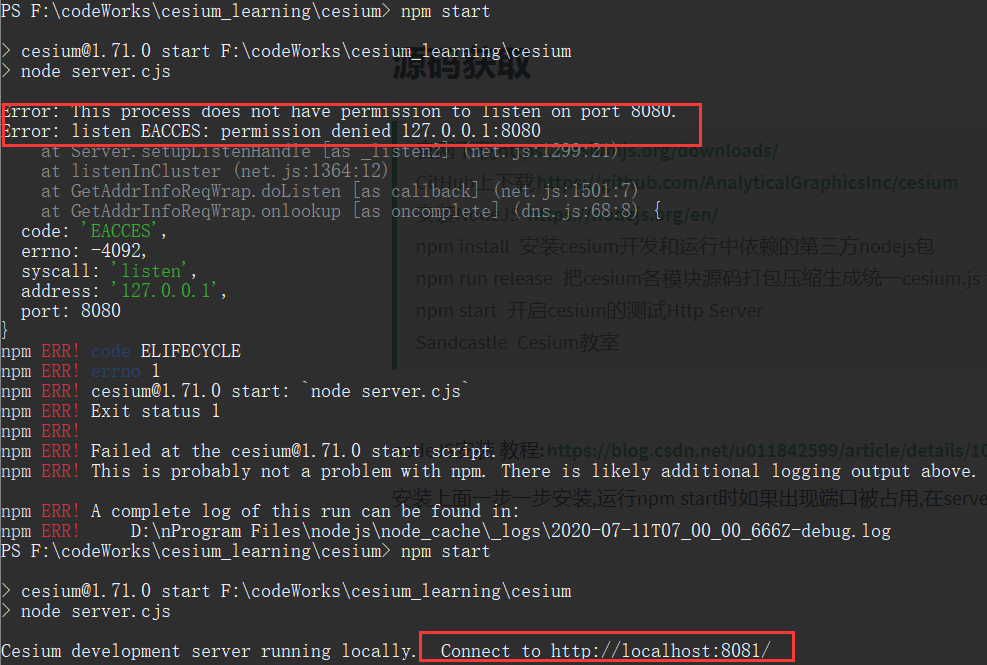
在浏览器中打开http://localhost:8081/ 会显示如下页面. 其中cesium所有的实例都放在Sandcastle里面
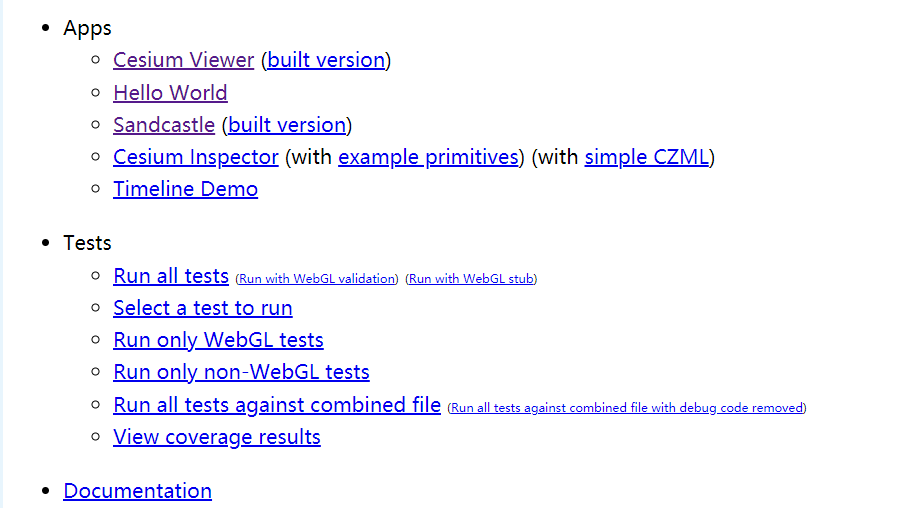
直接运行npm run release不会出现development, 这是一个比较底层的东西

搜索helloword实例.
viewer和widget区别
widget更加的纯粹, 主要是作为一个视图,
viewer在此基础上做了很多的封装,包括一些运行库
第一个cesium最小项目构建
新建一个文件夹theFirstExample,新建一个任意txt文件- 打开终端输入
npm install -g http-server下载http-server服务器 - 在终端中输入
http-server
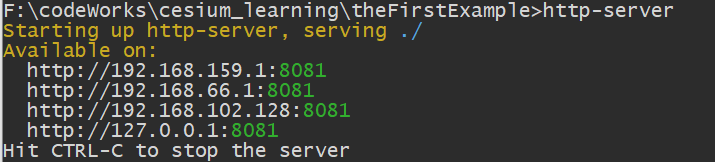
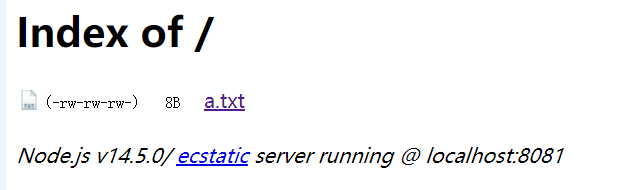
- 浏览器中打开
如果使用powerShell出现错误:ps1 cannot be loaded because the execution of scripts is disabled on this system
参考https://blog.csdn.net/dou3516/article/details/78197586
Set-ExecutionPolicy RemoteSigned
补充:如果出现以下错误,这是由于没有修改权限,使用管理员权限打开,再输入上述命令即可

- 拷贝
\cesium\Build目录下的Cesium与CesiumUnminified文件下到theFirstExample目录下Cesium压缩版CesiumUnminified未压缩版
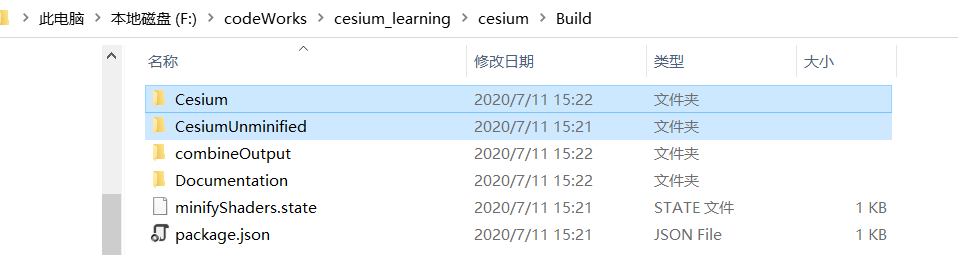
theFirstExample目录下新建index.html文件
<!DOCTYPE html>
<html>
    <head>
        <meta charset="utf-8">
        <meta http-equiv="X-UA-Compatible" content="IE-edge">
        <title>Hello Cesium!</title>
        <script src = "Cesium/Cesium.js"></script>
        <link rel="stylesheet" href="Cesium/Widgets/widgets.css">
        <style>
            html,
            body,
            #cesiumdiv{
                width: 100%;
                height: 100%;
                margin: 0px;
            }
        </style>
    </head>

    <body>
        <div id="cesiumdiv"></div>
        <script>
            var viewer = new Cesium.Viewer("cesiumdiv")
        </script>
    </body>
</html>
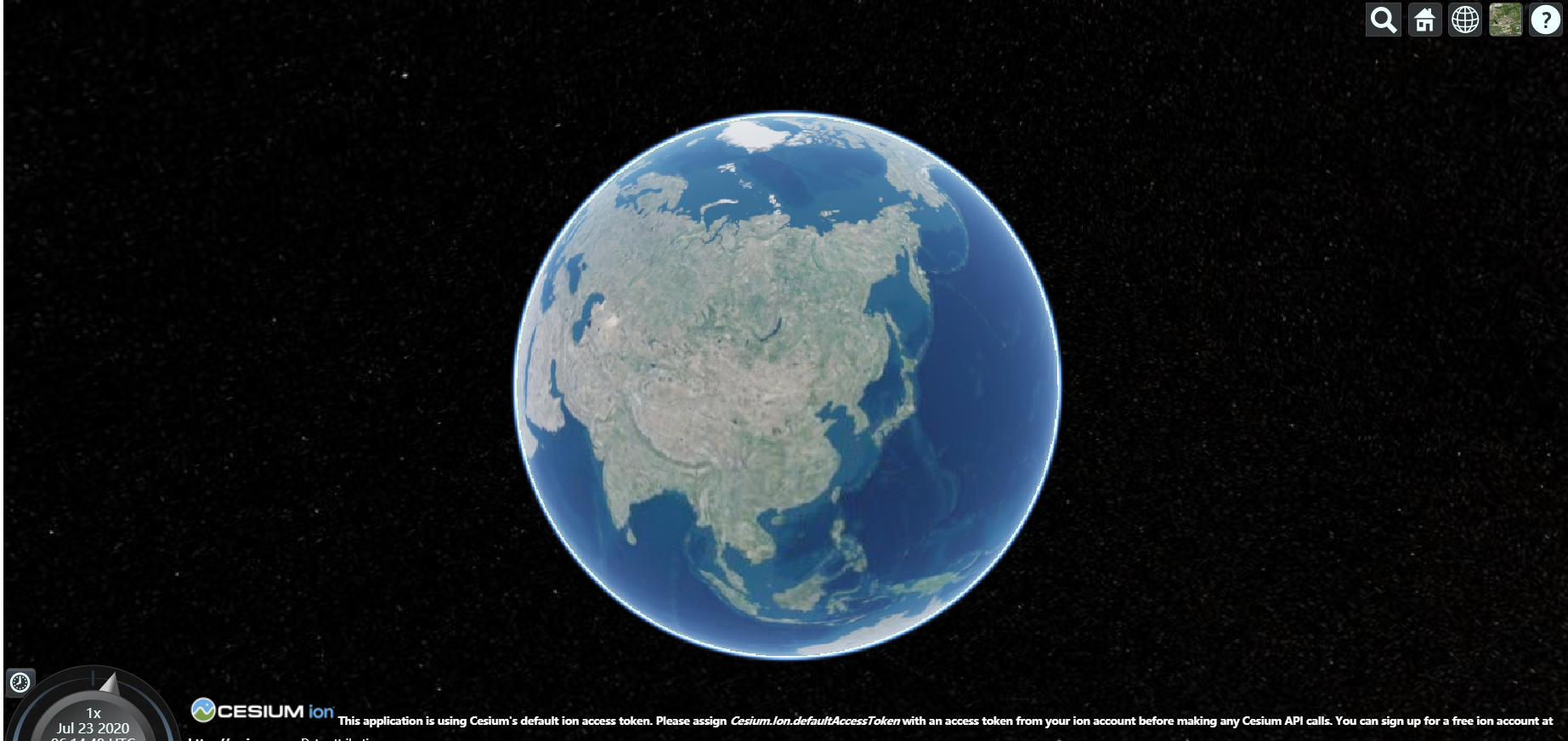





 扫一扫
扫一扫


 1172
1172

 被折叠的 条评论
为什么被折叠?
被折叠的 条评论
为什么被折叠?
 到【灌水乐园】发言





