



HarmonyOS 沉浸光感界面实战:扫码连接 WiFi 应用开发全流程解析
前言
在 HarmonyOS NEXT 应用开发中,一个优秀的界面设计往往能决定用户的第一印象。本文将手把手带你开发一个沉浸光感界面的 WiFi 扫码连接应用,融合 Scan Kit 扫码能力与 wifiManager 网络管理能力,同时全面采用状态管理 V2(@ComponentV2 + @ObservedV2)进行开发。
你将学到:
- 如何设计沉浸光感 UI(渐变背景 + 光晕脉冲 + 毛玻璃卡片 + 呼吸灯按钮)
- 如何使用状态管理 V2 的完整装饰器体系
- 如何将扫码与 WiFi 连接串联为完整的业务流程
- 如何处理全屏沉浸式布局中的状态栏/导航条避让
本文基于 HarmonyOS NEXT(API 23+),使用 ArkTS 状态管理 V2 开发。
效果
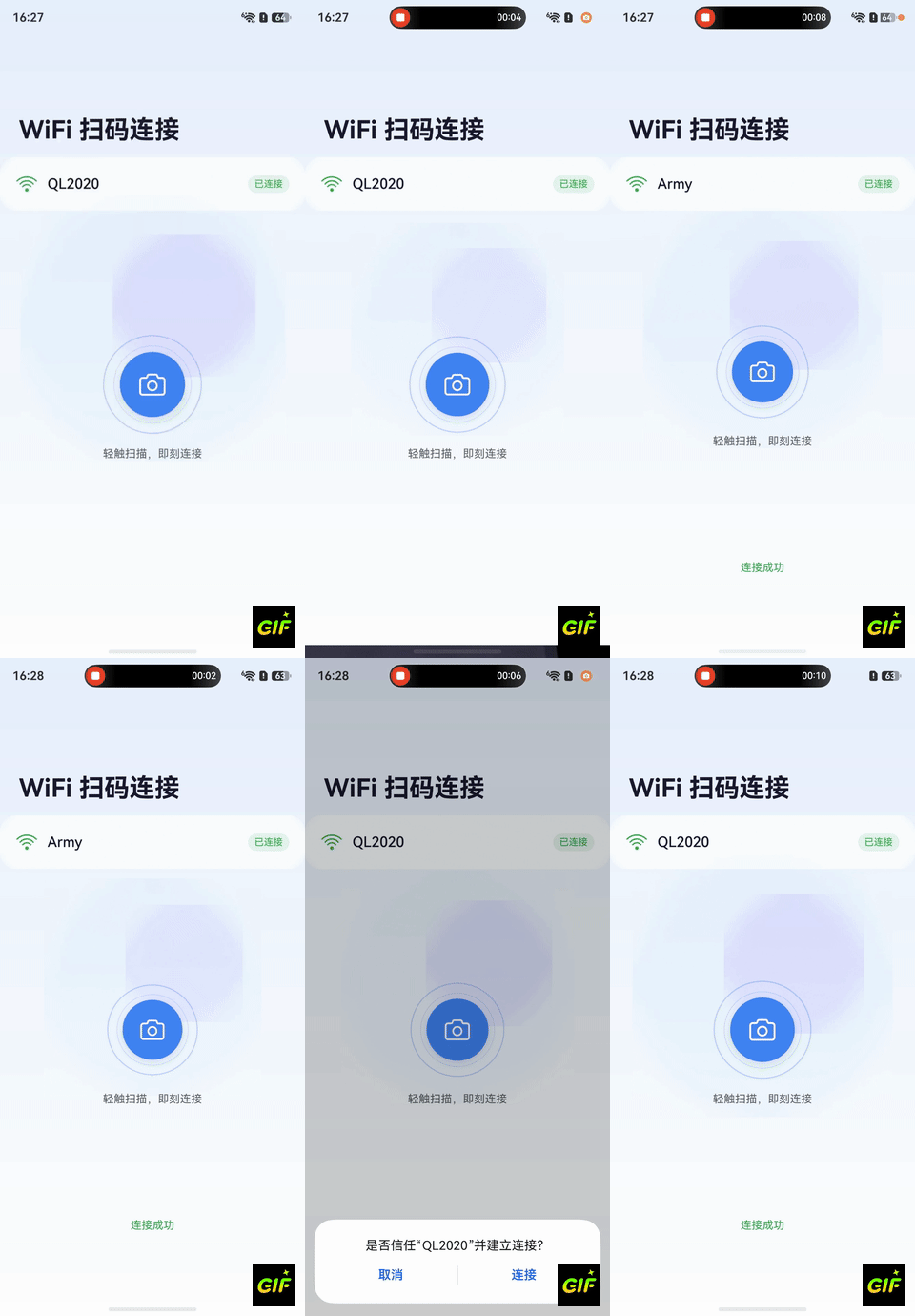
一、项目架构
1.1 技术栈
| 技术 | 说明 |
|---|---|
| 状态管理 V2 | @ComponentV2、@ObservedV2、@Trace、@Local、@Param |
| Scan Kit | scanBarcode 默认界面扫码 |
| wifiManager | WiFi 连接管理 |
| ArkUI | SymbolGlyph、LinearGradient、backdropBlur |
1.2 项目结构
entry/src/main/
├── ets/
│   ├── common/
│   │   └── Constants.ets          // 语义化常量定义
│   ├── models/
│   │   └── WifiInfo.ets           // @ObservedV2 数据模型
│   ├── utils/
│   │   ├── ScanUtil.ets           // 扫码工具类
│   │   └── WifiConnectUtil.ets    // WiFi 连接工具类
│   ├── entryability/
│   │   └── EntryAbility.ets       // 全屏沉浸配置
│   └── pages/
│       ├── Index.ets              // 沉浸光感主页面
│       └── WifiDetailPage.ets     // WiFi 连接详情页
├── resources/
│   ├── base/element/
│   │   ├── string.json            // 文案资源
│   │   ├── color.json             // 主题色
│   │   └── float.json             // 尺寸资源
│   └── dark/element/
│       └── color.json             // 深色模式适配
└── module.json5                   // 权限声明
1.3 模块划分设计思路
本项目采用职责分离的模块化设计:
- models — 数据定义层:存放 @ObservedV2 装饰的可观测数据类
- utils — 业务逻辑层:封装扫码和 WiFi 连接的具体 API 调用
- pages — UI 表现层:纯粹的界面渲染和交互响应
- common — 公共层:常量、工具函数等跨模块共享的定义
这种分层使得每一层都可以独立测试和替换,符合单一职责原则。
二、沉浸光感 UI 设计
2.1 设计理念
"沉浸光感"的核心设计理念包含三个要素:
- 沉浸 — 全屏布局,内容延伸到状态栏和导航条区域
- 光感 — 通过渐变、光晕、毛玻璃等效果模拟自然光感
- 呼吸 — 动画节奏舒缓柔和,如同呼吸般自然
2.2 渐变背景实现
背景采用 180 度线性渐变,从浅蓝色过渡到纯白色,营造通透的光感氛围:
Column()
  .width('100%')
  .height('100%')
  .linearGradient({
    angle: 180,
    colors: [[$r('app.color.light_bg_start'), 0], [$r('app.color.light_bg_end'), 1]]
  })
颜色定义:
light_bg_start:#E8F0FE(柔和浅蓝)light_bg_end:#FFFFFF(纯白)
2.3 光晕脉冲效果
在背景层叠加两个半透明的圆形光晕,通过定时器控制缩放和透明度变化,实现缓慢的脉冲呼吸效果:
Stack() {
  // 主光晕 — 蓝色
  Circle()
    .width(300)
    .height(300)
    .fill($r('app.color.glow_blue'))
    .opacity(this.glowOpacity)
    .scale({ x: this.glowScale, y: this.glowScale })
    .blur(80)

  // 辅光晕 — 紫色,偏移位置
  Circle()
    .width(180)
    .height(180)
    .fill($r('app.color.accent_purple'))
    .opacity(this.glowOpacity * 0.5)
    .scale({ x: this.glowScale * 0.9, y: this.glowScale * 0.9 })
    .blur(60)
    .offset({ x: 40, y: -30 })
}
动画驱动逻辑:
private startGlowAnimation(): void {
  let growing = true;
  setInterval(() => {
    if (growing) {
      this.glowScale = Math.min(this.glowScale + 0.01, 1.15);
      this.glowOpacity = Math.min(this.glowOpacity + 0.003, 0.25);
      if (this.glowScale >= 1.15) growing = false;
    } else {
      this.glowScale = Math.max(this.glowScale - 0.01, 0.85);
      this.glowOpacity = Math.max(this.glowOpacity - 0.003, 0.15);
      if (this.glowScale <= 0.85) growing = true;
    }
  }, 50);
}
通过 @Local 装饰的 glowScale 和 glowOpacity 变量,每次值变化都会触发对应组件的 UI 刷新,实现流畅的光晕脉冲效果。
2.4 毛玻璃卡片
使用 backdropBlur 属性实现毛玻璃效果,让卡片与背景形成层次感:
Column({ space: 12 }) {
  // 卡片内容
}
.padding(20)
.borderRadius(20)
.backgroundColor($r('app.color.glass_card_bg'))  // 半透明白色 #B3FFFFFF
.backdropBlur(20)                                  // 背景模糊半径
2.5 呼吸灯扫描按钮
扫描按钮由多层同心圆构成,外层光环随呼吸节奏缓慢缩放:
Stack() {
  // 外圈光环
  Circle()
    .width(120).height(120)
    .stroke($r('app.color.primary_blue'))
    .strokeWidth(1.5)
    .opacity(0.3)
    .scale({ x: this.breathScale, y: this.breathScale })

  // 中间光环
  Circle()
    .width(100).height(100)
    .stroke($r('app.color.primary_blue'))
    .strokeWidth(1)
    .opacity(0.2)
    .scale({ x: this.breathScale * 0.95, y: this.breathScale * 0.95 })

  // 核心按钮
  Column() {
    SymbolGlyph($r('sys.symbol.camera'))
      .fontSize(36)
      .fontColor([Color.White])
  }
  .width(80).height(80)
  .borderRadius(40)
  .backgroundColor($r('app.color.primary_blue'))
  .justifyContent(FlexAlign.Center)
  .shadow({ radius: 24, color: '#404285F4', offsetX: 0, offsetY: 8 })
}
2.6 状态栏与导航条沉浸式适配
通过 EntryAbility 设置全屏后,页面需要手动处理状态栏和导航条的避让区域:
EntryAbility.ets(关键代码):
// 设置窗口全屏
windowClass.setWindowLayoutFullScreen(true);

// 获取状态栏高度
let avoidArea = windowClass.getWindowAvoidArea(window.AvoidAreaType.TYPE_SYSTEM);
let topRectHeight = avoidArea.topRect.height;
AppStorage.setOrCreate('topRectHeight', topRectHeight);

// 获取导航条高度
avoidArea = windowClass.getWindowAvoidArea(window.AvoidAreaType.TYPE_NAVIGATION_INDICATOR);
let bottomRectHeight = avoidArea.bottomRect.height;
AppStorage.setOrCreate('bottomRectHeight', bottomRectHeight);
Index.ets(页面中使用):
@ComponentV2
struct Index {
  @Local topPadding: number = AppStorage.get<number>('topRectHeight') ?? 0;
  @Local bottomPadding: number = AppStorage.get<number>('bottomRectHeight') ?? 0;

  build() {
    Column() {
      // 标题区使用 topPadding 避让状态栏
      Row() { /* 标题 */ }
        .padding({ top: this.topPadding + 24 })

      // 内容区

      // 底部使用 bottomPadding 避让导航条
      Column().height(this.bottomPadding)
    }
  }
}
三、V2 状态管理实践
3.1 为什么选择状态管理 V2?
状态管理 V2 是 HarmonyOS NEXT 推荐的新一代状态管理方案,相比 V1 有以下优势:
| 对比项 | V1 (@Component) | V2 (@ComponentV2) |
|---|---|---|
| 组件装饰器 | @Component | @ComponentV2 |
| 类观测 | @Observed | @ObservedV2 + @Trace |
| 组件状态 | @State | @Local |
| 参数传递 | @Prop / @Link | @Param |
| 事件回传 | 回调函数 | @Event |
| 细粒度更新 | 对象级 | 属性级(@Trace) |
| 计算属性 | 手动 | @Computed |
3.2 @ObservedV2 + @Trace:数据模型设计
WifiInfo 类使用 @ObservedV2 装饰,每个需要驱动 UI 更新的属性使用 @Trace:
@ObservedV2
export class WifiInfo {
  @Trace ssid: string = '';
  @Trace password: string = '';
  @Trace securityType: number = 3;
  @Trace isConnected: boolean = false;
  @Trace signalStrength: number = 0;
  @Trace securityLabel: string = 'WPA2';
}
设计要点:
@ObservedV2让框架能追踪该类的实例@Trace让每个属性的变化都能精准触发关联的 UI 组件更新- 非 UI 相关的内部方法不需要
@Trace
3.3 @ComponentV2 + @Local:组件状态管理
主页面使用 @Local 管理所有组件内部状态:
@Entry
@ComponentV2
struct Index {
  @Local currentSsid: string = '';
  @Local isConnected: boolean = false;
  @Local scannedWifi: WifiInfo = new WifiInfo();
  @Local hasScanResult: boolean = false;
  @Local connectionStatus: string = '';
  @Local isConnecting: boolean = false;
  @Local glowScale: number = 0.85;
  @Local glowOpacity: number = 0.15;
  @Local breathScale: number = 1.0;
  // ...
}
每个 @Local 变量的变化都会自动触发 build() 方法中引用该变量的组件重新渲染。
3.4 V2 与 V1 关键差异
在 V1 中,你可能会这样写:
// V1 写法
@Component
struct MyPage {
  @State ssid: string = '';
  @StorageProp('topRectHeight') topHeight: number = 0;
}
在 V2 中,等价写法为:
// V2 写法
@ComponentV2
struct MyPage {
  @Local ssid: string = '';
  @Local topHeight: number = AppStorage.get<number>('topRectHeight') ?? 0;
}
关键区别:V2 中不再使用 @StorageProp,而是通过 @Local 初始化时从 AppStorage.get() 读取值。
四、扫码功能实现
4.1 扫码工具类封装
将 scanBarcode API 封装为独立的工具类,遵循单一职责原则:
export class ScanUtil {
  static async startScan(context: Context): Promise<scanBarcode.ScanResult> {
    let options: scanBarcode.ScanOptions = {
      scanTypes: [scanCore.ScanType.QR_CODE],    // 专注 QR 码
      enableMultiMode: true,                  // 支持多码
      enableAlbum: true                       // 支持相册
    };

    try {
      let result = await scanBarcode.startScanForResult(context, options);
      return result;
    } catch (error) {
      let bizError = error as BusinessError;
      throw new Error(`Scan failed: code=${bizError.code}, message=${bizError.message}`);
    }
  }
}
4.2 QR 码 WiFi 格式解析
WiFi 二维码的标准格式为:WIFI:T:WPA;S:网络名;P:密码;;
使用正则表达式进行解析(相比 split 方式更健壮):
static parseWifiFromQrCode(rawValue: string): WifiInfo | null {
  if (!rawValue || !rawValue.startsWith('WIFI:')) {
    return null;
  }

  let ssid = '';
  let password = '';
  let securityTypeStr = 'WPA2';

  // 正则提取各字段
  let ssidMatch = rawValue.match(/S:([^;]*)/);
  if (ssidMatch && ssidMatch.length > 1) ssid = ssidMatch[1];

  let pwdMatch = rawValue.match(/P:([^;]*)/);
  if (pwdMatch && pwdMatch.length > 1) password = pwdMatch[1];

  let typeMatch = rawValue.match(/T:([^;]*)/);
  if (typeMatch && typeMatch.length > 1) securityTypeStr = typeMatch[1];

  if (!ssid) return null;

  let securityType = WifiInfo.mapSecurityType(securityTypeStr);
  return new WifiInfo(ssid, password, securityType);
}
为什么用正则而不是 split?
参考代码使用 result.originalValue.split(';') 再 split(':') 的硬编码索引方式,当 QR 码格式稍有变化(如字段顺序不同、多出空字段)时容易出错。正则表达式通过字段名匹配,健壮性更强。
五、WiFi 连接功能实现
5.1 连接工具类封装
export class WifiConnectUtil {
  static async connectWifi(wifiInfo: WifiInfo): Promise<number> {
    let config: wifiManager.WifiDeviceConfig = {
      ssid: wifiInfo.ssid,
      preSharedKey: wifiInfo.password,
      securityType: wifiInfo.securityType
    };

    let networkId = await wifiManager.addCandidateConfig(config);
    await wifiManager.connectToCandidateConfig(networkId);
    return networkId;
  }
}
5.2 主页面中的连接流程
private async handleConnect(): Promise<void> {
  this.isConnecting = true;
  this.connectionStatus = '正在连接...';
  try {
    await WifiConnectUtil.connectWifi(this.scannedWifi);
    this.connectionStatus = '连接成功';
    this.isConnected = true;
    this.currentSsid = this.scannedWifi.ssid;
    this.hasScanResult = false;  // 隐藏扫码结果卡片
  } catch (error) {
    this.connectionStatus = '连接失败,请重试';
  } finally {
    this.isConnecting = false;
  }
}
流程说明:
- 设置
isConnecting = true触发 UI 显示加载动画 - 调用
WifiConnectUtil.connectWifi()执行连接 - 成功后更新
currentSsid和isConnected,状态卡片自动刷新 - 隐藏扫码结果卡片(
hasScanResult = false) - 无论成功失败,最终设置
isConnecting = false
六、完整业务流程
┌──────────────────────┐
│ 应用启动               │
│ EntryAbility 全屏设置   │
│ 避让区域存入 AppStorage  │
└──────────┬───────────┘
           ▼
┌──────────────────────┐
│ Index 主页面渲染        │
│ 渐变背景 + 光晕脉冲     │
│ 显示当前 WiFi 连接状态   │
└──────────┬───────────┘
           ▼
┌──────────────────────┐
│ 用户点击扫描按钮        │
│ 调用 ScanUtil.startScan│
│ 弹出系统扫码界面        │
└──────────┬───────────┘
           ▼
┌──────────────────────────┐
│ 扫码成功,返回 ScanResult   │
│ WifiConnectUtil 解析 QR 码  │
│ 提取 SSID、密码、安全类型    │
└──────────┬───────────────┘
           ▼
┌──────────────────────┐
│ 显示扫码结果卡片        │
│ 展示 WiFi 名称/安全类型 │
│ 显示"立即连接"按钮      │
└──────────┬───────────┘
           ▼
┌──────────────────────────┐
│ 用户点击"立即连接"         │
│ addCandidateConfig 添加配置│
│ connectToCandidateConfig   │
└──────────┬───────────────┘
           ▼
┌──────────────────────┐
│ 连接成功/失败反馈       │
│ 更新状态卡片            │
│ LoadingProgress 动画   │
└──────────────────────┘
七、关键代码走读
7.1 权限配置
{
  "requestPermissions": [
    {
      "name": "ohos.permission.SET_WIFI_INFO",
      "usedScene": { "abilities": ["EntryAbility"], "when": "inuse" }
    },
    {
      "name": "ohos.permission.GET_WIFI_INFO",
      "usedScene": { "abilities": ["EntryAbility"], "when": "inuse" }
    }
  ]
}
7.2 SymbolGlyph 系统图标
本项目使用 HarmonyOS 的 SymbolGlyph 组件渲染系统 SF Symbols 风格图标:
SymbolGlyph($r('sys.symbol.wifi'))
  .fontSize(28)
  .fontColor([$r('app.color.primary_blue')])

SymbolGlyph($r('sys.symbol.camera'))
  .fontSize(36)
  .fontColor([Color.White])

SymbolGlyph($r('sys.symbol.lock_shield'))
  .fontSize(20)
  .fontColor([$r('app.color.primary_blue')])
使用系统图标的优势:
- 无需引入额外的图片资源
- 自动适配深色模式
- 支持自定义颜色和大小
7.3 @Builder 复用 UI 片段
扫码结果卡片通过 @Builder 封装,保持 build() 方法的整洁:
@Builder
ScanResultCard() {
  Column({ space: 16 }) {
    // WiFi 名称行
    Row({ space: 12 }) {
      SymbolGlyph($r('sys.symbol.wifi'))
      Column({ space: 2 }) {
        Text('网络名称').fontSize(12).fontColor('#5F6368')
        Text(this.scannedWifi.ssid).fontSize(14)
      }
    }
    // 安全类型行
    // ...
    // 连接按钮
    Button('立即连接')
      .type(ButtonType.Capsule)
      .onClick(() => { this.handleConnect(); })
  }
  .padding(20)
  .borderRadius(20)
  .backgroundColor($r('app.color.glass_card_bg'))
  .backdropBlur(20)
}
7.4 深色模式适配
通过 resources/dark/element/color.json 实现深色模式下的自动适配:
{
  "color": [
    { "name": "light_bg_start", "value": "#1A1A2E" },
    { "name": "light_bg_end", "value": "#16213E" },
    { "name": "glass_card_bg", "value": "#40FFFFFF" },
    { "name": "text_primary", "value": "#E8EAED" },
    { "name": "text_secondary", "value": "#9AA0A6" }
  ]
}
使用 $r('app.color.xxx') 引用的颜色资源会根据系统深色/浅色模式自动切换。
八、踩坑记录与优化建议
踩坑 1:startScanForResult 的调用时机
问题:在 aboutToAppear 中直接调用 startScanForResult 报错。
原因:startScanForResult 需要在页面和组件的生命周期之后调用,即必须在用户交互事件(如 onClick)中触发。
解决:将扫码调用放在按钮的 onClick 事件中。
踩坑 2:V2 中 @StorageProp 不可用
问题:V2 组件中使用 @StorageProp('topRectHeight') 编译报错。
原因:@StorageProp 是 V1 的装饰器,V2 中已被移除。
解决:使用 @Local + AppStorage.get() 初始化:
@Local topPadding: number = AppStorage.get<number>('topRectHeight') ?? 0;
踩坑 3:扫码取消的区分处理
问题:用户点击返回取消扫码时,catch 中会捕获错误,误认为是扫码失败。
解决:通过错误码区分用户取消和真实错误:
catch (error) {
  let bizError = error as BusinessError;
  if (bizError.code === 1300006) {
    // 用户主动取消,静默处理
    this.connectionStatus = '';
  } else {
    this.connectionStatus = '扫码失败,请重试';
  }
}
踩坑 4:getHostContext() 返回值可能为 undefined
问题:直接传递 this.getUIContext().getHostContext() 给 startScanForResult 时,编译器报错“类型 Context | undefined 不能赋值给 Context”。
原因:getHostContext() 返回值为 Context | undefined,在组件未完全挂载时可能返回 undefined。
解决:调用前先判空:
let context = this.getUIContext().getHostContext();
if (!context) {
  this.connectionStatus = '上下文未就绪';
  return;
}
let result = await ScanUtil.startScan(context);
踩坑 5:ArkTS 中 throw 只能抛出 Error 实例
问题:使用 throw bizError(其中 bizError 是通过 as BusinessError 类型断言得到的)时编译报错。
原因:ArkTS 严格模式下,throw 语句不允许抛出任意类型,只接受 Error 或其子类的实例。
解决:使用 throw new Error(...) 替代:
// 错误写法
let bizError = error as BusinessError;
throw bizError;  // 编译报错

// 正确写法
let bizError = error as BusinessError;
throw new Error(`Scan failed: code=${bizError.code}, message=${bizError.message}`);
踩坑 6:ScanType 枚举值应为 QR_CODE 而非 QR
问题:使用 scanCore.ScanType.QR 编译报错“属性 QR 不存在”。
原因:Scan Kit 的 ScanType 枚举中,QR 码对应的值是 QR_CODE(数值 11),而非 QR。
解决:使用正确的枚举值:
// 错误写法
scanTypes: [scanCore.ScanType.QR]  // 编译报错

// 正确写法
scanTypes: [scanCore.ScanType.QR_CODE]  // 正确
优化建议
- 性能优化:光晕动画使用
setInterval控制,间隔 50ms(约 20fps),既能保证动画流畅度又不会过度消耗 CPU - 体验优化:连接过程中禁用按钮,防止用户重复点击
- 容错优化:QR 码解析失败时给出明确的错误提示,而非静默忽略
九、总结
本文完整实现了一个沉浸光感界面的 WiFi 扫码连接应用,涵盖了从架构设计到 UI 实现、从状态管理到业务流程的全链路开发。
核心技术要点回顾:
| 模块 | 技术实现 |
|---|---|
| 沉浸全屏 | setWindowLayoutFullScreen + AvoidArea 避让 |
| 渐变背景 | linearGradient 180 度线性渐变 |
| 光晕脉冲 | Circle + blur + setInterval 动画 |
| 毛玻璃 | backdropBlur(20) + 半透明背景 |
| 呼吸灯 | 多层 Circle + scale 缓动动画 |
| 状态管理 V2 | @ComponentV2 + @ObservedV2 + @Trace + @Local |
| 扫码 | scanBarcode.startScanForResult |
| WiFi 连接 | addCandidateConfig + connectToCandidateConfig |
| 深色模式 | $r('app.color.xxx') 资源引用 + dark 目录覆盖 |
通过这个项目,你可以将沉浸光感 UI 设计模式和状态管理 V2 的最佳实践应用到更多的 HarmonyOS 应用开发场景中。
参考文档
- scanBarcode API 文档
- wifiManager API 文档
- 状态管理 V2 开发指南
- 扫描二维码连接 WiFi 架构指南
@Local|
| 扫码 |scanBarcode.startScanForResult|
| WiFi 连接 |addCandidateConfig+connectToCandidateConfig|
| 深色模式 |$r('app.color.xxx')资源引用 + dark 目录覆盖 |
通过这个项目,你可以将沉浸光感 UI 设计模式和状态管理 V2 的最佳实践应用到更多的 HarmonyOS 应用开发场景中。
参考文档





 扫一扫
扫一扫


 2万+
2万+

 被折叠的 条评论
为什么被折叠?
被折叠的 条评论
为什么被折叠?
 到【灌水乐园】发言





