



网上学习资料一大堆,但如果学到的知识不成体系,遇到问题时只是浅尝辄止,不再深入研究,那么很难做到真正的技术提升。
一个人可以走的很快,但一群人才能走的更远!不论你是正从事IT行业的老鸟或是对IT行业感兴趣的新人,都欢迎加入我们的的圈子(技术交流、学习资源、职场吐槽、大厂内推、面试辅导),让我们一起学习成长!
drwxr-xr-x 2 root root 4096 Sep 25 17:27 my_test
-rw-r–r-- 1 root root 12 Sep 25 14:46 test.txt
-rw-r–r-- 1 root root 0 Sep 24 22:56 toot4
[root@VM-8-3-centos test]# cat test.txt
hello world
查看文件内容:(nano可以直接打开文件,可以查看,记得安装:sudo yum install -y nano)
[root@VM-8-3-centos test]# cnt=0; while [
c
n
t
−
l
e
10000
]
;
d
o
e
c
h
o
"
h
e
l
l
o
w
o
r
l
d
[
cnt -le 10000 ] ; do echo "hello world [
cnt−le10000];doecho"helloworld[cnt]"; let cnt++; done > test.txt
[root@VM-8-3-centos test]# ll
total 196
drwxr-xr-x 3 root root 4096 Sep 25 17:11 DIR
-rw-r–r-- 1 root root 0 Sep 25 14:49 file3.txt
drwxr-xr-x 2 root root 4096 Sep 25 17:27 my_test
-rw-r–r-- 1 root root 188910 Sep 25 18:10 test.txt
-rw-r–r-- 1 root root 0 Sep 24 22:56 toot4
[root@VM-8-3-centos test]# nano test.txt
//查看文件的内容
[root@VM-8-3-centos test]# cat test.txt
//带行号 cat -n test.txt
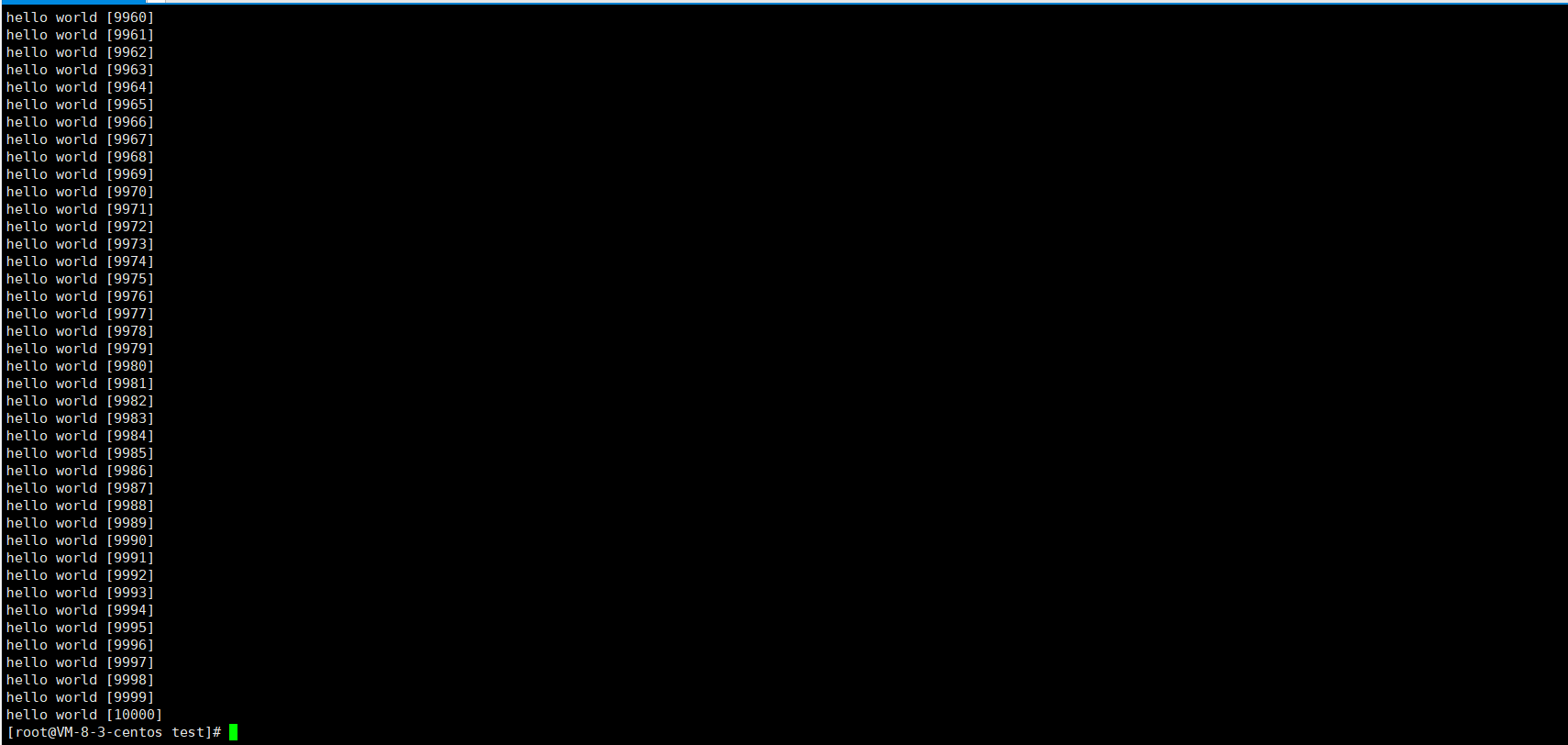
这里cat要与tac做个对比:
>
> **命令本省是反过来的,内容本身也是反过来的。tac是逆序打印出来的**。
>
>
>
\*\*cat打印的是所有内容,并不适合查看大文本,适合小文本或者代码片段。\*\*适合查看大文本的是more指令。👇
### more指令
语法: more [选项][文件]
功能: more命令,功能类似 cat.
常用选项:
-n 对输出的所有行编号
q 退出more
[root@VM-8-3-centos test]# more test.txt
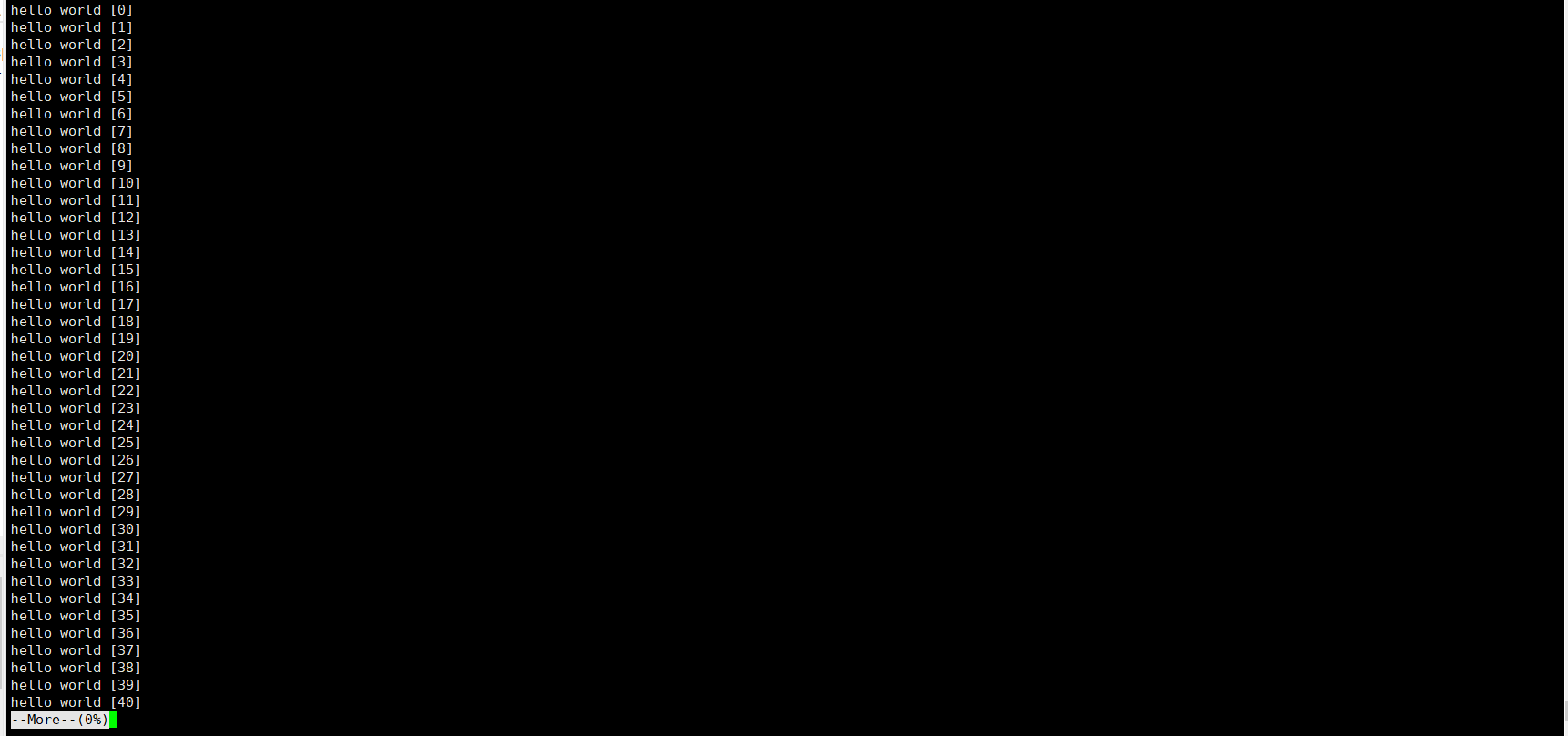
不支持上下翻,只能回车
more - 多少,就会输出多少行:
[root@VM-8-3-centos test]# more -10 test.txt
hello world [0]
hello world [1]
hello world [2]
hello world [3]
hello world [4]
hello world [5]
hello world [6]
hello world [7]
hello world [8]
hello world [9]
//这里加上/可以进行搜索
与more功能类似就是less👇


### less指令


* less 工具也是对文件或其它输出进行分页显示的工具,应该说是linux正统查看文件内容的工具,功能极其强大。
* less 的用法比起 more 更加的有弹性。在 more 的时候,我们并没有办法向前面翻, 只能往后面看
* 但若使用了 less 时,就可以使用 [pageup][pagedown] 等按键的功能来往前往后翻看文件,更容易用来查看一个文件的内容!
* **除此之外,在 less 里头可以拥有更多的搜索功能,不止可以向下搜,也可以向上搜**


语法: less [参数] 文件
[root@VM-8-3-centos test]# less test.txt
功能:**less与more类似,但使用less可以随意浏览文件,而more仅能向前移动,却不能向后移动,而且less在查看之前不会加载整个文件。**


选项:


-i 忽略搜索时的大小写


-N 显示每行的行号


/字符串:向下搜索“字符串”的功能


?字符串:向上搜索“字符串”的功能


n:重复前一个搜索(与 / 或 ? 有关)


N:反向重复前一个搜索(与 / 或 ? 有关)


q:quit


### head指令


**head 与 tail 就像它的名字一样的浅显易懂,它是用来显示开头或结尾某个数量的文字区块, head 用来显示档案的开头至标准输出中,而 tail 当然就是看档案的结尾。**


语法: head [参数]… [文件]…


功能:head 用来显示档案的开头至标准输出中,默认head命令打印其相应文件的开头10行。


选项:-n<行数> 显示的行数
[root@VM-8-3-centos test]# head test.txt
hello world [0]
hello world [1]
hello world [2]
hello world [3]
hello world [4]
hello world [5]
hello world [6]
hello world [7]
hello world [8]
hello world [9]
[root@VM-8-3-centos test]#
[root@VM-8-3-centos test]# head -6 test.txt
hello world [0]
hello world [1]
hello world [2]
hello world [3]
hello world [4]
hello world [5]
[root@VM-8-3-centos test]#
### tail指令


tail 命令从指定点开始将文件写到标准输出.使用tail命令的-f选项可以方便的查阅正在改变的日志文件,tail -f filename会把filename里最尾部的内容显示在屏幕上,并且不但刷新,使你看到最新的文件内容.


语法: tail[必要参数][选择参数][文件]
 功能: 用于显示指定文件末尾内容,不指定文件时,作为输入信息进行处理。常用查看日志文件。
 选项:


* -f 循环读取
* -n<行数> 显示行数
[root@VM-8-3-centos test]# tail test.txt
hello world [9991]
hello world [9992]
hello world [9993]
hello world [9994]
hello world [9995]
hello world [9996]
hello world [9997]
hello world [9998]
hello world [9999]
hello world [10000]
[root@VM-8-3-centos test]# tail -6 test.txt
hello world [9995]
hello world [9996]
hello world [9997]
hello world [9998]
hello world [9999]
hello world [10000]
[root@VM-8-3-centos test]#
到了这里,我们已经能够定位头和尾,以及查看全部。那中间的部分该怎么办呢❓


我们可以创建一个临时文件,这里举个例子:
[root@VM-8-3-centos test]# head -1010 test.txt > tmp.txt
[root@VM-8-3-centos test]# tail -10 tmp.txt
hello world [1000]
hello world [1001]
hello world [1002]
hello world [1003]
hello world [1004]
hello world [1005]
hello world [1006]
hello world [1007]
hello world [1008]
hello world [1009]
[root@VM-8-3-centos test]#
不创建临时文件呢。
[root@VM-8-3-centos test]# head -1010 test.txt | tail -10
hello world [1000]
hello world [1001]
hello world [1002]
hello world [1003]
hello world [1004]
hello world [1005]
hello world [1006]
hello world [1007]
hello world [1008]
hello world [1009]
这里的|称为管道。管道都是传送"资源"的,都有着一个入口和一个出口。head默认是往显示器打印的,tail默认是从文件中读取数据的。而在这个地方,相当于head打印到了管道里,而tail往管道中读取。


通过管道可以将多个信息流组合在一起:
[root@VM-8-3-centos test]# head -1010 test.txt | tail -10 | tac | head -3
hello world [1009]
hello world [1008]
hello world [1007]
[root@VM-8-3-centos test]#
### 时间相关的指令


date显示


date 指定格式显示时间: date +%Y:%m:%d


date 用法: date [OPTION]… [+FORMAT]
[root@VM-8-3-centos test]# date
Sun Sep 25 23:09:40 CST 2022
[root@VM-8-3-centos test]# date +%Y/%m/%d
2022/09/25
在显示方面,使用者可以设定欲显示的格式,格式设定为一个加号后接数个标记,其中常用的标记列表如下
 %H : 小时(00…23)
 %M : 分钟(00…59)
 %S : 秒(00…61)
 %X : 相当于 %H:%M:%S
 %d : 日 (01…31)
 %m : 月份 (01…12)
 %Y : 完整年份 (0000…9999)
 %F : 相当于 %Y-%m-%d
[root@VM-8-3-centos test]# date +%Y/%m/%d-%H:%M:%S
2022/09/25-23:18:12
[root@VM-8-3-centos test]# date +%Y/%m/%d-%X
2022/09/25-11:18:22 PM
时间戳
 时间->时间戳: date +%s
[root@VM-8-3-centos test]# date +%s
1664119445
时间戳->时间: date -d@
 Unix时间戳(英文为Unix epoch, Unix time, POSIX time 或 Unix timestamp)是从1970年1月1日(UTC/GMT的午夜)开始所经过的秒数,不考虑闰秒
[root@VM-8-3-centos test]# date +%s
1664119445
[root@VM-8-3-centos test]# date +%Y/%m/%d-%H:%M:%S -d@1664119445
2022/09/25-23:24:05
### Cal指令


cal命令可以用来显示公历(阳历)日历。公历是现在国际通用的历法,又称格列历,通称阳历。 “阳历”又名“太阳历”,系以地球绕行太阳一周为一年,为西方各国所通用,故又名“西历”。


这里只是顺便说一下而已。


命令格式: cal [参数][月份][年份]


功能: 用于查看日历等时间信息,如只有一个参数,则表示年份(1-9999),如有两个参数,则表示月份和年份
[root@VM-8-3-centos test]# cal
September 2022
Su Mo Tu We Th Fr Sa
1 2 3
4 5 6 7 8 9 10
11 12 13 14 15 16 17
18 19 20 21 22 23 24
25 26 27 28 29 30
[root@VM-8-3-centos test]# cal 2022
2022
January February March
Su Mo Tu We Th Fr Sa Su Mo Tu We Th Fr Sa Su Mo Tu We Th Fr Sa
1 1 2 3 4 5 1 2 3 4 5
2 3 4 5 6 7 8 6 7 8 9 10 11 12 6 7 8 9 10 11 12
9 10 11 12 13 14 15 13 14 15 16 17 18 19 13 14 15 16 17 18 19
16 17 18 19 20 21 22 20 21 22 23 24 25 26 20 21 22 23 24 25 26
23 24 25 26 27 28 29 27 28 27 28 29 30 31
30 31
April May June
Su Mo Tu We Th Fr Sa Su Mo Tu We Th Fr Sa Su Mo Tu We Th Fr Sa
1 2 1 2 3 4 5 6 7 1 2 3 4
为了做好运维面试路上的助攻手,特整理了上百道 【运维技术栈面试题集锦】 ,让你面试不慌心不跳,高薪offer怀里抱!
这次整理的面试题,小到shell、MySQL,大到K8s等云原生技术栈,不仅适合运维新人入行面试需要,还适用于想提升进阶跳槽加薪的运维朋友。
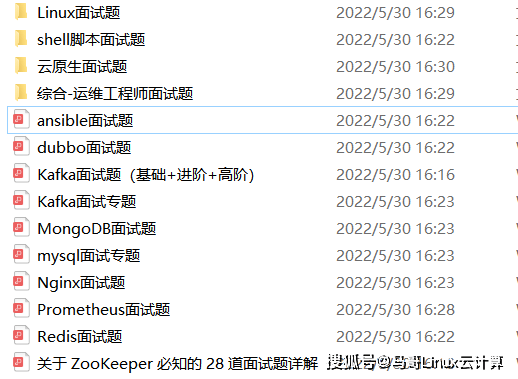
本份面试集锦涵盖了
- 174 道运维工程师面试题
- 128道k8s面试题
- 108道shell脚本面试题
- 200道Linux面试题
- 51道docker面试题
- 35道Jenkis面试题
- 78道MongoDB面试题
- 17道ansible面试题
- 60道dubbo面试题
- 53道kafka面试
- 18道mysql面试题
- 40道nginx面试题
- 77道redis面试题
- 28道zookeeper
总计 1000+ 道面试题, 内容 又全含金量又高
- 174道运维工程师面试题
1、什么是运维?
2、在工作中,运维人员经常需要跟运营人员打交道,请问运营人员是做什么工作的?
3、现在给你三百台服务器,你怎么对他们进行管理?
4、简述raid0 raid1raid5二种工作模式的工作原理及特点
5、LVS、Nginx、HAproxy有什么区别?工作中你怎么选择?
6、Squid、Varinsh和Nginx有什么区别,工作中你怎么选择?
7、Tomcat和Resin有什么区别,工作中你怎么选择?
8、什么是中间件?什么是jdk?
9、讲述一下Tomcat8005、8009、8080三个端口的含义?
10、什么叫CDN?
11、什么叫网站灰度发布?
12、简述DNS进行域名解析的过程?
13、RabbitMQ是什么东西?
14、讲一下Keepalived的工作原理?
15、讲述一下LVS三种模式的工作过程?
16、mysql的innodb如何定位锁问题,mysql如何减少主从复制延迟?
17、如何重置mysql root密码?
网上学习资料一大堆,但如果学到的知识不成体系,遇到问题时只是浅尝辄止,不再深入研究,那么很难做到真正的技术提升。
一个人可以走的很快,但一群人才能走的更远!不论你是正从事IT行业的老鸟或是对IT行业感兴趣的新人,都欢迎加入我们的的圈子(技术交流、学习资源、职场吐槽、大厂内推、面试辅导),让我们一起学习成长!
10、什么叫CDN?
11、什么叫网站灰度发布?
12、简述DNS进行域名解析的过程?
13、RabbitMQ是什么东西?
14、讲一下Keepalived的工作原理?
15、讲述一下LVS三种模式的工作过程?
16、mysql的innodb如何定位锁问题,mysql如何减少主从复制延迟?
17、如何重置mysql root密码?
网上学习资料一大堆,但如果学到的知识不成体系,遇到问题时只是浅尝辄止,不再深入研究,那么很难做到真正的技术提升。
一个人可以走的很快,但一群人才能走的更远!不论你是正从事IT行业的老鸟或是对IT行业感兴趣的新人,都欢迎加入我们的的圈子(技术交流、学习资源、职场吐槽、大厂内推、面试辅导),让我们一起学习成长!





 扫一扫
扫一扫


 257
257

 被折叠的 条评论
为什么被折叠?
被折叠的 条评论
为什么被折叠?
 到【灌水乐园】发言





