



 博主分享了初次使用Emacs的体验,包括安装、基本配置和快捷键学习。文章提到了用Emacs替代Typora的原因,并计划深入学习org-mode。配置中涉及关闭工具栏、开启全局补全、显示行号等,还介绍了如何自定义快捷键打开配置文件。
Emacs第一天安装和简单配置
背景
学习Emacs是我一直以来想挑战的,一个经久不衰的东西,学习这套经典的东西就好像vi编辑器一样,肯定有很强的生命力。
- 可以把大部分工作流打通,无需频繁折腾切换。
- 免费开源(最近Typora收费了,心累),打算切换到org-mode
学习资料
-
emacs china的21天Emacs学习的 http://book.emacs-china.org/
-
子龙山人的视频学习https://www.bilibili.com/video/BV1sp4y1Y73S?p=1
下载安装都忽略,没啥坑
遇到的一些注意点
按照教程学习即可,下面只是记录我个人的一下笔记。如eLisp只是粗浅学习,留待日后补充
常用的快捷键
和vi编辑器一样,emacs的快捷键和windows下的我们熟悉的不一样,我们需要熟悉emacs的风格。由于快捷键太多,我只学习简单的
-
基础键位
- ctrl 他们简写为C
- Alt 他们简写为M(Meta)
-
光标移动
-
C-f为前移一个字符,f代表 forward。C-b为后移一个字符,b代表 backward。C-p为上移至前一行,p代表 previous。C-n为上移至下一行,n代表 next。C-a为移至行首,a代表 ahead。C-e为移至行尾,e代表 end
-
-
复制粘贴
M-w为复制
C-y为粘贴 -
保存文件
C-x C-s -
搜索
c-s -
中止命令的输入:
c-g,比如我输入了c-x后面不想再继续,就用这个命令
修改Emacs默认配置
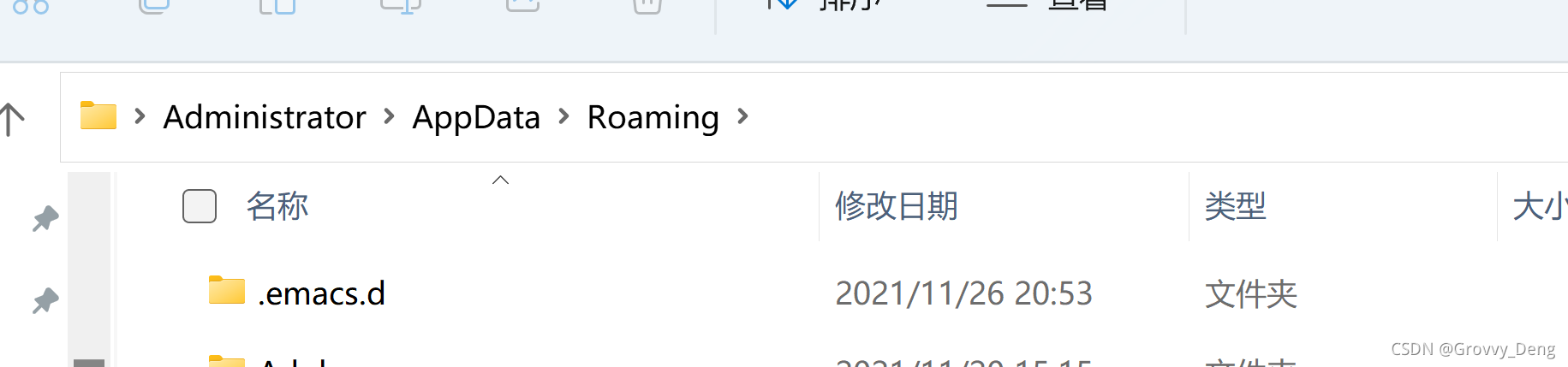
Emacs 的配置文件默认保存在 ~/.emacs.d/init.el 文件中,我们的配置就写在里面。不过教程里面都是使用mac或者linux
- window下的.emacs.d目录在哪里?
使用如下命令
c+x+d ~/
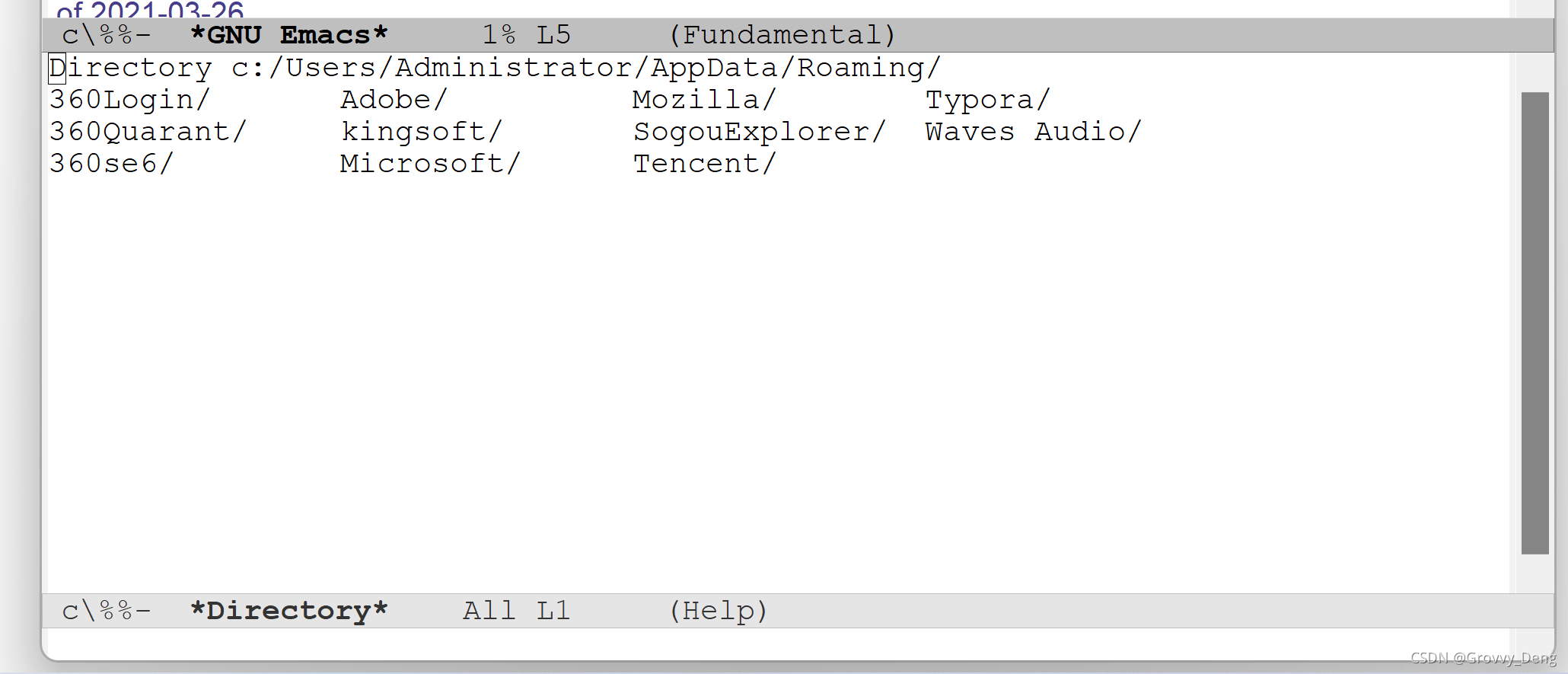
默认路径:在C:\Users\Administrator\AppData\Roaming\.emacs.d
下面是我的.init.el配置,第一天的。其中关闭工具栏,显示行号等都让emacs不至于这么丑,通过配置,也有一种折腾的快感 :-p
;; This buffer is for text that is not saved, and for Lisp evaluation.
;; To create a file, visit it with C-x C-f and enter text in its buffer.
(package-initialize)

;; 关闭工具栏,tool-bar-mode 即为一个 Minor Mode
(tool-bar-mode -1)

;开启全局补全
(global-company-mode 1)

;; 关闭文件滑动控件
(scroll-bar-mode -1)

;; 显示行号
(global-linum-mode 1)

;; 更改光标的样式(不能生效,解决方案见第二集)
(setq cursor-type 'bar)

;; 关闭启动帮助画面
(setq inhibit-splash-screen 1)

;; 更改显示字体大小 16pt
;; http://stackoverflow.com/questions/294664/how-to-set-the-font-size-in-emacs
(set-face-attribute 'default nil :height 110)

;; 快速打开配置文件
(defun open-init-file()
  (interactive)
  (find-file "~/.emacs.d/init.el"))

;; 这一行代码,将函数 open-init-file 绑定到 <f2> 键上
(global-set-key (kbd "<f2>") 'open-init-file)
(custom-set-variables

 ;; custom-set-variables was added by Custom.
 ;; If you edit it by hand, you could mess it up, so be careful.
 ;; Your init file should contain only one such instance.
 ;; If there is more than one, they won't work right.
 '(package-selected-packages '(company)))
(custom-set-faces
 ;; custom-set-faces was added by Custom.
 ;; If you edit it by hand, you could mess it up, so be careful.
 ;; Your init file should contain only one such instance.
 ;; If there is more than one, they won't work right.
 )
安装company,自动补全
这个按照教程一步一步操作即可,没坑,不过我的补全触发需要等待2s,先用着
org-mode
我会重点学习这个,作为typora的替代。但第一天还不会用,而且我喜欢带图片,暂时不知道怎么把截图直接拷贝到org-mode。如果用typora就不会这问题





 扫一扫
扫一扫


 616
616

 被折叠的 条评论
为什么被折叠?
被折叠的 条评论
为什么被折叠?
 到【灌水乐园】发言





