



目录
--------------------------------------------------------------------
摘录:
Go to Line... Main: Ctrl+G This command opens a dialog and
--------------------------------------------------------------------
参考:
kate 跨平台KDE文本编辑器使用方法 汇集
https://blog.csdn.net/ken2232/article/details/130167973
Kate 20.12 导出:官方默认的全部快捷键
---------
Qt creator 最常用的快捷键 和书签功能 (**
https://blog.csdn.net/ken2232/article/details/130010588
官方默认:Qt Creator 所有的快捷键。及常用快捷键 (***)
https://blog.csdn.net/ken2232/article/details/131608520
Qt Creator常用快捷键及技巧提升编码效率
https://blog.csdn.net/luoyayun361/article/details/105431913
=======================================
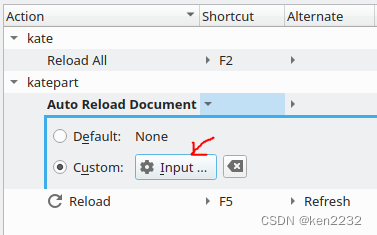
Reload All:官方默认
Auto Reload Document:用户自定义
自定义的方法:首先将红色箭头处的按钮,选择到 "Input"状态,此时按压用户希望的快捷键,或组合按压产生复合快捷键。
注1:如果有快捷键冲突,会自动提示错误。
注2:直接勾选 view -->Auto Reload Document,有时会自动失效:未明原因?
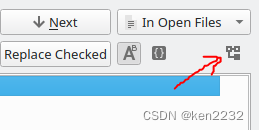
将搜索的结果:折叠/展开显示,切换开关
=======================================
Shortcuts for Kate
externaltools
Action Name Shortcuts Description
Insert UUID
About Kate
About KDE
Close Main: Ctrl+W
Alternate: Ctrl+Esc
Close the current document.
Close All Close all open documents.
Close Current View Main: Ctrl+Shift+R Close the currently active split view
Close Inactive Views Close every view but the active one
Close Orphaned Close all documents in the file list
that could not be reopened,
because they are not accessible
anymore.
Close Other Close other open documents.
Color Scheme
Compare Shows a hint how to compare
documents.
Configure Kate... Main: Ctrl+Shift+, Configure various aspects of this
application and the editing
component.
Configure Keyboard
Shortcuts...
Configure the application's
keyboard shortcut assignments.
Configure Language...
Configure Toolbars... Configure which items should
appear in the toolbar(s).
Copy File Path Copies the file path of the current
file to clipboard.
Delete Deletes the file belonging to the
current document.
1
Action Name Shortcuts Description
Donate
Full Screen Mode Main: Ctrl+Shift+F
Hide Inactive Views Hide every view but the active one
Kate Handbook Main: F1
Manage Sessions...
Move Splitter Down Move the splitter of the current view
down
Move Splitter Left Move the splitter of the current view
to the left
Move Splitter Right Move the splitter of the current view
to the right
Move Splitter Up Move the splitter of the current view
up
New Main: Ctrl+N Create a new document
New Session
New Window Create a new Kate view (a new
window with the same document
list).
Next Split View Main: F8 Make the next split view the active
one.
Next Tab Main: Alt+Right
Alternate: Forward
Focus the next tab.
Open Containing Folder Copies the file path of the current
file to clipboard.
Open Recent This lists files which you have
opened recently, and allows you to
easily open them again.
Open... Main: Ctrl+O Open an existing document for
editing
Plugins Handbook This shows help files for various
available plugins.
Previous Split View Main: Shift+F8 Make the previous split view the
active one.
Previous Tab Main: Alt+Left
Alternate: Back
Focus the previous tab.
Properties Deletes the file belonging to the
2
Action Name Shortcuts Description
current document.
Quick Open Main: Ctrl+Alt+O Open a form to quick open
documents.
Quit Main: Ctrl+Q Close this window
Reload All Main: F2 Reload all open documents.
Rename... Renames the file belonging to the
current document.
Report Bug...
Save All Main: Ctrl+Shift+S Save all open, modified documents
to disk.
Save Session
Save Session As...
Show Current Project
Show Documents
Show Filesystem Browser
Show Menubar Main: Ctrl+M Show Menubar
Shows the menubar again after it
has been hidden
Show Path in Titlebar Show the complete document path
in the window caption
Show Projects
Show Search and Replace
Show Sidebars Main: Ctrl+Alt+Shift+F
Show Statusbar Use this command to show or hide
the view's statusbar
Show Tabs Use this command to show or hide
the tabs for the views
Show Terminal
Show Toolbar
Split Horizontal Main: Ctrl+Shift+T Split the currently active view
horizontally into two views.
Split Vertical Main: Ctrl+Shift+L Split the currently active view
vertically into two views.
Toggle Orientation Toggles the orientation of the
current split view
3
Action Name Shortcuts Description
What's This? Main: Shift+F1
Next Document Main: Alt+Down
Previous Document Main: Alt+Up
Save Current Document
Save Current Document As
Show Active
Focus Terminal Main: Ctrl+Shift+F4
Pipe to Terminal
Run Current Document
Show Terminal Main: F4
Synchronize Terminal with
Current Document
Open .h/.cpp/.c Main: F12
Add Byte Order Mark (BOM) Enable/disable adding of byte order
marks for UTF-8/UTF-16 encoded
files while saving
Align Use this to align the current line or
block of text to its proper indent
level.
Apply Word Wrap Use this to wrap the current line, or
to reformat the selected lines as
paragraph, to fit the 'Wrap words at'
setting in the configuration dialog.
This is a static word wrap, meaning
the document is changed.
Auto Reload Document Automatic reload the document
when it was changed on disk
Automatic Spell Checking Main: Ctrl+Shift+O Enable/disable automatic spell
checking
Backspace Main: Backspace
Alternate: Shift+Backspace
Block Selection Mode Main: Ctrl+Shift+B This command allows switching
between the normal (line based)
selection mode and the block
selection mode.
4
Action Name Shortcuts Description
Capitalize Main: Ctrl+Alt+U Capitalize the selection, or the word
under the cursor if no text is
selected.
Change Dictionary... Change the dictionary that is used
for spell checking.
Clean Indentation Use this to clean the indentation of
a selected block of text (only tabs/
only spaces).
You can configure whether tabs
should be honored and used or
replaced with spaces, in the
configuration dialog.
Clear All Bookmarks Remove all bookmarks of the
current document.
Clear Dictionary Ranges Remove all the separate dictionary
ranges that were set for spell
checking.
Comment Main: Ctrl+D This command comments out the
current line or a selected block of
text.
The characters for single/multiple
line comments are defined within
the language's highlighting.
Copy Main: Ctrl+C
Alternate: Ctrl+Ins
Use this command to copy the
currently selected text to the system
clipboard.
Copy as HTML Use this command to copy the
currently selected text as HTML to
the system clipboard.
Cut Main: Ctrl+X
Alternate: Shift+Del
Cut the selected text and move it to
the clipboard
Decrement number by 0.1
Decrement number by 1
Decrement number by 10
Delete Line Main: Ctrl+K
Delete Next Character Main: Del
Delete tag under cursor
Delete Word Left
5
Action Name Shortcuts Description
Main: Ctrl+Backspace
Delete Word Right Main: Ctrl+Del
Deselect Main: Ctrl+Shift+A If you have selected something
within the current document, this
will no longer be selected.
Duplicate Selected Lines
Down
Main: Ctrl+Alt+Down
Duplicate Selected Lines Up Main: Ctrl+Alt+Up
Dynamic Word Wrap Main: F10 If this option is checked, the text
lines will be wrapped at the view
border on the screen.
This is only a view option, meaning
the document will not changed.
Dynamic Word Wrap
Indicators
Choose when the Dynamic Word
Wrap Indicators should be displayed
Encoding
End of Line Choose which line endings should
be used, when you save the
document
Enlarge Font Main: Ctrl++
Alternate: Ctrl+=
This increases the display font size.
Evaluate a simple math
expression
Expand abbreviation
Expand Abbreviation Main: Ctrl+Alt+#
Export as HTML... This command allows you to export
the current document with all
highlighting information into a
HTML document.
Find Next Main: F3 Look up the next occurrence of the
search phrase.
Find Previous Main: Shift+F3 Look up the previous occurrence of
the search phrase.
Find Selected Main: Ctrl+H Finds next occurrence of selected
text.
Find Selected Backwards Main: Ctrl+Shift+H Finds previous occurrence of
selected text.
6
Action Name Shortcuts Description
Find... Main: Ctrl+F Look up the first occurrence of a
piece of text or regular expression.
Fold Toplevel Nodes Main: Ctrl+Shift+-
Go to Line... Main: Ctrl+G This command opens a dialog and
lets you choose a line that you want
the cursor to move to.
Go to next edit point
Go to next editing line Main: Ctrl+Shift+E
Go to previous edit point
Go to previous editing line Main: Ctrl+E
Increment number by 0.1
Increment number by 1
Increment number by 10
Indent Main: Ctrl+I Use this to indent a selected block
of text.
You can configure whether tabs
should be honored and used or
replaced with spaces, in the
configuration dialog.
Insert a non-indented Newline Main: Ctrl+Return
Alternate: Ctrl+Enter
Insert a new line without
indentation, regardless of
indentation settings.
Insert Smart Newline Main: Shift+Return
Alternate: Shift+Enter
Insert newline including leading
characters of the current line which
are not letters or numbers.
Insert Tab
Invoke Code Completion Main: Ctrl+Space Manually invoke command
completion, usually by using a
shortcut bound to this action.
Join Lines Main: Ctrl+J
Lowercase Main: Ctrl+Shift+U Convert the selection to lowercase,
or the character to the right of the
cursor if no text is selected.
Move Cursor Left Main: Left
Move Cursor Right Main: Right
Move cursor to matching tag
7
Action Name Shortcuts Description
Move cursor to next matching
indent
Main: Alt+Shift+Down
Move cursor to previous
matching indent
Main: Alt+Shift+Up
Move Lines Down Main: Ctrl+Shift+Down
Move Lines Up Main: Ctrl+Shift+Up
Move to Beginning of
Document
Main: Ctrl+Home
Move to Beginning of Line Main: Home
Move to Bottom of View Main: Alt+End
Move to End of Document Main: Ctrl+End
Move to End of Line Main: End
Move to Matching Bracket Main: Ctrl+6
Move to Next Line Main: Down
Move to Next Modified Line Move downwards to the next
modified line.
Move to Previous Line Main: Up
Move to Previous Modified
Line
Move upwards to the previous
modified line.
Move to Top of View Main: Alt+Home
Move Word Left Main: Ctrl+Left
Move Word Right Main: Ctrl+Right
Next Bookmark Main: Alt+PgDown Go to the next bookmark.
Overwrite Mode Main: Ins Choose whether you want the text
you type to be inserted or to
overwrite existing text.
Paste Main: Ctrl+V
Alternate: Shift+Ins
Paste previously copied or cut
clipboard contents
Paste Selection Main: Ctrl+Shift+Ins Paste previously mouse selection
contents
Previous Bookmark Main: Alt+PgUp Go to the previous bookmark.
8
Action Name Shortcuts Description
Print Preview Show print preview of current
document
Print... Main: Ctrl+P Print the current document.
Read Only Mode Lock/unlock the document for
writing
Redo Main: Ctrl+Shift+Z Revert the most recent undo
operation
Reload Main: F5
Alternate: Refresh
Reload the current document from
disk.
Replace... Main: Ctrl+R Look up a piece of text or regular
expression and replace the result
with some given text.
Reset Font Size Main: Ctrl+0 This resets the display font size.
Reuse Word Above Main: Ctrl+8
Reuse Word Below Main: Ctrl+9
Save Main: Ctrl+S Save the current document
Save As with Encoding...
Save As... Main: Ctrl+Alt+S Save the current document to disk,
with a name of your choice.
Save Copy As... Save a copy of the current
document to disk.
Scroll Line Down Main: Ctrl+Down
Scroll Line Up Main: Ctrl+Up
Scroll Page Down Main: PgDown
Scroll Page Up Main: PgUp
Select All Main: Ctrl+A Select the entire text of the current
document.
Select Character Left Main: Shift+Left
Select Character Right Main: Shift+Right
Select HTML/XML tag contents
inwards
Select HTML/XML tag contents
9
Action Name Shortcuts Description
outwards
Select next edit point
Select Page Down Main: Shift+PgDown
Select Page Up Main: Shift+PgUp
Select previous edit point
Select to Beginning of
Document
Main: Ctrl+Shift+Home
Select to Beginning of Line Main: Shift+Home
Select to Bottom of View Main: Alt+Shift+End
Select to End of Document Main: Ctrl+Shift+End
Select to End of Line Main: Shift+End
Select to Matching Bracket Main: Ctrl+Shift+6
Select to Next Line Main: Shift+Down
Select to Previous Line Main: Shift+Up
Select to Top of View Main: Alt+Shift+Home
Select Word Left Main: Ctrl+Shift+Left
Select Word Right Main: Ctrl+Shift+Right
Set Bookmark Main: Ctrl+B If a line has no bookmark then add
one, otherwise remove it.
Shell Completion
Show Folding Markers Main: F9 You can choose if the codefolding
marks should be shown, if
codefolding is possible.
Show Icon Border Show/hide the icon border.
The icon border shows bookmark
symbols, for instance.
Show Line Numbers Main: F11 Show/hide the line numbers on the
left hand side of the view.
Show Non-Printable Spaces Show/hide bounding box around
non-printable spaces
Show Scrollbar Marks Show/hide the marks on the vertical
10
Action Name Shortcuts Description
scrollbar.
The marks show bookmarks, for
instance.
Show Scrollbar Mini-Map Show/hide the mini-map on the
vertical scrollbar.
The mini-map shows an overview of
the whole document.
Show Static Word Wrap
Marker
Show/hide the Word Wrap Marker, a
vertical line drawn at the word wrap
column as defined in the editing
properties
Shrink Font Main: Ctrl+- This decreases the display font size.
Sort Selected Text
Spelling (from cursor)... Check the document's spelling from
the cursor and forward
Spelling...
Split or join a tag
Static Word Wrap If this option is checked, the text
lines will be wrapped at the column
defined in the editing properties.
Swap with clipboard contents Swap the selected text with the
clipboard contents
Switch to Command Line Main: F7 Show/hide the command line on the
bottom of the view.
Switch to next Input Mode Main: Ctrl+Alt+V Switch to the next input mode.
Toggle comment
Toggle Comment Main: Ctrl+/
Toggle Contained Nodes
Toggle Current Node
Transpose Characters Main: Ctrl+T
Uncomment Main: Ctrl+Shift+D This command removes comments
from the current line or a selected
block of text.
The characters for single/multiple
line comments are defined within
the language's highlighting.
11
Action Name Shortcuts Description
Undo Main: Ctrl+Z Revert the most recent editing
actions
Unfold Toplevel Nodes Main: Ctrl+Shift++
Unindent Main: Ctrl+Shift+I Use this to unindent a selected
block of text.
Uppercase Main: Ctrl+U Convert the selection to uppercase,
or the character to the right of the
cursor if no text is selected.
URI-decode Selected Text
URI-encode Selected Text
Wrap with tag
Back Main: Ctrl+Alt+Left
Forward Main: Ctrl+Alt+Right
Go To...
Lookup Main: Alt+1
Go to Next Match Main: F6
Go to Previous Match Main: Shift+F6
Search in Files Main: Ctrl+Alt+F
Search in Files (in new tab)
Last Used Views Main: Ctrl+Tab Opens a list to walk through the list
of last used views.
Last Used Views (Reverse) Main: Ctrl+Shift+Tab Opens a list to walk through the list
of last used views in reverse.
Filter Through Command... Main: Ctrl+\
kate
Action Name Shortcuts Description
About Kate
About KDE
Close Main: Ctrl+W
Alternate: Ctrl+Esc
Close the current document.
Close All Close all open documents.
12
Action Name Shortcuts Description
Close Current View Main: Ctrl+Shift+R Close the currently active split view
Close Inactive Views Close every view but the active one
Close Orphaned Close all documents in the file list
that could not be reopened,
because they are not accessible
anymore.
Close Other Close other open documents.
Color Scheme
Compare Shows a hint how to compare
documents.
Configure Kate... Main: Ctrl+Shift+, Configure various aspects of this
application and the editing
component.
Configure Keyboard
Shortcuts...
Configure the application's
keyboard shortcut assignments.
Configure Language...
Configure Toolbars... Configure which items should
appear in the toolbar(s).
Copy File Path Copies the file path of the current
file to clipboard.
Delete Deletes the file belonging to the
current document.
Donate
Full Screen Mode Main: Ctrl+Shift+F
Hide Inactive Views Hide every view but the active one
Kate Handbook Main: F1
Manage Sessions...
Move Splitter Down Move the splitter of the current view
down
Move Splitter Left Move the splitter of the current view
to the left
Move Splitter Right Move the splitter of the current view
to the right
Move Splitter Up Move the splitter of the current view
up
New Main: Ctrl+N Create a new document
13
Action Name Shortcuts Description
New Session
New Window Create a new Kate view (a new
window with the same document
list).
Next Split View Main: F8 Make the next split view the active
one.
Next Tab Main: Alt+Right
Alternate: Forward
Focus the next tab.
Open Containing Folder Copies the file path of the current
file to clipboard.
Open Recent This lists files which you have
opened recently, and allows you to
easily open them again.
Open... Main: Ctrl+O Open an existing document for
editing
Plugins Handbook This shows help files for various
available plugins.
Previous Split View Main: Shift+F8 Make the previous split view the
active one.
Previous Tab Main: Alt+Left
Alternate: Back
Focus the previous tab.
Properties Deletes the file belonging to the
current document.
Quick Open Main: Ctrl+Alt+O Open a form to quick open
documents.
Quit Main: Ctrl+Q Close this window
Reload All Main: F2 Reload all open documents.
Rename... Renames the file belonging to the
current document.
Report Bug...
Save All Main: Ctrl+Shift+S Save all open, modified documents
to disk.
Save Session
Save Session As...
Show Current Project
Show Documents
14
Action Name Shortcuts Description
Show Filesystem Browser
Show Menubar Main: Ctrl+M Show Menubar
Shows the menubar again after it
has been hidden
Show Path in Titlebar Show the complete document path
in the window caption
Show Projects
Show Search and Replace
Show Sidebars Main: Ctrl+Alt+Shift+F
Show Statusbar Use this command to show or hide
the view's statusbar
Show Tabs Use this command to show or hide
the tabs for the views
Show Terminal
Show Toolbar
Split Horizontal Main: Ctrl+Shift+T Split the currently active view
horizontally into two views.
Split Vertical Main: Ctrl+Shift+L Split the currently active view
vertically into two views.
Toggle Orientation Toggles the orientation of the
current split view
What's This? Main: Shift+F1
Next Document Main: Alt+Down
Previous Document Main: Alt+Up
Save Current Document
Save Current Document As
Show Active
Focus Terminal Main: Ctrl+Shift+F4
Pipe to Terminal
Run Current Document
Show Terminal Main: F4
Synchronize Terminal with
Current Document
15
Action Name Shortcuts Description
Open .h/.cpp/.c Main: F12
Add Byte Order Mark (BOM) Enable/disable adding of byte order
marks for UTF-8/UTF-16 encoded
files while saving
Align Use this to align the current line or
block of text to its proper indent
level.
Apply Word Wrap Use this to wrap the current line, or
to reformat the selected lines as
paragraph, to fit the 'Wrap words at'
setting in the configuration dialog.
This is a static word wrap, meaning
the document is changed.
Auto Reload Document Automatic reload the document
when it was changed on disk
Automatic Spell Checking Main: Ctrl+Shift+O Enable/disable automatic spell
checking
Backspace Main: Backspace
Alternate: Shift+Backspace
Block Selection Mode Main: Ctrl+Shift+B This command allows switching
between the normal (line based)
selection mode and the block
selection mode.
Capitalize Main: Ctrl+Alt+U Capitalize the selection, or the word
under the cursor if no text is
selected.
Change Dictionary... Change the dictionary that is used
for spell checking.
Clean Indentation Use this to clean the indentation of
a selected block of text (only tabs/
only spaces).
You can configure whether tabs
should be honored and used or
replaced with spaces, in the
configuration dialog.
Clear All Bookmarks Remove all bookmarks of the
current document.
Clear Dictionary Ranges Remove all the separate dictionary
ranges that were set for spell
checking.
16
Action Name Shortcuts Description
Comment Main: Ctrl+D This command comments out the
current line or a selected block of
text.
The characters for single/multiple
line comments are defined within
the language's highlighting.
Copy Main: Ctrl+C
Alternate: Ctrl+Ins
Use this command to copy the
currently selected text to the system
clipboard.
Copy as HTML Use this command to copy the
currently selected text as HTML to
the system clipboard.
Cut Main: Ctrl+X
Alternate: Shift+Del
Cut the selected text and move it to
the clipboard
Decrement number by 0.1
Decrement number by 1
Decrement number by 10
Delete Line Main: Ctrl+K
Delete Next Character Main: Del
Delete tag under cursor
Delete Word Left Main: Ctrl+Backspace
Delete Word Right Main: Ctrl+Del
Deselect Main: Ctrl+Shift+A If you have selected something
within the current document, this
will no longer be selected.
Duplicate Selected Lines
Down
Main: Ctrl+Alt+Down
Duplicate Selected Lines Up Main: Ctrl+Alt+Up
Dynamic Word Wrap Main: F10 If this option is checked, the text
lines will be wrapped at the view
border on the screen.
This is only a view option, meaning
the document will not changed.
Dynamic Word Wrap
Indicators
Choose when the Dynamic Word
Wrap Indicators should be displayed
17
Action Name Shortcuts Description
Encoding
End of Line Choose which line endings should
be used, when you save the
document
Enlarge Font Main: Ctrl++
Alternate: Ctrl+=
This increases the display font size.
Evaluate a simple math
expression
Expand abbreviation
Expand Abbreviation Main: Ctrl+Alt+#
Export as HTML... This command allows you to export
the current document with all
highlighting information into a
HTML document.
Find Next Main: F3 Look up the next occurrence of the
search phrase.
Find Previous Main: Shift+F3 Look up the previous occurrence of
the search phrase.
Find Selected Main: Ctrl+H Finds next occurrence of selected
text.
Find Selected Backwards Main: Ctrl+Shift+H Finds previous occurrence of
selected text.
Find... Main: Ctrl+F Look up the first occurrence of a
piece of text or regular expression.
Fold Toplevel Nodes Main: Ctrl+Shift+-
Go to Line... Main: Ctrl+G This command opens a dialog and
lets you choose a line that you want
the cursor to move to.
Go to next edit point
Go to next editing line Main: Ctrl+Shift+E
Go to previous edit point
Go to previous editing line Main: Ctrl+E
Increment number by 0.1
Increment number by 1
Increment number by 10
Indent Use this to indent a selected block
18
Action Name Shortcuts Description
Main: Ctrl+I of text.
You can configure whether tabs
should be honored and used or
replaced with spaces, in the
configuration dialog.
Insert a non-indented Newline Main: Ctrl+Return
Alternate: Ctrl+Enter
Insert a new line without
indentation, regardless of
indentation settings.
Insert Smart Newline Main: Shift+Return
Alternate: Shift+Enter
Insert newline including leading
characters of the current line which
are not letters or numbers.
Insert Tab
Invoke Code Completion Main: Ctrl+Space Manually invoke command
completion, usually by using a
shortcut bound to this action.
Join Lines Main: Ctrl+J
Lowercase Main: Ctrl+Shift+U Convert the selection to lowercase,
or the character to the right of the
cursor if no text is selected.
Move Cursor Left Main: Left
Move Cursor Right Main: Right
Move cursor to matching tag
Move cursor to next matching
indent
Main: Alt+Shift+Down
Move cursor to previous
matching indent
Main: Alt+Shift+Up
Move Lines Down Main: Ctrl+Shift+Down
Move Lines Up Main: Ctrl+Shift+Up
Move to Beginning of
Document
Main: Ctrl+Home
Move to Beginning of Line Main: Home
Move to Bottom of View Main: Alt+End
Move to End of Document Main: Ctrl+End
Move to End of Line Main: End
19
Action Name Shortcuts Description
Move to Matching Bracket Main: Ctrl+6
Move to Next Line Main: Down
Move to Next Modified Line Move downwards to the next
modified line.
Move to Previous Line Main: Up
Move to Previous Modified
Line
Move upwards to the previous
modified line.
Move to Top of View Main: Alt+Home
Move Word Left Main: Ctrl+Left
Move Word Right Main: Ctrl+Right
Next Bookmark Main: Alt+PgDown Go to the next bookmark.
Overwrite Mode Main: Ins Choose whether you want the text
you type to be inserted or to
overwrite existing text.
Paste Main: Ctrl+V
Alternate: Shift+Ins
Paste previously copied or cut
clipboard contents
Paste Selection Main: Ctrl+Shift+Ins Paste previously mouse selection
contents
Previous Bookmark Main: Alt+PgUp Go to the previous bookmark.
Print Preview Show print preview of current
document
Print... Main: Ctrl+P Print the current document.
Read Only Mode Lock/unlock the document for
writing
Redo Main: Ctrl+Shift+Z Revert the most recent undo
operation
Reload Main: F5
Alternate: Refresh
Reload the current document from
disk.
Replace... Main: Ctrl+R Look up a piece of text or regular
expression and replace the result
with some given text.
Reset Font Size Main: Ctrl+0 This resets the display font size.
Reuse Word Above
20
Action Name Shortcuts Description
Main: Ctrl+8
Reuse Word Below Main: Ctrl+9
Save Main: Ctrl+S Save the current document
Save As with Encoding...
Save As... Main: Ctrl+Alt+S Save the current document to disk,
with a name of your choice.
Save Copy As... Save a copy of the current
document to disk.
Scroll Line Down Main: Ctrl+Down
Scroll Line Up Main: Ctrl+Up
Scroll Page Down Main: PgDown
Scroll Page Up Main: PgUp
Select All Main: Ctrl+A Select the entire text of the current
document.
Select Character Left Main: Shift+Left
Select Character Right Main: Shift+Right
Select HTML/XML tag contents
inwards
Select HTML/XML tag contents
outwards
Select next edit point
Select Page Down Main: Shift+PgDown
Select Page Up Main: Shift+PgUp
Select previous edit point
Select to Beginning of
Document
Main: Ctrl+Shift+Home
Select to Beginning of Line Main: Shift+Home
Select to Bottom of View Main: Alt+Shift+End
Select to End of Document Main: Ctrl+Shift+End
Select to End of Line Main: Shift+End
21
Action Name Shortcuts Description
Select to Matching Bracket Main: Ctrl+Shift+6
Select to Next Line Main: Shift+Down
Select to Previous Line Main: Shift+Up
Select to Top of View Main: Alt+Shift+Home
Select Word Left Main: Ctrl+Shift+Left
Select Word Right Main: Ctrl+Shift+Right
Set Bookmark Main: Ctrl+B If a line has no bookmark then add
one, otherwise remove it.
Shell Completion
Show Folding Markers Main: F9 You can choose if the codefolding
marks should be shown, if
codefolding is possible.
Show Icon Border Show/hide the icon border.
The icon border shows bookmark
symbols, for instance.
Show Line Numbers Main: F11 Show/hide the line numbers on the
left hand side of the view.
Show Non-Printable Spaces Show/hide bounding box around
non-printable spaces
Show Scrollbar Marks Show/hide the marks on the vertical
scrollbar.
The marks show bookmarks, for
instance.
Show Scrollbar Mini-Map Show/hide the mini-map on the
vertical scrollbar.
The mini-map shows an overview of
the whole document.
Show Static Word Wrap
Marker
Show/hide the Word Wrap Marker, a
vertical line drawn at the word wrap
column as defined in the editing
properties
Shrink Font Main: Ctrl+- This decreases the display font size.
Sort Selected Text
Spelling (from cursor)... Check the document's spelling from
22
Action Name Shortcuts Description
the cursor and forward
Spelling...
Split or join a tag
Static Word Wrap If this option is checked, the text
lines will be wrapped at the column
defined in the editing properties.
Swap with clipboard contents Swap the selected text with the
clipboard contents
Switch to Command Line Main: F7 Show/hide the command line on the
bottom of the view.
Switch to next Input Mode Main: Ctrl+Alt+V Switch to the next input mode.
Toggle comment
Toggle Comment Main: Ctrl+/
Toggle Contained Nodes
Toggle Current Node
Transpose Characters Main: Ctrl+T
Uncomment Main: Ctrl+Shift+D This command removes comments
from the current line or a selected
block of text.
The characters for single/multiple
line comments are defined within
the language's highlighting.
Undo Main: Ctrl+Z Revert the most recent editing
actions
Unfold Toplevel Nodes Main: Ctrl+Shift++
Unindent Main: Ctrl+Shift+I Use this to unindent a selected
block of text.
Uppercase Main: Ctrl+U Convert the selection to uppercase,
or the character to the right of the
cursor if no text is selected.
URI-decode Selected Text
URI-encode Selected Text
Wrap with tag
Back Main: Ctrl+Alt+Left
Forward Main: Ctrl+Alt+Right
23
Action Name Shortcuts Description
Go To...
Lookup Main: Alt+1
Go to Next Match Main: F6
Go to Previous Match Main: Shift+F6
Search in Files Main: Ctrl+Alt+F
Search in Files (in new tab)
Last Used Views Main: Ctrl+Tab Opens a list to walk through the list
of last used views.
Last Used Views (Reverse) Main: Ctrl+Shift+Tab Opens a list to walk through the list
of last used views in reverse.
Filter Through Command... Main: Ctrl+\
katefiletree
Action Name Shortcuts Description
Next Document Main: Alt+Down
Previous Document Main: Alt+Up
Save Current Document
Save Current Document As
Show Active
Focus Terminal Main: Ctrl+Shift+F4
Pipe to Terminal
Run Current Document
Show Terminal Main: F4
Synchronize Terminal with
Current Document
Open .h/.cpp/.c Main: F12
Add Byte Order Mark (BOM) Enable/disable adding of byte order
marks for UTF-8/UTF-16 encoded
files while saving
Align Use this to align the current line or
block of text to its proper indent
level.
24
Action Name Shortcuts Description
Apply Word Wrap Use this to wrap the current line, or
to reformat the selected lines as
paragraph, to fit the 'Wrap words at'
setting in the configuration dialog.
This is a static word wrap, meaning
the document is changed.
Auto Reload Document Automatic reload the document
when it was changed on disk
Automatic Spell Checking Main: Ctrl+Shift+O Enable/disable automatic spell
checking
Backspace Main: Backspace
Alternate: Shift+Backspace
Block Selection Mode Main: Ctrl+Shift+B This command allows switching
between the normal (line based)
selection mode and the block
selection mode.
Capitalize Main: Ctrl+Alt+U Capitalize the selection, or the word
under the cursor if no text is
selected.
Change Dictionary... Change the dictionary that is used
for spell checking.
Clean Indentation Use this to clean the indentation of
a selected block of text (only tabs/
only spaces).
You can configure whether tabs
should be honored and used or
replaced with spaces, in the
configuration dialog.
Clear All Bookmarks Remove all bookmarks of the
current document.
Clear Dictionary Ranges Remove all the separate dictionary
ranges that were set for spell
checking.
Comment Main: Ctrl+D This command comments out the
current line or a selected block of
text.
The characters for single/multiple
line comments are defined within
the language's highlighting.
Copy Use this command to copy the
25
Action Name Shortcuts Description
Main: Ctrl+C
Alternate: Ctrl+Ins
currently selected text to the system
clipboard.
Copy as HTML Use this command to copy the
currently selected text as HTML to
the system clipboard.
Cut Main: Ctrl+X
Alternate: Shift+Del
Cut the selected text and move it to
the clipboard
Decrement number by 0.1
Decrement number by 1
Decrement number by 10
Delete Line Main: Ctrl+K
Delete Next Character Main: Del
Delete tag under cursor
Delete Word Left Main: Ctrl+Backspace
Delete Word Right Main: Ctrl+Del
Deselect Main: Ctrl+Shift+A If you have selected something
within the current document, this
will no longer be selected.
Duplicate Selected Lines
Down
Main: Ctrl+Alt+Down
Duplicate Selected Lines Up Main: Ctrl+Alt+Up
Dynamic Word Wrap Main: F10 If this option is checked, the text
lines will be wrapped at the view
border on the screen.
This is only a view option, meaning
the document will not changed.
Dynamic Word Wrap
Indicators
Choose when the Dynamic Word
Wrap Indicators should be displayed
Encoding
End of Line Choose which line endings should
be used, when you save the
document
Enlarge Font Main: Ctrl++
Alternate: Ctrl+=
This increases the display font size.
26
Action Name Shortcuts Description
Evaluate a simple math
expression
Expand abbreviation
Expand Abbreviation Main: Ctrl+Alt+#
Export as HTML... This command allows you to export
the current document with all
highlighting information into a
HTML document.
Find Next Main: F3 Look up the next occurrence of the
search phrase.
Find Previous Main: Shift+F3 Look up the previous occurrence of
the search phrase.
Find Selected Main: Ctrl+H Finds next occurrence of selected
text.
Find Selected Backwards Main: Ctrl+Shift+H Finds previous occurrence of
selected text.
Find... Main: Ctrl+F Look up the first occurrence of a
piece of text or regular expression.
Fold Toplevel Nodes Main: Ctrl+Shift+-
Go to Line... Main: Ctrl+G This command opens a dialog and
lets you choose a line that you want
the cursor to move to.
Go to next edit point
Go to next editing line Main: Ctrl+Shift+E
Go to previous edit point
Go to previous editing line Main: Ctrl+E
Increment number by 0.1
Increment number by 1
Increment number by 10
Indent Main: Ctrl+I Use this to indent a selected block
of text.
You can configure whether tabs
should be honored and used or
replaced with spaces, in the
configuration dialog.
Insert a non-indented Newline Main: Ctrl+Return Insert a new line without
indentation, regardless of
27
Action Name Shortcuts Description
Alternate: Ctrl+Enter indentation settings.
Insert Smart Newline Main: Shift+Return
Alternate: Shift+Enter
Insert newline including leading
characters of the current line which
are not letters or numbers.
Insert Tab
Invoke Code Completion Main: Ctrl+Space Manually invoke command
completion, usually by using a
shortcut bound to this action.
Join Lines Main: Ctrl+J
Lowercase Main: Ctrl+Shift+U Convert the selection to lowercase,
or the character to the right of the
cursor if no text is selected.
Move Cursor Left Main: Left
Move Cursor Right Main: Right
Move cursor to matching tag
Move cursor to next matching
indent
Main: Alt+Shift+Down
Move cursor to previous
matching indent
Main: Alt+Shift+Up
Move Lines Down Main: Ctrl+Shift+Down
Move Lines Up Main: Ctrl+Shift+Up
Move to Beginning of
Document
Main: Ctrl+Home
Move to Beginning of Line Main: Home
Move to Bottom of View Main: Alt+End
Move to End of Document Main: Ctrl+End
Move to End of Line Main: End
Move to Matching Bracket Main: Ctrl+6
Move to Next Line Main: Down
Move to Next Modified Line Move downwards to the next
modified line.
Move to Previous Line Main: Up
28
Action Name Shortcuts Description
Move to Previous Modified
Line
Move upwards to the previous
modified line.
Move to Top of View Main: Alt+Home
Move Word Left Main: Ctrl+Left
Move Word Right Main: Ctrl+Right
Next Bookmark Main: Alt+PgDown Go to the next bookmark.
Overwrite Mode Main: Ins Choose whether you want the text
you type to be inserted or to
overwrite existing text.
Paste Main: Ctrl+V
Alternate: Shift+Ins
Paste previously copied or cut
clipboard contents
Paste Selection Main: Ctrl+Shift+Ins Paste previously mouse selection
contents
Previous Bookmark Main: Alt+PgUp Go to the previous bookmark.
Print Preview Show print preview of current
document
Print... Main: Ctrl+P Print the current document.
Read Only Mode Lock/unlock the document for
writing
Redo Main: Ctrl+Shift+Z Revert the most recent undo
operation
Reload Main: F5
Alternate: Refresh
Reload the current document from
disk.
Replace... Main: Ctrl+R Look up a piece of text or regular
expression and replace the result
with some given text.
Reset Font Size Main: Ctrl+0 This resets the display font size.
Reuse Word Above Main: Ctrl+8
Reuse Word Below Main: Ctrl+9
Save Main: Ctrl+S Save the current document
Save As with Encoding...
Save As... Main: Ctrl+Alt+S Save the current document to disk,
with a name of your choice.
29
Action Name Shortcuts Description
Save Copy As... Save a copy of the current
document to disk.
Scroll Line Down Main: Ctrl+Down
Scroll Line Up Main: Ctrl+Up
Scroll Page Down Main: PgDown
Scroll Page Up Main: PgUp
Select All Main: Ctrl+A Select the entire text of the current
document.
Select Character Left Main: Shift+Left
Select Character Right Main: Shift+Right
Select HTML/XML tag contents
inwards
Select HTML/XML tag contents
outwards
Select next edit point
Select Page Down Main: Shift+PgDown
Select Page Up Main: Shift+PgUp
Select previous edit point
Select to Beginning of
Document
Main: Ctrl+Shift+Home
Select to Beginning of Line Main: Shift+Home
Select to Bottom of View Main: Alt+Shift+End
Select to End of Document Main: Ctrl+Shift+End
Select to End of Line Main: Shift+End
Select to Matching Bracket Main: Ctrl+Shift+6
Select to Next Line Main: Shift+Down
Select to Previous Line Main: Shift+Up
Select to Top of View Main: Alt+Shift+Home
Select Word Left Main: Ctrl+Shift+Left
30
Action Name Shortcuts Description
Select Word Right Main: Ctrl+Shift+Right
Set Bookmark Main: Ctrl+B If a line has no bookmark then add
one, otherwise remove it.
Shell Completion
Show Folding Markers Main: F9 You can choose if the codefolding
marks should be shown, if
codefolding is possible.
Show Icon Border Show/hide the icon border.
The icon border shows bookmark
symbols, for instance.
Show Line Numbers Main: F11 Show/hide the line numbers on the
left hand side of the view.
Show Non-Printable Spaces Show/hide bounding box around
non-printable spaces
Show Scrollbar Marks Show/hide the marks on the vertical
scrollbar.
The marks show bookmarks, for
instance.
Show Scrollbar Mini-Map Show/hide the mini-map on the
vertical scrollbar.
The mini-map shows an overview of
the whole document.
Show Static Word Wrap
Marker
Show/hide the Word Wrap Marker, a
vertical line drawn at the word wrap
column as defined in the editing
properties
Shrink Font Main: Ctrl+- This decreases the display font size.
Sort Selected Text
Spelling (from cursor)... Check the document's spelling from
the cursor and forward
Spelling...
Split or join a tag
Static Word Wrap If this option is checked, the text
lines will be wrapped at the column
defined in the editing properties.
Swap with clipboard contents Swap the selected text with the
clipboard contents
31
Action Name Shortcuts Description
Switch to Command Line Main: F7 Show/hide the command line on the
bottom of the view.
Switch to next Input Mode Main: Ctrl+Alt+V Switch to the next input mode.
Toggle comment
Toggle Comment Main: Ctrl+/
Toggle Contained Nodes
Toggle Current Node
Transpose Characters Main: Ctrl+T
Uncomment Main: Ctrl+Shift+D This command removes comments
from the current line or a selected
block of text.
The characters for single/multiple
line comments are defined within
the language's highlighting.
Undo Main: Ctrl+Z Revert the most recent editing
actions
Unfold Toplevel Nodes Main: Ctrl+Shift++
Unindent Main: Ctrl+Shift+I Use this to unindent a selected
block of text.
Uppercase Main: Ctrl+U Convert the selection to uppercase,
or the character to the right of the
cursor if no text is selected.
URI-decode Selected Text
URI-encode Selected Text
Wrap with tag
Back Main: Ctrl+Alt+Left
Forward Main: Ctrl+Alt+Right
Go To...
Lookup Main: Alt+1
Go to Next Match Main: F6
Go to Previous Match Main: Shift+F6
Search in Files Main: Ctrl+Alt+F
32
Action Name Shortcuts Description
Search in Files (in new tab)
Last Used Views Main: Ctrl+Tab Opens a list to walk through the list
of last used views.
Last Used Views (Reverse) Main: Ctrl+Shift+Tab Opens a list to walk through the list
of last used views in reverse.
Filter Through Command... Main: Ctrl+\
katekonsole
Action Name Shortcuts Description
Focus Terminal Main: Ctrl+Shift+F4
Pipe to Terminal
Run Current Document
Show Terminal Main: F4
Synchronize Terminal with
Current Document
Open .h/.cpp/.c Main: F12
Add Byte Order Mark (BOM) Enable/disable adding of byte order
marks for UTF-8/UTF-16 encoded
files while saving
Align Use this to align the current line or
block of text to its proper indent
level.
Apply Word Wrap Use this to wrap the current line, or
to reformat the selected lines as
paragraph, to fit the 'Wrap words at'
setting in the configuration dialog.
This is a static word wrap, meaning
the document is changed.
Auto Reload Document Automatic reload the document
when it was changed on disk
Automatic Spell Checking Main: Ctrl+Shift+O Enable/disable automatic spell
checking
Backspace Main: Backspace
Alternate: Shift+Backspace
Block Selection Mode Main: Ctrl+Shift+B This command allows switching
between the normal (line based)
33
Action Name Shortcuts Description
selection mode and the block
selection mode.
Capitalize Main: Ctrl+Alt+U Capitalize the selection, or the word
under the cursor if no text is
selected.
Change Dictionary... Change the dictionary that is used
for spell checking.
Clean Indentation Use this to clean the indentation of
a selected block of text (only tabs/
only spaces).
You can configure whether tabs
should be honored and used or
replaced with spaces, in the
configuration dialog.
Clear All Bookmarks Remove all bookmarks of the
current document.
Clear Dictionary Ranges Remove all the separate dictionary
ranges that were set for spell
checking.
Comment Main: Ctrl+D This command comments out the
current line or a selected block of
text.
The characters for single/multiple
line comments are defined within
the language's highlighting.
Copy Main: Ctrl+C
Alternate: Ctrl+Ins
Use this command to copy the
currently selected text to the system
clipboard.
Copy as HTML Use this command to copy the
currently selected text as HTML to
the system clipboard.
Cut Main: Ctrl+X
Alternate: Shift+Del
Cut the selected text and move it to
the clipboard
Decrement number by 0.1
Decrement number by 1
Decrement number by 10
Delete Line Main: Ctrl+K
Delete Next Character Main: Del
34
Action Name Shortcuts Description
Delete tag under cursor
Delete Word Left Main: Ctrl+Backspace
Delete Word Right Main: Ctrl+Del
Deselect Main: Ctrl+Shift+A If you have selected something
within the current document, this
will no longer be selected.
Duplicate Selected Lines
Down
Main: Ctrl+Alt+Down
Duplicate Selected Lines Up Main: Ctrl+Alt+Up
Dynamic Word Wrap Main: F10 If this option is checked, the text
lines will be wrapped at the view
border on the screen.
This is only a view option, meaning
the document will not changed.
Dynamic Word Wrap
Indicators
Choose when the Dynamic Word
Wrap Indicators should be displayed
Encoding
End of Line Choose which line endings should
be used, when you save the
document
Enlarge Font Main: Ctrl++
Alternate: Ctrl+=
This increases the display font size.
Evaluate a simple math
expression
Expand abbreviation
Expand Abbreviation Main: Ctrl+Alt+#
Export as HTML... This command allows you to export
the current document with all
highlighting information into a
HTML document.
Find Next Main: F3 Look up the next occurrence of the
search phrase.
Find Previous Main: Shift+F3 Look up the previous occurrence of
the search phrase.
Find Selected Main: Ctrl+H Finds next occurrence of selected
text.
35
Action Name Shortcuts Description
Find Selected Backwards Main: Ctrl+Shift+H Finds previous occurrence of
selected text.
Find... Main: Ctrl+F Look up the first occurrence of a
piece of text or regular expression.
Fold Toplevel Nodes Main: Ctrl+Shift+-
Go to Line... Main: Ctrl+G This command opens a dialog and
lets you choose a line that you want
the cursor to move to.
Go to next edit point
Go to next editing line Main: Ctrl+Shift+E
Go to previous edit point
Go to previous editing line Main: Ctrl+E
Increment number by 0.1
Increment number by 1
Increment number by 10
Indent Main: Ctrl+I Use this to indent a selected block
of text.
You can configure whether tabs
should be honored and used or
replaced with spaces, in the
configuration dialog.
Insert a non-indented Newline Main: Ctrl+Return
Alternate: Ctrl+Enter
Insert a new line without
indentation, regardless of
indentation settings.
Insert Smart Newline Main: Shift+Return
Alternate: Shift+Enter
Insert newline including leading
characters of the current line which
are not letters or numbers.
Insert Tab
Invoke Code Completion Main: Ctrl+Space Manually invoke command
completion, usually by using a
shortcut bound to this action.
Join Lines Main: Ctrl+J
Lowercase Main: Ctrl+Shift+U Convert the selection to lowercase,
or the character to the right of the
cursor if no text is selected.
Move Cursor Left Main: Left
36
Action Name Shortcuts Description
Move Cursor Right Main: Right
Move cursor to matching tag
Move cursor to next matching
indent
Main: Alt+Shift+Down
Move cursor to previous
matching indent
Main: Alt+Shift+Up
Move Lines Down Main: Ctrl+Shift+Down
Move Lines Up Main: Ctrl+Shift+Up
Move to Beginning of
Document
Main: Ctrl+Home
Move to Beginning of Line Main: Home
Move to Bottom of View Main: Alt+End
Move to End of Document Main: Ctrl+End
Move to End of Line Main: End
Move to Matching Bracket Main: Ctrl+6
Move to Next Line Main: Down
Move to Next Modified Line Move downwards to the next
modified line.
Move to Previous Line Main: Up
Move to Previous Modified
Line
Move upwards to the previous
modified line.
Move to Top of View Main: Alt+Home
Move Word Left Main: Ctrl+Left
Move Word Right Main: Ctrl+Right
Next Bookmark Main: Alt+PgDown Go to the next bookmark.
Overwrite Mode Main: Ins Choose whether you want the text
you type to be inserted or to
overwrite existing text.
Paste Main: Ctrl+V
Alternate: Shift+Ins
Paste previously copied or cut
clipboard contents
Paste Selection Paste previously mouse selection
37
Action Name Shortcuts Description
Main: Ctrl+Shift+Ins contents
Previous Bookmark Main: Alt+PgUp Go to the previous bookmark.
Print Preview Show print preview of current
document
Print... Main: Ctrl+P Print the current document.
Read Only Mode Lock/unlock the document for
writing
Redo Main: Ctrl+Shift+Z Revert the most recent undo
operation
Reload Main: F5
Alternate: Refresh
Reload the current document from
disk.
Replace... Main: Ctrl+R Look up a piece of text or regular
expression and replace the result
with some given text.
Reset Font Size Main: Ctrl+0 This resets the display font size.
Reuse Word Above Main: Ctrl+8
Reuse Word Below Main: Ctrl+9
Save Main: Ctrl+S Save the current document
Save As with Encoding...
Save As... Main: Ctrl+Alt+S Save the current document to disk,
with a name of your choice.
Save Copy As... Save a copy of the current
document to disk.
Scroll Line Down Main: Ctrl+Down
Scroll Line Up Main: Ctrl+Up
Scroll Page Down Main: PgDown
Scroll Page Up Main: PgUp
Select All Main: Ctrl+A Select the entire text of the current
document.
Select Character Left Main: Shift+Left
Select Character Right Main: Shift+Right
38
Action Name Shortcuts Description
Select HTML/XML tag contents
inwards
Select HTML/XML tag contents
outwards
Select next edit point
Select Page Down Main: Shift+PgDown
Select Page Up Main: Shift+PgUp
Select previous edit point
Select to Beginning of
Document
Main: Ctrl+Shift+Home
Select to Beginning of Line Main: Shift+Home
Select to Bottom of View Main: Alt+Shift+End
Select to End of Document Main: Ctrl+Shift+End
Select to End of Line Main: Shift+End
Select to Matching Bracket Main: Ctrl+Shift+6
Select to Next Line Main: Shift+Down
Select to Previous Line Main: Shift+Up
Select to Top of View Main: Alt+Shift+Home
Select Word Left Main: Ctrl+Shift+Left
Select Word Right Main: Ctrl+Shift+Right
Set Bookmark Main: Ctrl+B If a line has no bookmark then add
one, otherwise remove it.
Shell Completion
Show Folding Markers Main: F9 You can choose if the codefolding
marks should be shown, if
codefolding is possible.
Show Icon Border Show/hide the icon border.
The icon border shows bookmark
symbols, for instance.
Show Line Numbers Main: F11 Show/hide the line numbers on the
left hand side of the view.
39
Action Name Shortcuts Description
Show Non-Printable Spaces Show/hide bounding box around
non-printable spaces
Show Scrollbar Marks Show/hide the marks on the vertical
scrollbar.
The marks show bookmarks, for
instance.
Show Scrollbar Mini-Map Show/hide the mini-map on the
vertical scrollbar.
The mini-map shows an overview of
the whole document.
Show Static Word Wrap
Marker
Show/hide the Word Wrap Marker, a
vertical line drawn at the word wrap
column as defined in the editing
properties
Shrink Font Main: Ctrl+- This decreases the display font size.
Sort Selected Text
Spelling (from cursor)... Check the document's spelling from
the cursor and forward
Spelling...
Split or join a tag
Static Word Wrap If this option is checked, the text
lines will be wrapped at the column
defined in the editing properties.
Swap with clipboard contents Swap the selected text with the
clipboard contents
Switch to Command Line Main: F7 Show/hide the command line on the
bottom of the view.
Switch to next Input Mode Main: Ctrl+Alt+V Switch to the next input mode.
Toggle comment
Toggle Comment Main: Ctrl+/
Toggle Contained Nodes
Toggle Current Node
Transpose Characters Main: Ctrl+T
Uncomment Main: Ctrl+Shift+D This command removes comments
from the current line or a selected
block of text.
40
Action Name Shortcuts Description
The characters for single/multiple
line comments are defined within
the language's highlighting.
Undo Main: Ctrl+Z Revert the most recent editing
actions
Unfold Toplevel Nodes Main: Ctrl+Shift++
Unindent Main: Ctrl+Shift+I Use this to unindent a selected
block of text.
Uppercase Main: Ctrl+U Convert the selection to uppercase,
or the character to the right of the
cursor if no text is selected.
URI-decode Selected Text
URI-encode Selected Text
Wrap with tag
Back Main: Ctrl+Alt+Left
Forward Main: Ctrl+Alt+Right
Go To...
Lookup Main: Alt+1
Go to Next Match Main: F6
Go to Previous Match Main: Shift+F6
Search in Files Main: Ctrl+Alt+F
Search in Files (in new tab)
Last Used Views Main: Ctrl+Tab Opens a list to walk through the list
of last used views.
Last Used Views (Reverse) Main: Ctrl+Shift+Tab Opens a list to walk through the list
of last used views in reverse.
Filter Through Command... Main: Ctrl+\
kateopenheaderplugin
Action Name Shortcuts Description
Open .h/.cpp/.c Main: F12
Add Byte Order Mark (BOM) Enable/disable adding of byte order
marks for UTF-8/UTF-16 encoded
41
Action Name Shortcuts Description
files while saving
Align Use this to align the current line or
block of text to its proper indent
level.
Apply Word Wrap Use this to wrap the current line, or
to reformat the selected lines as
paragraph, to fit the 'Wrap words at'
setting in the configuration dialog.
This is a static word wrap, meaning
the document is changed.
Auto Reload Document Automatic reload the document
when it was changed on disk
Automatic Spell Checking Main: Ctrl+Shift+O Enable/disable automatic spell
checking
Backspace Main: Backspace
Alternate: Shift+Backspace
Block Selection Mode Main: Ctrl+Shift+B This command allows switching
between the normal (line based)
selection mode and the block
selection mode.
Capitalize Main: Ctrl+Alt+U Capitalize the selection, or the word
under the cursor if no text is
selected.
Change Dictionary... Change the dictionary that is used
for spell checking.
Clean Indentation Use this to clean the indentation of
a selected block of text (only tabs/
only spaces).
You can configure whether tabs
should be honored and used or
replaced with spaces, in the
configuration dialog.
Clear All Bookmarks Remove all bookmarks of the
current document.
Clear Dictionary Ranges Remove all the separate dictionary
ranges that were set for spell
checking.
Comment Main: Ctrl+D This command comments out the
current line or a selected block of
text.
42
Action Name Shortcuts Description
The characters for single/multiple
line comments are defined within
the language's highlighting.
Copy Main: Ctrl+C
Alternate: Ctrl+Ins
Use this command to copy the
currently selected text to the system
clipboard.
Copy as HTML Use this command to copy the
currently selected text as HTML to
the system clipboard.
Cut Main: Ctrl+X
Alternate: Shift+Del
Cut the selected text and move it to
the clipboard
Decrement number by 0.1
Decrement number by 1
Decrement number by 10
Delete Line Main: Ctrl+K
Delete Next Character Main: Del
Delete tag under cursor
Delete Word Left Main: Ctrl+Backspace
Delete Word Right Main: Ctrl+Del
Deselect Main: Ctrl+Shift+A If you have selected something
within the current document, this
will no longer be selected.
Duplicate Selected Lines
Down
Main: Ctrl+Alt+Down
Duplicate Selected Lines Up Main: Ctrl+Alt+Up
Dynamic Word Wrap Main: F10 If this option is checked, the text
lines will be wrapped at the view
border on the screen.
This is only a view option, meaning
the document will not changed.
Dynamic Word Wrap
Indicators
Choose when the Dynamic Word
Wrap Indicators should be displayed
Encoding
End of Line Choose which line endings should
be used, when you save the
43
Action Name Shortcuts Description
document
Enlarge Font Main: Ctrl++
Alternate: Ctrl+=
This increases the display font size.
Evaluate a simple math
expression
Expand abbreviation
Expand Abbreviation Main: Ctrl+Alt+#
Export as HTML... This command allows you to export
the current document with all
highlighting information into a
HTML document.
Find Next Main: F3 Look up the next occurrence of the
search phrase.
Find Previous Main: Shift+F3 Look up the previous occurrence of
the search phrase.
Find Selected Main: Ctrl+H Finds next occurrence of selected
text.
Find Selected Backwards Main: Ctrl+Shift+H Finds previous occurrence of
selected text.
Find... Main: Ctrl+F Look up the first occurrence of a
piece of text or regular expression.
Fold Toplevel Nodes Main: Ctrl+Shift+-
Go to Line... Main: Ctrl+G This command opens a dialog and
lets you choose a line that you want
the cursor to move to.
Go to next edit point
Go to next editing line Main: Ctrl+Shift+E
Go to previous edit point
Go to previous editing line Main: Ctrl+E
Increment number by 0.1
Increment number by 1
Increment number by 10
Indent Main: Ctrl+I Use this to indent a selected block
of text.
You can configure whether tabs
44
Action Name Shortcuts Description
should be honored and used or
replaced with spaces, in the
configuration dialog.
Insert a non-indented Newline Main: Ctrl+Return
Alternate: Ctrl+Enter
Insert a new line without
indentation, regardless of
indentation settings.
Insert Smart Newline Main: Shift+Return
Alternate: Shift+Enter
Insert newline including leading
characters of the current line which
are not letters or numbers.
Insert Tab
Invoke Code Completion Main: Ctrl+Space Manually invoke command
completion, usually by using a
shortcut bound to this action.
Join Lines Main: Ctrl+J
Lowercase Main: Ctrl+Shift+U Convert the selection to lowercase,
or the character to the right of the
cursor if no text is selected.
Move Cursor Left Main: Left
Move Cursor Right Main: Right
Move cursor to matching tag
Move cursor to next matching
indent
Main: Alt+Shift+Down
Move cursor to previous
matching indent
Main: Alt+Shift+Up
Move Lines Down Main: Ctrl+Shift+Down
Move Lines Up Main: Ctrl+Shift+Up
Move to Beginning of
Document
Main: Ctrl+Home
Move to Beginning of Line Main: Home
Move to Bottom of View Main: Alt+End
Move to End of Document Main: Ctrl+End
Move to End of Line Main: End
Move to Matching Bracket Main: Ctrl+6
Move to Next Line Main: Down
45
Action Name Shortcuts Description
Move to Next Modified Line Move downwards to the next
modified line.
Move to Previous Line Main: Up
Move to Previous Modified
Line
Move upwards to the previous
modified line.
Move to Top of View Main: Alt+Home
Move Word Left Main: Ctrl+Left
Move Word Right Main: Ctrl+Right
Next Bookmark Main: Alt+PgDown Go to the next bookmark.
Overwrite Mode Main: Ins Choose whether you want the text
you type to be inserted or to
overwrite existing text.
Paste Main: Ctrl+V
Alternate: Shift+Ins
Paste previously copied or cut
clipboard contents
Paste Selection Main: Ctrl+Shift+Ins Paste previously mouse selection
contents
Previous Bookmark Main: Alt+PgUp Go to the previous bookmark.
Print Preview Show print preview of current
document
Print... Main: Ctrl+P Print the current document.
Read Only Mode Lock/unlock the document for
writing
Redo Main: Ctrl+Shift+Z Revert the most recent undo
operation
Reload Main: F5
Alternate: Refresh
Reload the current document from
disk.
Replace... Main: Ctrl+R Look up a piece of text or regular
expression and replace the result
with some given text.
Reset Font Size Main: Ctrl+0 This resets the display font size.
Reuse Word Above Main: Ctrl+8
Reuse Word Below Main: Ctrl+9
Save Save the current document
46
Action Name Shortcuts Description
Main: Ctrl+S
Save As with Encoding...
Save As... Main: Ctrl+Alt+S Save the current document to disk,
with a name of your choice.
Save Copy As... Save a copy of the current
document to disk.
Scroll Line Down Main: Ctrl+Down
Scroll Line Up Main: Ctrl+Up
Scroll Page Down Main: PgDown
Scroll Page Up Main: PgUp
Select All Main: Ctrl+A Select the entire text of the current
document.
Select Character Left Main: Shift+Left
Select Character Right Main: Shift+Right
Select HTML/XML tag contents
inwards
Select HTML/XML tag contents
outwards
Select next edit point
Select Page Down Main: Shift+PgDown
Select Page Up Main: Shift+PgUp
Select previous edit point
Select to Beginning of
Document
Main: Ctrl+Shift+Home
Select to Beginning of Line Main: Shift+Home
Select to Bottom of View Main: Alt+Shift+End
Select to End of Document Main: Ctrl+Shift+End
Select to End of Line Main: Shift+End
Select to Matching Bracket Main: Ctrl+Shift+6
Select to Next Line Main: Shift+Down
47
Action Name Shortcuts Description
Select to Previous Line Main: Shift+Up
Select to Top of View Main: Alt+Shift+Home
Select Word Left Main: Ctrl+Shift+Left
Select Word Right Main: Ctrl+Shift+Right
Set Bookmark Main: Ctrl+B If a line has no bookmark then add
one, otherwise remove it.
Shell Completion
Show Folding Markers Main: F9 You can choose if the codefolding
marks should be shown, if
codefolding is possible.
Show Icon Border Show/hide the icon border.
The icon border shows bookmark
symbols, for instance.
Show Line Numbers Main: F11 Show/hide the line numbers on the
left hand side of the view.
Show Non-Printable Spaces Show/hide bounding box around
non-printable spaces
Show Scrollbar Marks Show/hide the marks on the vertical
scrollbar.
The marks show bookmarks, for
instance.
Show Scrollbar Mini-Map Show/hide the mini-map on the
vertical scrollbar.
The mini-map shows an overview of
the whole document.
Show Static Word Wrap
Marker
Show/hide the Word Wrap Marker, a
vertical line drawn at the word wrap
column as defined in the editing
properties
Shrink Font Main: Ctrl+- This decreases the display font size.
Sort Selected Text
Spelling (from cursor)... Check the document's spelling from
the cursor and forward
Spelling...
Split or join a tag
48
Action Name Shortcuts Description
Static Word Wrap If this option is checked, the text
lines will be wrapped at the column
defined in the editing properties.
Swap with clipboard contents Swap the selected text with the
clipboard contents
Switch to Command Line Main: F7 Show/hide the command line on the
bottom of the view.
Switch to next Input Mode Main: Ctrl+Alt+V Switch to the next input mode.
Toggle comment
Toggle Comment Main: Ctrl+/
Toggle Contained Nodes
Toggle Current Node
Transpose Characters Main: Ctrl+T
Uncomment Main: Ctrl+Shift+D This command removes comments
from the current line or a selected
block of text.
The characters for single/multiple
line comments are defined within
the language's highlighting.
Undo Main: Ctrl+Z Revert the most recent editing
actions
Unfold Toplevel Nodes Main: Ctrl+Shift++
Unindent Main: Ctrl+Shift+I Use this to unindent a selected
block of text.
Uppercase Main: Ctrl+U Convert the selection to uppercase,
or the character to the right of the
cursor if no text is selected.
URI-decode Selected Text
URI-encode Selected Text
Wrap with tag
Back Main: Ctrl+Alt+Left
Forward Main: Ctrl+Alt+Right
Go To...
Lookup Main: Alt+1
49
Action Name Shortcuts Description
Go to Next Match Main: F6
Go to Previous Match Main: Shift+F6
Search in Files Main: Ctrl+Alt+F
Search in Files (in new tab)
Last Used Views Main: Ctrl+Tab Opens a list to walk through the list
of last used views.
Last Used Views (Reverse) Main: Ctrl+Shift+Tab Opens a list to walk through the list
of last used views in reverse.
Filter Through Command... Main: Ctrl+\
katepart
Action Name Shortcuts Description
Add Byte Order Mark (BOM) Enable/disable adding of byte order
marks for UTF-8/UTF-16 encoded
files while saving
Align Use this to align the current line or
block of text to its proper indent
level.
Apply Word Wrap Use this to wrap the current line, or
to reformat the selected lines as
paragraph, to fit the 'Wrap words at'
setting in the configuration dialog.
This is a static word wrap, meaning
the document is changed.
Auto Reload Document Automatic reload the document
when it was changed on disk
Automatic Spell Checking Main: Ctrl+Shift+O Enable/disable automatic spell
checking
Backspace Main: Backspace
Alternate: Shift+Backspace
Block Selection Mode Main: Ctrl+Shift+B This command allows switching
between the normal (line based)
selection mode and the block
selection mode.
Capitalize Main: Ctrl+Alt+U Capitalize the selection, or the word
under the cursor if no text is
selected.
50
Action Name Shortcuts Description
Change Dictionary... Change the dictionary that is used
for spell checking.
Clean Indentation Use this to clean the indentation of
a selected block of text (only tabs/
only spaces).
You can configure whether tabs
should be honored and used or
replaced with spaces, in the
configuration dialog.
Clear All Bookmarks Remove all bookmarks of the
current document.
Clear Dictionary Ranges Remove all the separate dictionary
ranges that were set for spell
checking.
Comment Main: Ctrl+D This command comments out the
current line or a selected block of
text.
The characters for single/multiple
line comments are defined within
the language's highlighting.
Copy Main: Ctrl+C
Alternate: Ctrl+Ins
Use this command to copy the
currently selected text to the system
clipboard.
Copy as HTML Use this command to copy the
currently selected text as HTML to
the system clipboard.
Cut Main: Ctrl+X
Alternate: Shift+Del
Cut the selected text and move it to
the clipboard
Decrement number by 0.1
Decrement number by 1
Decrement number by 10
Delete Line Main: Ctrl+K
Delete Next Character Main: Del
Delete tag under cursor
Delete Word Left Main: Ctrl+Backspace
Delete Word Right Main: Ctrl+Del
51
Action Name Shortcuts Description
Deselect Main: Ctrl+Shift+A If you have selected something
within the current document, this
will no longer be selected.
Duplicate Selected Lines
Down
Main: Ctrl+Alt+Down
Duplicate Selected Lines Up Main: Ctrl+Alt+Up
Dynamic Word Wrap Main: F10 If this option is checked, the text
lines will be wrapped at the view
border on the screen.
This is only a view option, meaning
the document will not changed.
Dynamic Word Wrap
Indicators
Choose when the Dynamic Word
Wrap Indicators should be displayed
Encoding
End of Line Choose which line endings should
be used, when you save the
document
Enlarge Font Main: Ctrl++
Alternate: Ctrl+=
This increases the display font size.
Evaluate a simple math
expression
Expand abbreviation
Expand Abbreviation Main: Ctrl+Alt+#
Export as HTML... This command allows you to export
the current document with all
highlighting information into a
HTML document.
Find Next Main: F3 Look up the next occurrence of the
search phrase.
Find Previous Main: Shift+F3 Look up the previous occurrence of
the search phrase.
Find Selected Main: Ctrl+H Finds next occurrence of selected
text.
Find Selected Backwards Main: Ctrl+Shift+H Finds previous occurrence of
selected text.
Find... Main: Ctrl+F Look up the first occurrence of a
piece of text or regular expression.
Fold Toplevel Nodes
52
Action Name Shortcuts Description
Main: Ctrl+Shift+-
Go to Line... Main: Ctrl+G This command opens a dialog and
lets you choose a line that you want
the cursor to move to.
Go to next edit point
Go to next editing line Main: Ctrl+Shift+E
Go to previous edit point
Go to previous editing line Main: Ctrl+E
Increment number by 0.1
Increment number by 1
Increment number by 10
Indent Main: Ctrl+I Use this to indent a selected block
of text.
You can configure whether tabs
should be honored and used or
replaced with spaces, in the
configuration dialog.
Insert a non-indented Newline Main: Ctrl+Return
Alternate: Ctrl+Enter
Insert a new line without
indentation, regardless of
indentation settings.
Insert Smart Newline Main: Shift+Return
Alternate: Shift+Enter
Insert newline including leading
characters of the current line which
are not letters or numbers.
Insert Tab
Invoke Code Completion Main: Ctrl+Space Manually invoke command
completion, usually by using a
shortcut bound to this action.
Join Lines Main: Ctrl+J
Lowercase Main: Ctrl+Shift+U Convert the selection to lowercase,
or the character to the right of the
cursor if no text is selected.
Move Cursor Left Main: Left
Move Cursor Right Main: Right
Move cursor to matching tag
Move cursor to next matching
indent
Main: Alt+Shift+Down
53
Action Name Shortcuts Description
Move cursor to previous
matching indent
Main: Alt+Shift+Up
Move Lines Down Main: Ctrl+Shift+Down
Move Lines Up Main: Ctrl+Shift+Up
Move to Beginning of
Document
Main: Ctrl+Home
Move to Beginning of Line Main: Home
Move to Bottom of View Main: Alt+End
Move to End of Document Main: Ctrl+End
Move to End of Line Main: End
Move to Matching Bracket Main: Ctrl+6
Move to Next Line Main: Down
Move to Next Modified Line Move downwards to the next
modified line.
Move to Previous Line Main: Up
Move to Previous Modified
Line
Move upwards to the previous
modified line.
Move to Top of View Main: Alt+Home
Move Word Left Main: Ctrl+Left
Move Word Right Main: Ctrl+Right
Next Bookmark Main: Alt+PgDown Go to the next bookmark.
Overwrite Mode Main: Ins Choose whether you want the text
you type to be inserted or to
overwrite existing text.
Paste Main: Ctrl+V
Alternate: Shift+Ins
Paste previously copied or cut
clipboard contents
Paste Selection Main: Ctrl+Shift+Ins Paste previously mouse selection
contents
Previous Bookmark Main: Alt+PgUp Go to the previous bookmark.
Print Preview Show print preview of current
document
54
Action Name Shortcuts Description
Print... Main: Ctrl+P Print the current document.
Read Only Mode Lock/unlock the document for
writing
Redo Main: Ctrl+Shift+Z Revert the most recent undo
operation
Reload Main: F5
Alternate: Refresh
Reload the current document from
disk.
Replace... Main: Ctrl+R Look up a piece of text or regular
expression and replace the result
with some given text.
Reset Font Size Main: Ctrl+0 This resets the display font size.
Reuse Word Above Main: Ctrl+8
Reuse Word Below Main: Ctrl+9
Save Main: Ctrl+S Save the current document
Save As with Encoding...
Save As... Main: Ctrl+Alt+S Save the current document to disk,
with a name of your choice.
Save Copy As... Save a copy of the current
document to disk.
Scroll Line Down Main: Ctrl+Down
Scroll Line Up Main: Ctrl+Up
Scroll Page Down Main: PgDown
Scroll Page Up Main: PgUp
Select All Main: Ctrl+A Select the entire text of the current
document.
Select Character Left Main: Shift+Left
Select Character Right Main: Shift+Right
Select HTML/XML tag contents
inwards
Select HTML/XML tag contents
outwards
Select next edit point
55
Action Name Shortcuts Description
Select Page Down Main: Shift+PgDown
Select Page Up Main: Shift+PgUp
Select previous edit point
Select to Beginning of
Document
Main: Ctrl+Shift+Home
Select to Beginning of Line Main: Shift+Home
Select to Bottom of View Main: Alt+Shift+End
Select to End of Document Main: Ctrl+Shift+End
Select to End of Line Main: Shift+End
Select to Matching Bracket Main: Ctrl+Shift+6
Select to Next Line Main: Shift+Down
Select to Previous Line Main: Shift+Up
Select to Top of View Main: Alt+Shift+Home
Select Word Left Main: Ctrl+Shift+Left
Select Word Right Main: Ctrl+Shift+Right
Set Bookmark Main: Ctrl+B If a line has no bookmark then add
one, otherwise remove it.
Shell Completion
Show Folding Markers Main: F9 You can choose if the codefolding
marks should be shown, if
codefolding is possible.
Show Icon Border Show/hide the icon border.
The icon border shows bookmark
symbols, for instance.
Show Line Numbers Main: F11 Show/hide the line numbers on the
left hand side of the view.
Show Non-Printable Spaces Show/hide bounding box around
non-printable spaces
Show Scrollbar Marks Show/hide the marks on the vertical
scrollbar.
The marks show bookmarks, for
56
Action Name Shortcuts Description
instance.
Show Scrollbar Mini-Map Show/hide the mini-map on the
vertical scrollbar.
The mini-map shows an overview of
the whole document.
Show Static Word Wrap
Marker
Show/hide the Word Wrap Marker, a
vertical line drawn at the word wrap
column as defined in the editing
properties
Shrink Font Main: Ctrl+- This decreases the display font size.
Sort Selected Text
Spelling (from cursor)... Check the document's spelling from
the cursor and forward
Spelling...
Split or join a tag
Static Word Wrap If this option is checked, the text
lines will be wrapped at the column
defined in the editing properties.
Swap with clipboard contents Swap the selected text with the
clipboard contents
Switch to Command Line Main: F7 Show/hide the command line on the
bottom of the view.
Switch to next Input Mode Main: Ctrl+Alt+V Switch to the next input mode.
Toggle comment
Toggle Comment Main: Ctrl+/
Toggle Contained Nodes
Toggle Current Node
Transpose Characters Main: Ctrl+T
Uncomment Main: Ctrl+Shift+D This command removes comments
from the current line or a selected
block of text.
The characters for single/multiple
line comments are defined within
the language's highlighting.
Undo Main: Ctrl+Z Revert the most recent editing
actions
57
Action Name Shortcuts Description
Unfold Toplevel Nodes Main: Ctrl+Shift++
Unindent Main: Ctrl+Shift+I Use this to unindent a selected
block of text.
Uppercase Main: Ctrl+U Convert the selection to uppercase,
or the character to the right of the
cursor if no text is selected.
URI-decode Selected Text
URI-encode Selected Text
Wrap with tag
Back Main: Ctrl+Alt+Left
Forward Main: Ctrl+Alt+Right
Go To...
Lookup Main: Alt+1
Go to Next Match Main: F6
Go to Previous Match Main: Shift+F6
Search in Files Main: Ctrl+Alt+F
Search in Files (in new tab)
Last Used Views Main: Ctrl+Tab Opens a list to walk through the list
of last used views.
Last Used Views (Reverse) Main: Ctrl+Shift+Tab Opens a list to walk through the list
of last used views in reverse.
Filter Through Command... Main: Ctrl+\
kateproject
Action Name Shortcuts Description
Back Main: Ctrl+Alt+Left
Forward Main: Ctrl+Alt+Right
Go To...
Lookup Main: Alt+1
Go to Next Match Main: F6
Go to Previous Match Main: Shift+F6
58
Action Name Shortcuts Description
Search in Files Main: Ctrl+Alt+F
Search in Files (in new tab)
Last Used Views Main: Ctrl+Tab Opens a list to walk through the list of last
used views.
Last Used Views (Reverse) Main: Ctrl+Shift+Tab Opens a list to walk through the list of last
used views in reverse.
Filter Through Command... Main: Ctrl+\
katesearch
Action Name Shortcuts Description
Go to Next Match Main: F6
Go to Previous Match Main: Shift+F6
Search in Files Main: Ctrl+Alt+F
Search in Files (in new tab)
Last Used Views Main: Ctrl+Tab Opens a list to walk through the list of last
used views.
Last Used Views (Reverse) Main: Ctrl+Shift+Tab Opens a list to walk through the list of last
used views in reverse.
Filter Through Command... Main: Ctrl+\
tabswitcher
Action Name Shortcuts Description
Last Used Views Main: Ctrl+Tab Opens a list to walk through the list of last
used views.
Last Used Views (Reverse) Main: Ctrl+Shift+Tab Opens a list to walk through the list of last
used views in reverse.
Filter Through Command... Main: Ctrl+\
textfilter
Action Name Shortcuts Description
Filter Through Command... Main: Ctrl+\
59





 扫一扫
扫一扫


 2961
2961

 被折叠的 条评论
为什么被折叠?
被折叠的 条评论
为什么被折叠?
 到【灌水乐园】发言





