


9.1 DIV+CSS概述
DIV+CSS 是一种网页布局技术,它主要通过使用 HTML 中的 <div> 标签来定义网页上的各个区块,并利用 CSS(层叠样式表)来设置这些区块的样式和布局。这种技术与传统的表格布局相比,具有更多的优势,比如更好的可维护性、更灵活的布局方式以及对搜索引擎更加友好等。
特点
结构与表现分离:HTML 负责页面的内容结构,而 CSS 负责页面的表现形式(如颜色、字体、间距等)。这样的分离使得网站更容易维护,也便于更改设计风格。
提高加载速度:相比于使用表格布局,DIV+CSS 可以减少代码量,从而加快页面的加载速度。
增强可访问性和SEO:良好的语义化标记可以提升网页的可访问性,同时也更有利于搜索引擎抓取网页信息,提高搜索引擎优化的效果。
响应式设计:通过媒体查询等技术,DIV+CSS 布局能够轻松实现响应式网页设计,即根据设备屏幕大小自动调整布局,确保在不同设备上都能获得良好的用户体验。
易于修改和扩展:当需要对整个站点的外观进行调整时,只需要修改 CSS 文件即可,无需逐一修改每个页面的 HTML 代码。
9.1.1 认识DIV
div标签在Web标准的网页中使用非常频繁,属于块状元素。div标签是双标签,即以<div></div>的形式存在,中间可以放置任何内容,包括其他的div标签。但是在没有CSS的影响下,每个div标签只占据一行,即一行只能容纳一个div标签。它通常用来包含其他 HTML 元素,并通过(class)、ID 或者直接选择 <div> 元素来应用 CSS 样式或 JavaScript 脚本。
9.1.2 DIV的宽高设置
在 HTML 中,<div> 元素的宽度和高度可以通过 CSS 来设置。设置 <div> 的宽高有多种方法,具体取决于你的需求和布局策略。下面是一些常用的方法:
1. 固定宽度和高度
如果你希望 <div> 的宽度和高度保持不变,可以使用 width 和 height 属性来设置固定的像素值。
在 HTML 中,<div> 元素的宽度和高度可以通过 CSS 来设置。设置 <div> 的宽高有多种方法,具体取决于你的需求和布局策略。下面是一些常用的方法:
2.百分比宽度和高度
如果希望 <div> 的宽度和高度相对于其父元素的比例来设置,可以使用百分比值。百分比值是相对于父元素宽度和高度计
<!DOCTYPE html>
<html>
	<head>
		<meta charset="utf-8" />
		<title></title>
		<style type="text/css">
			.d1{
				width: 100px;
				height: 80px;
				border: #77ff00 3px solid;
			}
			*{
				width: 100%;
				height: 100%;
			}
			#d2{
				width:50% ;
				height:40% ;
				border: #77ff00 3px solid;
			}
		</style>
	</head>
	<body>
		<div class="d1">设置宽高</div>
		<div id="d2">百分比设置宽高</div>
	</body>
</html>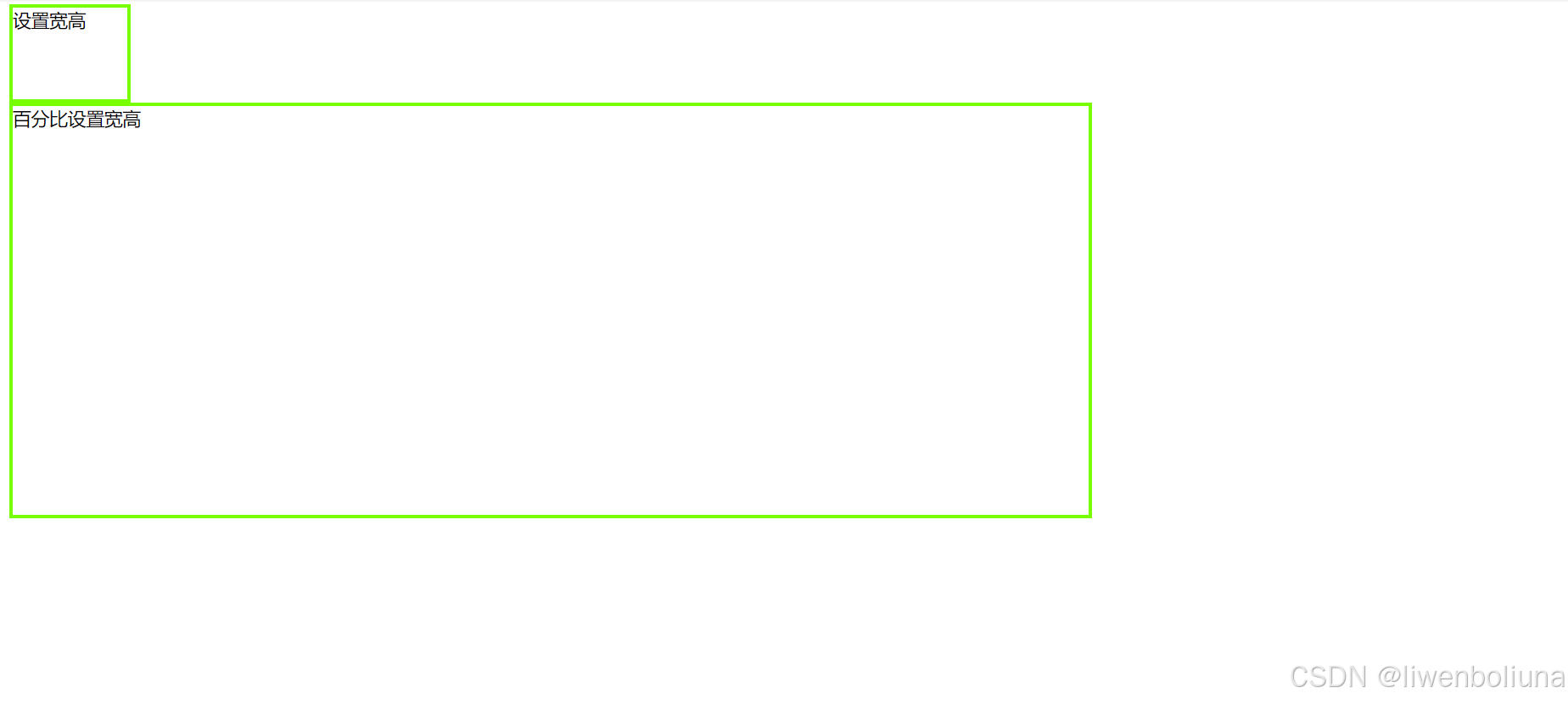
9.1.2.1 宽高属性
宽度:width
高度:height
9.1.2.2 div标签内直接设置宽高
在 HTML 中,可以直接在 <div> 标签内使用内联样式来设置宽度和高度。内联样式通过 style 属性来应用,这种方式适合快速设置单个元素的样式,但不推荐大量使用,因为这会使 HTML 代码变得臃肿且难以维护。
9.1.2.3 div使用选择器设置宽高
在 CSS 中,使用选择器来设置 <div> 元素的宽度和高度是一种常见且推荐的做法。这样可以使你的样式更加模块化和易于维护。下面是一些常用的 CSS 选择器及其示例,展示如何设置 <div> 的宽度和高度。
1. 类选择器
类选择器使用点 (.) 前缀来选择具有特定类名的元素。
2. ID 选择器
ID 选择器使用井号 (#) 前缀来选择具有特定 ID 的元素。ID 选择器的优先级高于类选择器
3. 标签选择器
标签选择器直接使用元素名称来选择所有该类型的元素。这种方法适用于全局样式设置。
4. 属性选择器
属性选择器用于选择具有特定属性的元素。你可以使用方括号 [ ] 来定义属性选择器。
5. 伪类和伪元素选择器
伪类和伪元素选择器用于选择元素的特定状态或部分。
9.1.2.4 div高度的百分比设置问题
在 CSS 中,设置 <div> 的高度为百分比时,需要注意一些关键点,特别是父元素的高度设置。百分比高度是相对于父元素的高度计算的,如果父元素的高度没有明确设置,那么子元素的百分比高度可能不会按预期工作。
关键点
父元素的高度必须明确:如果父元素的高度是自动的(即没有显式设置),那么子元素的百分比高度将无法计算。
视口单位:如果父元素的高度不确定,可以考虑使用视口单位(如 vh)来设置高度。
示例
父元素高度明确
假设你有一个父元素,其高度已经明确设置,子元素可以使用百分比高度。
<!DOCTYPE html>
<html>
	<head>
		<meta charset="utf-8">
		<title></title>
		<style>
			.d1{
				width: 100px;
				height: 80px;
				border: #77ff00 3px solid;
			}
			*{
				width: 100%;
				height: 100%;
			}
			#d2{
				width: 50%;
				height: 40%;
				border: #77ff00 3px solid;
			}
		</style>
	</head>
	<body>
		<div class="d1">设置宽高</div>
		<div id="d2">设置百分比宽高</div>
	</body>
</html>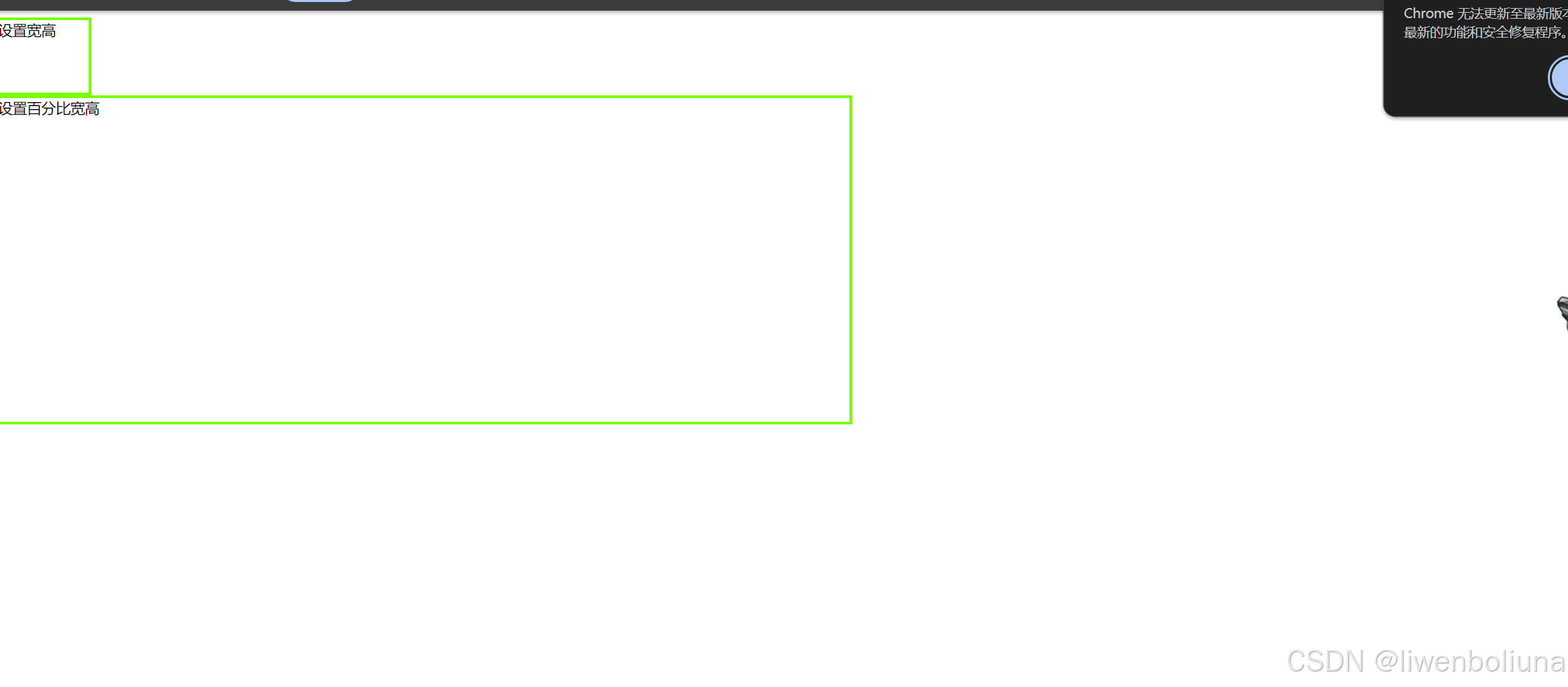
9.2 DIV+CSS的应用
DIV+CSS 是现代网页设计中非常重要的技术组合,它通过使用 HTML 的 <div> 标签和 CSS(层叠样式表)来构建和美化网页。以下是 DIV+CSS 在网页设计中的几个主要应用场景和优势:
单列布局:使用一个 <div> 包含所有内容。
多列布局:使用多个 <div> 分别包含不同的内容区域,如头部、主体、侧边栏和底部。
9.2.1 DIV元素的布局技巧
由于用户的计算机显示屏分辨率不同,因此在布局页面时,要充分考虑页面内容的布局宽度情况,并保证页面整体内容在页面居中。一旦内容宽度超过显示宽度,页面将出现水平滚动条。应尽量保证网页只有垂直滚动条,才符合用户的习惯,所以高度不需要考虑,一般都是由页面内容决定网页高度即可。
又因为浏览器的兼容情况,所以在布局页面前,设计者一定要把页面的默认边距清除。传统的表格布局时,可以使用属性“align:center;”设置表格居中问题,但是DIV的居中是没有属性可以设置的,只能通过CSS样式控制其位置。使div元素水平居中的方法有多种,常用的方法是用CSS设置div的左右边距。
<!DOCTYPE html>
<html>
	<head>
		<meta charset="utf-8">
		<title></title>
		<style>
			.d1{
				width: 100px;
				height: 80px;
				border: #77ff00 3px solid;
			}
			*{
				width: 100%;
				height: 100%;
			}
			#d2{
				width: 50%;
				height: 20%;
				border: #77ff00 3px solid;
			}
			#d3{
				width: 50%;
				height: 40%;
				border: #77ff00 3px solid;
				margin-right: auto;
				margin-left: auto;
			}
		</style>
	</head>
	<body>
		<div class="d1">设置宽高</div>
		<div id="d2">设置百分比宽高</div>
		<div id="d3">DIv元素居中</div>
	</body>
</html>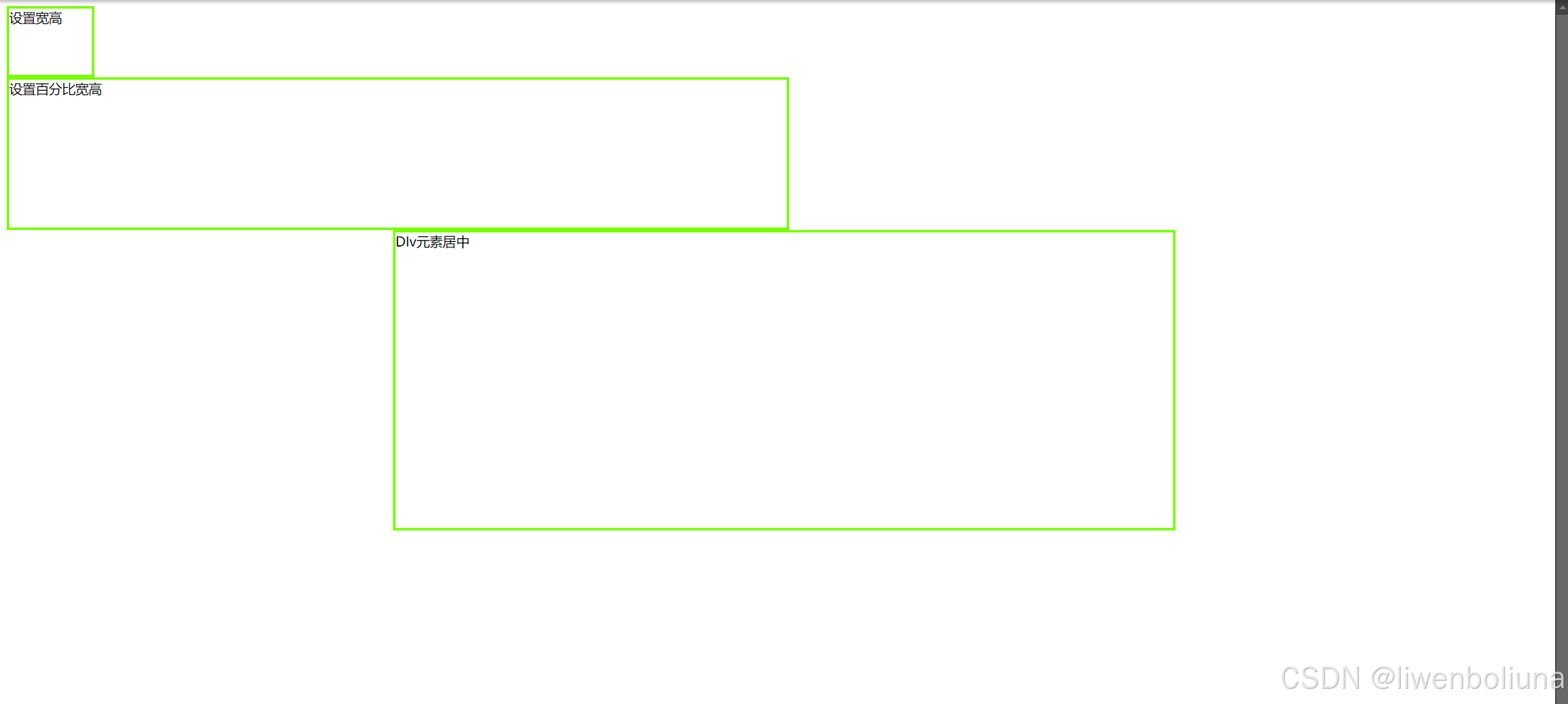
9.2.2 DIV元素的宽度自适应
在网页设计中,使 <div> 元素的宽度自适应是非常常见的需求,尤其是在响应式设计中。以下是一些常用的方法来实现 <div> 元素的宽度自适应:
1. 使用百分比宽度
通过设置 <div> 的宽度为百分比,使其相对于父元素的宽度自动调整。
2. 使用 max-width 和 width: 100%
通过设置 max-width 和 width: 100%,可以使 <div> 在不超过最大宽度的情况下自适应父元素的宽度
3. 使用 Flexbox
Flexbox 布局可以很容易地实现自适应宽度。
<!DOCTYPE html>
<html>
	<head>
		<meta charset="utf-8">
		<title></title>
		<style>
			.d1{
				width: 100px;
				height: 80px;
				border: #77ff00 3px solid;
			}
			*{
				width: 100%;
				height: 100%;
			}
			#d2{
				width: 50%;
				height: 20%;
				border: #77ff00 3px solid;
			}
			#d3{
				width: 50%;
				height: 40%;
				border: #77ff00 3px solid;
				margin-right: auto;
				margin-left: auto;
			}
			*{
				margin: 0px;
				padding: 0px;
			}
			#all{
				height: 100px;
				border: #77ff00 solid 3px;
			}
			#left{
				width: 100px;
				height: 100px;
				float: left;
				border: blue solid 3px;
			}
			#right{
				margin-left: 100px;
				border: aqua solid 3px;
			}
		</style>
	</head>
	<body>
		<div class="d1">设置宽高</div>
		<div id="d2">设置百分比宽高</div>
		<div id="d3">DIV元素居中</div>
		<div id="all">
			<div id="left">左边盒子固定宽度</div>
			<div id="right">右边盒子自适应宽度</div>
		</div>
	</body>
</html>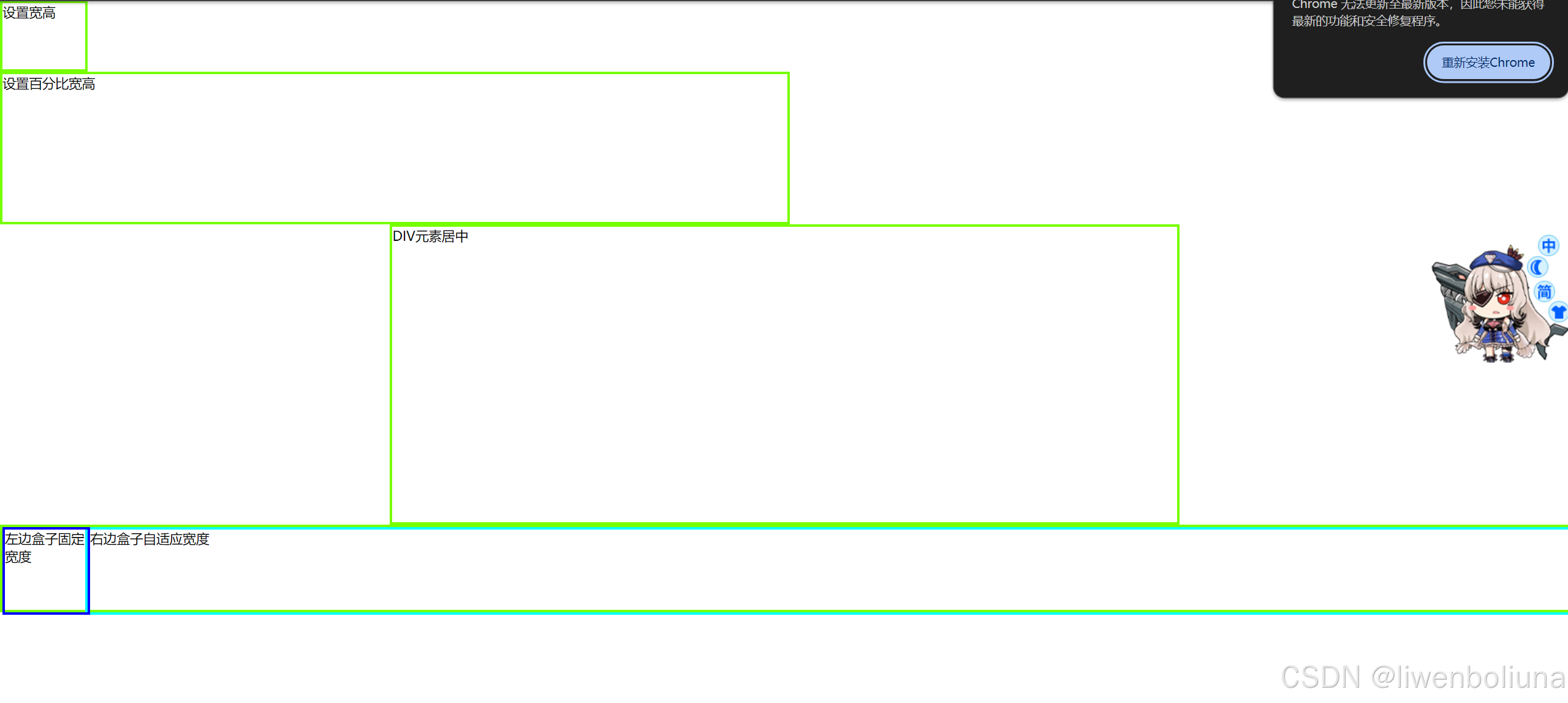
9.2.3 DIV内容的居中
在网页设计中,将 <div> 内容居中是非常常见的需求。可以通过多种方法实现水平居中和垂直居中。以下是一些常用的技巧:
1. 水平居中
1.1 文本内容水平居中
对于文本内容,可以直接使用 text-align 属性
1.2 块级元素水平居中
对于块级元素,可以使用 margin: auto。
<!DOCTYPE html>
<html>
	<head>
		<meta charset="utf-8">
		<title></title>
		<style>
			.d1{
				width: 100px;
				height: 80px;
				border: #77ff00 3px solid;
			}
			*{
				width: 100%;
				height: 100%;
			}
			#d2{
				width: 50%;
				height: 20%;
				border: #77ff00 3px solid;
			}
			#d3{
				width: 50%;
				height: 40%;
				border: #77ff00 3px solid;
				margin-right: auto;
				margin-left: auto;
			}
			*{
				margin: 0px;
				padding: 0px;
			}
			#all{
				height: 100px;
				border: #77ff00 solid 3px;
			}
			#left{
				width: 100px;
				height: 100px;
				float: left;
				border: blue solid 3px;
			}
			#right{
				margin-left: 100px;
				border: aqua solid 3px;
			}
			#d4{
				width: 300px;
				height: 100px;
				border: #000000 3px solid;
				text-align: center;
				line-height: 100px;
			}
		</style>
	</head>
	<body>
		<div class="d1">设置宽高</div>
		<div id="d2">设置百分比宽高</div>
		<div id="d3">DIV元素居中</div>
		<div id="all">
			<div id="left">左边盒子固定宽度</div>
			<div id="right">右边盒子自适应宽度</div>
		</div>
		<div id="d4">DIV内容居中</div>
	</body>
</html>
9.2.4 DIV元素的嵌套
传统的表格布局中,搜索引擎如果遇到多层表格嵌套时,可能抓取不到3层以上的内容,或者会跳过嵌套的内容直接放弃整个页面。而DIV+CSS 布局则不会存在这样的问题,为了实现复杂的布局结构,div元素也需要互相嵌套。但在布局页面时尽量少嵌套,否则将影响浏览器对代码的解析速度。
<!DOCTYPE html>
<html>
	<head>
		<meta charset="utf-8">
		<title>9.10示例</title>
		<style>
			.all{
				width: 700px;
				height: 700px;
				border: 2px solid red;
				margin: 0 auto;
			}
			.top{
				width: 700px;
				height: 100px;
				background-color: lightcyan;
			}
			.main{
				width: 700px;
				height: 520px;
			}
			.left{
				width: 180px;
				height: 500px;
				background-color: yellow;
				float: left;
				margin: 10px;
			}
			.right{
				width: 480px;
				height: 500px;
				background-color: lightgreen;
				float: left;
				margin: 10px;
			}
			.footer{
				width: 700px;
				height: 80px;
				background-color: lightgrey;
			}
		</style>
	</head>
	<body>
		<div class="all">
			<div class="top"></div>
			<div class="main">
				<div class="left"></div>
				<div class="right"></div>
			</div>
			<div class="footer"></div>
		</div>
	</body>
</html>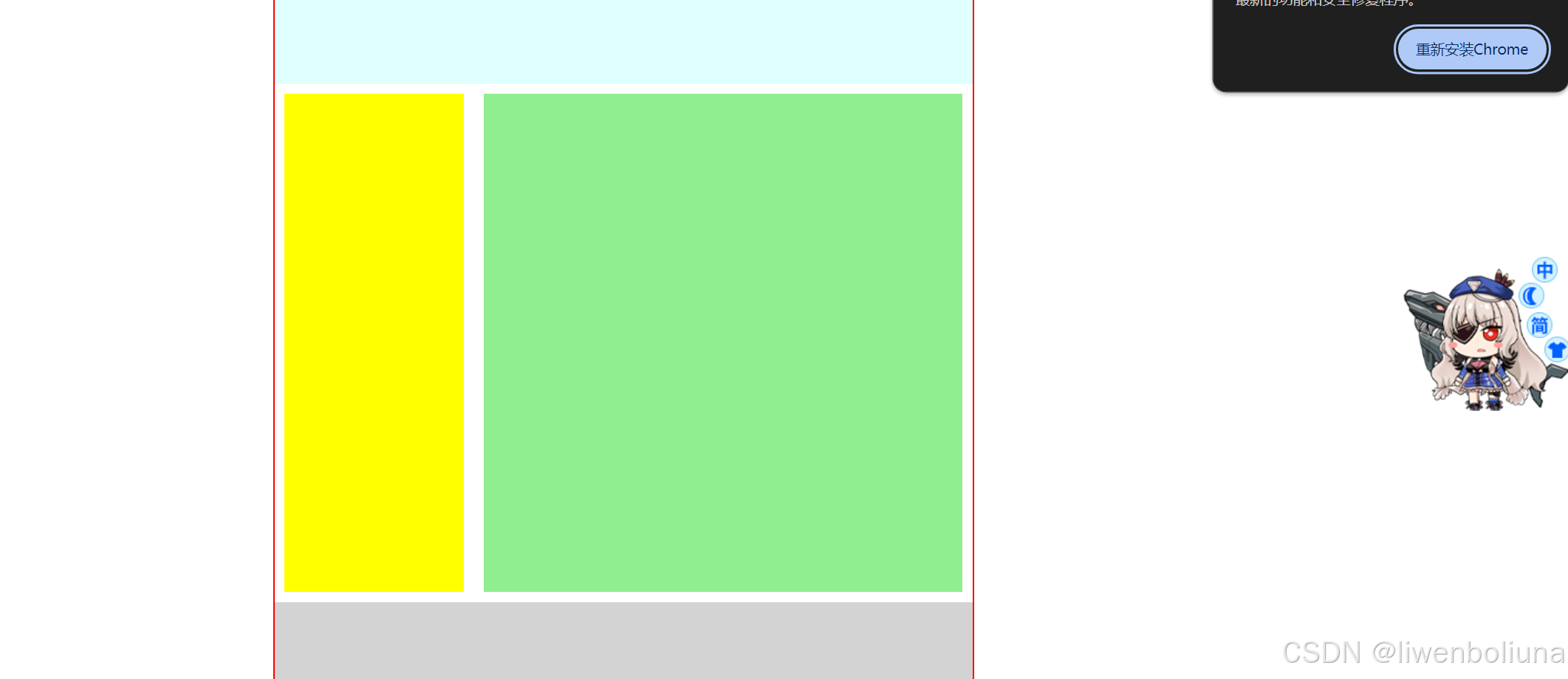
9.3 DIV+CSS的典型布局
DIV+CSS 是现代网页设计中常用的布局技术,通过使用 <div> 元素和 CSS,可以创建各种典型的布局。以下是一些常见的 DIV+CSS 布局示例:
1. 单列布局
单列布局是最简单的布局,通常用于博客文章或新闻页面。
2. 两列布局
两列布局常用于带有侧边栏的页面
3. 三列布局
三列布局常用于带有主内容区、侧边栏和广告栏的页面。
4. 响应式布局
使用媒体查询实现响应式布局,使页面在不同设备上都能良好显示。
5. 弹性布局(Flexbox)
使用 Flexbox 实现灵活的布局。
9.3.1 左中右布局
左中右布局在网页设计时最为常用,即div-left是导航菜单,div-main是视觉集中点,放置主要内容,div-right是表单或链接等。而左中右三个区域一并被包含在一个大的div-all中。
<!DOCTYPE html>
<html>
	<head>
		<meta charset="utf-8">
		<title></title>
		<style>
			*{
				margin: 10px auto;
				padding: 0px auto;
				font-size: large;
			}
			.all{
				background-color: red;
				width: 700px;
				height: 500px;
			}
			.left,.main,.right{
				text-align: center;
				height: 480px;
				line-height: 480px;
				float: left;
			}
			.left{
				background-color: antiquewhite;
				width: 150px;
			}
			.main{
				background-color: lightcyan;
				width: 400px;
			}
			.right{
				background-color: antiquewhite;
				width: 150px;
			}
		</style>
	</head>
	<body>
		<div class="all">
			<div class="left">菜单导航栏</div>
			<div class="main">视觉集中视区,主要内容</div>
			<div class="right">表单或链接</div>
		</div>
	</body>
</html>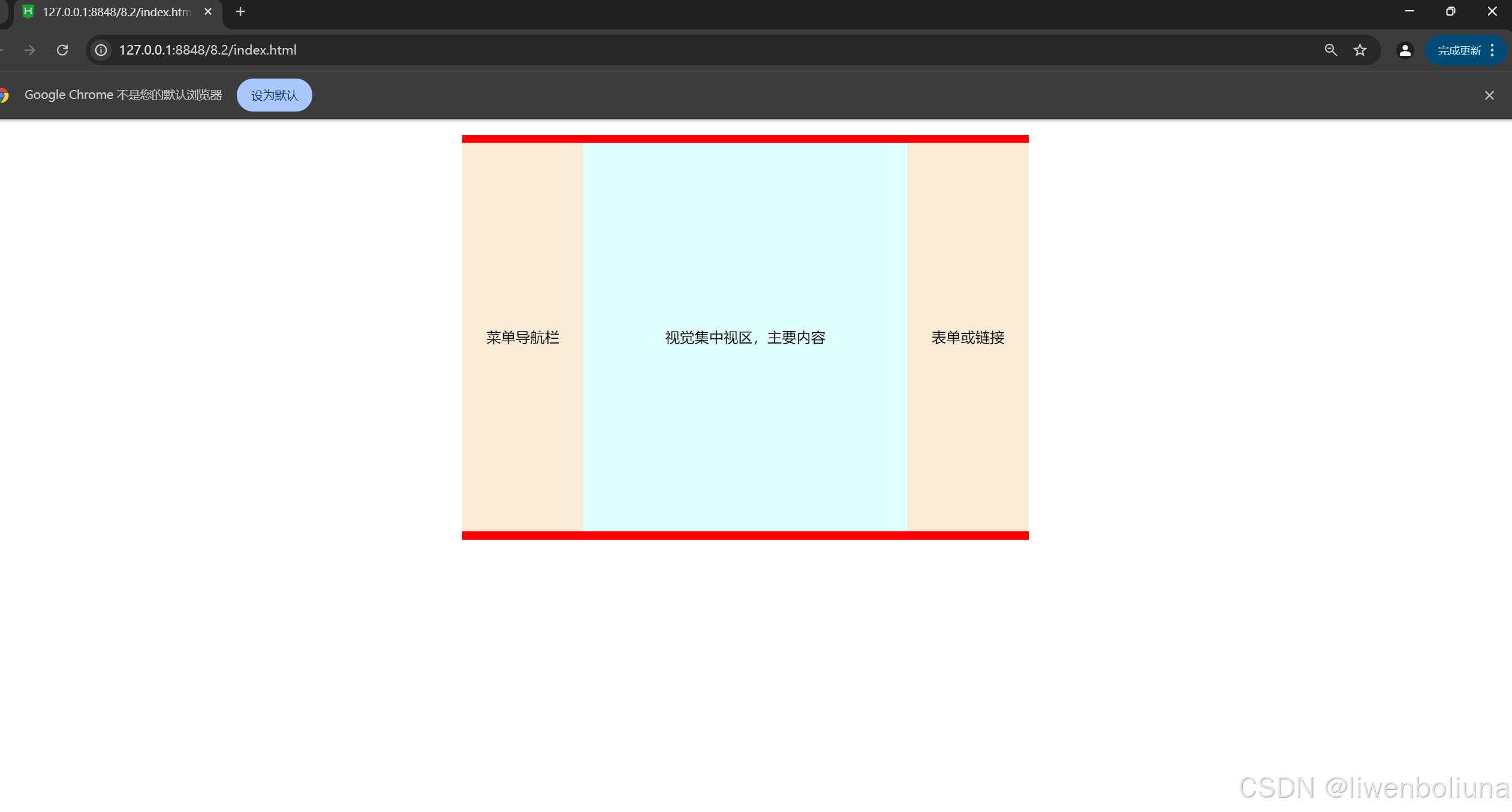
9.3.2 上中下布局
上中下布局是一种常见的网页布局方式,通常用于创建带有顶部导航、主要内容区和底部信息的页面。这种布局可以通过多种方法实现,包括浮动布局、Flexbox 布局和 Grid 布局。
<!DOCTYPE html>
<html>
	<head>
		<meta charset="utf-8">
		<title></title>
		<style>
			*{
				margin: 0px auto;
				padding: 0px auto;
				font-size: large;
			}
			.all{
				background-color: red;
				text-align: center;
				width: 700px;
				height: 500px;
			}
			.top{
				background-color: antiquewhite;
				width: 680px;
				height: 80px;
				line-height: 80px;
			}
			.main{
				background-color: lightcyan;
				width: 680px;
				height: 340px;
				line-height: 340px;
			}.footer{
				background-color: antiquewhite;
				width: 680px;
				height: 80px;
				line-height: 80px;
			}
		</style>
	</head>
	<body>
		<div class="all">
			<div class="top">导航或者横幅广告</div>
			<div class="main">视觉集中视区域,主要内容</div>
			<div class="footer">版权信息</div>
		</div>
	</body>
</html>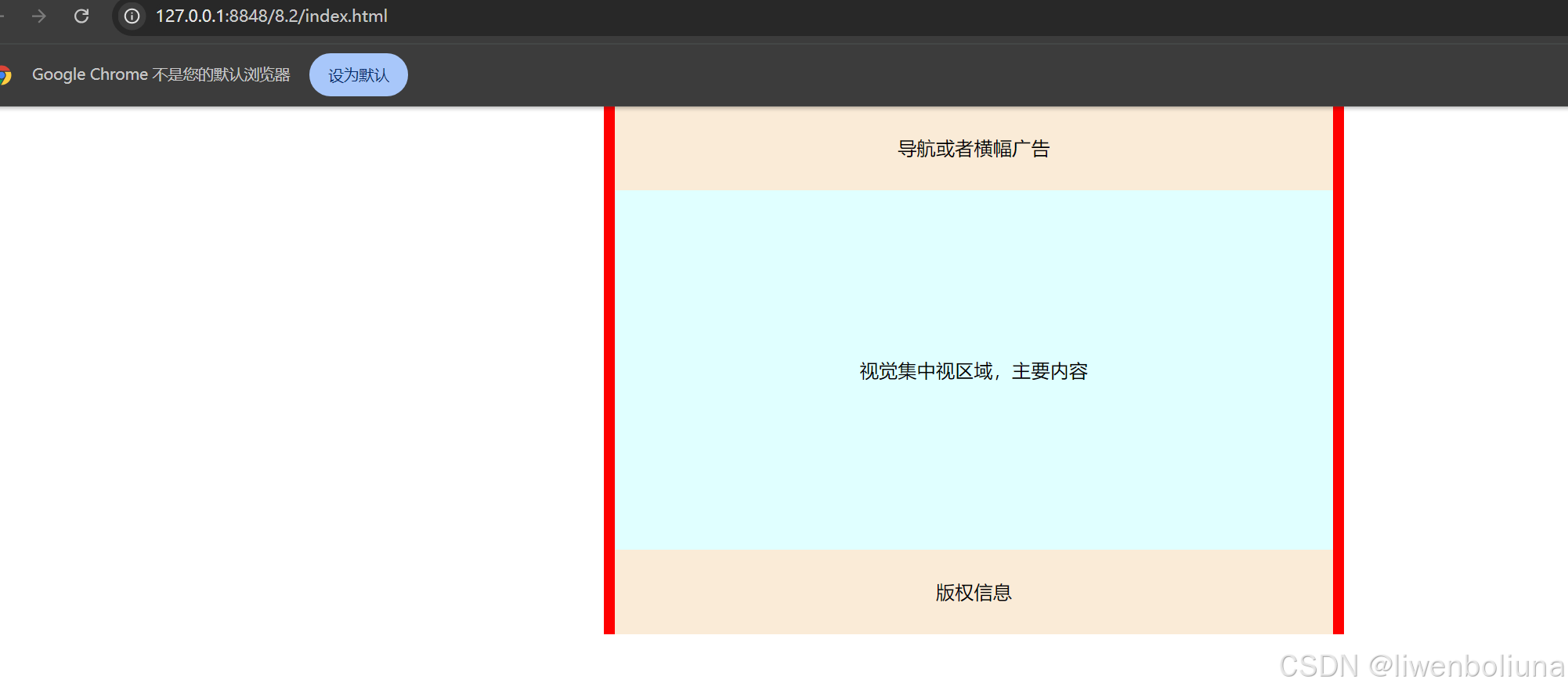
9.3.3 混合布局
在了解左中右和上中下布局之后,混合布局也就不难理解了,混合布局也可以叫综合型布局。混合布局可以在一列或一行布局的基础之上,分为多列或多行布局。网页布局的结构普遍都是三列布局,或者可以根据实际需求,对网页再进行划分。
<!DOCTYPE html>
<html>
	<head>
		<meta charset="utf-8">
		<title></title>
		<style>
			*{
				margin: 0px auto;
				padding: 0px auto;
				width: 100%;
				height: 100%;
			}
			.all{
				border: 2px dashed red;
				width: 95%;
				height: 100%;
			}
			.top{
				background-color: pink;
				width: 100%;
				height: 15%;
			}
			.main{
				width:100%;
				height: 75%;
				}
			.left{
				background-color: yellow;
				width: 20%;
				float: left;
				}
			.center{
				background-color: lightcyan;
				width: 60%;
				float: left;
				}
			.right{
				background-color: yellow;
				}
			.footer{
				background-color: pink;
				width: 100%;
				height: 10%;
			}
		</style>
	</head>
	<body>
		<div class="all">
			<div class="top"></div>
			<div class="main">
			<div class="left"></div>
			<div class="center"></div>
			<div class="right"></div>
			</div>
			<div class="footer"></div>
		</div>
	</body>
</html>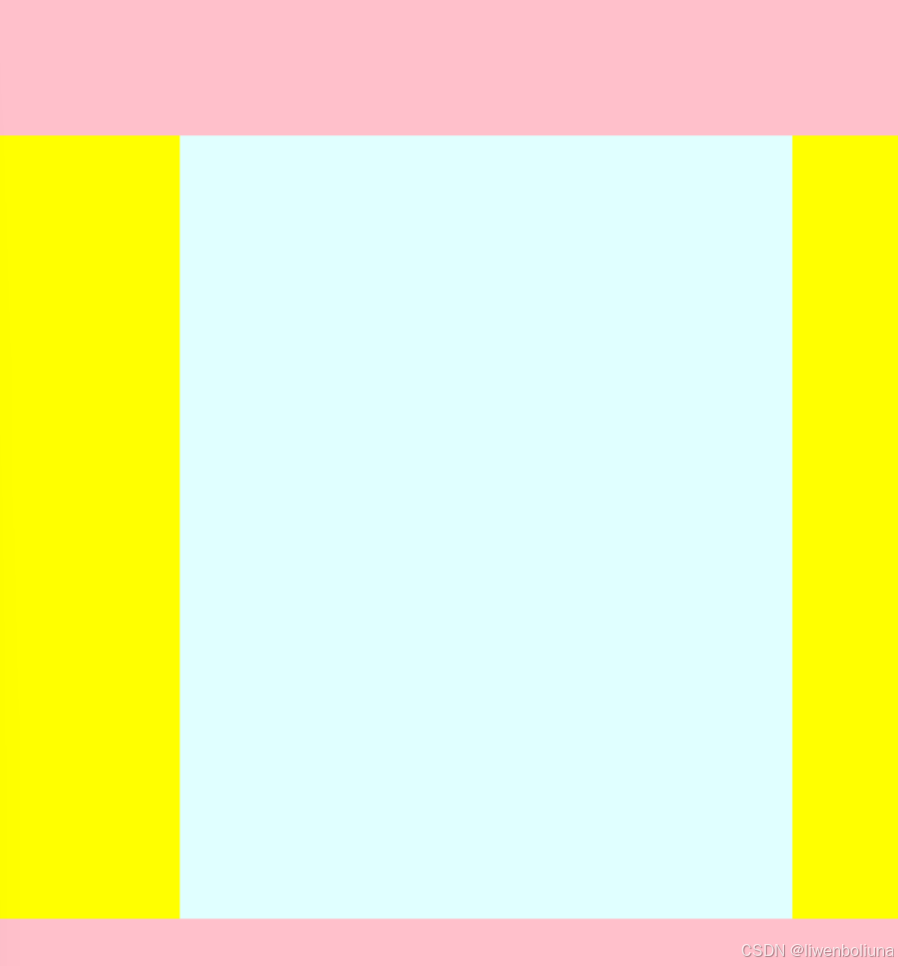
9.4 综合案例——众成远程教育
<!DOCTYPE html>
<html>
<head>
<meta charset="utf-8">
<title>众成远程教育</title>
<style>
/* 重置默认样式 */
* {
margin: 0px auto;
}
/* 外层容器 */
.all {
width: 1000px;
height: 840px;
background-image: url(img/9-bg.jpg);
}
/* 顶部区域 */
.top {
width: 1000px;
height: 150px;
}
/* 主要内容区域 */
.main {
background-color: aliceblue;
width: 1000px;
height: 630px;
}
/* 左侧区域 */
.left {
padding-top: 30px;
padding-left: 20px;
width: 200px;
height: 570px;
float: left;
line-height: 60px;
}
/* 中心区域 */
.center {
border-left: 2px dashed blue;
border-right: 2px dashed blue;
padding-top: 50px;
width: 500px;
height: 580px;
float: left;
}
/* 右侧区域 */
.right {
padding-left: 20px;
width: 250px;
height: 630px;
float: left;
}
/* 底部区域 */
.footer {
width: 1000px;
height: 60px;
font-family: "楷体";
font-size: 18px;
text-align: center;
line-height: 30px;
}
/* 链接和文本样式 */
a, span {
color: red;
font-weight: 700;
text-align: center;
}
/* 段落样式 */
p {
font-family: "黑体";
font-weight: 700px;
color: brown;
font-size: 28px;
text-align: center;
}
/* 表格样式 */
table {
font-family: "黑体";
font-weight: 700px;
color: blue;
font-size: 20px;
line-height: 55px;
}
</style>
</head>
<body>
<div class="all">
<div class="top">
<img src="img/9-logo.jpg"width="708px" height="150px" />
</div>
<div class="main">
<div class="left">
<p><img src="img/but2.jpg" /></p>
<p><img src="img/but3.jpg" /></p>
<p><img src="img/but4.jpg" /></p>
<p><img src="img/but5.jpg" /></p>
<p>相关信息</p>
<a href="#">4.大学历提升方案</a><br>
<a href="#">新报考政策解读</a><br>
<a href="#">6.大类专业报考指南</a><br>
<a href="#">更多信息请点击</a><br>
</div>
<div class="center">
<p>入学报名表</p>
<form id="form2" name="form2" method="post" action=" ">
<table width="400" border="0" align=" center" cellpadding="0" celspacing="0">
<tr>
<td width="158" align="right">姓名:<label for="textfield"></label>
</td>
<td width ="242"><input type="text" name="textfield" id="textfield" /></td>
</tr>
<tr>
<td align="right">联系电话:</td>
<td><input type="text" name="textfield2" id="textfield2" /></td>
</tr>
<tr>
<td align="right">邮箱:</td>
<td><input type="text" name="textfield3" id="textfield3" /></td>
</tr>
<tr>
<td align="right">资料邮寄地址:</td>
<td><input type="text" name="textfield4" id="textfield4" /></td>
</tr>
<tr>
<td align="right">最高学历:</td>
<td>
<select name="select2" id="select2">
<option>大学本科</option>
<option>大专</option>
<option>高中</option>
<option>初中</option>
<option>小学</option>
</select>
</td>
</tr>
<tr>
<td align="right">选择的课程
</td>
<td><input type="text" name="textfield6" id="imagefield6"/>
</td>
</tr>
<tr>
<td align="right">意向学习方式
<label for="select2"></label>
</td>
<td>
<select name="select" id="select">
<option>网络授课</option>
<option>周末班</option>
<option>全日制</option>
</select>
</td>
</tr>
<tr>
<td colspan="2" align="center">
<input type="image" name="imageField" id="imageField" src="img/but1.jpg"/>
</td>
</tr>
</table>
</form>
</div>
<div class="right">
<img src="img/pho1.jpg"/>
<img src="img/pho2.jpg"/>
<img src="img/pho3.jpg"/>
<img src="img/pho4.jpg"/>
</div>
</div>
<div class="footer">
<span>免费电话:</span>400-XXX-XXX(18条线) ||
<span>(北京校区)</span>北京路XX大厦一楼 0000号 ||
<span>(上海校区)</span>上海路XX科技园7栋9999号<br>
此网站信息最终解释权 © 众成远程教育
</div>
</div>
</body>
</html>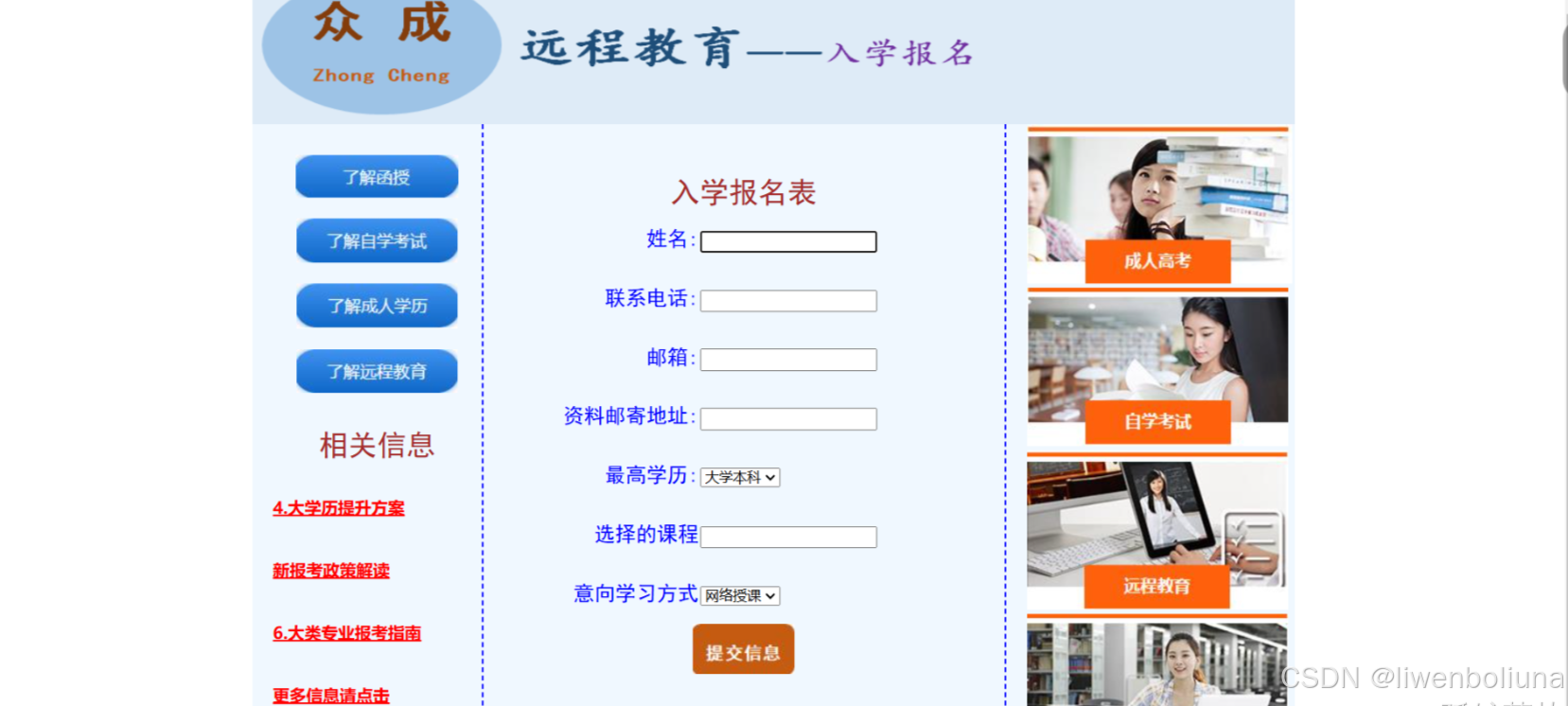





 扫一扫
扫一扫


 380
380

 被折叠的 条评论
为什么被折叠?
被折叠的 条评论
为什么被折叠?
 到【灌水乐园】发言





