





Python | 使用 Pandas 和 XlsxWriter | 集合 – 3
Python Pandas 是一个数据分析库。它可以读取、过滤和重新排列小型和大型数据集,并以包括 Excel 在内的多种格式输出它们。
Pandas使用 XlsxWriter 模块写入 Excel 文件。
XlsxWriter是一个用于以 XLSX 文件格式写入文件的 Python 模块。它可用于将文本、数字和公式写入多个工作表。此外,它还支持格式化、图像、图表、页面设置、自动筛选、条件格式等功能。
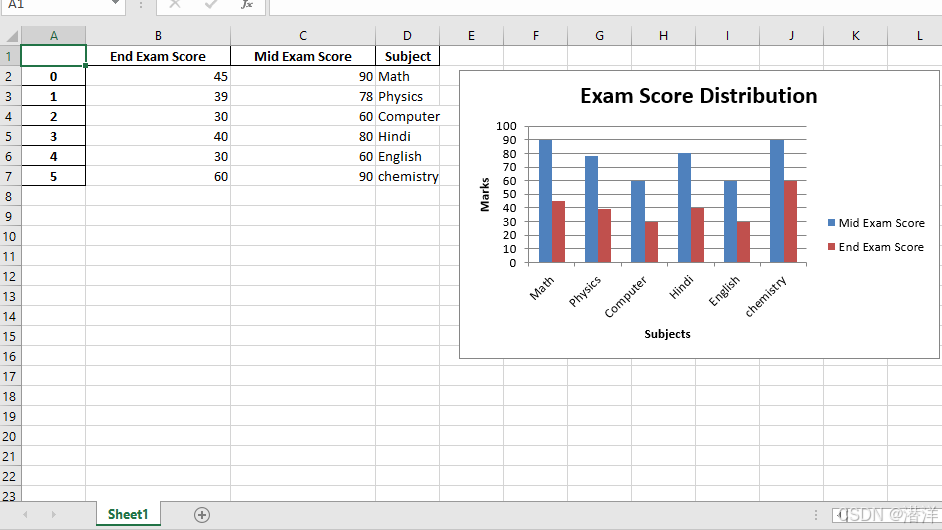
代码#1:使用 Pandas 和 XlsxWriter 绘制柱形图。
|
# import pandas library as pd import pandas as pd
# Create a Pandas dataframe from some data. dataframe = pd.DataFrame({ 'Subject': ["Math", "Physics", "Computer", "Hindi", "English", "chemistry"], 'Mid Exam Score' : [90, 78, 60, 80, 60, 90], 'End Exam Score' : [45, 39, 30, 40, 30, 60] })
# Create a Pandas Excel writer # object using XlsxWriter as the engine. writer_object = pd.ExcelWriter('pandas_column_chart.xlsx', engine ='xlsxwriter')
# Write a dataframe to the worksheet. dataframe.to_excel(writer_object, sheet_name ='Sheet1')
# Create xlsxwriter workbook object . workbook_object = writer_object.book
# Create xlsxwriter worksheet object worksheet_object = writer_object.sheets['Sheet1']
# set width of the B and C column worksheet_object.set_column('B:C', 20)
# Create a chart object that can be added # to a worksheet using add_chart() method.
# here we create a column chart object . chart_object = workbook_object.add_chart({'type': 'column'})
# Add a data series to a chart # using add_series method.
# Configure the first series. # syntax to define ranges is : # [sheetname, first_row, first_col, last_row, last_col]. chart_object.add_series({ 'name': ['Sheet1', 0, 2], 'categories': ['Sheet1', 1, 3, 6, 3], 'values': ['Sheet1', 1, 2, 6, 2], })
# Configure a second series. chart_object.add_series({ 'name': ['Sheet1', 0, 1], 'categories': ['Sheet1', 1, 3, 6, 3], 'values': ['Sheet1', 1, 1, 6, 1], })
# Add a chart title. chart_object.set_title({'name': 'Exam Score Distribution'})
# Add x-axis label chart_object.set_x_axis({'name': 'Subjects'})
# Add y-axis label chart_object.set_y_axis({'name': 'Marks'})
# add chart to the worksheet with given # offset values at the top-left corner of # a chart is anchored to cell E2 worksheet_object.insert_chart('E2', chart_object, {'x_offset': 20, 'y_offset': 5})
# Close the Pandas Excel writer # object and output the Excel file. writer_object.save() |
输出:
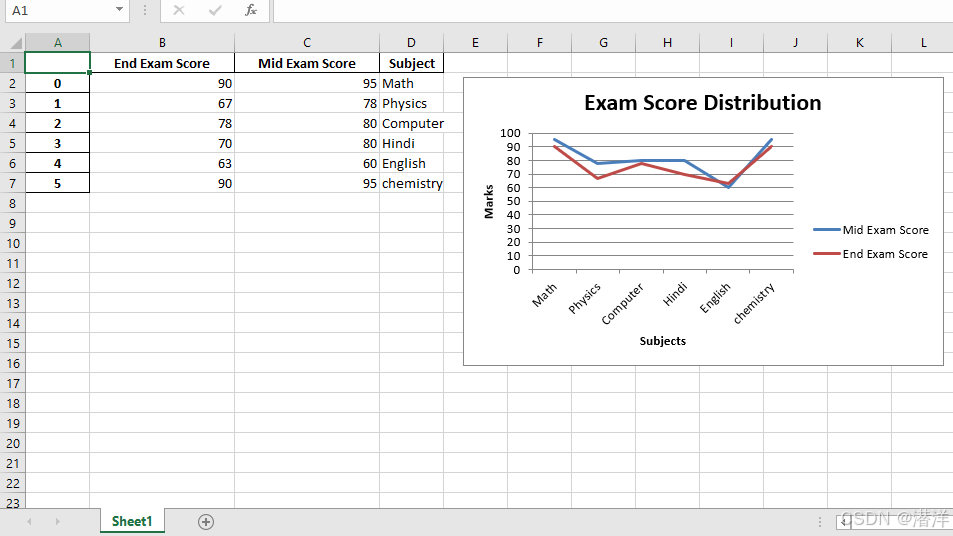
代码#2:使用 Pandas 和 XlsxWriter 绘制折线图。
|
# import pandas library as pd import pandas as pd
# Create a Pandas dataframe from some data. dataframe = pd.DataFrame({ 'Subject': ["Math", "Physics", "Computer", "Hindi", "English", "chemistry"], 'Mid Exam Score' : [95, 78, 80, 80, 60, 95], 'End Exam Score' : [90, 67, 78, 70, 63, 90] })
# Create a Pandas Excel writer # object using XlsxWriter as the engine. writer_object = pd.ExcelWriter('pandas_line_chart.xlsx', engine ='xlsxwriter')
# Write a dataframe to the worksheet. dataframe.to_excel(writer_object, sheet_name ='Sheet1')
# Create xlsxwriter workbook object . workbook_object = writer_object.book
# Create xlsxwriter worksheet object worksheet_object = writer_object.sheets['Sheet1']
# set width of the B and C column worksheet_object.set_column('B:C', 20)
# Create a chart object that can be added # to a worksheet using add_chart() method.
# here we create a line chart object . chart_object = workbook_object.add_chart({'type': 'line'})
# Add a data series to a chart # using add_series method.
# Configure the first series. # syntax to define ranges is : # [sheetname, first_row, first_col, last_row, last_col]. chart_object.add_series({ 'name': ['Sheet1', 0, 2], 'categories': ['Sheet1', 1, 3, 6, 3], 'values': ['Sheet1', 1, 2, 6, 2], })
# Configure a second series. chart_object.add_series({ 'name': ['Sheet1', 0, 1], 'categories': ['Sheet1', 1, 3, 6, 3], 'values': ['Sheet1', 1, 1, 6, 1], })
# Add a chart title. chart_object.set_title({'name': 'Exam Score Distribution'})
# Add x-axis label chart_object.set_x_axis({'name': 'Subjects'})
# Add y-axis label chart_object.set_y_axis({'name': 'Marks'})
# add chart to the worksheet with given # offset values at the top-left corner of # a chart is anchored to cell E2 worksheet_object.insert_chart('E2', chart_object, {'x_offset': 20, 'y_offset': 5})
# Close the Pandas Excel writer # object and output the Excel file. writer_object.save() |
输出:
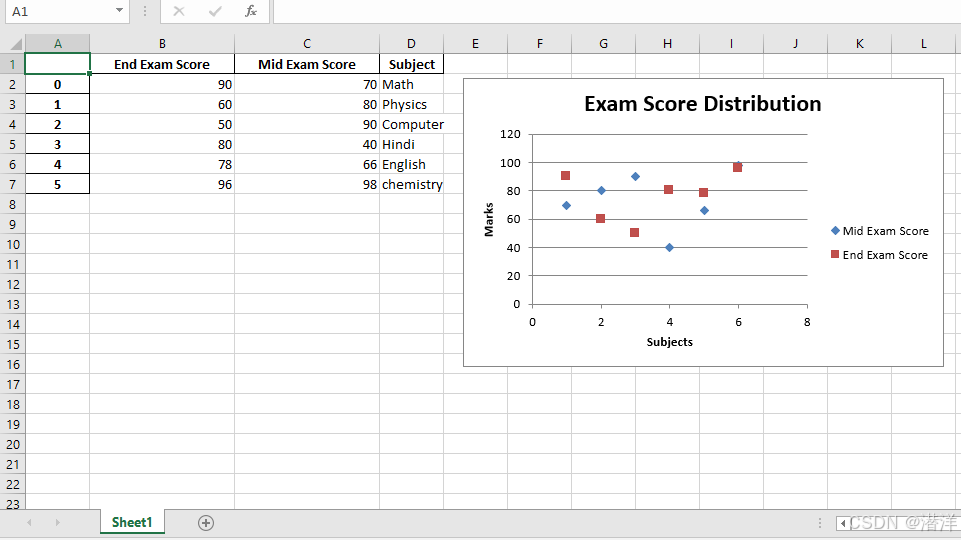
代码#3:使用 Pandas 和 XlsxWriter 绘制散点图。
|
# import pandas library as pd import pandas as pd
# Create a Pandas dataframe from some data. dataframe = pd.DataFrame({ 'Subject': ["Math", "Physics", "Computer", "Hindi", "English", "chemistry"], 'Mid Exam Score' : [70, 80, 90, 40, 66, 98], 'End Exam Score' : [90, 60, 50, 80, 78, 96] })
# Create a Pandas Excel writer # object using XlsxWriter as the engine. writer_object = pd.ExcelWriter('pandas_Scatter_chart.xlsx', engine ='xlsxwriter')
# Write a dataframe to the worksheet. dataframe.to_excel(writer_object, sheet_name ='Sheet1')
# Create xlsxwriter workbook object . workbook_object = writer_object.book
# Create xlsxwriter worksheet object worksheet_object = writer_object.sheets['Sheet1']
# set width of the B and C column worksheet_object.set_column('B:C', 20)
# Create a chart object that can be added # to a worksheet using add_chart() method.
# here we create a scatter chart object . chart_object = workbook_object.add_chart({'type': 'scatter'})
# Add a data series to a chart # using add_series method.
# Configure the first series. # syntax to define ranges is : # [sheetname, first_row, first_col, last_row, last_col]. chart_object.add_series({ 'name': ['Sheet1', 0, 2], 'categories': ['Sheet1', 1, 3, 6, 3], 'values': ['Sheet1', 1, 2, 6, 2], })
# Configure a second series. chart_object.add_series({ 'name': ['Sheet1', 0, 1], 'categories': ['Sheet1', 1, 3, 6, 3], 'values': ['Sheet1', 1, 1, 6, 1], })
# Add a chart title. chart_object.set_title({'name': 'Exam Score Distribution'})
# Add x-axis label chart_object.set_x_axis({'name': 'Subjects'})
# Add y-axis label chart_object.set_y_axis({'name': 'Marks'})
# add chart to the worksheet with given # offset values at the top-left corner of # a chart is anchored to cell E2 worksheet_object.insert_chart('E2', chart_object, {'x_offset': 20, 'y_offset': 5})
# Close the Pandas Excel writer # object and output the Excel file. writer_object.save() |
输出 :





 扫一扫
扫一扫


&spm=1001.2101.3001.5002&articleId=144639712&d=1&t=3&u=fd3351d355a84871b013b051bafa8b2a)
 3万+
3万+

 被折叠的 条评论
为什么被折叠?
被折叠的 条评论
为什么被折叠?
 到【灌水乐园】发言





