

Authentication
The Cal.com API has 3 authentication methods:- OAuth
- API key
- Platform (Deprecated)
1. Create an OAuth client and “Continue with Cal.com”
In order to be listed as an official partner and App in our App Store: cal.com/apps you need to create and get a verified OAuth client. You can request it here: https://cal.com/docs/api-reference/v2/oauth.2. API key
While API keys can be created easily, bear in mind we almost always recommend using OAuth credentials, especially when building integrations or applications with Cal.com. You can view and manage your API keys in your settings page under the security tab in Cal.com.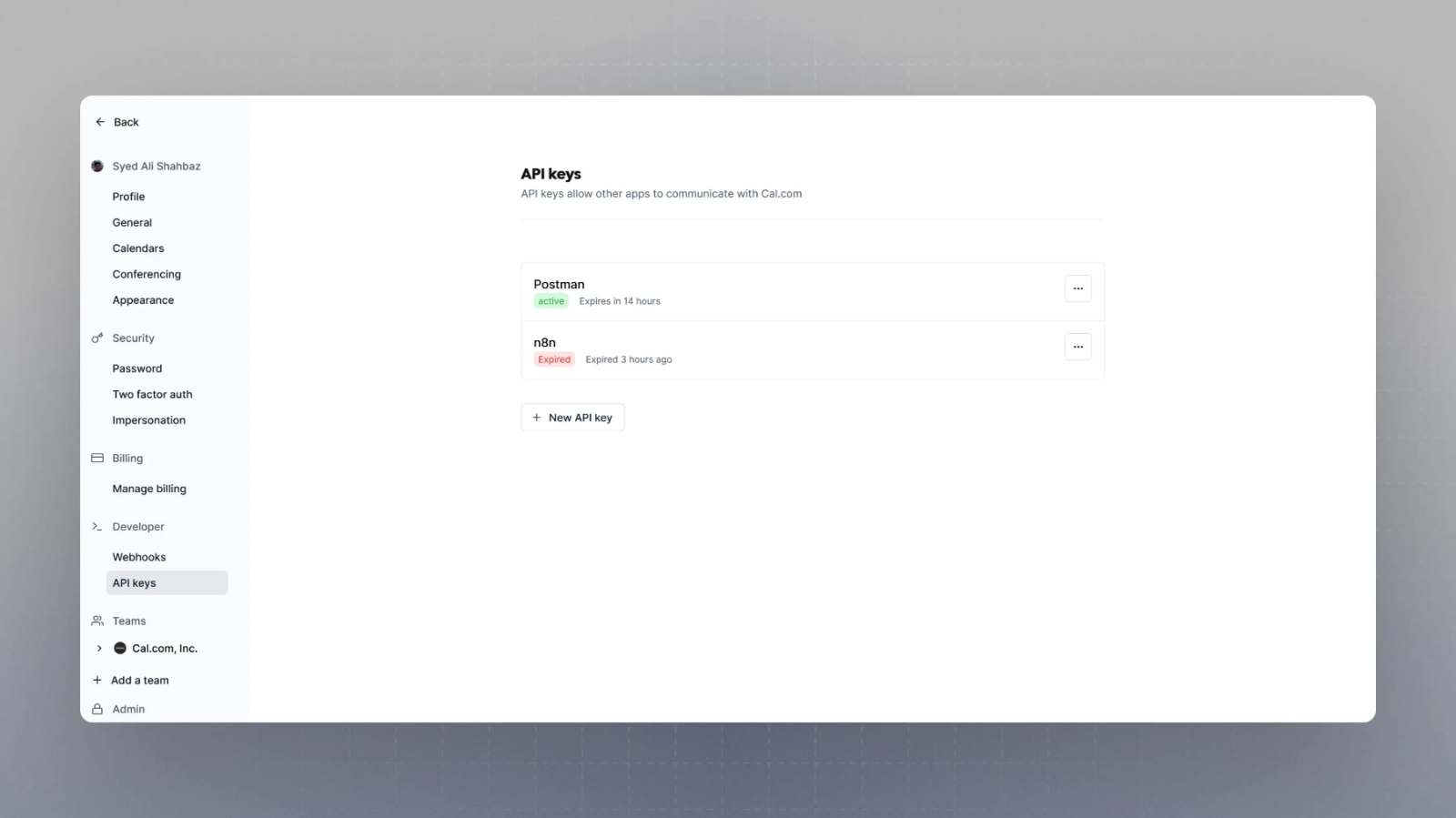
cal_ and live mode secret keys have the prefix cal_live_.
Your API keys carry many privileges, so be sure to keep them secure! Do not share your secret API keys in publicly accessible areas such as GitHub, client-side code, and so forth.
Authentication to the API is performed via the Authorization header. For example, the request would go something like:
Teams endpoints
Teams customers have all the endpoints except the ones prefixed with “Platform” and “Orgs”.Organizations endpoints
Organizations customers have all the endpoints except the ones prefixed with “Platform” and “Teams” and “Orgs / Orgs” because children organizations are only allowed in the platform plan right now.Rate limits
There are three authentication methods for the API, and each of them has the following rate limits:- API Key - 120 requests per minute. This can be increased to a reasonable amount, such as 200 requests per minute. If you require a higher rate limit, such as 800 requests per minute, it is possible, but it may involve extra charges. To request this, please contact support.
- Platform OAuth client credentials: On endpoints that accept them, requests count toward the client’s rate limit only when you send both the client ID (
x-cal-client-idor the client ID in the endpoint path) and its matchingx-cal-secret-key. These credentials take precedence over anAuthorizationbearer token. - API keys and access tokens: When the request uses an
Authorizationbearer token, requests are counted per API key or per access token, respectively. - Incomplete or missing credentials: A client ID or secret on its own does not get a separate rate limit. If you send a bearer token, requests are counted per API key or access token. Otherwise, requests are counted per IP address, as they are when you send no credentials.
- Mismatched client credentials: If the endpoint accepts client credentials and you send a client ID and secret that don’t match, requests are counted per IP address, even if you also send a bearer token.
Deprecated & Maintenance for existing users only
As of 15th December 2025, we’re currently undergoing a restructuring of our “Platform”-offering. Until further we continue to provide enterprise support for existing customers but no longer offer new signups for any “Platform” plan.2. Platform OAuth client credentials
You need to use OAuth credentials when:- Managing managed users API reference
- Creating OAuth client webhooks API reference
- Refreshing tokens of a managed user API reference
- Teams related endpoints: Managing organization teams API reference, adding managed users as members to teams API reference, creating team event types API reference.
x-cal-client-id- ID of the OAuth client.x-cal-secret-key- secret of the OAuth client.
3. Platform Managed user access token
After you create a managed user you will receive its access and refresh tokens. The response also includes managed user’s id, so we recommend you to add new properties to your users table calAccessToken, calRefreshToken and calManagedUserId to store this information. You need to use access token when managing managed user’s:- Schedules API reference
- Event types API reference
- Bookings - some endpoints like creating a booking is public, but some like getting all managed user’s bookings require managed user’s access token API reference
Platform endpoints
Platform customers have the following endpoints available:- Endpoints prefixed with “Platform”.
- Endpoints with no prefix e.g “Bookings”, “Event Types”.
- If you are at least on the ESSENTIALS plan, then all endpoints prefixed with “Orgs” except “Orgs / Attributes”, “Orgs / Attributes / Options” and “Orgs / Teams / Routing forms / Responses”.
