Build with agents in VS Code
Agentic coding uses AI agents to complete software development tasks with varying levels of autonomy. Give an agent a high-level goal, and it can gather context, plan the work, edit files, run commands, and iterate on the result. You guide the agent, review its actions, and decide which changes to keep.
This article introduces the agentic coding capabilities in Visual Studio Code and the key components that work together. Follow the links to explore each concept in depth, or get hands-on with the agents quickstart or agents tutorial.
What you can do with agents
Agents combine language-model reasoning with tools that act on your development environment. This makes them useful for tasks that involve multiple steps or files, such as:
- Planning and implementing features across multiple files.
- Exploring, refactoring, or migrating a codebase.
- Diagnosing errors, running tests, and applying fixes.
- Running and validating web apps with browser tools.
- Working on independent tasks in parallel or in the background.
Agents are the most autonomous of several AI experiences in VS Code. For lighter-weight help, you can also use chat, inline chat, inline suggestions, and smart actions.
How agentic coding works
Agentic coding relies on three concepts:
- Agent loop: the agent uses a language model to reason over context and call tools. It repeats this loop until it completes the task, needs your input, or you stop it.
- Session: a session holds the conversation, workspace, changes, and execution state for a task so that you can pause, resume, and hand off the work.
- Harness and execution environment: the agent harness coordinates the agent loop. The execution environment determines where tools run and where the agent changes code.
You can further shape the agent with customizations.
Ways to work with agents
Agent sessions are available through several interfaces in VS Code, the terminal, and the browser. Each interface presents the session in the environment where you are working.
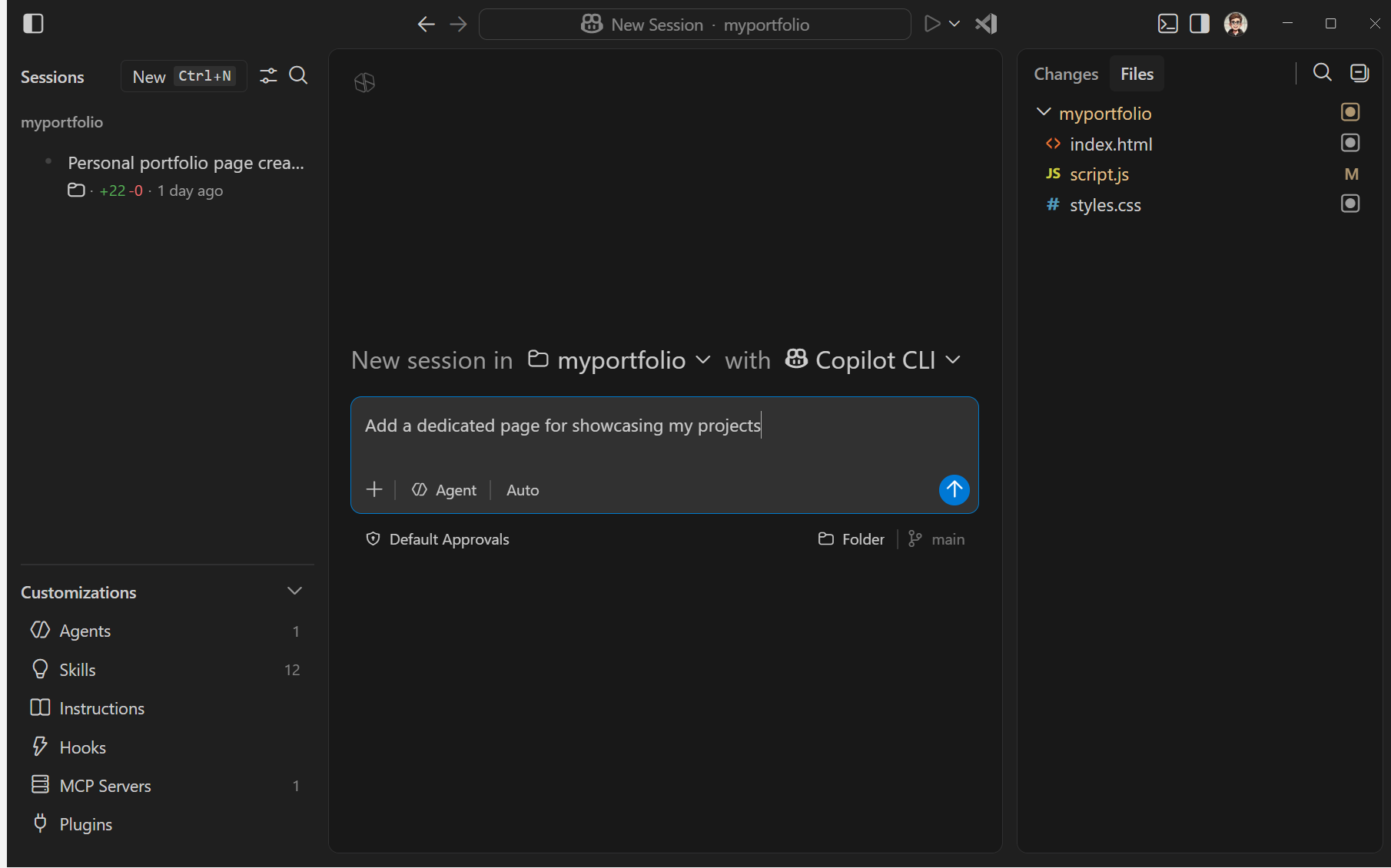
The Agents window (Preview) is a dedicated, agent-first interface for assigning high-level tasks and managing multiple sessions across workspaces.
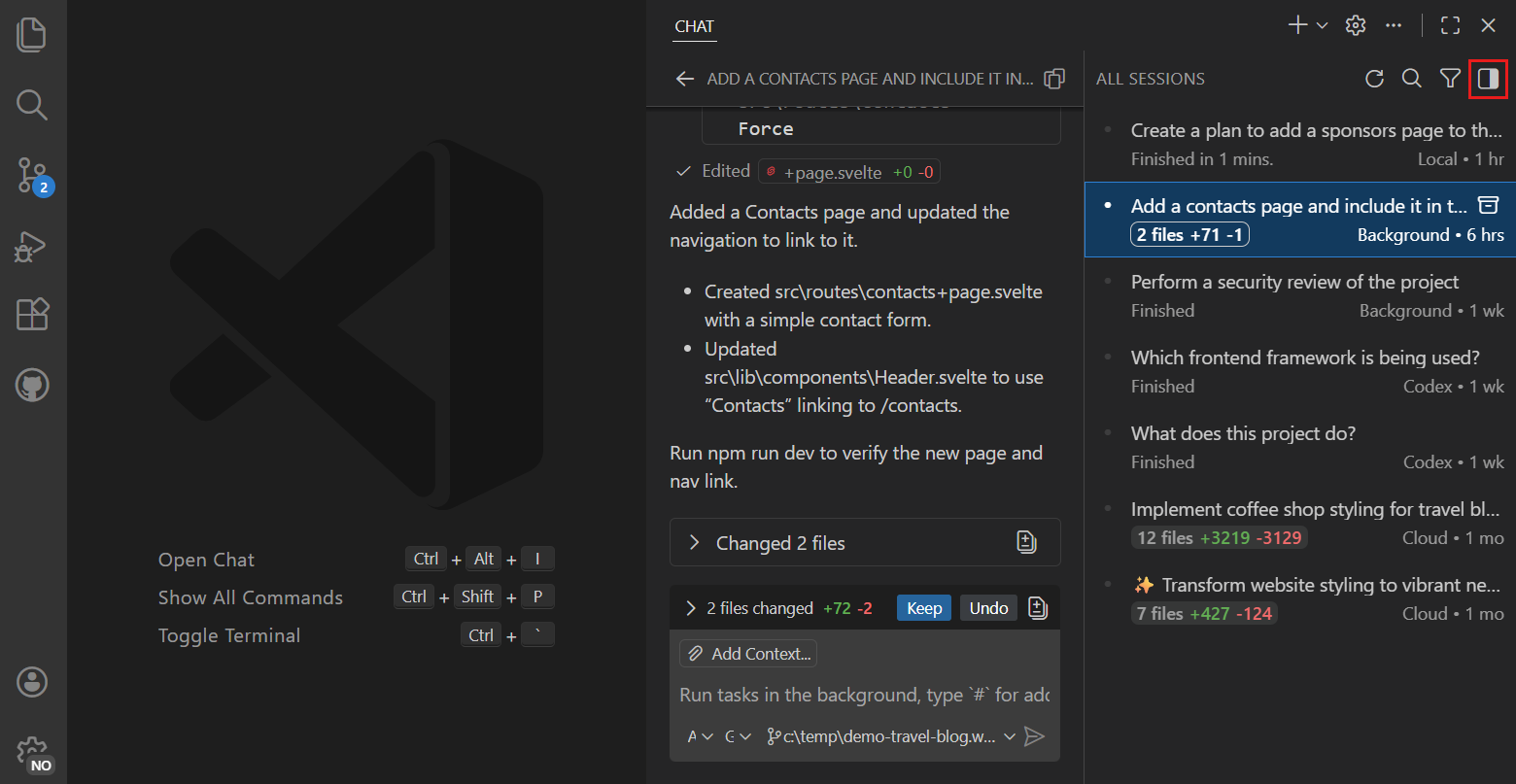
The Chat view is a code-first interface for working with an agent alongside the editors in your current workspace.
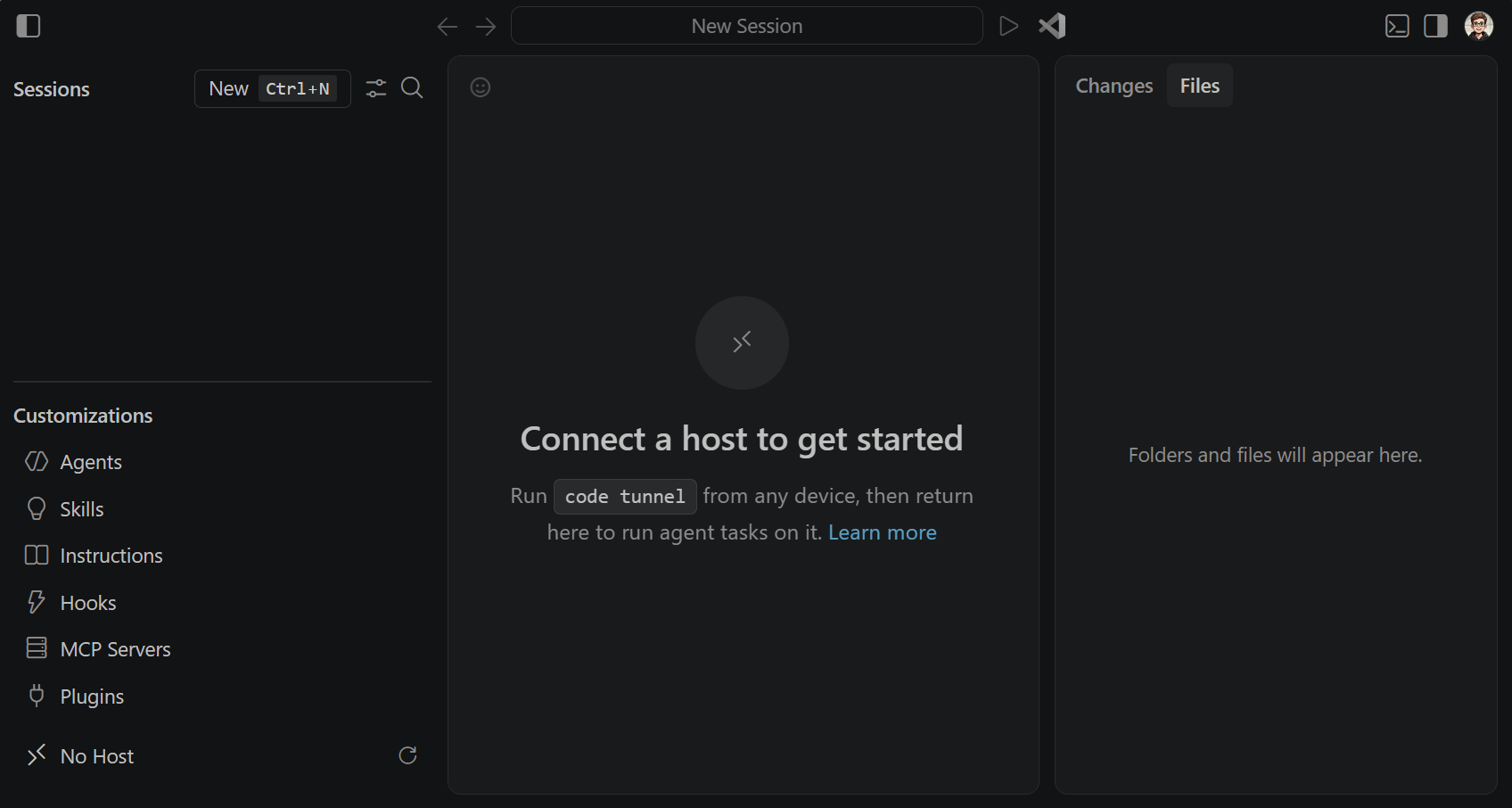
From GitHub, assign issues to cloud agents, track progress, and review the resulting pull requests. Use vscode.dev/agents to connect to agents on your development machine from a browser.
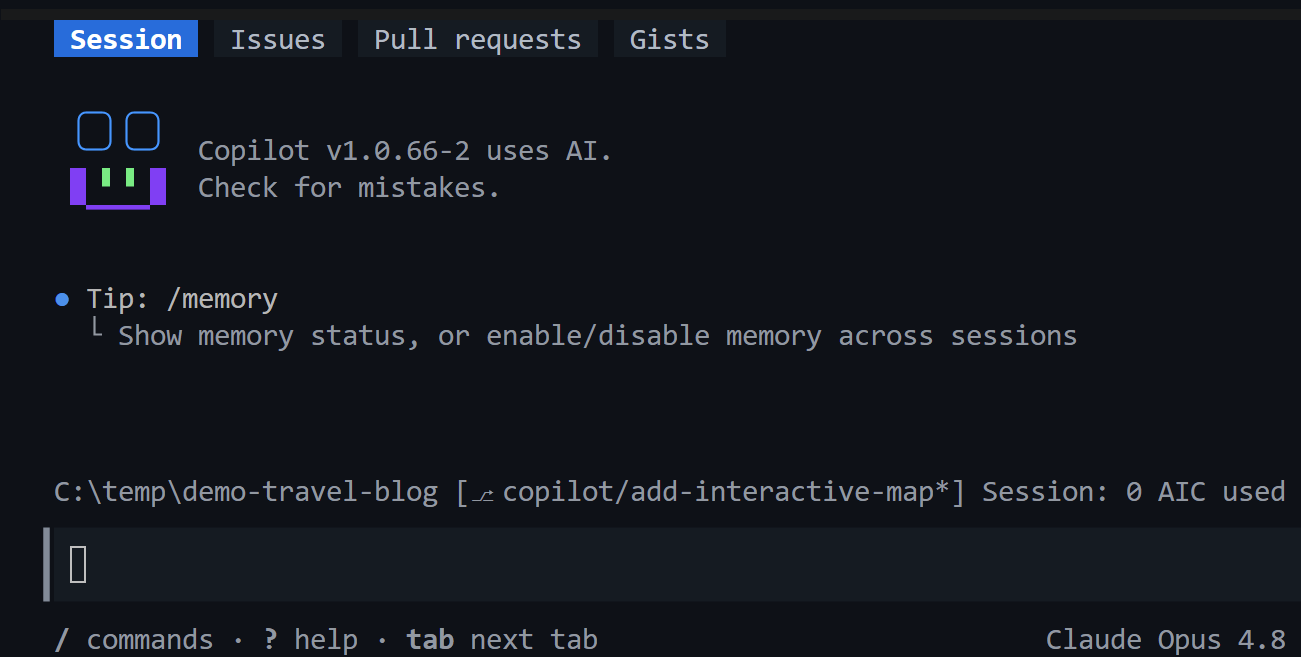
Use GitHub Copilot CLI to work with an agent from the integrated terminal or an external terminal.
Use the GitHub Copilot app to manage AI coding tasks in a dedicated desktop experience outside VS Code.
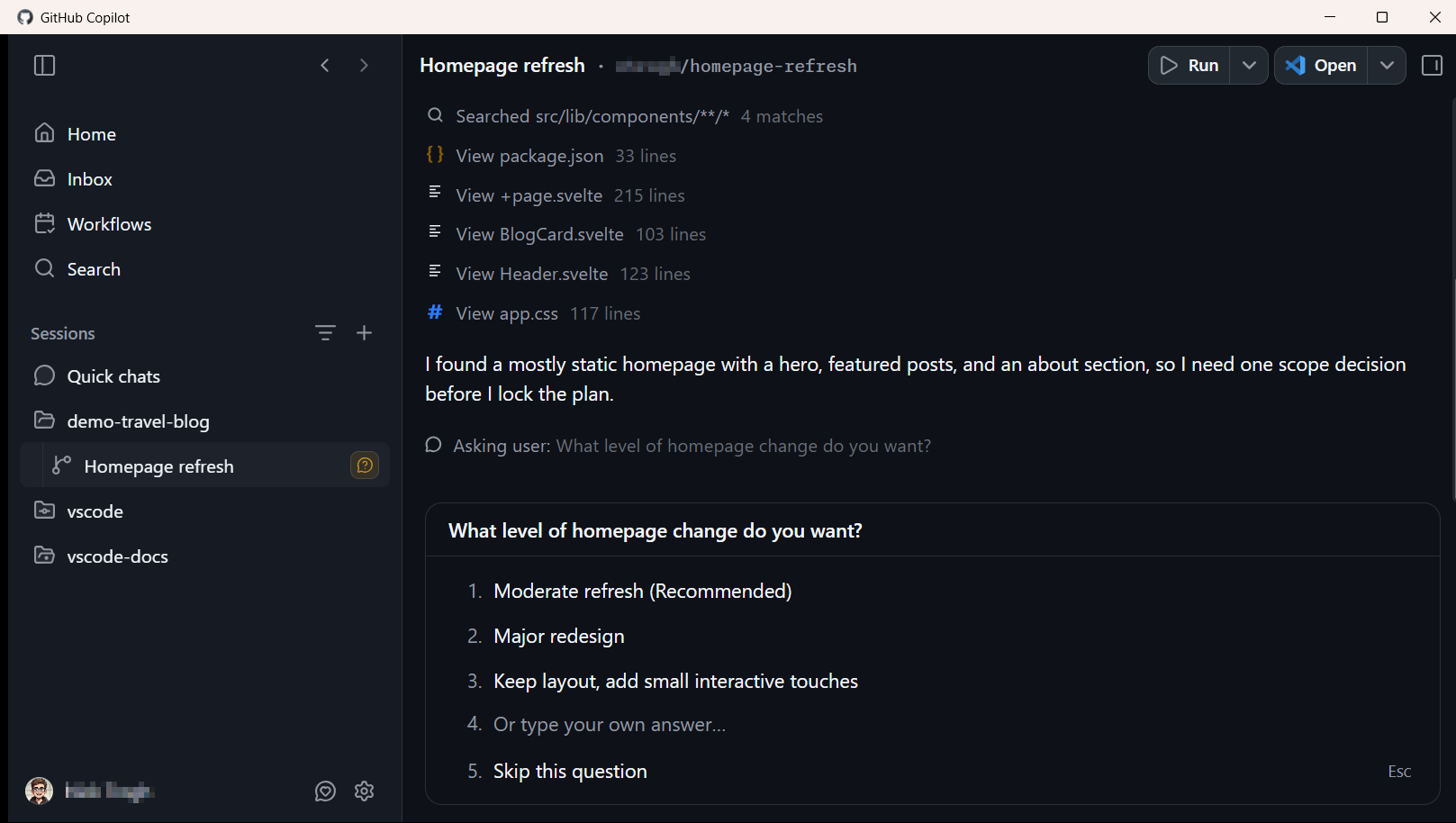
Access and continue sessions across interfaces and devices
Agent sessions aren't tied to a single interface. You can switch between the Agents window and the Chat view, or connect from a browser on another device through a dev tunnel.
You can also use the Agents window to start or manage sessions on another machine over SSH or a dev tunnel. Learn more about remote agent sessions.
VS Code can also discover supported sessions created by other interfaces and harnesses, including Copilot CLI, Claude Code, and Codex. Learn more about managing and handing off sessions.
Where and how agents run
The agent harness determines which provider-specific capabilities and tools are available. VS Code supports the built-in Local harness and provider-specific harnesses such as Copilot, Claude, and Codex. You can also choose from supported language models or bring your own model, including a model that runs locally.
The execution environment determines where the agent runs tools and changes code:
- Your machine: work directly in a folder or use a Git worktree to isolate changes.
- Cloud infrastructure: work on a GitHub repository in the background and return the result as a pull request.
- A remote machine: run the agent next to code and tools on a remote host.
Choose a harness and execution environment when you start a session. You can hand off the session when another target is a better fit for the next part of the task. Learn more about agent harnesses and execution environments.
Stay in control
Agents can read and edit files, run terminal commands, and call external services. Set a permission level to control which tool calls require your approval. Use agent sandboxing when you need operating system-level file system and network restrictions. Review generated code and validate the result before you keep the changes. Learn more about trust and safety controls.
Organizations can centrally control which AI features, models, and tools are available. Administrators can restrict agent capabilities and enforce requirements for their teams. Learn more about enterprise AI policies.
Get started
AI features are built into VS Code. Sign in with your GitHub account to use your GitHub Copilot subscription or bring your own models, and then choose a learning path:
-
Complete the agents quickstart to build and validate a small app with an agent.
-
Follow the agents tutorial for a longer, guided introduction to the Agents window, the Chat view, source control, and browser tools.
Make sure agents are enabled with chat.agent.enabled . If your organization has disabled agents, contact your GitHub organization administrator.
