
Note: Data retention for certain services may be affected by recent legal developments – please see our blog post for more details.
New and improved memory that stays up to date
We’re rolling out a new memory system that is better at staying up to date so responses feel more relevant and personalized. The new memory system is starting to roll out to Plus and Pro users in the US and will be expanding across more ChatGPT plans and countries in the coming weeks.
How memory works
When enabled, memory helps ChatGPT automatically remember useful context from your chats, files, and connected apps to personalize your experience, so you don’t have to repeat yourself as often.
Memory controls are available in Settings > Personalization > Memory. You can choose to enable or disable memory at any time.
Memory summary
You can see the information that ChatGPT remembers in the memory summary. While the memory summary should capture the most important details, it will not include everything that ChatGPT remembers based on your chats. If you want to know if ChatGPT has remembered something, just ask in chat.
The memory summary is automatically updated with new context as you chat with ChatGPT. At the top of the memory summary it will indicate when it was last updated such as “2 hours ago”.
To make edits to the memory summary:
Type what you want changed into the text box at the bottom of the memory summary and it will update accordingly.
You can highlight any text in the memory summary to make a specific correction, or select “Don’t mention this again” and ChatGPT will work to avoid bringing up that detail in future replies unless you explicitly ask about it.
“Don’t mention this again” helps reduce unwanted references, but it does not delete the information. To fully delete something ChatGPT may know about you, you’ll need to delete every source where it appears, including past chats, archived chats, files, the memory summary, and disconnect any connected apps that may contain that information.
You can delete the memories shown on your memory summary page and turn memory off by selecting Delete and turn off memory from the three-dot menu. This does not delete your past chats. If you turn memory back on later, ChatGPT may create new memories from chats that remain in your chat history, including older chats. This control is available on the web and rolling out on mobile soon.
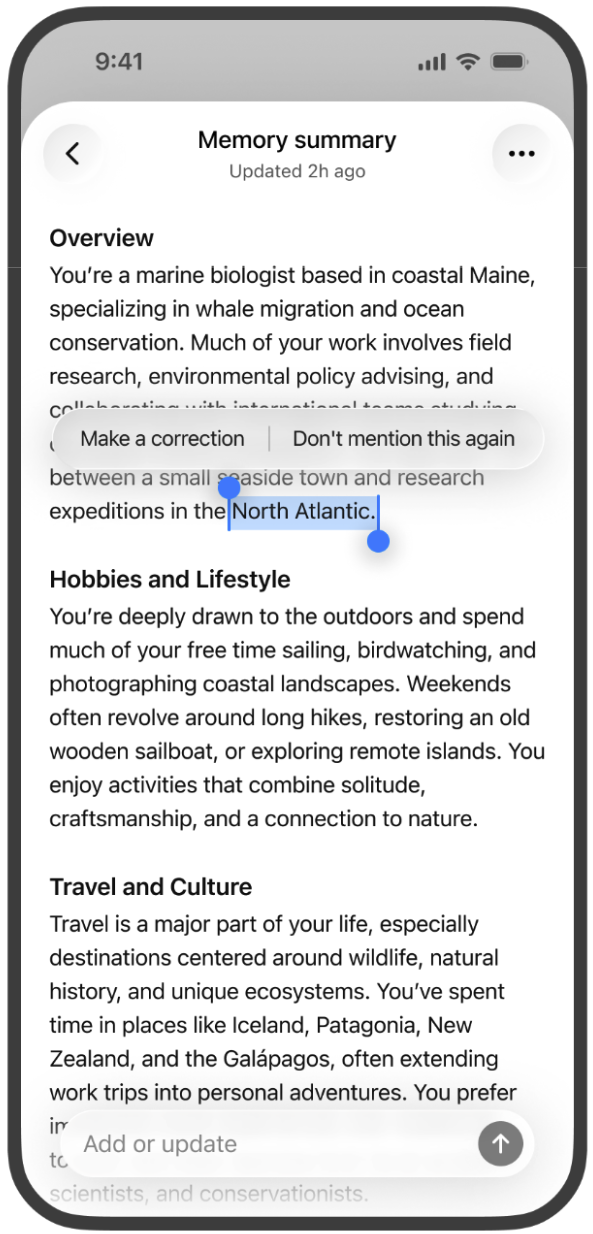
Memories in sources
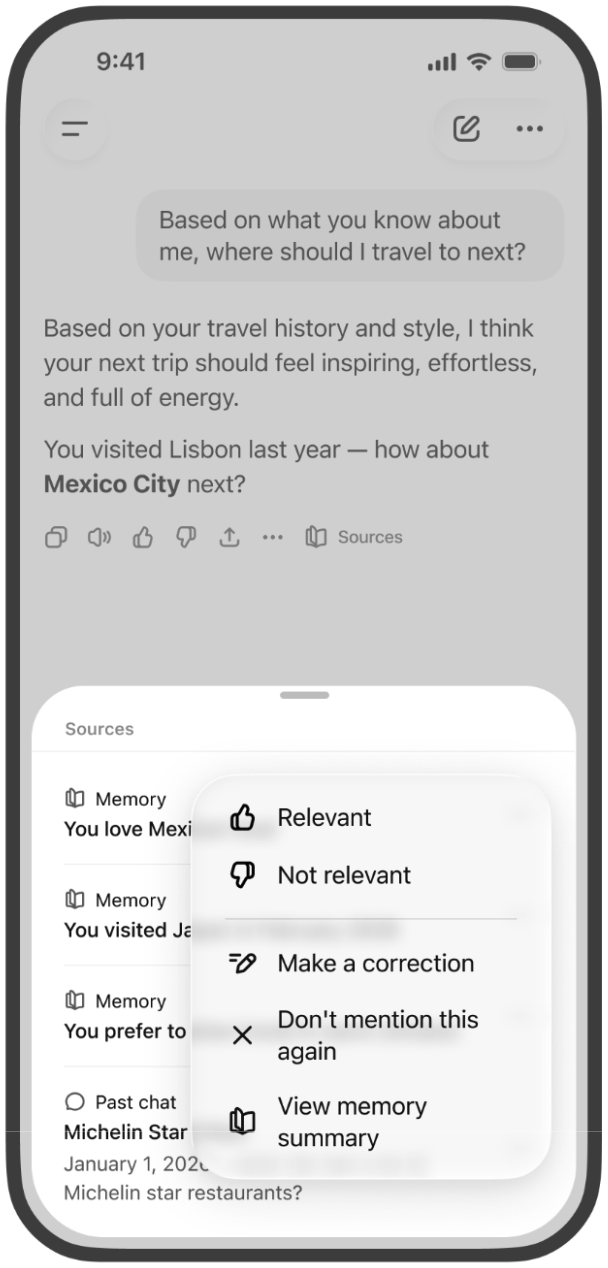
You can see what sources were used to personalize a response such as custom instructions, past chats, files, and memories by tapping the book icon below the response.
Tapping on a memory in sources will open an explanation on why that memory was used to personalize a response.
You can also make a correction or select “Don’t mention this again” by selecting the 3 dot menu.
Sources are designed to make memory easier to understand and control, though they may not show every factor or source that shaped a response. Memory sources are not included in chats you share.
How we've improved upon the previous saved memories experience
The previous saved memories system often became stale and relied on users to manually manage updates. Memories could also contradict one another, such as “I’m training for a marathon” and “I sprained my ankle,” which made personalization less accurate.
The new memory system updates memories automatically with ChatGPT keeping track of the details it determines are most important so it can continue building on the context you’ve already shared. If you prefer to revert to the legacy saved memories system, go to Settings > Memory > and click the “saved memories” link below “Memory summary”.
Will sensitive information appear in memory
Sensitive information may appear in memory if you share it with ChatGPT. If you don’t want information from a chat to be used to personalize responses, you can turn off memory or use Temporary Chats. Temporary Chats do not use existing memories or create new memories.
Why don’t I see anything in my memory summary
You may not see a memory summary yet if your account is new, you recently enabled memory, or there isn’t enough chat history. As you use ChatGPT more, your memory summary should populate over time. You can refresh your memory summary any time Settings > Personalization > Memory Summary -> Manage then going to the triple dot menu and selecting “Refresh”.
Does the memory summary include all my memories?
Not necessarily. ChatGPT’s memory is based on a continually updated synthesis of context from your past chats, which may be broader than what can be shown as individual items in a summary. The memory summary gives you a high-level view of that synthesis to help you review and manage what ChatGPT remembers.
Some details may not appear in the summary, including when ChatGPT determines they are less relevant or not appropriate to show in this view.
Is memory different from Custom Instructions?
Custom Instructions continue to allow you to provide ChatGPT with direct guidance on what you’d like it to know about you and how you’d like it to respond. For explicit information or instructions, you can add it to your Custom Instructions. For information shared via conversations, ChatGPT can remember relevant details for you.
---
The new memory system is starting to roll out to Plus and Pro users in the US and will expand to more ChatGPT plans and countries in the coming weeks. For information about the legacy memory systems, see the section below.
How Memory works
This section describes the legacy memory experience. We’re rolling out an improved Memory experience over the next few weeks, and this information will be updated as it becomes available.
You can control Memory via two settings:
Reference saved memories: These are details you have explicitly asked ChatGPT to remember, like your name, favorite color, or dietary preferences.
Reference chat history: ChatGPT can also use information from your past chats to make future conversations more helpful. For example, if you once said you like Thai food, it may take that into account the next time you ask “What should I have for lunch?” ChatGPT doesn’t remember every detail from past chats, so use saved memories for anything you want it to always keep in mind.
You can choose to turn on “Saved Memories,” both, or neither. The settings are flexible and you can change them anytime.
How does “Reference saved memories” work?
Saved memories are details you’ve directly told ChatGPT to remember. You can add a new memory at any time – for example: “Remember that I am vegetarian when you recommend a recipe.” Saved memories work similarly to custom instructions, except our models update them automatically rather than requiring users to manage them manually. If you share information that might be useful for future conversations, ChatGPT may save those details as a memory without you needing to ask. Like custom instructions, saved memories are part of the context ChatGPT uses to generate a response. Unless you delete them, saved memories are always considered in future responses.
ChatGPT can manage saved memories on its own, updating, combining, or removing them when asked. You’re in control of ChatGPT’s saved memories. You can delete individual memories, clear all of them, or turn saved memory off completely in settings. (Note: turning off “Reference saved memories” in settings also turns off “Reference chat history”). To chat without using saved memory, use Temporary Chat.
How do I enable or disable saved memories?
You can turn saved memories on or off anytime under your profile picture > Settings > Personalization. Note that these settings may vary slightly depending on your plan.
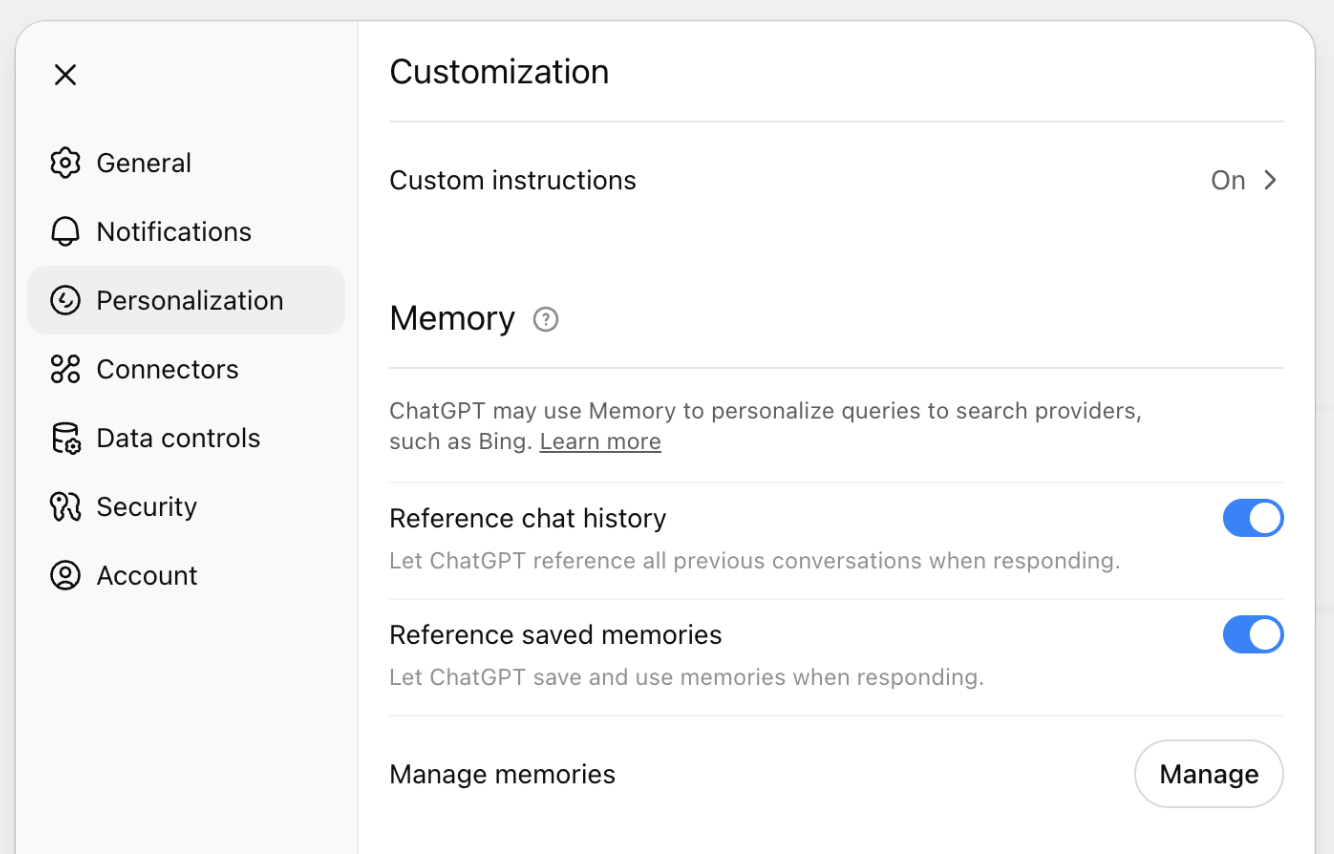
Turning saved memory off won’t delete anything that’s already been remembered. And deleting a chat doesn’t remove saved memory from that conversation. To delete saved memories, tell ChatGPT to delete or forget it, or go to Settings > Personalization > Manage memories.
To fully remove a memory, delete both the saved memory in Manage memories and the chat where you originally shared it.
Turning off Memory/Personalization does not disable safety features that may use limited, safety-relevant context in rare, high-risk situations to help ChatGPT respond more safely. Learn more: Helping ChatGPT better recognize context in sensitive conversations.
How long does ChatGPT keep saved memories?
The “notepad” of your saved memories are stored separately from your chat history. This means even if you delete a chat, any saved memories from it can still be used in future conversations.
You can ask ChatGPT to forget a saved memory at any time. When you do, that memory is removed and won’t be used in future chats. We may retain a log of deleted Saved Memories for up to 30 days for safety and debugging purposes.
Saved memories can show up in past conversations. For example, if ChatGPT remembers that you live in San Francisco, it might say “Since you live in San Francisco…” when answering a weekend plan question. You can delete that memory anytime, but it won’t remove mentions from past chats. To clear that, you will need to delete the specific chat where it was shared.
How do I manage my saved memory storage?
Please note that memory management controls and automatic memory management are currently only available on Web to ChatGPT Plus and Pro users.
ChatGPT Plus and Pro users can now automatically manage saved memories by keeping the most relevant details prioritized and moving less important ones to the background. This helps prevent saved memories from reaching capacity and helps avoid “memory full” state in your ChatGPT account.
To decide which memories stay top of mind, ChatGPT considers factors such as how recent a detail is and how often you talk about a topic.
You can now also search your saved memories more easily and sort them by newest or oldest by tapping the three dot menu.
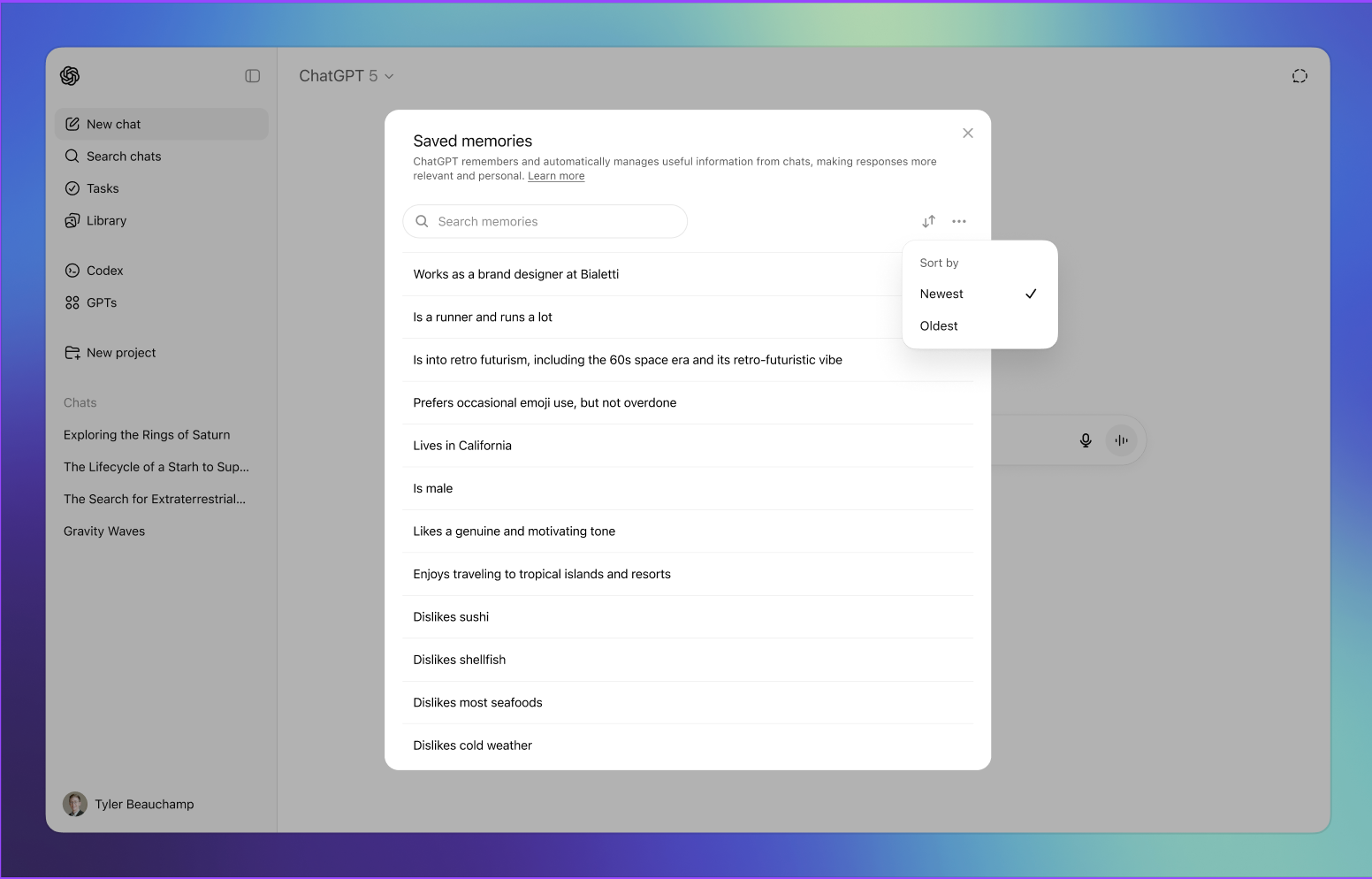
You’re always in control: you can turn off automatic memory management at any time, and you can see which memories are currently top of mind and choose to prioritize or deprioritize any specific memory yourself in settings. Memories that are not top of mind are in gray.
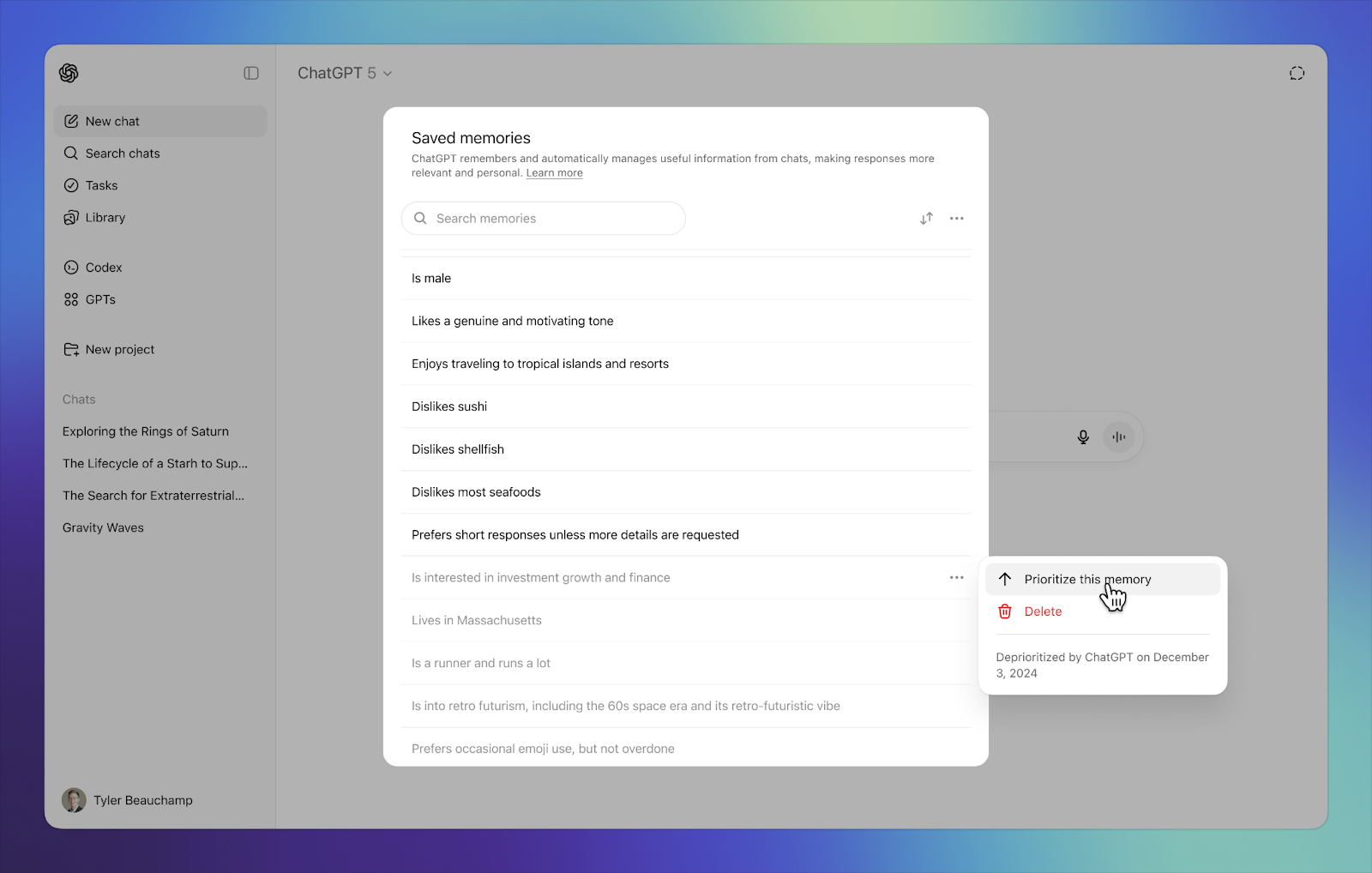
You can delete any saved memory by clicking on ⋯ next to each memory and selecting Delete in the pop-up menu that appears. You can also also delete all your memories by selecting ⋯ next to the search bar and selecting Delete all.
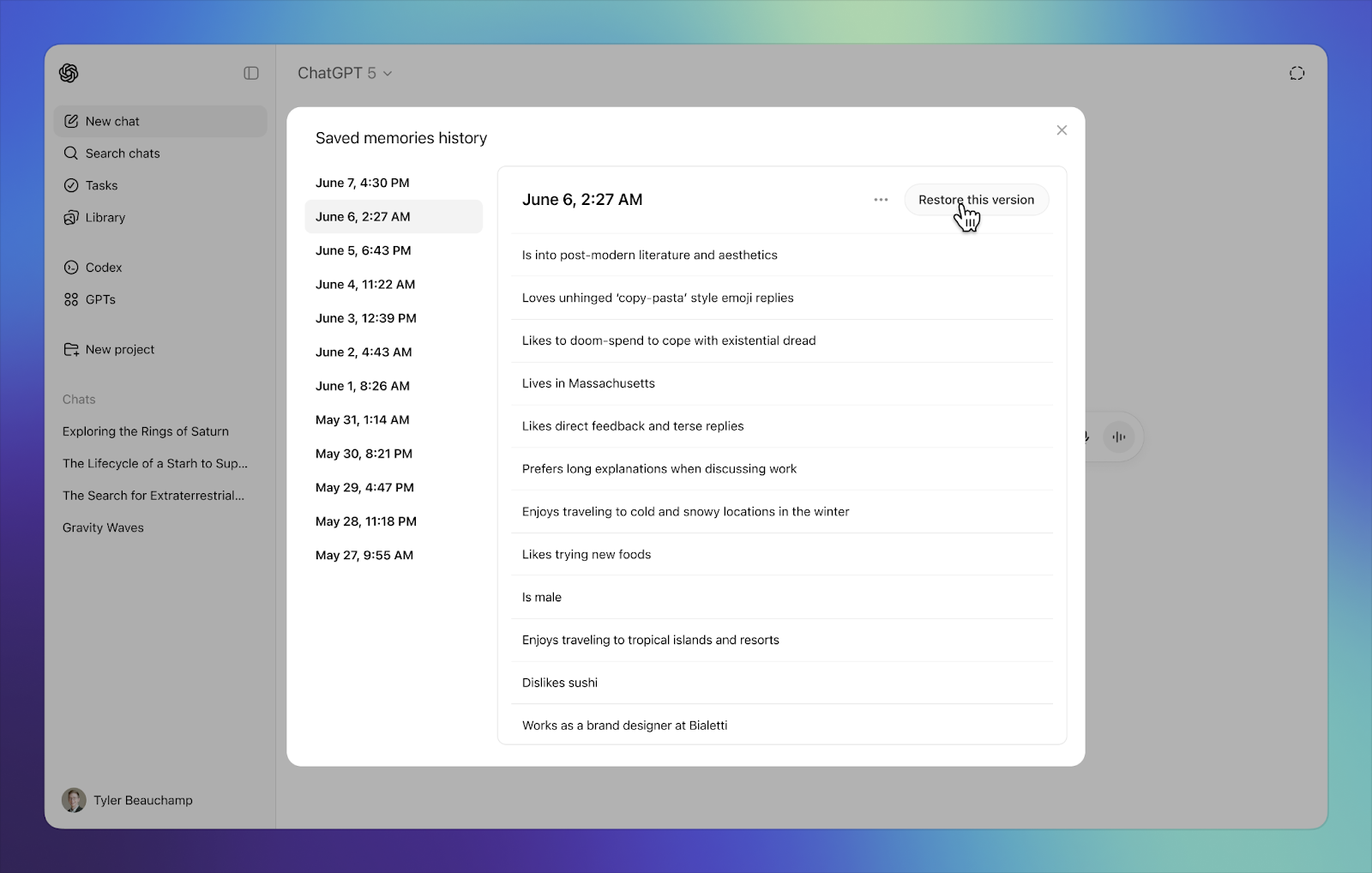
You can also view and restore prior versions of saved memories by tapping view history in the three dot menu. You will see your saved memory history, and you can choose to restore previous versions of your memories, by date.
How does “Reference chat history” work?
When “Reference chat history” is turned on, ChatGPT will reference your past conversations to recall useful information you’ve shared. It uses this to learn about your interests and preferences, helping make future chats more personalized and relevant. Like custom instructions, when this setting is on, relevant information from your past conversations may be added to new ones.
Unlike saved memories, which are kept until you delete them, details from past chats can change over time as ChatGPT updates what’s more helpful to remember. Because ChatGPT doesn’t retain every detail from past chats, use saved memories for anything you want it to always remember.
How do I enable or disable Reference Chat History?
You can turn “Reference chat history” on or off anytime in Settings > Personalization. Note that these settings may vary slightly depending on your plan.
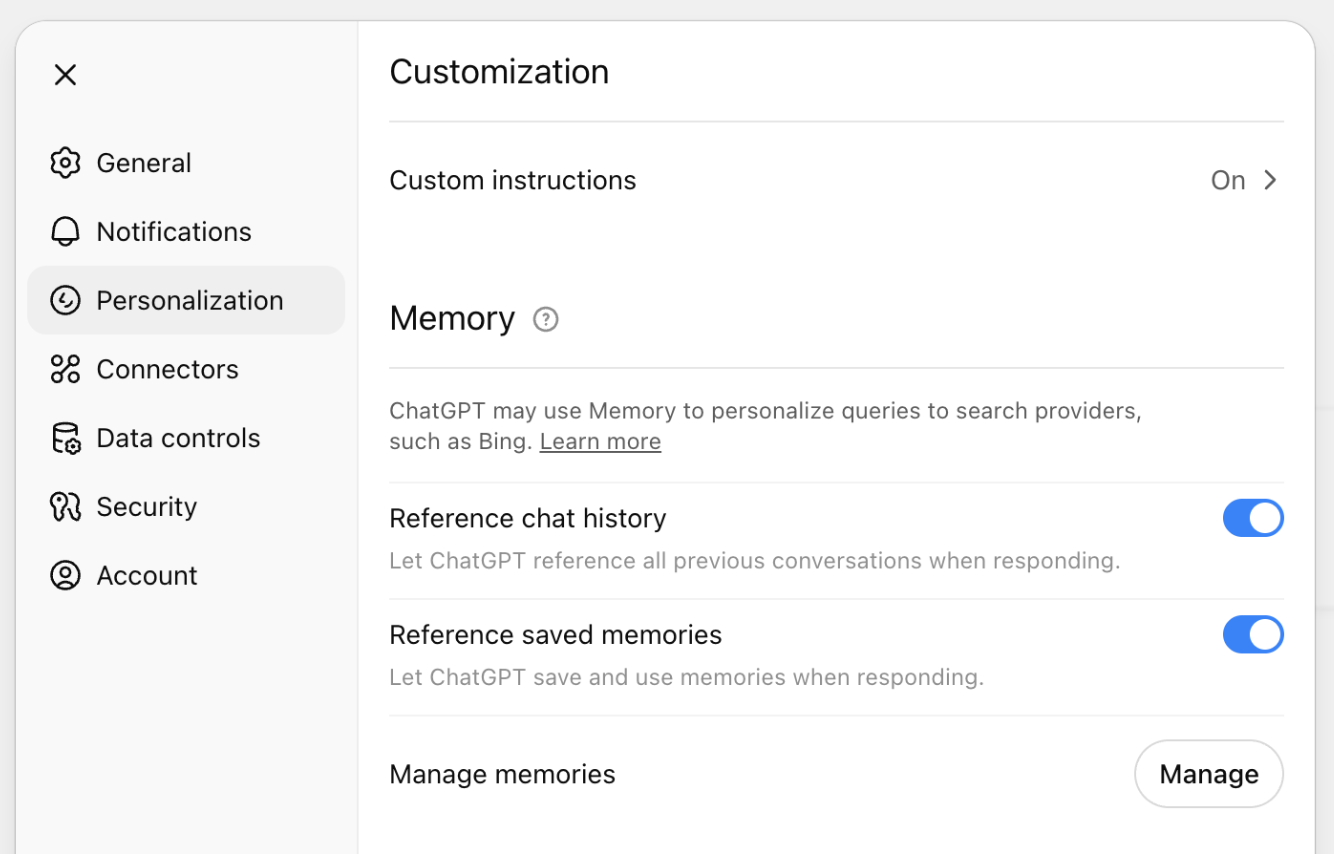
If you turn “Reference saved memories” off, that will also turn off “Reference chat history”. If “Reference saved memories” is on, you can still turn “Reference chat history” off.
If you turn off “Reference chat history”, this will also delete the information ChatGPT remembered from past chats. That information will be deleted from our systems within 30 days.
Does ChatGPT have a storage limit when Reference Chat History is on?
There is no storage limit for what ChatGPT can reference when “Reference chat history” is turned on.
How do I manage what ChatGPT remembers when Reference Chat History is on?
To learn what ChatGPT remembers about you, just ask it. You can also ask ChatGPT to forget something it remembered from a past conversation. When ChatGPT forgets something, it won’t use that information in future responses, but the original conversation will still be in your chat history unless you delete it. It may take a few days for deleted memories to stop being referenced in your chats.
When “Reference chat history” is on, ChatGPT will keep information from past conversations unless you delete (or archive) those chats.
If you turn off “Reference chat history”, all information ChatGPT remembered from past chats will be deleted. That information will be deleted from our systems within 30 days.
How does "Reference memory in suggestions" work?
Note: This setting is related to ChatGPT pulse, currently available to Pro users on iOS and Android.
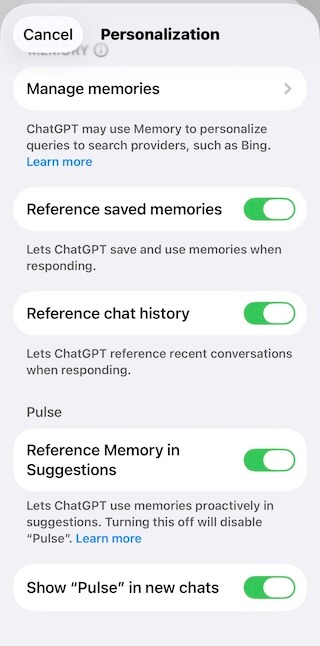
When this setting is enabled, ChatGPT pulse uses both chat history and saved memories to perform nightly, asynchronous research on your behalf, and deliver visual summaries that you can scan at a glance, the next day. You can expand the summaries for more detail, save for later, ask follow up questions and provide feedback. For this setting to work, both Reference saved memories and Reference chat history must be toggled on. See more information in the ChatGPT Pulse article.
How do I fully delete something ChatGPT knows about me?
If Memory is on and you want to fully remove something ChatGPT may use to personalize your experience, you need to delete it from each place where it appears. This can include deleting saved memories in Settings, deleting chats where you shared or referenced that information, deleting relevant files from your file library, and disconnecting any connected apps that may contain that information.
ChatGPT may still use information from prior conversations for limited safety and security purposes. These safety uses are separate from the memory settings and controls used to personalize your experience.
Can I disable memories for my ChatGPT Enterprise or Edu workspace?
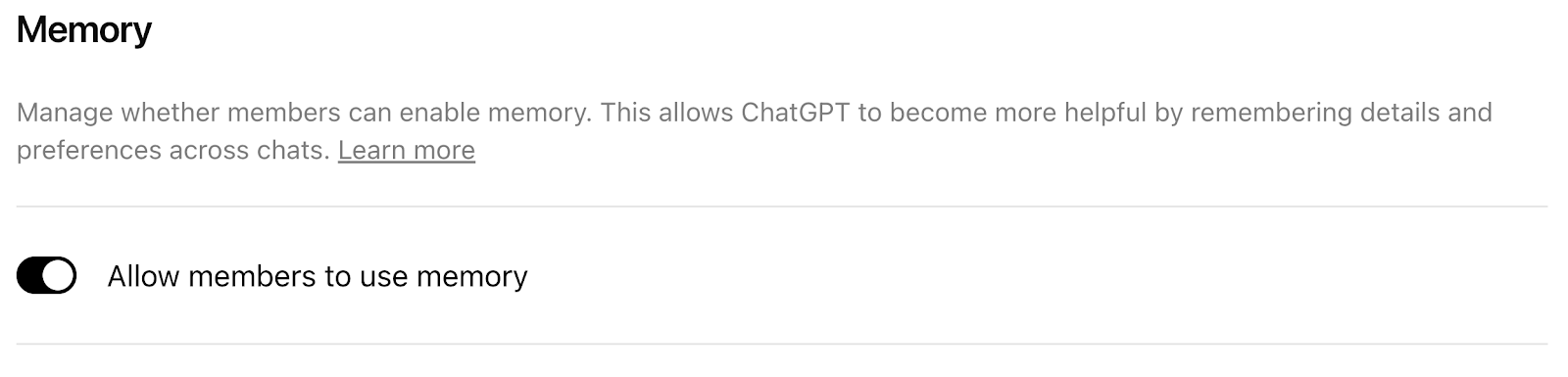
ChatGPT Enterprise workspace owners can turn Memory on or off for all users in their Admin Settings.
Note: The Reference Chat History feature is not yet available to Enterprise and Edu customers.
Does memory remember sensitive information?
Memory raises important privacy and safety considerations, especially around what type of information should be remembered and how that information is used to provide and personalize responses.
If you don’t want information you share in a chat to be used to personalize responses, you can always turn off Memory or use the Temporary Chat feature.
You’re in control: you can review and delete saved memories, ask what ChatGPT remembers about you, delete specific conversations, turn Memory controls off, and provide feedback so we can improve. If Memory is enabled, you can use the Temporary Chat feature to share information you wouldn’t want used to personalize future responses
Can ChatGPT remember my name or account identity in Memory?
Yes, but only in these cases:
You tell it your name (for example, in Custom Instructions or in a message).
Memory is on and “reference past chats” is enabled, in which case ChatGPT may reference your account name it already shows you in product.
Do you train your models with memories?
If you have the “Improve the model for everyone” setting turned on, we may use content you’ve shared with ChatGPT, including past chats, saved memories, and memories from those chats, to help improve our models. You can turn this setting off anytime in your Data Controls. As always, we do not train on content from ChatGPT Business, Enterprise, and Edu customers by default.
Learn more about your choices on how we use your content to improve model performance.
How does memory work with ChatGPT search?
ChatGPT may use relevant details from your saved memories or recent chats to improve how it rewrites your query for search. This helps make the search results more tailored to you.
For example, if you’ve shared in past chats that you’re vegan and live in San Francisco, and you ask: "What are some restaurants near me that I’d like?"
ChatGPT might rewrite that to: "Good vegan restaurants in San Francisco" to better reflect your preferences.
Learn more about ChatGPT search.
Memory sources
Memory Sources show you what information was used to personalize a response. When ChatGPT uses relevant context, the sources that informed the answer may appear alongside the response. Available in ChatGPT Plus, Pro, Free, and Go plans on the web, rolling out on mobile soon.
Sources available depend on your plan.
Free and Go
Past chats
Saved memories
Custom instructions
Plus and Pro
Everything above
Files in your library (not available in European Economic Area, Switzerland or UK)
Gmail if your Gmail app is connected (not available in European Economic Area, Switzerland or UK)
Memory sources are designed to make personalization easier to understand, but they may not show every factor that shaped an answer. For example, it may show you one to two of the most relevant past chats in sources instead of all the past chats it searched and referenced. We’ll continue improving this view to make it more comprehensive over time.
How do I manage memory sources?
Memory Sources make it easier to understand and manage personalization in ChatGPT.
With Memory Sources, you can:
See what information informed a personalized response
View and edit saved memories
Delete referenced chats
Mark sources as relevant or not relevant to improve future responses
Memory Sources are only shown within your ChatGPT experience. If you share a chat, Memory Sources are not shown in the shared conversation.
| Source | What you can do |
|---|---|
| Past chats | Provide feedback by marking as relevant or not relevant. Delete the referenced chat. |
| Saved memory | Mark as relevant or not relevant. Correct or delete a saved memory. View all saved memories. |
| Custom instructions | Mark as relevant or not relevant. View custom instructions. |
| Files | View referenced files. Available to Plus and Pro users outside the EEA, Switzerland, and the UK. |
| Gmail | View referenced emails. Available to Plus and Pro users outside the EEA, Switzerland, and the UK with Gmail connected. |
How do I connect to Gmail?
Gmail connections are available on Plus and Pro plans.
To connect Gmail in ChatGPT:
Go to Settings → Apps
Browse the app directory and select Gmail
Click Connect
Complete the Google sign-in and authorization flow
Once connected, Gmail will be available to use in ChatGPT conversations.
More personalized responses in ChatGPT
ChatGPT can now better personalize responses using relevant context from your past chats, saved memories, files and connected Gmail app. It intelligently decides when a response can be improved with additional personalization and is significantly faster at searching past conversations to find the right context, so you don’t have to repeat yourself as often. When past context is being used, ChatGPT will show “remembering” as it recalls past chats and “personalizing” when we’re improving the response based on past context, making it clearer when additional personalization helps improve an answer.
These improvements are available to users on Plus, Pro, Free, and Go plans. In the coming weeks, we plan to begin rolling these improvements out to ChatGPT Business and Enterprise plans, bringing smarter context retrieval to more teams and workflows. Responses on the Free tier will draw from a reduced set of past chats.
How does Gmail work with memory?
If available in your region, ChatGPT can use relevant information from your inbox to improve responses if you connect Gmail.
For example, it may help with:
Upcoming travel plans from confirmation emails
Details from project threads
Scheduling context
Will ChatGPT search my history on every request?
No. ChatGPT intelligently looks for relevant context only when it is likely to improve the response.
Can I control this experience?
Protecting privacy is an important part of how we build and improve ChatGPT. You remain in control of how personalization works in ChatGPT. ChatGPT uses personal context when it is relevant to improve a response, and you can manage or remove that information at any time.
You can choose to turn Saved Memory or Reference Chat History off, delete past chats, use Temporary Chats that won’t appear in history or use or update memory, manage connected apps, and control whether your content is used to help improve our models.
