





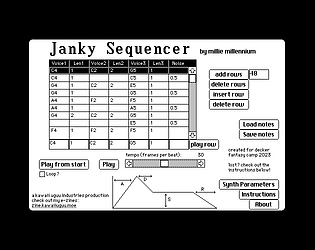
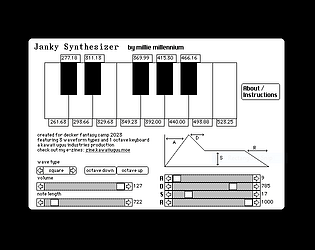
Aww these two :3
Millie Squilly
Creator of
Recent community posts
I've written up a few tips about using this template, since I think some stuff is a bit non-obvious (like the funny resolution) and it's caused some confusion and questions. https://micpp.itch.io/hybrid-zine-template-for-decker/devlog/1488285/a-few-tips-...
I am kind of not inclined to add more bloat than I need to - like if I add every font that's a lot of stuff being bundled that isn't needed. Plus if there's ever updates to them it's more that I need to keep updated. And I don't want to sort of enshrine those as THE fonts necessarily.
Mostly the hook is the print capabilities so I want to stick to that as a dependency. I'm not necessarily thinking of this as any easier than any other Decker project so I'd hope people should be able to work out how to pull in other resources.
(Also tbh building Decker from source on Linux is not hard and I think even some distros have packages available)
Quick bugfix, PDF exports should keep custom palettes now!
Sorry if you'd already started, but replacing the code in the "save pdf" button should sort it for you if you don't want to start from scratch!
The Hybrid Decker Zine Jam starts in a few days and runs until the 15th of May 2026. Make a decker e-zine that's a print zine too!
Making e-zines in Decker is great! And making print zines is great too! But what if you could make a zine that's both?
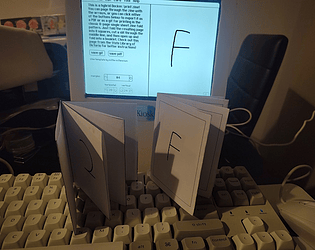
I've made a template that you can use to make an 8-page zine that's readable in Decker and will export to a printable format in the traditional single sheet 8 page fold format at the click of a button. There's a few options to adjust the margins, since printers are messy and America has funny page sizes, but hopefully the defaults should work for most people.
https://micpp.itch.io/hybrid-zine-template-for-decker
Since I want to encourage people to make their own zines with this template, I'm running a jam as well! It starts in a few days and it's like 6 weeks long so there's plenty of time if you want to make something for it!
https://itch.io/jam/hybrid-decker-zine-jam
Let me know what you think!
Yeah, an approach like this would work for exactly that. Like you code the door so it's like "if character A, then enter the room, if character B then pop up a message about being haunted by memories". So you can have the one card with things coded to behave differently depending on which character you are at the time.
It's great that you've got it all planned out in advance, it can make stuff a lot easier.
If you've got different characters that you select and you're needing to track progress, there's ways to do that fairly easily. I'll try to explain how you might be able to accomplish this, without having to have like a separate set of cards for every possible path.
Let's say you've got a card that's a certain location, and maybe there's one door that you only want a certain character to be able to enter, and another door that you can only enter if you've unlocked it, or something like that. Like in general there's a certain state of the game that you need to be able to keep track of, to know who you are and what you've done so far.
I've found the easiest way to handle this is basically to have a separate hidden card, that's basically filled with checkboxes (and other widgets) that I can use to keep track of and store all this sort of "state" info. Like I might have one that says what character you are currently, and one for each task you might have already completed,or something.
Then on the location card, you can refer to these checkboxes to decide what happens when you click something. Like either entering the door or popping up a box saying it's locked.
The pages in Phield Notes on Referring to Other Widgets and If-Else Statements are probably the best explanation of how to do this.
Alright. So first up, you don't know how to code YET! You may yet learn to code. I think what you want to do is doable, if you are prepared to start dabbling in a bit of code. And as you get more comfortable you can try out more stuff
If you make a button and hit the "Script..." button, you'll see this pop up
on click do end
In between is where we can put code that we want to run!
In terms of saving, you can save out a copy of the deck using the code app.save[], that's basically the same as hitting the save menu when you're unlocked. So in a button you can doon click do app.save[] end
With some more advanced coding, there are some other ways of saving out stuff but we'll start simple for now. But if you want a more complicated example, my game The Wayward Mage uses a custom save format that basically saves out the game state in a custom file.
A long game is ABSOLUTELY possible. It sounds like you're looking at basically doing branching purely on cards. If you're finding the "picking the next card to branch to" tricky with having to manually navigate to it, this is another thing that can be easier with code.If you set up a button to go to a card with a transition, and then open its script up you will see something like this.
on click do go["card1" "SlideLeft"] end
It might be easier, with lots of cards, to basically use this but change the names of the cards manually in the code, like if you know you want to go to a card named "branch2a" you can just write that into the code.
If you're doing visual novel stuff, it could be easier to do things without needing a separate card for each screen. If you use the dialogizer and puppeteer modules that come in the Decker examples folder, they basically let you write and run a whole visual novel script with sprites and a background and text and such. So you're not using a whole card for just one screen of text - you basically just have a card for a background, and some cards to store your character sprites. And then a hidden field somewhere to stash your script. It's again a bit of simple coding, if you look in the dialog.deck and puppeteer.deck files in the Examples folder they'll have documentation.
Finally, if you haven't checked it out definitely take a look at Phinxel's Field Notes, it's a very thorough Decker tutorial that'll teach you some simple coding things among many other Decker tricks, and it doesn't assume any existing coding knowledge. Another thing I've found helpful is pulling apart other people's decks to find out how they did things.
EX5 time! Last issue of the EX series! https://zine.milliesquilly.com/ex/ex5.html

Hi,
So basically what you'll need is some code to change the palette when you go to that specific card, and change it back when you leave. This could be done in the button code or in the "on view" of the card. The "all about color" deck does have a bit of example code for doing this on the palette transitions page.
My palettefade module may be handy too, although it's primarily designed for doing fancy fade in/out transitions it does have some helpful utility functions for changing the palette. Hopefully should all be in the documentation but I'll try to go over some examples here.
So if you're using palettefade and you've added the module to your deck, you can get the current palette as a list of 16 integers by running pf.currentpalette[deck] in the Listener. Generally I'll take the output of that and make them like global constants e.g. in the deck-level script I'll have palette1:(16777215,16776960,16737536.... and so on for the various palettes I have.
Then when I want to change to a certain palette I'll use pf.setpalettte[deck palette1] and that'll change the palette. So I can have that in my "change to a new card" button or just in the "on view" so that however you got to the card it'll be at the correct palette.
If you want to get fancy then you could use the blackdip function in palettefade, that does a nice smooth fade to black and then fades up with the new palette, e.g. pf.blackdip[deck card2 30 palette2]. Or you can do something with transitions like in the all about colour deck example.
I hope at least some of this makes sense. Let me know if you're getting stuck though.