
File formats can be a pain to work with, and you definitely don’t want to copy and paste documents between programs. Pandoc is a powerful tool that allows you to convert your text documents between a huge range of formats on the fly. With Pandoc, you can write it once, and convert it for every platform and program you can think of.
In this tutorial you will learn:
- How to Install Pandoc
- How to Use Pandoc in Live Mode
- How to Convert Documents
- How to Use More Concise Flags

Software Requirements and Conventions Used
| Category | Requirements, Conventions or Software Version Used |
|---|---|
| System | Ubuntu, Debian, Fedora, and Arch |
| Software | Pandoc |
| Other | Privileged access to your Linux system as root or via the sudo command. |
| Conventions |
# – requires given linux commands to be executed with root privileges either directly as a root user or by use of sudo command$ – requires given linux commands to be executed as a regular non-privileged user |
How to Install Pandoc
Pandoc is an open source program that’s available in just about every distribution’s repositories. You can install it with relative ease on any of them. On some distributions, Pandoc does have a lot of dependencies, so the install might take a bit of time, but it’s packaged and fully supported.

Open up a terminal, and install Pandoc with your package manager.
Ubuntu & Debian
$ sudo apt install pandoc
Fedora
# dnf install pandoc
# pacman -S pandoc
How to Use Pandoc in Live Mode
When you use Pandoc without any flags or input, it acts like a text editor, treating everything that you write as markdown and converting it to HTML when you exit. Pandoc was initially based around markdown, using it to convert to more technical formats like HTML and LaTeX.
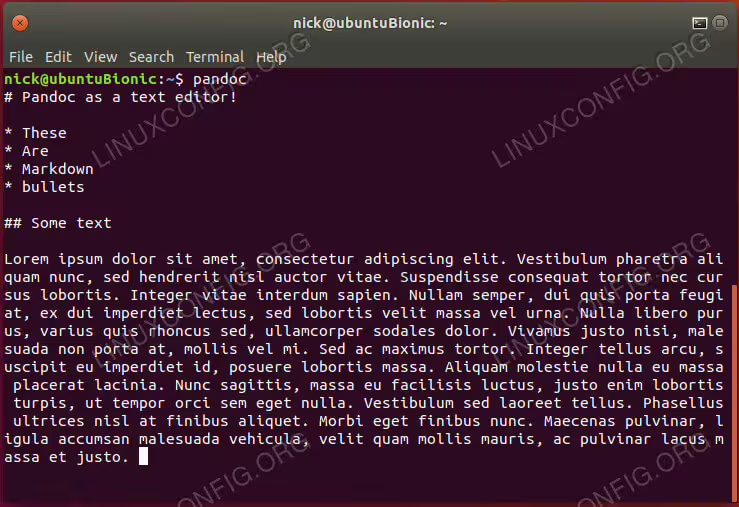
Open up a terminal, and run pandoc. Type out some basic markdown in the file. When you’re done, press Ctrl+D and you’ll see your markdown converted to HTML.

You don’t need to use markdown and HTML with the live editor. Instead, you can use the -f and -t flags to tell Pandoc which format to convert from and which to convert to, respectively.
$ pandoc -f html -t markdown
While that’s pretty interesting, it’s certainly not that useful. Most of the time, you’re going to want to convert existing documents.
How to Convert Documents
Create a document to test with. It doesn’t have to be anything involved. You can throw some junk and “lorem ipsum” in there to fill it out, like the examples.
Now, run the same basic pandoc command as before, this time specifying your test file first.
$ pandoc test.md -f markdown -t html

Once again, you’ll notice that your file gets spit out in the terminal, once converted. Again that’s not all that useful. Try adding a destination file with the -o flag.
$ pandoc test.md -f markdown -t html -o test.html
There, now you can open up test.html, and see the resulting HTML.
How to Use More Concise Flags

That command’s getting a bit long and obnoxious, isn’t it. Well, there’s a better way. You can use the -s and -o flags to tell Pandoc your source file and output. It will detect the file types automatically with the provided extensions. Try it again with your test file.
$ pandoc -s test.md -o test.html
The result is nearly the same, but the command to get there is much more bearable, and you have a lot less to memorize. There is a bit of a catch, though. The -s flag isn’t for source. It’s actually the standalone flag, and it adds in additional data and headers to the resulting file. Sometimes, this is more convenient. Others, it’s a pain. You need to decide what works best for you.
Conclusion
You’re ready to get started with Pandoc. These are just the basics, though, and Pandoc gets much deeper for specific applications. You can take a look at a more compete look at Pandoc’s supported formats on it’s homepage.

