
noteで表...!?君のnoteは反映される?コピペできるか試してみて!反映されたりされなかったりするけど😂コードわからなくても起動できるツール🎁

ちなみに私はコード理解度0です!バーン( ー̀ωー́ )
まずは下の記事を読んで見てください
とても面白い記事です!表って地味に欲しい機能ですよね!
一番下にAIが作ったファイルと
コピペできるhtmlコード
を置いておくので遊んでみてね!
ファイルの方はダウンロードしたらダブルクリックするだけで
Chromeひらくのだ
(文字見るだけで、うっダメージってなってる人は
最後だけ見て、読み込ませるだけでもやってみると面白いよ!)
LaTeXって方法で書けるらしい!?noteはKaTeX?
よくわからない言葉がまた出てきました:(;゙゚'ω゚'):
で、まぁ考えても何もわからないのでコピペツールを作ってみます。
GeminiとClaudeとChatGPTをぐるぐる巡回しながら作り上げます。
一個じゃ完成しないのおもしろいよね。得意不得意なことがある。
でけた
縦線バージョンとシンプルバージョンが作れるよ
行を追加・削除。列を追加・削除もできるよ。
上のヘッダーとかの四角いところに文字を記入したら、
プレビューに文字が反映されるよ。下の出力欄に勝手にコードができるので青いボタンのコピー押すだけ!
あとはnoteに貼って完成〜できたらよかったんだけど…
noteに反映されたりされなかったり(´;ω;`)

ね!簡単でしょ?(どうなんだろう?)
シンプルバージョン
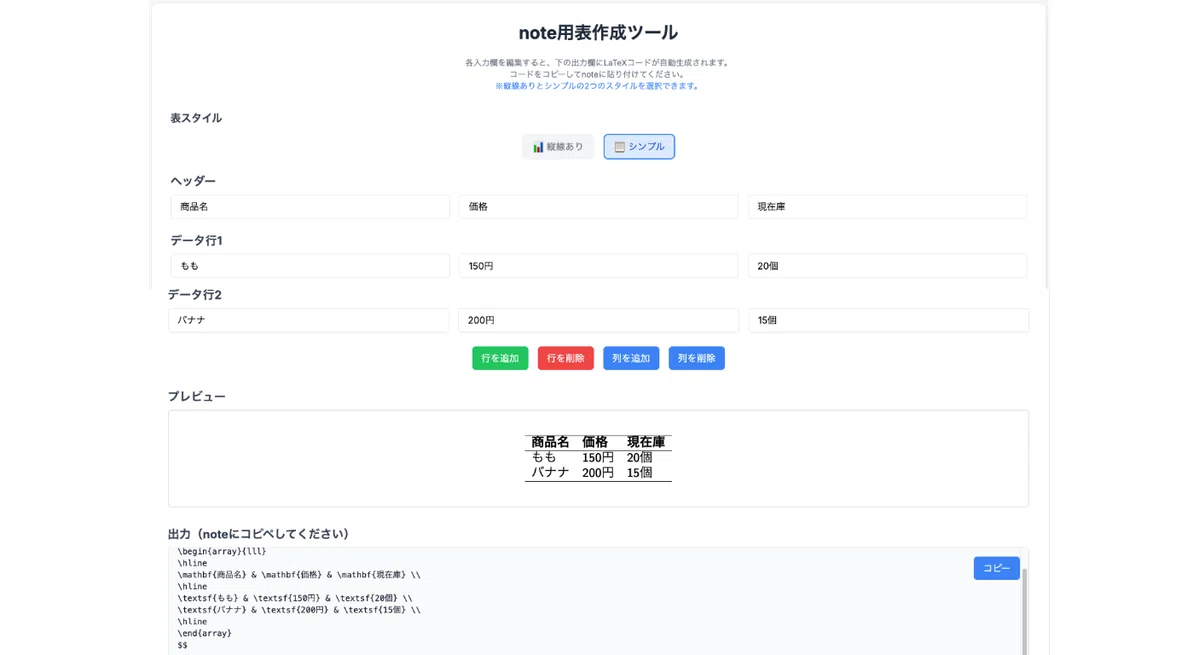
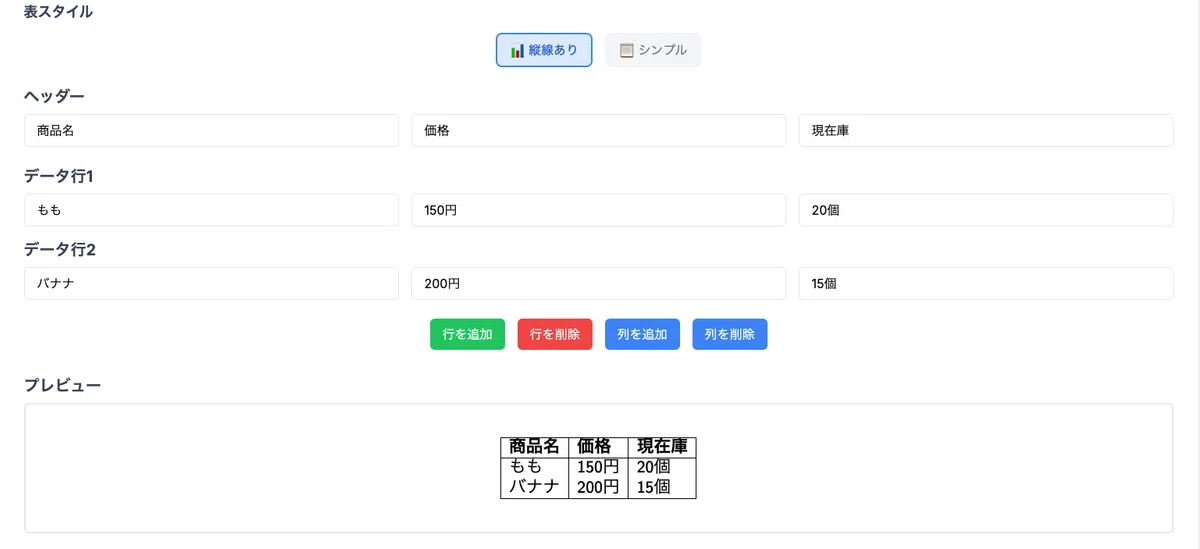
はりつけても…だめだ!!(´;ω;`)
もしかしてnoteプレミアム会員だったらできたりする?😂
そんなわけないか😨
$$
\begin{array}{llll}
\hline
\mathbf{商品名} & \mathbf{価格} & \mathbf{現在庫} & \mathbf{あ} \\
\hline
\textsf{もも} & \textsf{150円} & \textsf{20個} & \textsf{あ} \\
\textsf{バナナ} & \textsf{200円} & \textsf{15個} & \textsf{あ} \\
\textsf{あ} & \textsf{あ} & \textsf{あ} & \textsf{あ} \\
\hline
\end{array}
$$
ぱんじゅさんの参考にしてるからももバナナのままだ!
それはそうと私が表を作ると全てが「あああああ」になるぞ(突然の脅し)
(それはよくない)
ん???今見たら反映されてた!完成じゃああ!!
なんでなんどやってもだめだったのか笑
記事ランダムなのか?
ちょー、ここの場所反映されてなかった時の文章なんだけど笑
↓下書きでは希望を見せてくる
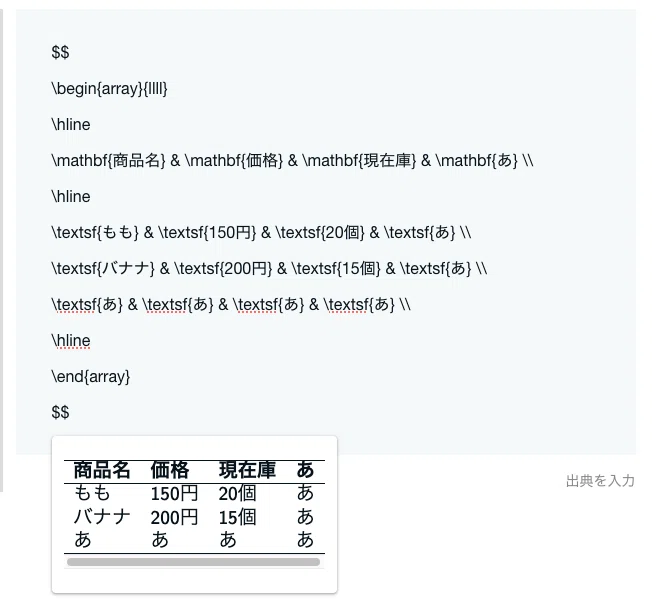
しかぁし公開ボタンを押すと反映されてない!!∑(゚Д゚)なぁぜなぁぜ!?
1ヶ月前ならできたとか??
うーん他の人探してみよう
8/12の記事だ!希望の光かもしれない!
物欲名古屋人さんのコードは結構違うんだなぁ…ふむふむ
物欲名古屋人さんの方のコードも一応プレビューは表示された…
いろんな方法があることがちょっとだけわかった!
テテーン٩( 'ω' )و
Github経由で表を表示させたらこんなオシャレな表ができるなんて!
これもめっちゃいいですね!
hamusukeさんの記事!
いよいよ配布欄です。ここまで読み進めたあなたも読み飛ばした方も
お疲れ様です🍵オチャ〜
↓何もわからないけどここにきた人用のファイルっっ!
こいつをダウンロードします!
次にGoogleのURLの場所にドラッグ&ドロップするだけ!!
そしたらポチポチできます。おわりー!
盲点だった。
そういえばデスクトップとかアクセスしやすいところに
このファイル配置してダブルクリックでもChrome開いた!
楽ちんだね。
こっちはGeminiかClaudeと一緒にカスタマイズもできるよ!
つぎにコピペでGeminiかClaudeに入れたい人。
もしくは、いちいちファイルをドラッグ&ドロップ面倒だなって思う人向け
なんか文字列いっぱいとかセキュリティとかよくわかんなくて怖い😭
って不安なら、このコード起動して大丈夫?ってAIに聞けばいいよ!
コピーして
AIのチャット欄にぶち込むだけ!
Aiとは言ったけど、
Claudeは起動はするし、コピペも問題ないけど
なんかエラーが表示されたまま
ChatGPTはすぐ無料枠終わるからやめた方がいい
今回はGeminiで起動が安心かな?
私もGemini、Claudeは無課金だから安心してください!
だれでも使えます。(なお、noteへの貼り付けは…しーっ🤫)
Geminiはcanvasモードにしておくと、コピペだけですぐに立ち上げてくれるよ。(いつもやってるせいかもしれないけど)普通のモードだと、起動してくれないか、起動してくれたり気まぐれ。
あ、でもGeminiはよく読み込んだ時いらんことしがち。
勝手にいい感じに変更しましたとかいう時ある。
その時は新しいシートにもう一回かな?
<!DOCTYPE html>
<html lang="ja">
<head>
    <meta charset="UTF-8">
    <meta name="viewport" content="width=device-width, initial-scale=1.0">
    <title>note用表作成ツール</title>
    <!-- KaTeXとTailwind CSSのCDNを読み込み -->
    <script src="https://cdnjs.cloudflare.com/ajax/libs/KaTeX/0.16.8/katex.min.js"></script>
    <link rel="stylesheet" href="https://cdnjs.cloudflare.com/ajax/libs/KaTeX/0.16.8/katex.min.css">
    <script src="https://cdn.tailwindcss.com"></script>
    <style>
        /* フォント設定とカスタムスタイル */
        @import url('https://fonts.googleapis.com/css2?family=Inter:wght@400;500;700&display=swap');
        body {
            font-family: 'Inter', sans-serif;
            background-color: #f7fafc;
        }
        .container {
            max-width: 800px;
        }
        .copy-button, .action-button {
            transition: all 0.3s ease;
        }
        .copy-button:hover, .action-button:hover {
            transform: translateY(-2px);
            box-shadow: 0 4px 6px -1px rgba(0, 0, 0, 0.1), 0 2px 4px -1px rgba(0, 0, 0, 0.06);
        }
        .mode-button {
            transition: all 0.3s ease;
            border: 2px solid transparent;
            padding: 8px 16px;
            border-radius: 8px;
            font-weight: 500;
            cursor: pointer;
        }
        .mode-button.active {
            border-color: #3b82f6;
            background-color: #dbeafe;
            color: #1d4ed8;
        }
        .mode-button:not(.active) {
            background-color: #f3f4f6;
            color: #6b7280;
        }
        .mode-button:hover:not(.active) {
            background-color: #e5e7eb;
        }
        /* コピーメッセージのスタイルを調整 */
        #copyMessage {
            position: absolute;
            top: -30px; /* ボタンの上に移動 */
            right: 100px; /* 右端から100px左に寄せる */
            white-space: nowrap; /* テキストが折り返されないようにする */
            pointer-events: none; /* メッセージが表示されてもクリックを妨げないようにする */
        }
    </style>
</head>
<body class="bg-gray-100 p-4 sm:p-8 flex justify-center items-center min-h-screen">

<div class="container bg-white rounded-xl shadow-lg p-6 sm:p-8 w-full">
    <h1 class="text-2xl sm:text-3xl font-bold text-center text-gray-800 mb-4 sm:mb-6">note用表作成ツール</h1>
    <p class="text-xs sm:text-sm text-center text-gray-500 mb-6 sm:mb-8">
        各入力欄を編集すると、下の出力欄にLaTeXコードが自動生成されます。<br>
        コードをコピーしてnoteに貼り付けてください。<br>
        <span class="text-blue-500">※縦線ありとシンプルの2つのスタイルを選択できます。</span>
    </p>

    <!-- 表スタイル選択 -->
    <div class="mb-6">
        <h2 class="text-lg font-semibold text-gray-700 mb-3">表スタイル</h2>
        <div class="flex space-x-4 justify-center">
            <button id="mode-vertical" class="mode-button active">
                📊 縦線あり
            </button>
            <button id="mode-simple" class="mode-button">
                📋 シンプル
            </button>
        </div>
    </div>

    <!-- 編集用の入力欄 -->
    <div id="table-editor" class="space-y-6">
        <!-- ヘッダー行 -->
        <div class="input-group">
            <h2 class="text-lg sm:text-xl font-semibold text-gray-700 mb-2">ヘッダー</h2>
            <div id="header-row" class="grid grid-cols-3 gap-2 sm:gap-4">
                <!-- ヘッダー入力欄はJSで生成 -->
            </div>
        </div>

        <!-- データ行コンテナ -->
        <div id="data-rows-container" class="space-y-4">
            <!-- データ行はJSで動的に追加・削除 -->
        </div>

        <!-- 行・列操作ボタン -->
        <div class="flex flex-col sm:flex-row justify-center space-y-4 sm:space-y-0 sm:space-x-4 mt-6">
            <button id="addRowButton" class="action-button bg-green-500 text-white font-medium py-2 px-4 rounded-md hover:bg-green-600 focus:outline-none focus:ring-2 focus:ring-green-500 focus:ring-offset-2">
                行を追加
            </button>
            <button id="removeRowButton" class="action-button bg-red-500 text-white font-medium py-2 px-4 rounded-md hover:bg-red-600 focus:outline-none focus:ring-2 focus:ring-red-500 focus:ring-offset-2">
                行を削除
            </button>
            <button id="addColumnButton" class="action-button bg-blue-500 text-white font-medium py-2 px-4 rounded-md hover:bg-blue-600 focus:outline-none focus:ring-2 focus:ring-blue-500 focus:ring-offset-2">
                列を追加
            </button>
            <button id="removeColumnButton" class="action-button bg-blue-500 text-white font-medium py-2 px-4 rounded-md hover:bg-blue-600 focus:outline-none focus:ring-2 focus:ring-blue-500 focus:ring-offset-2">
                列を削除
            </button>
        </div>
    </div>

    <!-- プレビュー -->
    <div class="mt-8">
        <h2 class="text-lg sm:text-xl font-semibold text-gray-700 mb-2">プレビュー</h2>
        <div class="bg-white border-2 border-gray-200 rounded-md p-4 sm:p-6 text-center">
            <div id="mathPreview" class="text-lg overflow-x-auto"></div>
        </div>
    </div>

    <!-- 出力とコピーツール -->
    <div class="mt-8">
        <h2 class="text-lg sm:text-xl font-semibold text-gray-700 mb-2">出力(noteにコピペしてください)</h2>
        <div class="relative">
            <textarea id="outputCode" rows="8" readonly class="w-full p-4 border rounded-md bg-gray-50 text-gray-900 font-mono text-sm resize-none"></textarea>
            <button id="copyButton" class="copy-button absolute top-4 right-4 bg-blue-500 text-white font-medium py-2 px-4 rounded-md hover:bg-blue-600 focus:outline-none focus:ring-2 focus:ring-blue-500 focus:ring-offset-2">
                コピー
            </button>
            <div id="copyMessage" class="absolute top-4 right-100 text-sm text-green-600 opacity-0 transition-opacity duration-300 pointer-events-none transform translate-x-full pl-2">コピーしました!</div>
        </div>
    </div>
</div>

<script>
    // 主要な要素を取得
    const headerRow = document.getElementById('header-row');
    const dataRowsContainer = document.getElementById('data-rows-container');
    const addRowButton = document.getElementById('addRowButton');
    const removeRowButton = document.getElementById('removeRowButton');
    const addColumnButton = document.getElementById('addColumnButton');
    const removeColumnButton = document.getElementById('removeColumnButton');
    const outputCode = document.getElementById('outputCode');
    const copyButton = document.getElementById('copyButton');
    const copyMessage = document.getElementById('copyMessage');
    const mathPreview = document.getElementById('mathPreview');
    const modeVerticalButton = document.getElementById('mode-vertical');
    const modeSimpleButton = document.getElementById('mode-simple');

    let tableMode = 'vertical'; // 初期モード

    // テーブルデータを一元管理する
    let tableData = {
        headers: ["商品名", "価格", "現在庫"],
        rows: [
            ["もも", "150円", "20個"],
            ["バナナ", "200円", "15個"]
        ]
    };

    /**
     * テーブルの入力要素をDOMに描画します。
     */
    function renderInputs() {
        // 既存の要素をクリア
        headerRow.innerHTML = '';
        dataRowsContainer.innerHTML = '';

        // ヘッダー入力欄を生成
        headerRow.style.gridTemplateColumns = `repeat(${tableData.headers.length}, minmax(0, 1fr))`;
        tableData.headers.forEach((headerValue, colIndex) => {
            const input = document.createElement('input');
            input.type = 'text';
            input.className = 'w-full px-2 sm:px-4 py-1 sm:py-2 border rounded-md focus:outline-none focus:ring-2 focus:ring-blue-500';
            input.value = headerValue;
            input.dataset.type = 'header';
            input.dataset.col = colIndex;
            input.addEventListener('input', updateDataAndRender);
            headerRow.appendChild(input);
        });

        // データ行の入力欄を生成
        tableData.rows.forEach((rowData, rowIndex) => {
            const rowDiv = document.createElement('div');
            rowDiv.className = 'input-group';
            const h2 = document.createElement('h2');
            h2.className = 'text-lg sm:text-xl font-semibold text-gray-700 mb-2';
            h2.textContent = `データ行${rowIndex + 1}`;
            rowDiv.appendChild(h2);

            const inputGrid = document.createElement('div');
            inputGrid.className = `grid gap-2 sm:gap-4`;
            inputGrid.style.gridTemplateColumns = `repeat(${tableData.headers.length}, minmax(0, 1fr))`;

            rowData.forEach((cellValue, colIndex) => {
                const input = document.createElement('input');
                input.type = 'text';
                input.className = 'w-full px-2 sm:px-4 py-1 sm:py-2 border rounded-md focus:outline-none focus:ring-2 focus:ring-blue-500';
                input.value = cellValue;
                input.dataset.type = 'data';
                input.dataset.row = rowIndex;
                input.dataset.col = colIndex;
                input.addEventListener('input', updateDataAndRender);
                inputGrid.appendChild(input);
            });
            rowDiv.appendChild(inputGrid);
            dataRowsContainer.appendChild(rowDiv);
        });

        // 描画後にプレビューを更新
        renderPreview();
    }

    /**
     * 入力内容をKaTeXと出力欄に描画します。
     */
    function renderPreview() {
        let latexArray = '';
        const numCols = tableData.headers.length;

        // ヘッダー行の文字列を生成
        const headerStr = tableData.headers.map(h => `\\mathbf{${h}}`).join(' & ') + ' \\\\';

        // データ行の文字列を生成
        const dataStr = tableData.rows.map(row => {
            return row.map(d => `\\textsf{${d}}`).join(' & ') + ' \\\\';
        }).join('\n');

        if (tableMode === 'vertical') {
            // 縦線ありモード
            latexArray = `\\begin{array}{|${'l|'.repeat(numCols)}}
\\hline
${headerStr}
\\hline
${dataStr}
\\hline
\\end{array}`;
        } else {
            // シンプルモード(booktabs風)
            latexArray = `\\begin{array}{${'l'.repeat(numCols)}}
\\hline
${headerStr}
\\hline
${dataStr}
\\hline
\\end{array}`;
        }

        // note用の完全なコードに$$を追加
        const fullCode = `$$
${latexArray}
$$`;

        // 出力欄に設定
        outputCode.value = fullCode;

        // プレビューを更新
        try {
            katex.render(latexArray, mathPreview, {
                displayMode: true,
                throwOnError: false
            });
        } catch (error) {
            mathPreview.innerHTML = '<span style="color: red;">プレビューエラー: ' + error.message + '</span>';
        }
    }

    /**
     * 入力内容が変更されたら、tableDataを更新してプレビューを再描画します。
     */
    function updateDataAndRender(event) {
        const input = event.target;
        const type = input.dataset.type;
        const row = parseInt(input.dataset.row);
        const col = parseInt(input.dataset.col);

        if (type === 'header') {
            tableData.headers[col] = input.value;
        } else {
            tableData.rows[row][col] = input.value;
        }
        renderPreview();
    }

    /**
     * 新しいデータ行を追加します。
     */
    function addRow() {
        const newRow = Array(tableData.headers.length).fill('');
        tableData.rows.push(newRow);
        renderInputs(); // 全体を再描画して新しい行を追加
    }

    /**
     * 最後のデータ行を削除します。
     */
    function removeRow() {
        if (tableData.rows.length > 1) { // 少なくとも1行は残す
            tableData.rows.pop();
            renderInputs();
        }
    }

    /**
     * 新しい列を追加します。
     */
    function addColumn() {
        tableData.headers.push('');
        tableData.rows.forEach(row => row.push(''));
        renderInputs();
    }

    /**
     * 最後の列を削除します。
     */
    function removeColumn() {
        if (tableData.headers.length > 1) { // 少なくとも1列は残す
            tableData.headers.pop();
            tableData.rows.forEach(row => row.pop());
            renderInputs();
        }
    }

    // 初期化関数
    function initialize() {
        // 初期のテーブル入力欄を生成
        renderInputs();

        // ボタンにイベントリスナーを設定
        addRowButton.addEventListener('click', addRow);
        removeRowButton.addEventListener('click', removeRow);
        addColumnButton.addEventListener('click', addColumn);
        removeColumnButton.addEventListener('click', removeColumn);

        modeVerticalButton.addEventListener('click', () => {
            tableMode = 'vertical';
            modeVerticalButton.classList.add('active');
            modeSimpleButton.classList.remove('active');
            renderPreview();
        });

        modeSimpleButton.addEventListener('click', () => {
            tableMode = 'simple';
            modeSimpleButton.classList.add('active');
            modeVerticalButton.classList.remove('active');
            renderPreview();
        });
    }

    // ページ読み込み後に初期化
    window.onload = initialize;

    /**
     * noteへの貼り付けに最適化されたコピー機能
     */
    copyButton.addEventListener('click', () => {
        const textToCopy = outputCode.value;

        const tempElement = document.createElement('textarea');
        tempElement.value = textToCopy;
        document.body.appendChild(tempElement);
        tempElement.select();
        document.execCommand('copy');
        document.body.removeChild(tempElement);

        // コピー成功メッセージを表示
        copyMessage.classList.add('opacity-100');
        setTimeout(() => {
            copyMessage.classList.remove('opacity-100');
        }, 2000);
    });

</script>
</body>
</html>
ほんとうはマーメイドの方を先にやってたはずなのに表に脱線しちゃった😂
マーメイドの方は色チェックとかあるから時間かかりそう…第一段階で出すべきかな?
使った方どうだったか感想教えて欲しいな✨
Geminiとかと一緒に
機能追加したり、すっきりシンプルに削除したり
色変えたり、自分好みに色々試してみてね
やったー記事で紹介してもらえましたよ٩( ᐛ )و
私の記事よりはるかにすっきり見やすくて戦慄してます:(;゙゚'ω゚'):
これが…戦闘力の差…!!
なぜ私の文章は読みにくいのか、我々は調査のためにアマゾンヘ向かった
コードの参考元のぱんじゅさんですよぅ(´∀`)!!↓
面白い使い方!これはコピペしたくなる!!
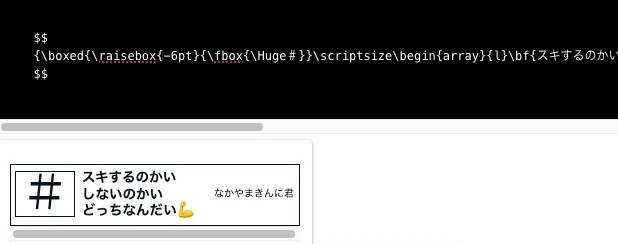
あと改行も❌らしい。にゃんころもちRさん!なんどもありがとうございます🙇
成功例○
↓にゃんころもちRさんのところに行ってコピペそのまま貼る。
$${\boxed{\raisebox{-6pt}{\fbox{\Huge#}}\scriptsize\begin{array}{l}\bf{スキするのかい}\cr\bf{しないのかい}\cr\bf{どっちなんだい💪}\end{array}\hspace{7pt}\tiny\raisebox{1pt}{\textrm{なかやまきんに君}}}}$$
↑すごおおおお!こんなおもしろ文も書けるらしい!新しい記事で試さないとこの記事ではもう反映されなくなっちゃった(´;ω;`)キマグレカテックス
(上の画像はあいかわらずプレビューでは希望だけ見せてくるのスクショ)
一番上のカテックスは反映されたままだから2個目のコードがいけないのかな?いろんな種類のコード貼り付けたのが原因なのかも?カテックスだけなら
他の方々は複数反映させられてるし…ウーム。
にゃんころもちRさんのところには他にも面白い使い方いっぱい!
noteってこんなにいろいろできたんだ✨ってなりますぉ∑(゚Д゚)ミニイクノダ!

つかって「貼り付け成功したよ!」って報告も気軽にコメ欄に貼ってくださいな!
覗きに行きますよ😎フフ…
いいなと思ったら応援しよう!
 応援お願いします!活動費に使わせていただきます💪( 'ω' )💪