
How to Set Working Hours in Google Calendar
August 25, 2023
August 25, 2023
June 12, 2025
June 12, 2025

Do you ever feel like you’re always on the clock, even during your days off? Imagine a world where you can set clear working hours and your virtual “do not disturb” sign. But guess what? No need to imagine! Google Calendar’s Working Hours feature lets you do just that. It helps you create a boundary between your work and off-duty hours, preventing it from creeping into every corner of your day. After all, it’s all about creating structure in all the work chaos and keeping your team on the same page no matter where they’re located.
In this blog post, we will cover the following:
- How to set working hours and location in Google Calendar
- How to set “out-of-office” in Google Calendar
- How to troubleshoot issues with Google Calendar Working Hours
- How to effectively manage your work hours
Getting Started: Setting Working Hours in Google Calendar
Google Calendar’s Working Hours feature is available to users with a Google Workspace account. It allows you to block your out-of-office time, and you will be shown as unavailable for meetings.
How to Set Your Working Hours in Google Calendar
In this section, you’ll learn how to set your working hours in Google Calendar. Note that you can only turn on working hours from a desktop computer or laptop.
If others try to schedule an event with you outside your working hours, they will see a notification and warning note. To proceed, simply follow these steps:
- From your computer, open Google Calendar.
- Click the gear icon from the upper right and select ‘Settings.’
- From the left panel under ‘General,’ click ‘Working hours.’ You will see this setting as ‘Working hours & location’ if your administrator has turned on the default working location.
- Click ‘Enable working hours.’
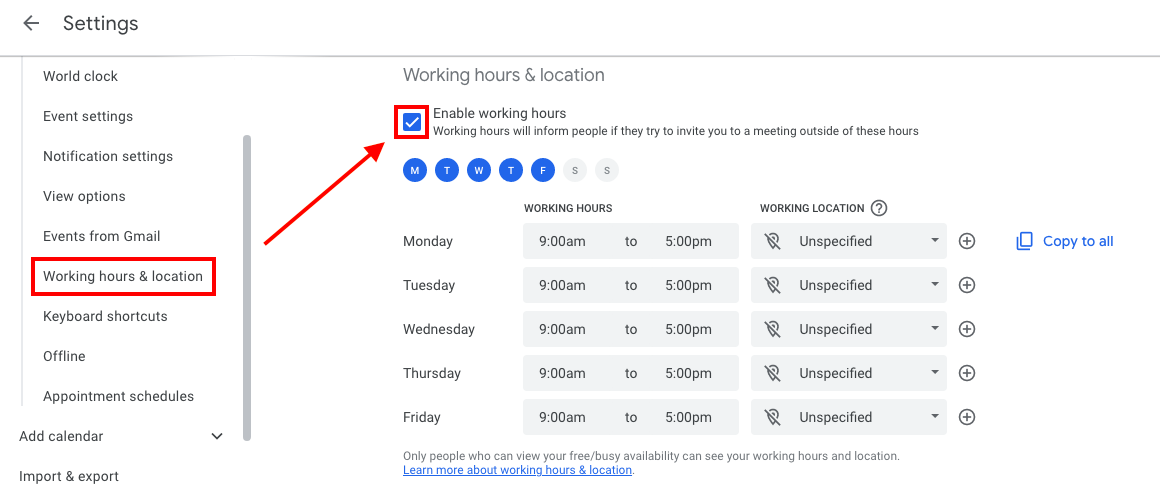
- Select the days and times that you work.
- You also have the option to split the hours you work based on your availability.
- Click Add (+) next to a day of the week to add more than one time period to your workday.
- Click Remove (-) to remove a time period.
How to Set Working Location in Google Calendar
Setting the working location on Google Calendar for remote teams helps colleagues know where you're based and be aware of different time zones and scheduling. Indicating office days allows others to plan meetings when team members are physically present.
To set a working location in Google Calendar, follow these steps:
- From your desktop computer or laptop, open Google Calendar.
- Click the gear icon from the upper right and click ‘Settings.’
- From the left panel, click ‘Working hours & location.’
- Select the days and times that you work. If you can see your working hours, that means times have already been selected.
- Select an existing working location or create a new one for each day.
{{rt_cta_ai-convenience}}
How to Set Out of Office in Google Calendar
Your calendar will automatically decline all meetings when you indicate that you’re out of office. You can set “out-of-office” using your desktop or mobile.
From Desktop
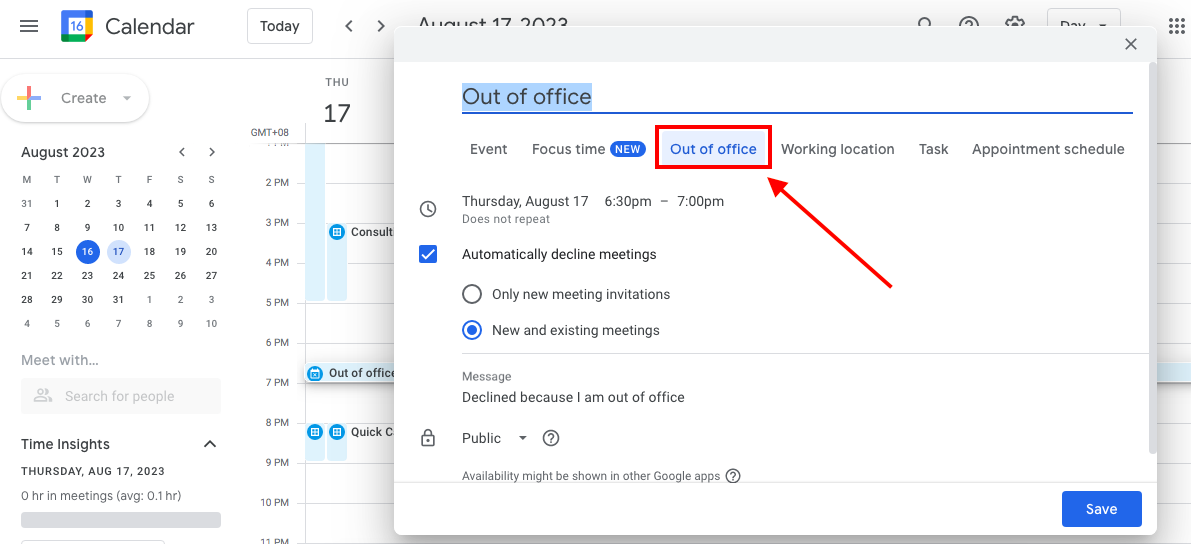
- From your desktop computer, open Google Calendar.
- From the right panel, click ‘Create,’ then select ‘Event.’
- Select ‘Out of office.’
- Select the dates you’ll be away. You can also specify the time.
- Optional settings:
- You can schedule recurring out-of-office events. Simply click the drop-down menu under your chosen day and time, and select a frequency (daily, weekly, monthly, annually, every weekday, or custom).
- You can change your decline settings and the default decline message.
From Mobile (iPhone/Android)
- Open the Google Calendar app.
- From the lower right, tap Create (+), then select ‘Out of office.’
- Select the dates you will be away from the office. You can also add a time.
- To schedule repeating out-of-office events, tap ‘Does not repeat’ under the day and time you select and choose a frequency.
- You can also change your decline settings and the default decline message.
- Tap ‘Save.’
Troubleshooting Issues with Google Calendar Working Hours
Are you experiencing issues with Google Calendar Working Hours? Read on to find a solution.
Why can’t I see my working hours on Google Calendar?
If you can’t see your working hours on Google Calendar, this means you’re using a free Google account, which doesn’t support this feature. You only have access to Google Calendar Working Hours if you have a Google Workspace account.
Why can’t I see other people’s working hours?
In order to see other people’s working hours, you need to have access to their Google Calendars. If you’re on the same Google domain, this feature should work.
There are two options where you can see someone's working hours:
Option 1: 'Meet with' feature
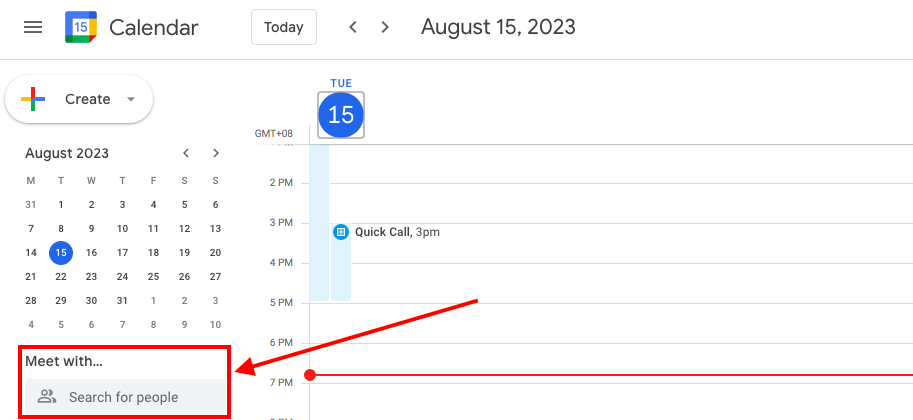
When you go to Google Calendar, you will see the ‘Meet with’ section on the left panel. Type the name or email of the person you want to meet with, and you will see their working hours, if available.
Option 2: ‘Find a time’ feature
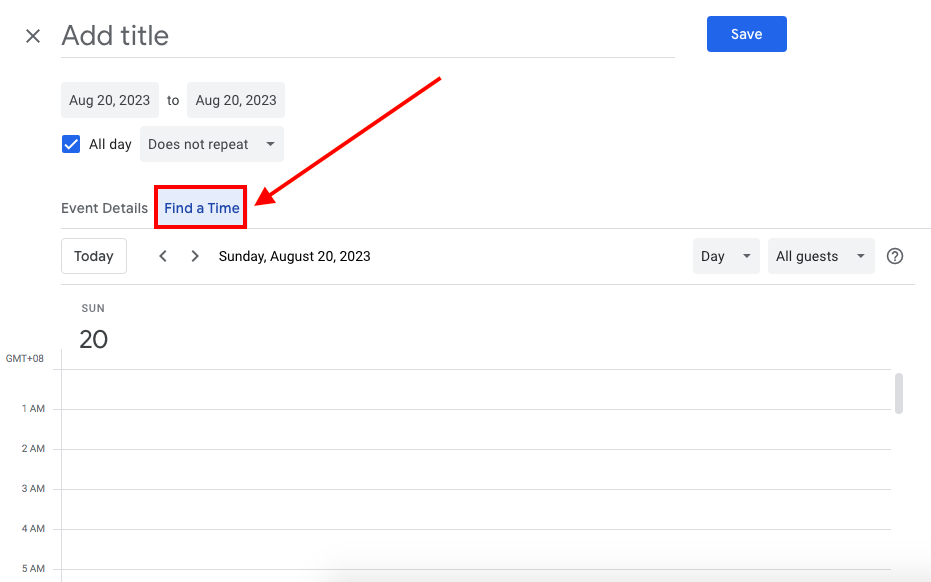
Another way to see someone’s working hours is through the ‘Find a time’ tab when you create a new Google Calendar event. This feature is currently not an option on the Google Calendar mobile app.
How to Share Working Hours in Google Calendar
Those in the same organization as you will be able to see your working hours and location in Google Calendar. They will see your working hours when they try to schedule a meeting with you using the ‘Meet with’ and ‘Find a time’ features mentioned above. Times that have been set outside working hours will be marked off in gray to indicate one’s unavailability.
When sharing your working hours, be mindful of sensitive information and professional boundaries. Avoid oversharing by limiting visibility to trusted individuals or groups. Regularly update your calendar to reflect changes. Google Calendar's customizable settings let you strike a balance between revealing availability and maintaining privacy.
How to Effectively Manage Your Work Hours
When we’re in a virtual meeting, note-taking often consumes significant time. Thirty-minute meetings are usually manageable, but a 2 or 3-hour meeting is a different story. Now, imagine a solution to turn this ordeal into a completely manageable task.
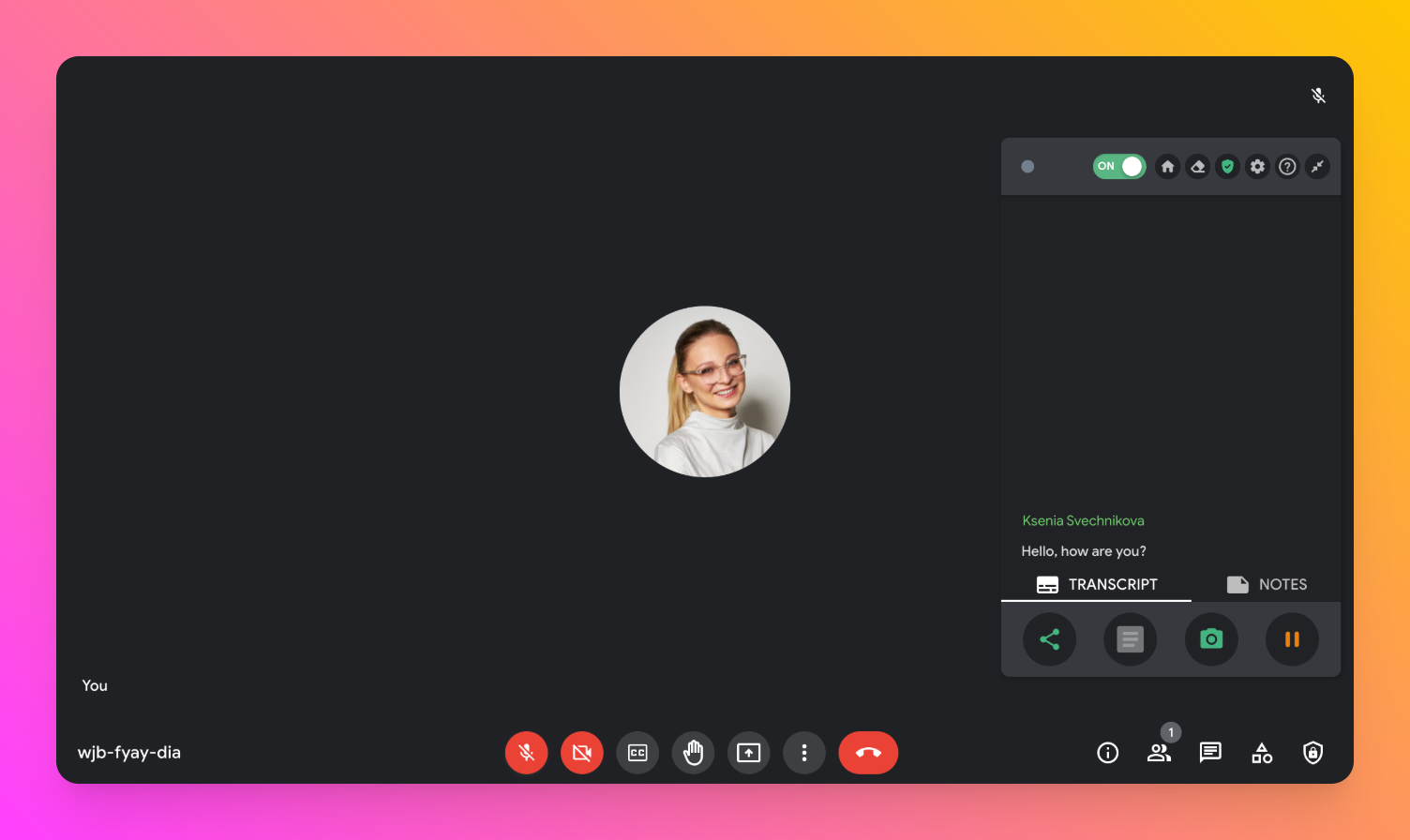
With Tactiq, you can do just that! It helps transcribe and summarize your Google Meet meetings, enabling you to catch up on important discussions without lengthy review sessions quickly. This gives you more time to allocate to your work hours more effectively.
To install Tactiq on your computer, simply follow these steps:
- Visit the Chrome Web Store.
- Click ‘Add to Chrome’ on the right-hand side of the page, then ‘Add Extension.’
- Go to Google Meet. The Tactiq widget will be on the right-hand side of the screen.
If you wanna learn more about how to send a Google Meet Invite, you can check out our guide here: How to Send a Google Meet Invite. If you wanna learn more about ChatGPT prompts template for a meeting, you can check out our guide here: ChatGPT Prompts Template for Meeting: The Ultimate Guide.
Can you use setting work hours to track hours on Google Calendar?
No. As of now, you can’t track your hours using Google Calendar. It’s meant to manage meetings and events. However, if you’re working as a contractor and you’re being paid by the hour, make sure to ask your direct point of contact how you’re supposed to track your hours.
Two main considerations:
- Will you use your own tool to track your hours? For example, you can use time tracking tools like Apploye, Clockify or Clickup Project Time Tracker.
- Or will you be using the company’s tool for tracking? If yes, make sure to get all the instructions on how to track the hours properly.
You can always use your Google Calendar as a guide when adding hours. Most times, you might forget to add meetings to your total hours.
Mastering Work-Life Balance with Google Calendar
In this article, we’ve discussed the basics of setting your working hours, indicating your work location, and activating your “out-of-office” status. With Google Calendar’s Working Hours, you can say goodbye to blurred lines between work and leisure and say hello to a well-organized remote work routine.
You set your working hours by opening Google Calendar on your desktop, going to Settings, selecting 'Working hours' or 'Working hours & location,' and enabling working hours. This helps you establish clear boundaries, so others know when you’re available and you can protect your personal time.
Setting your working location lets your team know where you’re based and helps them plan meetings around your availability and time zone. This keeps everyone on the same page and reduces scheduling confusion, especially for remote teams.
You can set 'out of office' from your desktop or mobile by creating an event and selecting 'Out of office,' then choosing your dates and times. Google Calendar will automatically decline meeting invites during this period, so you don’t have to worry about interruptions.
If you can’t see working hours, you’re likely using a free Google account, which doesn’t support this feature. Upgrading to a Google Workspace account gives you access, so you can manage your availability more effectively.
Tactiq transcribes and summarizes your Google Meet meetings, so you can quickly review key points without spending hours on manual notes. This saves you time and lets you focus your work hours on what matters most.
Related articles


Want the convenience of AI summaries?
Try Tactiq for your upcoming meeting.
Want the convenience of AI summaries?
Try Tactiq for your upcoming meeting.
Want the convenience of AI summaries?
Try Tactiq for your upcoming meeting.
