1. Overview
With the new release cycle of Java, developers might need to manage parallel versions and different builds of Software Development Kits (SDK) in their environment. So setting the PATH variable can become a real pain at times.
In this tutorial, we’ll see how SDKMAN! can help to manage the installation and selection of SDKs with ease.
2. What Is SDKMAN!?
SDKMAN! is a tool to manage parallel versions of multiple SDKs, which SDKMAN! call “candidates”.
It provides a convenient Command-Line Interface (CLI) and API for listing, installing, switching, and removing candidates. Moreover, it takes care of setting environment variables for us.
It also allows the developers to install JVM-based SDKs like Java, Groovy, Scala, Kotlin, and Ceylon. Maven, Gradle, SBT, Spring Boot, Vert.x, and many others are also supported. SDKMAN! is a free, lightweight, open-source utility written in Bash.
3. Install SDKMAN!
SDKMAN! is supported by all major operating systems, and it can easily be installed on all Unix-based systems. Moreover, it supports Bash and Zsh shells.
So let’s begin by installing it using the terminal:
$ curl -s "https://get.sdkman.io" | bash
Then, follow the on-screen instructions to complete the installation.
We might need the zip and unzip packages installed to complete the installation process.
Next, open a new terminal or run:
$ source "$HOME/.sdkman/bin/sdkman-init.sh"
Lastly, run the following command to ensure the installation worked. If all went well, the version should be displayed:
$ sdk version
SDKMAN 5.8.5+522
For more customization, please refer to the installation guide on the SDKMAN! website.
To see all the available commands, use the help command:
$ sdk help
4. List All SDK Candidates
So, let’s start by listing all the available SDK candidates.
$ sdk list
The list command shows all the available candidates, identified by a unique name, the description, the official website, and the installation command:
=====================================================
Available Candidates
=====================================================
q-quit                                  /-search down
j-down                                  ?-search up
k-up                                    h-help
-----------------------------------------------------
Java (11.0.7.hs-adpt)                https://zulu.org
...
                                   $ sdk install java
-----------------------------------------------------
Maven (3.6.3)                https://maven.apache.org
...
                                  $ sdk install maven
-----------------------------------------------------
Spring Boot (2.3.1.RELEASE)          http://spring.io
...
                             $ sdk install springboot
------------------------------------------------------
...
Therefore, we can use this identifier to install the default version of a candidate like Spring Boot (2.3.1.RELEASE) or Maven (3.6.3). The specified versions in this list represent the stable or LTS versions of each SDK.
5. Install and Manage Java Versions
5.1. Listing Versions
To list the available versions of Java, use the list command. The result is a table of entries grouped by the vendor and sorted by version:
$ sdk list java
===================================================================
Available Java Versions
===================================================================
Vendor       | Use | Version | Dist    | Status | Identifier
-------------------------------------------------------------------
AdoptOpenJDK |     | 14.0.1  | adpt    |        | 14.0.1.j9-adpt
...
Amazon       |     | 11.0.8  | amzn    |        | 11.0.8-amzn
...
Azul Zulu    |     | 14.0.2  | zulu    |        | 14.0.2-zulu
...
BellSoft     |     | 14.0.2  | librca  |        | 14.0.2.fx-librca
...
GraalVM      |     | 20.1.0  | grl     |        | 20.1.0.r11-grl
...
Java.net     |     | 16.ea   | open    |        | 16.ea.6-open
...
SAP          |     | 14.0.2  | sapmchn |        | 14.0.2-sapmchn
...
We’ll need this command each time we want to check, switch, or manage the storage of candidates.
5.2. Install a Java Version
Let’s say we want to install the newest build of Java 14 from Azul Zulu. Therefore, we copy its identifier, which is the version from the table, and we add it as an argument in the install command:
$ sdk install java 14.0.2-zulu
Downloading: java 14.0.2-zulu
In progress...
########### 100.0%
Repackaging Java 14.0.2-zulu...
Done repackaging...
Installing: java 14.0.2-zulu
Done installing!
Setting java 14.0.2-zulu as default.
SDKMAN! will download and unzip this version into a directory on our computer.
Moreover, it will update environment variables so that we can use Java in the terminal immediately.
We can verify the status and the usage of any version by using the list command. Consequently, the version 14.0.1 is now installed and in use:
$ sdk list java
=================================================================
Available Java Versions
=================================================================
 Vendor    | Use | Version | Dist    | Status    | Identifier
-----------------------------------------------------------------
 ...
 Azul Zulu | >>> | 14.0.1  | adpt    | installed | 14.0.1.j9-adpt
 ...
In addition, it’s possible to install Java or any custom version from a computer with the same command but by specifying the path of binaries as an additional argument:
$ sdk install java custom-8 ~/Downloads/my-company-jdk-custom-8
5.3. Switching Between Versions
We can control the switching between versions in two forms, temporarily:
$ sdk use java 14.0.1.j9-adpt
or permanently:
$ sdk default java 14.0.1.j9-adpt
5.4. Remove a Version
To remove an installed version, run the uninstall command with the targeted version:
$ sdk uninstall java 14.0.1.j9-adpt
5.5. Display the Versions in Use
To check the current version of Java, we run the current command:
$ sdk current java
Using java version 14.0.2-zulu
Similarly, the last command has the same effect as:
$ java -version
To show the version by SDK on our machine, we can run the current command with no arguments:
$ sdk current
Using:
java: 14.0.2-zulu
gradle: 6.2.2
6. Using SDKMAN! with an IDE
The installed SDKs are stored in the SDKMAN! directory which defaults to ~/.sdkman/candidates.
For example, the different versions of Java will also be available under the ~/.sdkman/candidates/java/ directory and the subdirectories are named after the versions:
$ ls -al ~/.sdkman/candidates/java/
total 0
drwxrwxrwx 1 user user 12 Jul 25 20:00 .
drwxrwxrwx 1 user user 12 Jul 25 20:00 ..
drwxrwxr-x 1 user user 12 Jul 25 20:00 14.0.2-zulu
lrwxrwxrwx 1 user user 14 Jul 25 20:00 current -> 14.0.2-zulu
Therefore, the currently selected version of Java will also be available as current in that directory.
In the same vein, Gradle or any other SDK will be installed under the candidates directory.
In this way, we can use any particular version of Java, for example in our favorite IDE. All we have to do is to copy the path of a specific version and set it in the configuration of our IDE.
6.1. IntelliJ IDEA
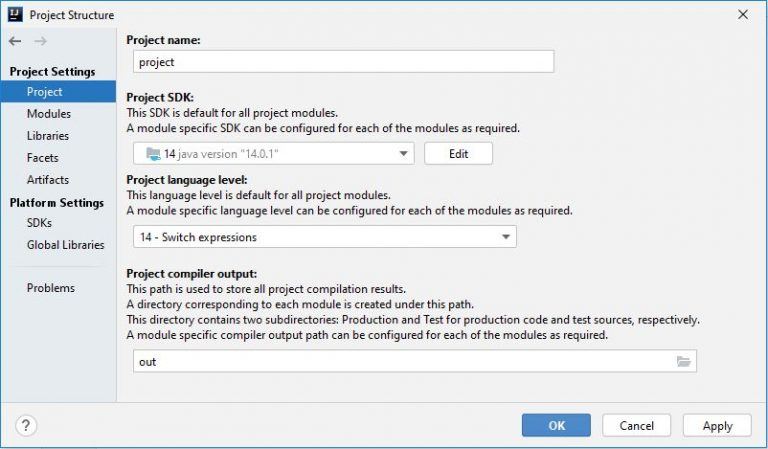
In IntelliJ IDEA, open “Project Structure”, then open “Project Settings”. In the project configuration, we can add a new Java version by selecting “New…” from the “Project SDK” section:
We can also define the version of Java, Gradle, or Maven to use in the “Build Tools” section:

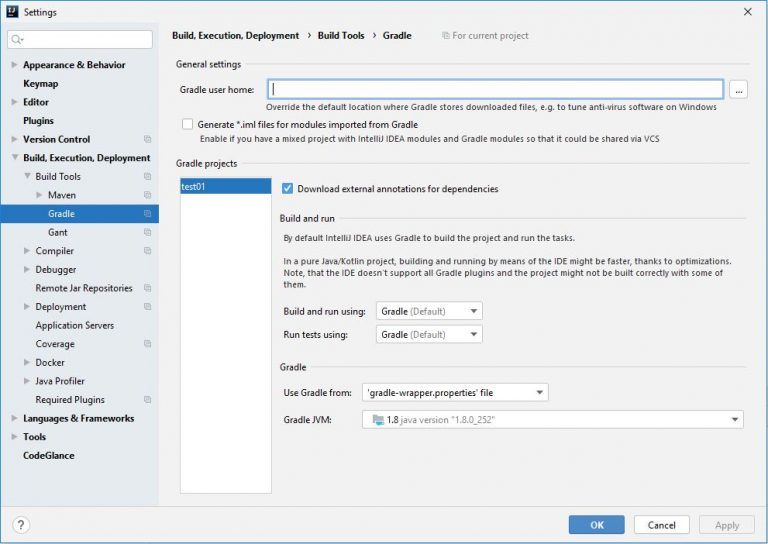
Tip: The version of Java must be the same as used in “Project SDK” for Gradle or Maven.
6.2. Eclipse
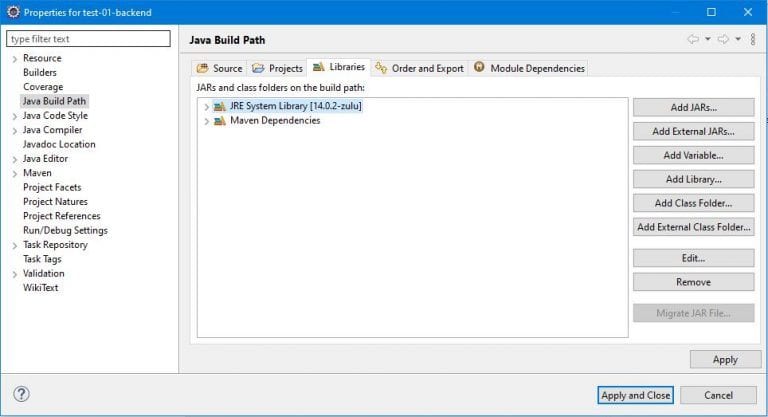
In Eclipse open “Project Properties”, select “Java Build Path”, and then switch to the “Libraries” tab. Here, we can manage the new SDK of Java via “Add Library…” and by following the instructions:
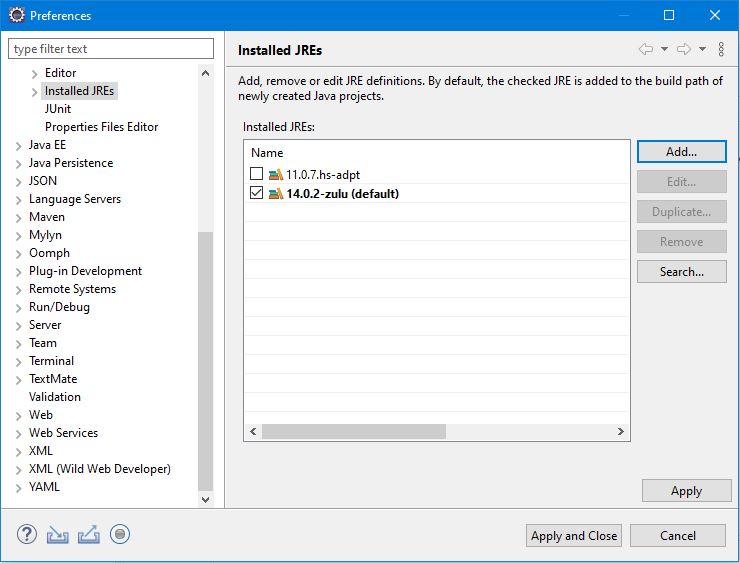
We can also control the installed SDKs for all the projects. Open “Preferences” under the “Window” menu, and then go to “Installed JREs”. Here we can manage the SDK of Java via “Add…” and by following the instructions:
7. Conclusion
In this tutorial, we’ve shown how SDKMAN! can help us in managing different versions of Java SDKs among other Java Environment tools such as Maven.


