
Angular PrimeNG is an open-source framework for Angular applications. It has a rich set of native UI components that can be used to make attractive and scalable web interfaces. In this article, we will discuss Angular PrimeNG StyleClass Enter/Leave Animation.
The StyleClass is used to manage CSS classes during entering and leaving animations of a component or to toggle a class on an element. The Enter/Leave animation properties are used to add or remove specific classes at various stages of the enter/leave animation.
Angular PrimeNG StyleClass Enter/Leave Animation Properties:
- pStyleClass: This property states the selector for the target element. It accepts a string value which can be a valid CSS query or a target keyword.
- enterClass: This property defines the class to add when the target element begins to appear on the screen.
- enterActiveClass: This property defines the class to add during the enter animation.
- enterToClass: This property defines the class to add when the enter animation has been completed.
- leaveClass: This property defines the class to add when the target element begins to get hidden from the screen.
- leaveActiveClass: This property defines the class to add during leave animation.
- leaveToClass: This property defines the class to add when the leave animation has been completed.
- hideOnOutsideClick: This property states whether to trigger the leave animation when outside of the element is clicked.
- toggleClass: This property is used to toggle a class for an element when no enter or leave animation is required.
Target Keywords for pStyleClass property:
- @next: This keyword is used to target the next element of the current element.
- @prev: This keyword is used to target the next element of the current element.
- @parent: This keyword is used to target the parent element.
- @grandparent: This keyword is used to target the grandparent (parent of the parent) element.
Syntax:
<button
      pButton
      label="..."
      pStyleClass="@next"
      leaveActiveClass="..."
      leaveToClass="...">
</button>
<div class="..."> ... </div>
Creating Angular application & Module installation:
Step 1: Create an Angular application using the following command.
ng new appname
Step 2: After creating your project folder i.e. appname, move to it using the following command.
cd appname
Step 3: Install PrimeNG in your given directory.
npm install primeng --save
npm install primeicons --save
Project Structure: It will look like the following:
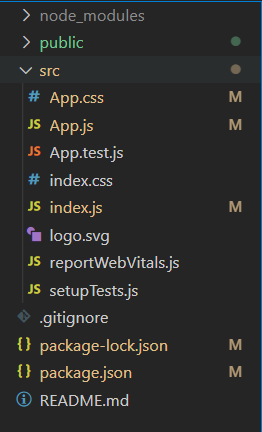
Let's see some examples to understand the use of Angular PrimeNG StyleClass Enter/Leave Animation Properties.
Example 1: This is a basic example that shows the use of the Enter/Leave animation Properties of the StyleClass.
<h2 style="color: green">GeeksforGeeks</h2>
<h4>Angular PrimeNG StyleClass Enter/Leave Animation</h4>

<button
      pButton
      label="Show the Content"
      class="mr-3"
      pStyleClass=".content"
      enterClass="hidden"
      enterActiveClass="inAnimation">
</button>
<button
      pButton
      label="Hide the Content"
      pStyleClass="@next"
      leaveActiveClass="outAnimation"
      leaveToClass="hidden">
</button>
<div class="content hidden">
      GeeksforGeeks is a computer science
      portal for geeks. It offers articles
      on various computer science subjects
      like Data Structures, Algorithms,
      Compiler Design, Computer Networks, etc.
</div>
.content{
    background-color: rgb(112, 255, 119);
    width: 300px;
    margin-top: 25px;
    padding: 10px;
    border-radius: 5px;
    text-align: center;
    font-size: 20px;
}

@keyframes inAnim {
    0% {
        opacity: 0;
    }

    100% {
        opacity: 1;
    }
}

@keyframes outAnim {
    0% {
        opacity: 1;
    }

    100% {
        opacity: 0;
    }
}

.inAnimation {
    animation: inAnim .5s linear;
}

.outAnimation {
    animation: outAnim .5s linear;
}
import { Component } from "@angular/core";

@Component({
    selector: "app-root",
    templateUrl: "./app.component.html",
    styleUrls: ["./app.component.css"]
})

export class AppComponent { }
import { NgModule } from "@angular/core";
import { BrowserModule }
    from "@angular/platform-browser";
import { BrowserAnimationsModule }
    from "@angular/platform-browser/animations";
import { AppComponent } from "./app.component";
import { ButtonModule } from "primeng/button";
import { StyleClassModule } from 'primeng/styleclass';

@NgModule({
    imports: [
        BrowserModule,
        BrowserAnimationsModule,
        ButtonModule,
        StyleClassModule,
    ],
    declarations: [AppComponent],
    bootstrap: [AppComponent],
})

export class AppModule { }
Steps to run the app:
Run the below command from the root directory of your project.
ng serve --open
Output:

Example 2: This example shows the use of the toggleClass property to toggle a specific class for an element.
<h2 style="color: green">GeeksforGeeks</h2>
<h4>Angular PrimeNG StyleClass Enter/Leave Animation</h4>

<button pButton
      label="ToggleClass .hidden"
      pStyleClass="@next"
      toggleClass="hidden">
</button>
<div
      style="
      background-color: rgb(112, 255, 119);
      width: 300px;
      margin-top: 25px;
      padding: 10px;
      border-radius: 5px;
      text-align: center;
      font-size: 20px;
      "
>
      GeeksforGeeks is a computer science
      portal for geeks. It offers articles
      on various computer science subjects
      like Data Structures, Algorithms,
      Compiler Design, Computer Networks, etc.
</div>
import { Component } from "@angular/core";

@Component({
    selector: "app-root",
    templateUrl: "./app.component.html",
    styleUrls: ["./app.component.css"]
})

export class AppComponent { }
import { NgModule } from "@angular/core";
import { BrowserModule }
    from "@angular/platform-browser";
import { BrowserAnimationsModule }
    from "@angular/platform-browser/animations";
import { AppComponent } from "./app.component";
import { ButtonModule } from "primeng/button";
import { StyleClassModule } from 'primeng/styleclass';

@NgModule({
    imports: [
        BrowserModule,
        BrowserAnimationsModule,
        ButtonModule,
        StyleClassModule,
    ],
    declarations: [AppComponent],
    bootstrap: [AppComponent],
})

export class AppModule { }
Output:

Reference: http://www.primefaces.org/primeng/styleclass
