
When you create a component in Angular, you sometimes want to style it to look good and match your application's design. Angular provides two ways to add styles to a component: style and styleUrls. They might look similar but they have different purposes.
We know that the decorator functions of @Component take an object and this object contains many properties such as style and styleUrls properties. Styles for components are defined in Angular using style and styleUrls, however they are handled differently.
What are Angular Style Components?
Styles in Angular give each part of the application a unique look. Each component can have its own style, which helps to keep everything organized and managed. You can add styles directly inside the component file for quick changes in separate CSS files. This helps you choose the style of application with your choice. It also ensures styles of one file do not mess up with other files.
Prerequisites
- Basic knowledge of HTML, CSS
- Angular CLI
There are two ways we can represent our styles, or the CSS code, inside the @Component decorator
Table of Content
Features of Component Styles
- Keeps styles separate and safe: Style of one component does not mess up with the style of other component. This means you can style your component without worrying about the background color and color of another component.
- Multiple ways to add Styles: You can add styles inside component file or you can link an external CSS file.
- Controls where to apply styles: It controls whether the changes you made should be reflected only in one part of application or in entire Application.This makes it easier to manage styles.
- Works with Advanced Styling Tools: You can work with advanced styling tools such as SASS with angular in order to make your styles cleanier and organized.
Uses of Component Styles
- Makes Components look good: It changes the look of each part of the application easily according to your requirements so that everything matches to the design you want.
- Avoid Style Conflicts: Style conflicts will be avoided as one part pf the application wont affect the other part of the application.
- Easy to update and manage: It will be easy to update and manage as large global files wont be there.
Using styleUrls
- You can link to outside CSS files that are used to style the component using the styleUrls property.
- Each string in the array that it accepts represents a path to a CSS file.
- This is helpful, particularly for larger or more sophisticated styles, to keep your styles distinct from your component logic.
Using style
- You can define inline styles directly in the component's metadata by using the style attribute.
- It takes an array of strings as input, where a block of CSS code is represented by each string.
- When modifying a component quickly or when defining styles directly in the component, this can be helpful.
Steps to Create Application
Step 1.Install Angular CLI:
If you have not installed Angular CLI, install it by using the following command.
npm install -g @angular/cliStep 2.Create a new Angular project:
ng new styleStep 3.Navigate to the Project Directory:
cd styleFolder Structure
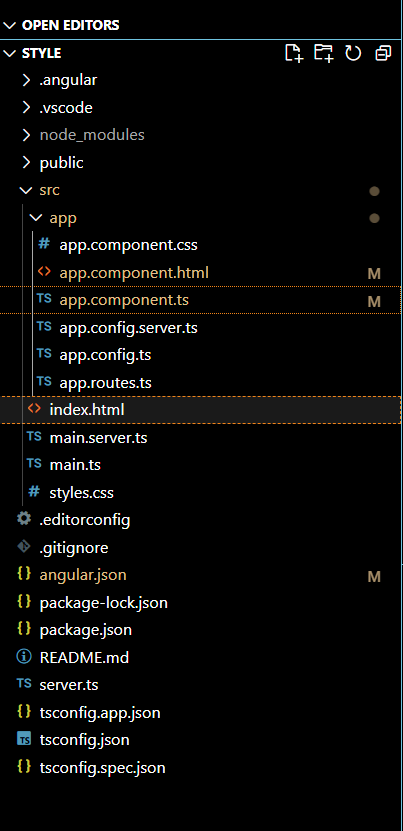
Dependencies
"dependencies": {
    "@angular/animations": "^18.0.0",
    "@angular/common": "^18.0.0",
    "@angular/compiler": "^18.0.0",
    "@angular/core": "^18.0.0",
    "@angular/forms": "^18.0.0",
    "@angular/platform-browser": "^18.0.0",
    "@angular/platform-browser-dynamic": "^18.0.0",
    "@angular/platform-server": "^18.0.0",
    "@angular/router": "^18.0.0",
    "@angular/ssr": "^18.0.0",
    "express": "^4.18.2",
    "rxjs": "~7.8.0",
    "tslib": "^2.3.0",
    "zone.js": "~0.14.3"
}
Example of styleUrls:
Below is the code example demonstrating the use of styleUrls which is linked to app.component.css file of App Component. In this example, h1 tag is having background color as yellowgreen and color as rebeccapurple.
<!-- src/app/app.component.html -->
<h1>HELLO GEEKSFORGEEKS</h1>
/* src/app/app.component.css */
h1 {
    background-color: yellowgreen;
    color: rebeccapurple
}
// src/app/app.component.ts
import { Component } from '@angular/core';
import { RouterOutlet } from '@angular/router';

@Component({
    selector: 'app-root',
    standalone: true,
    imports: [RouterOutlet],
    templateUrl: './app.component.html',
    styleUrl: './app.component.css'
})
export class AppComponent {
    title = 'style';
}
Output:

Example of style:
Below is the code example demonstrating the use of Inline Style in which the code is added in Typescript file in Style [ ]. In this example, the color of h1 tag which be purple and its background-color will be yellow.
!-- src/app/app.component.html -->
<h1>HELLO GEEKSFORGEEKS</h1>
// src/app/app.component.ts
import { Component } from '@angular/core';
import { RouterOutlet } from '@angular/router';

@Component({
    selector: 'app-root',
    standalone: true,
    imports: [RouterOutlet],
    templateUrl: './app.component.html',
    styles: [`
  h1 {
    color: purple;
    background-color:yellow;
  }
`]
})
export class AppComponent {
    title = 'style';
}
Output:

Difference Between Style and StyleUrl in Angular
Feature | Style | StyleUrls |
|---|---|---|
Definition | It allows you to write CSS style directly in the component. | Links to external CSS files that contain component's styles. |
Location | Inside component's code. | In separate CSS file outside component. |
Maintenance | Can get messy if styles grow big. | Easier to manage. |
Complexity | Simple and Direct | Requires managing separate files, but keeps your project organized. |
Example | Inline CSS: `styles: ['h1 { color: red;'}]` | External CSS: `StyleUrls: ['./example.component.css']' |
Conclusion
Styles in Angular helps you understand how each part of your application will look. Changing one style won't effect the other styles which makes it easier to update and manage.Whether you need a quick styles or detailed one. Angular gives you simple options to make sure everything looked good.
