
Bootstrap 5's grid system is a powerful tool for creating responsive layouts. It utilizes a 12-column system that adapts to various screen sizes, making it easier to design websites that look great on all devices. Let's dive deeper into how the grid system works across all breakpoints.
Key Concepts:
1. Containers: The outermost element that houses the grid.
2. Rows: Horizontal groups of columns.
3. Columns: The basic building blocks of the grid system.
4. Breakpoints: Points at which the layout adjusts based on screen size.
Prerequisite: Grid System in Bootstrap 5.
Breakpoints in Bootstrap 5:
Bootstrap 5 defines six breakpoints:
- xs (extra small): <576px
- sm (small): ≥576px
- md (medium): ≥768px
- lg (large): ≥992px
- xl (extra large): ≥1200px
- xxl (extra extra large): ≥1400px
Using the Grid System:
1. Equal-width Columns: To create columns of equal width across all breakpoints, use the .col class
<div class="row">
  <div class="col">Equal Column</div>
  <div class="col">Equal Column</div>
  <div class="col">Equal Column</div>
</div>
2. Specific Column Widths: To set specific column widths, use .col-* where * is a number from 1 to 12
<div class="row">
  <div class="col-4">One-third width</div>
  <div class="col-8">Two-thirds width</div>
</div>
3. Responsive Breakpoints: To adjust column widths at specific breakpoints, use classes like .col-sm-*, .col-md-*, etc.
<div class="row">
  <div class="col-12 col-md-6 col-lg-4">Responsive Column</div>
  <div class="col-12 col-md-6 col-lg-8">Responsive Column</div>
</div>
4. Auto-layout Columns: For flexibly sized columns, use .col-auto
<div class="row">
  <div class="col-auto">Variable width content</div>
  <div class="col">Fill remaining space</div>
</div>
5. Nesting: Grids can be nested within columns
<div class="row">
  <div class="col-sm-9">
    Level 1: .col-sm-9
    <div class="row">
      <div class="col-8 col-sm-6">Level 2: .col-8 .col-sm-6</div>
      <div class="col-4 col-sm-6">Level 2: .col-4 .col-sm-6</div>
    </div>
  </div>
</div>
6. Offset Columns: Use .offset-* classes to move columns to the right
<div class="row">
  <div class="col-md-4">.col-md-4</div>
  <div class="col-md-4 offset-md-4">.col-md-4 .offset-md-4</div>
</div>
Best Practices:
1. Always start with mobile-first design, then scale up.
2. Use the appropriate breakpoint classes to ensure your layout looks good on all devices.
3. Leverage the flexibility of auto-layout columns when possible.
4. Test your layouts across different screen sizes to ensure responsiveness.
Below are the examples for Bootstrap 5 Grid System
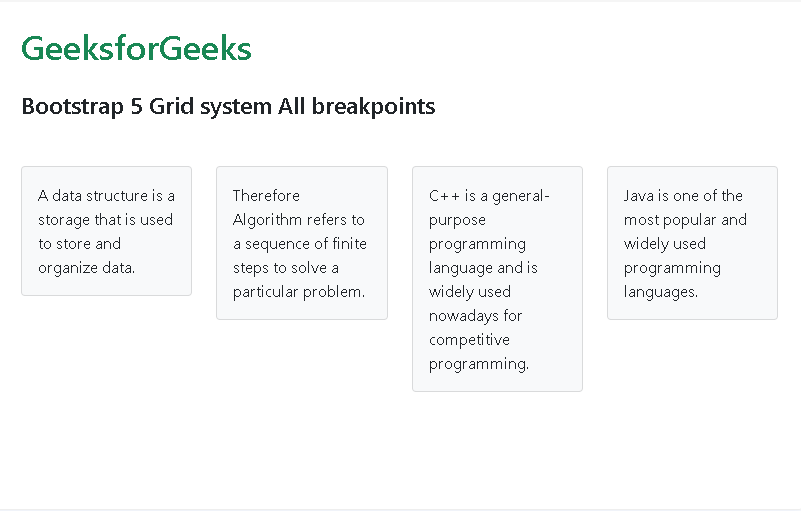
Example 1: The example below demonstrates the cards which takes up the same column space and stays that way in all the breakpoints:
<!doctype html>
<html lang="en">

<head>
    <link href=
"https://cdn.jsdelivr.net/npm/bootstrap@5.0.2/dist/css/bootstrap.min.css"
        rel="stylesheet"
        integrity=
"sha384-EVSTQN3/azprG1Anm3QDgpJLIm9Nao0Yz1ztcQTwFspd3yD65VohhpuuCOmLASjC"
        crossorigin="anonymous">
    <script src=
"https://cdn.jsdelivr.net/npm/bootstrap@5.0.2/dist/js/bootstrap.bundle.min.js"
            integrity=
"sha384-MrcW6ZMFYlzcLA8Nl+NtUVF0sA7MsXsP1UyJoMp4YLEuNSfAP+JcXn/tWtIaxVXM"
            crossorigin="anonymous">
    </script>
</head>

<body>
    <h1 class="m-4 text-success">
        GeeksforGeeks
    </h1>
    <h4 class="ms-4">
        Bootstrap 5 Grid system All breakpoints
    </h4>
    <div class="mt-4 p-4">
        <div class="row">
            <div class="col">
                <div class="card mb-3 bg-light">
                  <div class="card-body">
                    <p class="card-text">
                      A data structure is a storage that
                      is used to store and organize data.
                    </p>
                  </div>
                </div>
            </div>
            <div class="col">
                <div class="card mb-3 bg-light">
                  <div class="card-body">
                    <p class="card-text">
                      Therefore Algorithm refers to a sequence
                      of finite steps to solve a particular problem.
                    </p>
                  </div>
                </div>
            </div>
            <div class="col">
                <div class="card mb-3 bg-light">
                  <div class="card-body">
                    <p class="card-text">
                      C++ is a general-purpose programming language and
                      is widely used nowadays for competitive programming.
                    </p>
                  </div>
                </div>
            </div>
            <div class="col">
                <div class="card mb-3 bg-light">
                  <div class="card-body">
                    <p class="card-text">
                      Java is one of the most popular and
                      widely used programming languages.
                    </p>
                  </div>
                </div>
            </div>
        </div>
    </div>
</body>

</html>
Output:
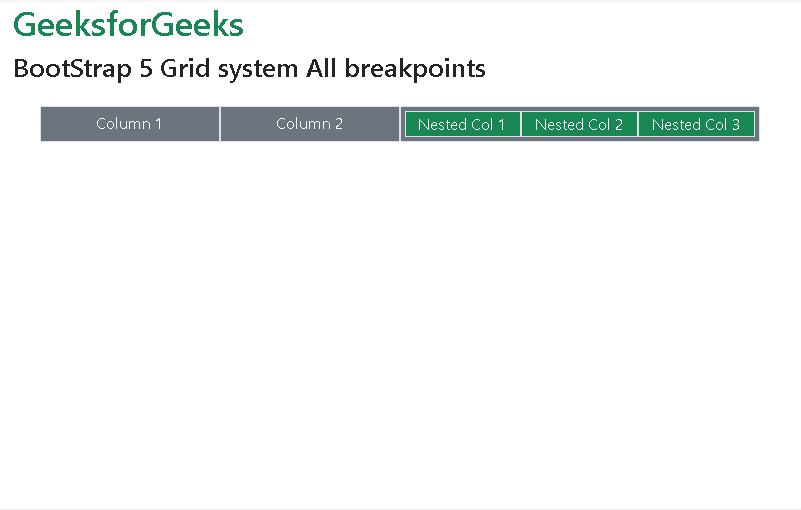
Example 2: The example code demonstrates how you can give different width to individual column and also how even nested Grid can have same width in all breakpoints:
<!doctype html>
<html lang="en">
  <head>
    <link href=
"https://cdn.jsdelivr.net/npm/bootstrap@5.0.2/dist/css/bootstrap.min.css"
          rel="stylesheet"
          integrity=
"sha384-EVSTQN3/azprG1Anm3QDgpJLIm9Nao0Yz1ztcQTwFspd3yD65VohhpuuCOmLASjC"
          crossorigin="anonymous">
     <script src=
"https://cdn.jsdelivr.net/npm/bootstrap@5.0.2/dist/js/bootstrap.bundle.min.js"
             integrity=
"sha384-MrcW6ZMFYlzcLA8Nl+NtUVF0sA7MsXsP1UyJoMp4YLEuNSfAP+JcXn/tWtIaxVXM"
             crossorigin="anonymous">
    </script>
</head>
<body>
    <h1 class="text-success ms-3">GeeksforGeeks</h1>
    <h3 class="ms-3">
        BootStrap 5 Grid system All breakpoints
    </h3>
    <div class="container mt-4 text-light text-center">
        <div class="row">
            <div class="col bg-secondary border p-1">
                Column 1
            </div>
            <div class="col bg-secondary border p-1">
                Column 2
            </div>
            <div class="col-6 bg-secondary border">
                <div class="row p-1">
                    <div class="col bg-success border">
                      Nested Col 1
                    </div>
                    <div class="col bg-success border">
                      Nested Col 2
                    </div>
                    <div class="col bg-success border">
                      Nested Col 3
                    </div>
                </div>
            </div>
        </div>
    </div>
</body>
</html>
Output:
Reference: https://getbootstrap.com/docs/5.0/layout/grid/#all-breakpoints
