
Every game needs a user interface (UI) for scores, menus, health bars, buttons. In Unity, all UI elements live inside a Canvas. This article explains what Canvas is and how to create basic UI elements.
Canvas
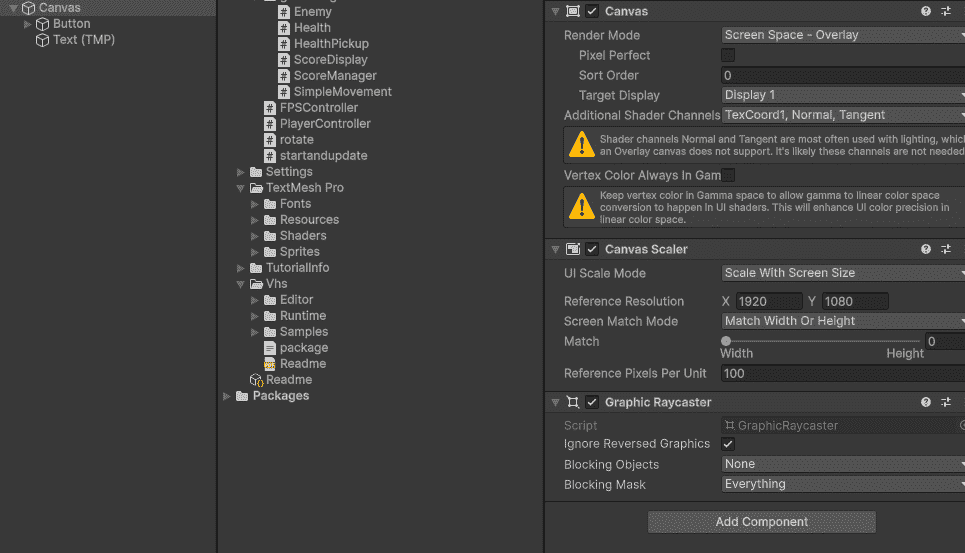
Canvas is like a transparent sheet that sits on top of your game screen. Everything you put inside it appears to the player.
- Canvas automatically scales with different screen sizes.
- All UI elements (Text, Buttons, Images) must be children of a Canvas.
- Unity creates Canvas automatically when you add your first UI element.
Creating UI Elements
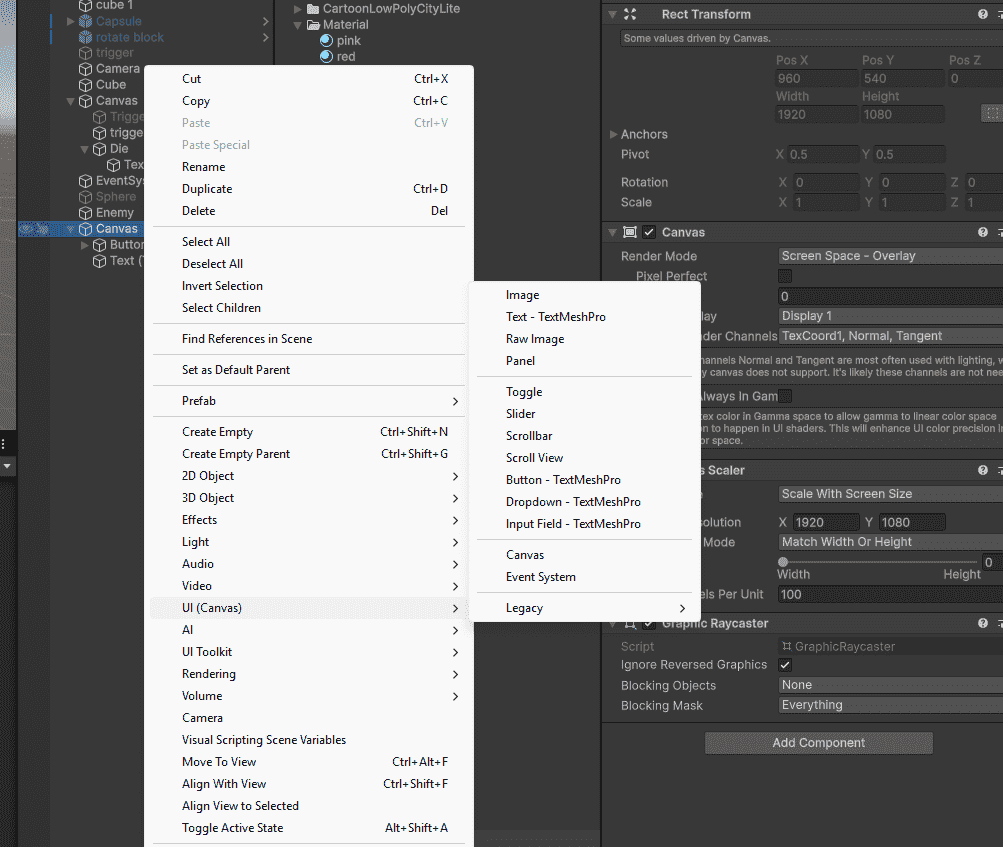
Right-click in Hierarchy - UI - Select any element (Text, Button, Image) Unity automatically creates three things:
- Canvas: The container for all UI.
- EventSystem: Handles clicks and interactions (required for buttons).
- UI element: Text, Button, or Image.
Types of UI Elements
- Text: Displays information like score, health, timer
- Button: Clickable element that triggers actions
- Image: Shows sprites (icons, backgrounds, health bar fill)
- Panel: Container to group multiple UI elements
- Slider: Draggable bar (volume control, health bars)
- Input Field: Allows player to type text
RectTransform vs Transform
UI elements use RectTransform instead of regular Transform.
- RectTransform adds extra properties: Width, Height, Anchors, Pivots
- Anchors determine how UI element behaves when screen resizes
- Regular Transform is for 3D objects in game world
Positioning UI Elements
Use the Rect Tool (shortcut T) to move, resize and rotate UI elements.
- Click and drag edges to resize
- Click and drag inside to move
- Hold Shift to maintain aspect ratio
Canvas Render Modes
Canvas has three render modes that change how UI appears:
Screen Space - Overlay (Default)
- UI always on top of everything
- Best for most games (HUD, menus)
Screen Space - Camera
- UI renders in front of a specific camera
- Used for 3D UI effects
World Space
- UI exists as a physical object in game world
- Used for floating health bars above enemies
