
Whether you're making a first-person shooter, a top-down action game or a space shooter, shooting is often the primary way players interact with enemies. Implementing shooting mechanics correctly is essential for responsive and satisfying gameplay.
Raycast Shooting
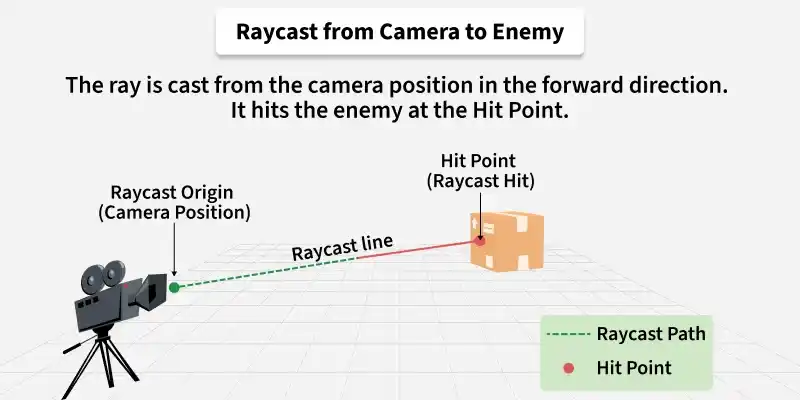
Raycast shooting creates an invisible line from the camera or gun forward. It instantly hits whatever comes first in its path. This is ideal for guns, lasers, and snipers where bullets travel too fast to see.
Example:
public class RaycastShooter : MonoBehaviour
{
    public float range = 100f;
    public Camera playerCamera;
    void Update()
    {
        if (Input.GetButtonDown("Fire1"))
        {
            Shoot();
        }
    }
    void Shoot()
    {
        RaycastHit hit;
        if (Physics.Raycast(playerCamera.transform.position, playerCamera.transform.forward, out hit, range))
        {
            Debug.Log("Hit: " + hit.transform.name);
        }
    }
}
Physics.Raycast() casts an invisible line from the camera forward. If it hits something within range, it returns true and stores hit information in the hit variable.
Projectile Shooting
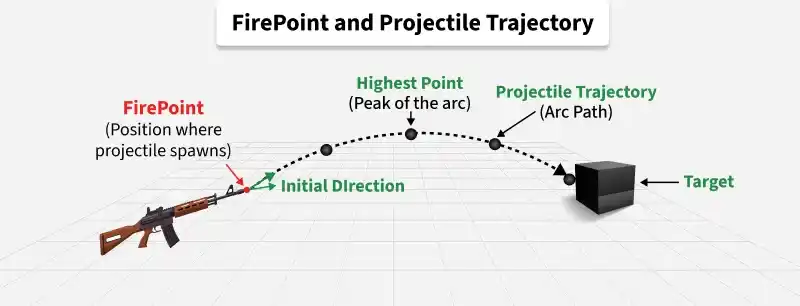
Projectile shooting creates a physical object that flies through the air with real physics. The bullet has travel time and can arc, bounce, or explode. This is ideal for rockets, arrows, and grenades where bullet visibility adds to the gameplay feel.
Step 1: Create the projectile script
Example:
public class Projectile : MonoBehaviour
{
    public float speed = 50f;
    public float lifetime = 5f;
    private Rigidbody rb;
    void Start()
    {
        rb = GetComponent<Rigidbody>();
        rb.velocity = transform.forward * speed;
        Destroy(gameObject, lifetime);
    }
}
The projectile gets forward velocity at start and destroys itself after lifetime seconds to prevent cluttering the scene with old bullets.
Step 2: Create the shooter script
Example:
public class ProjectileShooter : MonoBehaviour
{
    public GameObject bulletPrefab;
    public Transform firePoint;
    void Update()
    {
        if (Input.GetButtonDown("Fire1"))
        {
            Instantiate(bulletPrefab, firePoint.position, firePoint.rotation);
        }
    }
}
firePoint is an empty GameObject placed at the gun muzzle. Instantiate() creates the bullet at that exact position and rotation.
Fire Rate (Cooldown)
Without a cooldown, a single mouse click would fire hundreds of bullets in one frame. Fire rate adds a delay between shots, making shooting feel controlled and balanced.
Example:
public float fireRate = 0.2f;  // 5 shots per second
private float nextFireTime = 0f;
void Update()
{
    if (Input.GetButtonDown("Fire1") && Time.time >= nextFireTime)
    {
        nextFireTime = Time.time + fireRate;
        Shoot();
    }
}
Time.time stores the total game time since start. nextFireTime stores when the next shot is allowed. A smaller fireRate value means faster shooting.
Ammo System
Ammo adds strategy to combat. Players must manage their bullets and find time to reload instead of holding down the fire button endlessly.
Example:
public int currentAmmo = 30;
void Update()
{
    if (Input.GetButtonDown("Fire1") && currentAmmo > 0)
    {
        Shoot();
        currentAmmo--;
    }
    if (Input.GetKeyDown(KeyCode.R))
    {
        currentAmmo = 30;
        Debug.Log("Reloaded!");
    }
}
The code checks for remaining ammo before allowing a shot. Each successful shot reduces ammo by one. Press R to restore ammo to full.
Raycast vs Projectile
- Raycast: Instant hit, lightweight performance, no visible bullet. Best for guns, lasers, and snipers.
- Projectile: Travel time, heavier performance, bullet visible. Best for rockets, arrows, and grenades.
