
Timeline is a Visual tool for creating cutscenes, animations, and sequences. You drag and drop clips on a timeline. Cinemachine is a Smart camera system. Cameras can follow players, switch between angles, and create smooth movements.
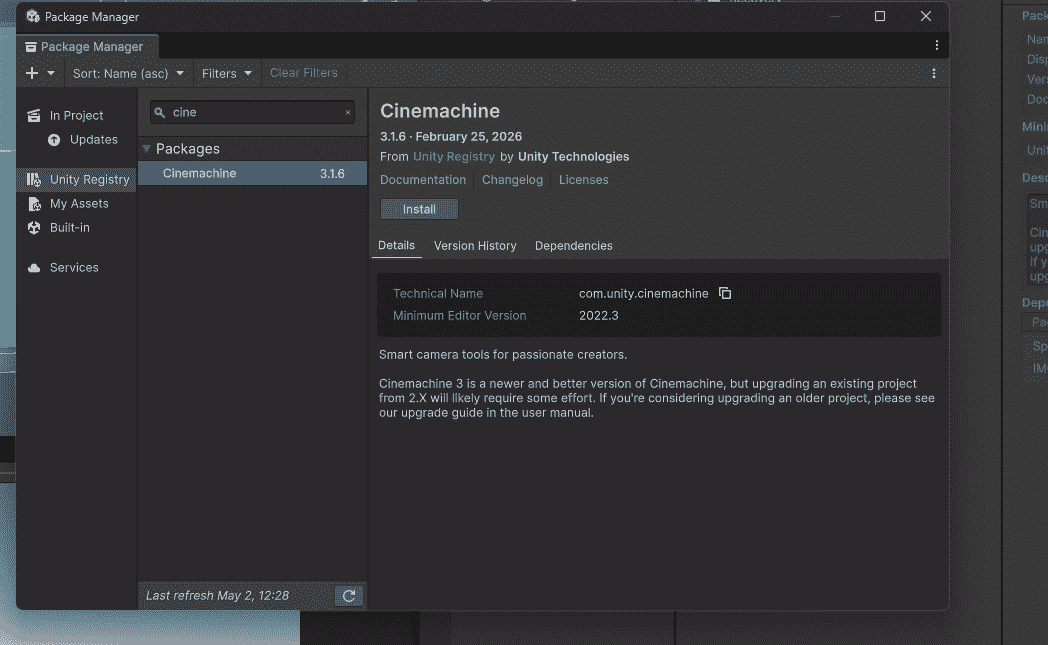
Installing Cinemachine
- Window -> Package Manager.
- Search "Cinemachine" -> Install.
Timeline comes built-in with Unity.
Cinemachine Basic Follow Camera
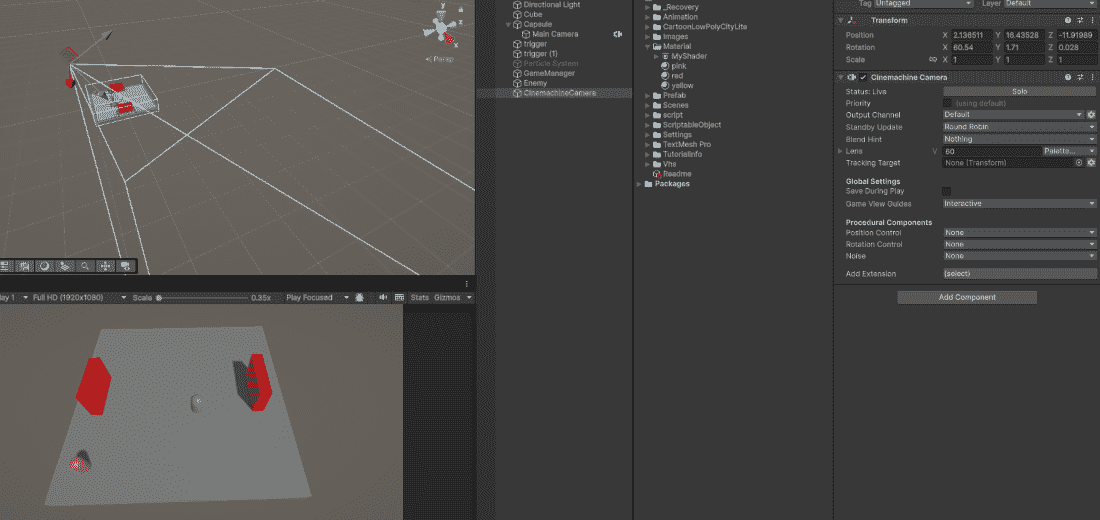
Step 1: Cinemachine - Create Virtual Camera.
Step 2: Select virtual camera - In Inspector:
- Follow: Drag your player.
- Look At: Drag your player.
Step 3: Adjust Body settings (how camera follows):
- Binding Mode: Lock to Target (world space)
- Follow Offset: Distance from player (ex: 0, 2, -5)
Step 4: Adjust Aim settings (where camera looks): Dead Zone – Small movement without camera moving
Step 5: Disable Main Camera (Cinemachine takes over) - Press Play. Camera follows player smoothly.
Cinemachine Camera Shake (Impulse)
Add shake for explosions or hits.
using Cinemachine;
public class CameraShake : MonoBehaviour
{
    public CinemachineImpulseSource impulseSource;
    public void ShakeCamera()
    {
        impulseSource.GenerateImpulse();
    }
}
Add Cinemachine Impulse Source component to camera. Call ShakeCamera() when needed.
Timeline – Creating a Cutscene
- Window -> Sequencing -> Timeline.
- Select a GameObject in Hierarchy -> Click "Create" in Timeline window.
- Name and save the Timeline asset.
Adding Animation to Timeline
- Add track -> Animation Track.
- Drag your character into the track (assigns as binding).
- Right-click track -> Add Animation Clip.
- Record animation or drag existing clip.
Adding Camera Movement to Timeline
- Add track -> Cinemachine Track
- Drag your Cinemachine camera into track
- Right-click -> Add Cinemachine Shot Clip
- Another camera -> Add another clip –> camera switches automatically
Adding Audio to Timeline
- Add track -> Audio Track.
- Drag GameObject with Audio Source or add audio clip directly.
- Right-click -> Add Audio Clip -> Select your sound.
Playing Timeline from Script
Example:
using UnityEngine.Playables;

public class CutsceneTrigger : MonoBehaviour
{
    public PlayableDirector director;
    void OnTriggerEnter(Collider other)
    {
        if (other.CompareTag("Player"))
        {
            director.Play();
        }
    }
}
PlayableDirector controls the Timeline. Play() starts the cutscene.
Complete Example: Door Opening Cutscene
- Camera 1: Wide shot showing character approaching door.
- Camera 2: Close up of door opening.
- Character Animation: Walking to door.
- Door Animation: Swinging open.
- Audio: Door creak sound.
Timeline setup:
- Cinemachine Track with 2 shots (Camera 1 - Camera 2).
- Animation Track (Character walking).
- Animation Track (Door opening).
- Audio Track (Door sound).
Cinemachine Basic Cameras
- Virtual Camera: Follow player, cutscene shots.
- Free Look Camera: Orbit around player (RPG style).
- Group Camera: Follow multiple targets (racing games).
Timeline Tracks
- Animation Track: Controls character animations.
- Audio Track: Handles music and sound effects.
- Cinemachine Track: Manages camera shots and transitions.
- Activation Track: Enables/disables GameObjects.
- Signal Track: Triggers events (calls functions).
Cinemachine vs Manual Camera Code
| Cinemachine | Manual Camera Code |
|---|---|
| No coding needed | Must write movement logic |
| Built-in smooth follow | Need to implement Lerp |
| Easy camera switching | Complex state machine |
| Impulse shake ready | Manual shake code required |
