
Virtual Private Cloud is a logically isolated portion of the AWS ecosystem and allows resources within it logically isolated from the resources outside it. There are availability zones in these VPCs that can be used to assign private subnets or public subnets. AWS instance is a virtual server that is launched within the AWS Cloud and can run on various OS systems.
Understanding Of Primary Terminologies
- Subnet is the range of IP addresses within VPC that allows to launch of AWS resources.
- Route tables (set of rules) direct the flow of network traffic.
- An Internet Gateway makes a connection to the Internet and there could be only one Internet gateway per VPC.
- Network ACLs (Access Control Lists) is an additional layer of security that acts as a firewall to traffic flow within the subnet(s).
- Elastic IP address (static IPv4) is designed for dynamic cloud computing and can be associated with any instance or network interface in VPC.
- Peering Connection enables routing traffic between two VPCs using private IP addresses (within the same network).
- VPC Flow Logs enables to log of information about the traffic flow within network interfaces in VPC.
- NAT(Network Adress Translation) Gateway/ NAT Instance enables instance in a private subnet to initiate outbound traffic while preventing inbound traffic.
- Security Group is a firewall to control traffic flow and can be associated to instances or subnets,
- A key pair is a set of public or private keys used to securely connect to instance via SSH or RDP.
Amazon VPC
- It allows it to act as a data centre inside AWS and allows the user to define CIDR blocks, create subnets, set up security and give greater control of actions.
- It is logically isolated from other virtual networks in the AWS cloud and spans all availability zones within a region.
- A default VPC is created within each region with a subnet in each availability zone.
- It allows to launch instances (EC2 instances).
- To create a VPC, a CIDR block must be defined which is the range of IPv4 addresses. E.g. 10.0.0.2
Private Subnets
- VPC subnet has a longer subnet mask than the CIDR block by using additional bits from the host portion.
- Private subnets have private route tables (Private-RT) and do not have auto-assign Public IPv4.
Things To Remember To Create A CIDR Block
- It can be sized between /16 and /28 and must not overlap with any existing CIDR block that’s associated with VPC.
- The first four and last IP addresses are not available for use and once defined, the size of existing CIDR block cannot be resized.
- It is recommended that CIDR blocks from RFC 1918 ranges are used and ensure that you have enough networks and hosts.
- Bigger CIDR blocks offer flexibility and smaller CIDR blocks work for small use cases, learning etc.
Creating A VPC With A Private Subnet: A Step-By-Step Guide
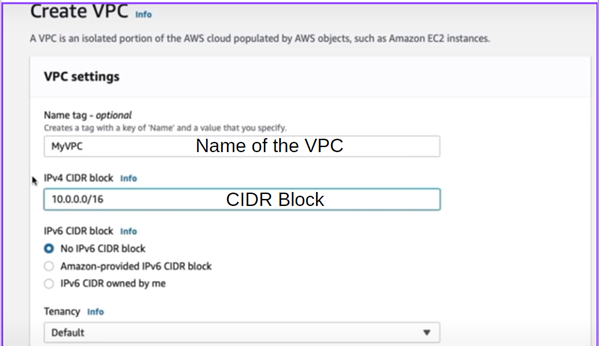
Step 1: Go to network and content delivery>> Your VPC>>Create VPC and give it a CIDR block such as 10.0.0.0/16.
- Choose the tenancy as default or dedicated, choosing dedicated tenancy gives single-tenant hardware thus no other customer shares the same physical server.
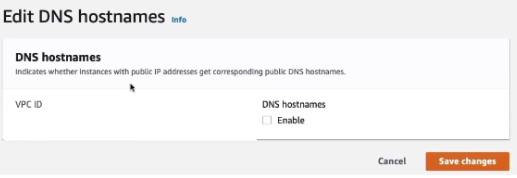
Step 2: Go to actions >> Edit DNS Hostname >> Enable. This will allow to get hostnames for EC2 instances.
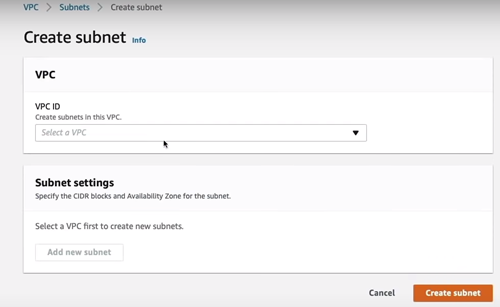
Step 3: Go to Subnet >> Create Subnet >> Assign VPC ID to it and create subnet as Private Subnet and assign a CIDR block to it.
- To edit Subnet, Go to subnet settings >> Assign a name and Availability zone to it >> Assign a CIDR block. To add new subnet, click on add subnet.
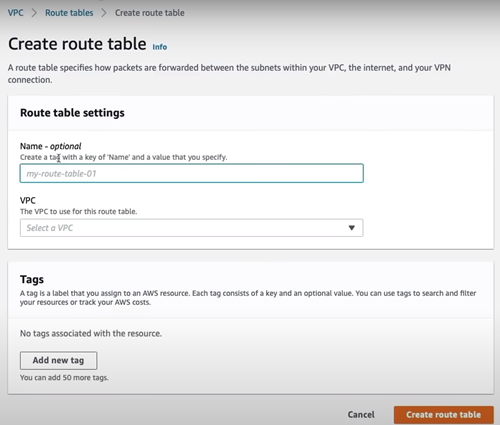
Step 4: Go to route table >> create route table >> assign VPC ID. After that, go to subnet association >> edit subnet association >> choose Private Subnet. Name other route tables (Public) according to your wish.
Step 5: Move to Internet Gateways >> create Internet gateway and after that, select the gateway>> actions >> attach to VPC >> select the VPC >> attach gateway.
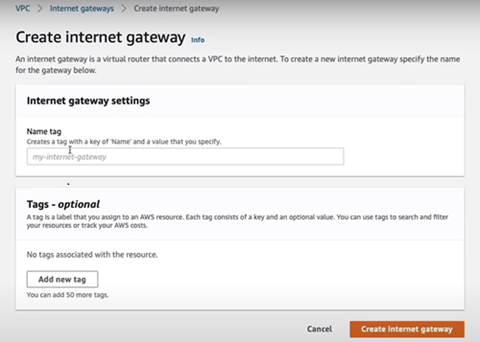
Step 6: Click on route tables>>Select Public Route>> Route>> edit route>> add a route. Select destination as 0.0.0. and target as internet gateway.

- A VPC with private Subnet is created
What Are AWS Instances?
- Commonly known as Amazon EC2 (Elastic Compute Cloud), these allow users to run applications and workloads in the virtual servers (EC2 Instance). These are resizable and configurable according to user needs.
- They follow pay-as-you-go pricing so are chargeable only when the resources are consumed by AWS instance.
- These are scalable and hence have variable and controllable computing resources based on demand.
Key Terms Related To File Transfer
- SFTP Protocol is a secure File Transfer Protocol that establish a secure connection between client and server as is uses SSH (Secure Shell) connection.
- A .ppk file is a private key file use for SSH authentication when connecting to EC2 instances.
Transferring Files To AWS Instances
- Download the FileZilla Software and open it.
- Once opened, it will show the server connected on right, and file directory on right.
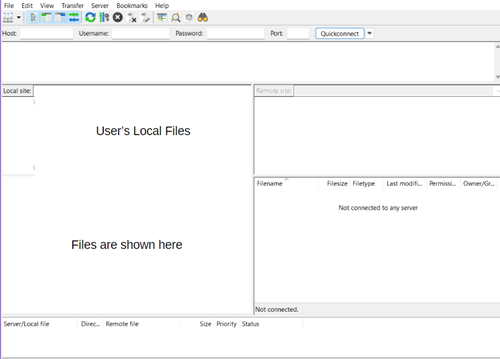
Step 2: Now go to file>>site manager>>Click on New site>> Name the file.
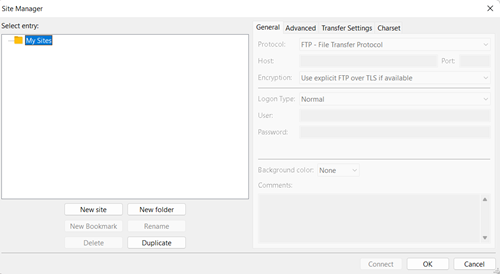
Step 3: Create a new site >> Change protocol as SFTP >> copy the IP address of the instance and paste in host >> give port as 22. Select the login type.
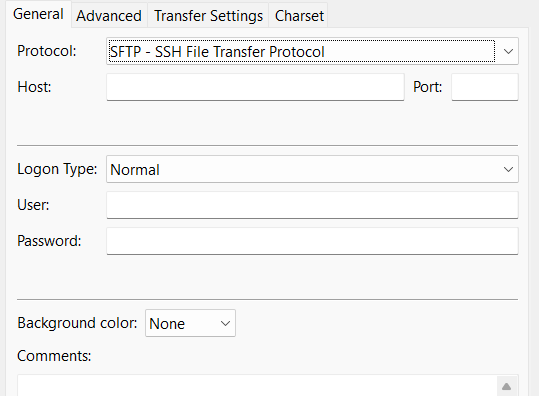
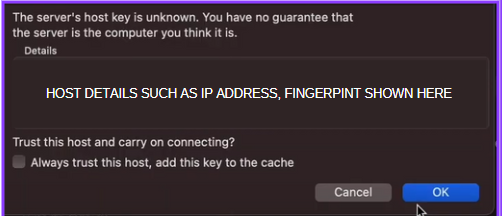
Step 4: Set the logon type as key (optional) and upload the key in password and click on Connect >> Check upon trust this host >> New directory will be created and shown on server side.
Step 5: Right click on the file you want to upload from your local device to the server or click upload or drag and drop the file.

- This will allow to upload file from local server to the E2C instances.
Conclusion
VPC and Instances are the two key operations in AWS and can be created easily. With these, the deployment of services could take place easily allowing the user to do the intended operation.
