
How to Create Animation in PowerPoint: Quick Steps
- Open PowerPoint Presentation
- Select the Objects to Animate
- Go to Animation Tab >> Choose an Animation
- Customize the Animation >> Preview the Animation
Are you looking for a way to make your PowerPoint presentation more engaging and professional? Adding animations in PowerPoint is a great way to capture your audience’s attention and emphasize key points effectively. Whether you're working on a business pitch, educational slides, or marketing presentation, PowerPoint animation effects can make your content visually appealing.
In this guide, we’ll walk you through the step-by-step process of adding animations in PowerPoint, along with pro tips to ensure your slides look smooth and professional.

Table of Content
Why Use Animations in PowerPoint
Animations help make presentations more engaging by emphasizing key points, improving storytelling, and controlling the flow of information to keep the audience focused.
Types of Animations in PowerPoint
PowerPoint offers four main types of animations:
- Entrance Animations – Make an object appear on the slide.
- Emphasis Animations – Highlight an object that is already on the slide.
- Exit Animations – Make an object disappear from the slide.
- Motion Paths – Move an object along a predefined path.
How to Add Animations to PowerPoint Slides
Follow these simple steps to add animations to text, images, or other elements in your PowerPoint presentation for a more dynamic effect.
Step 1: Open Your PowerPoint Presentation
To begin, open the PowerPoint file where you want to add animations and navigate to the specific slide.

Step 2: Select the Object to Animate
Click on the text, image, shape, or chart that you want to apply an animation effect to.

Step 3: Open the Animation Tab
Find the Animations tab in the PowerPoint ribbon, where you’ll access various animation effects.

Step 4: Choose an Animation Effect
Select from Entrance, Emphasis, Exit, or Motion Path effects to animate your chosen object.

Step 5: Customize Animation Settings
Modify the effect's direction, duration, and trigger options to control how and when the animation plays.
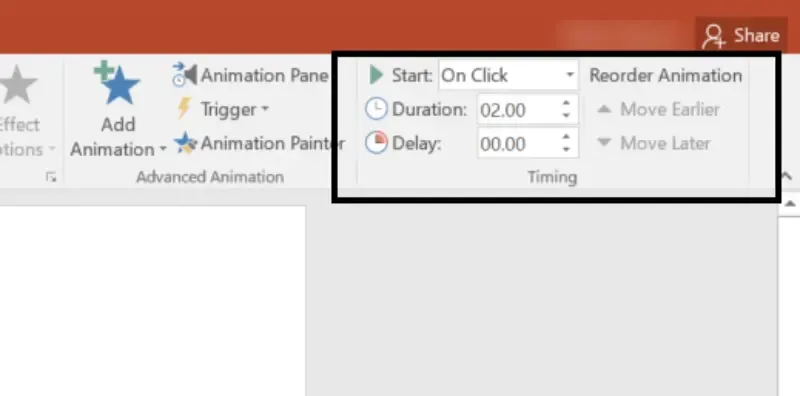
Step 6: Add More Animations (If Needed)
Use the Add Animation button to apply multiple effects to a single object without overwriting previous animations.
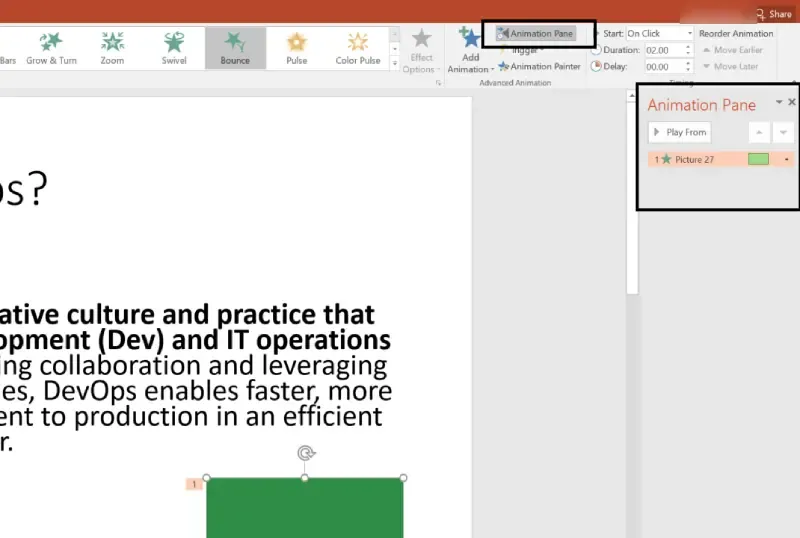
Step 7: Use the Animation Pane for Better Control
The Animation Pane helps you organize and fine-tune animations for smoother transitions and better timing.
Step 8: Preview Your Animations
Click the Preview button to test how animations appear and make necessary adjustments.
How to Add Animation to All Slides in PowerPoint
If you want animations on all slides, follow these steps:
- Add the animation to an object on one slide.
- Click Animations > Animation Painter and apply it to other slides.
- Alternatively, set up a Slide Master to apply animations to all slides at once.
Bonus Tips for Using Animations Effectively
Avoid overuse, maintain consistency, time animations properly, and always preview them before your final presentation.
Conclusion
Animations can make your PowerPoint presentation more engaging and interactive. By following these steps, you can easily apply animations while maintaining a polished and professional look. Try them out and enhance your next presentation!
