
C++17 provides many modern language and Standard Library features that improve productivity and code quality. This article covers the installation of a C++17 compiler on Windows and the configuration of popular C++ IDEs and code editors.
Installing a C++17 Compiler (GCC 9.2)
GCC 9.2 provides full support for most C++17 features and can be used to compile C++17 programs on Windows.
Step 1: Download GCC 9.2
Download the GCC 9.2 compiler package and extract the downloaded archive.
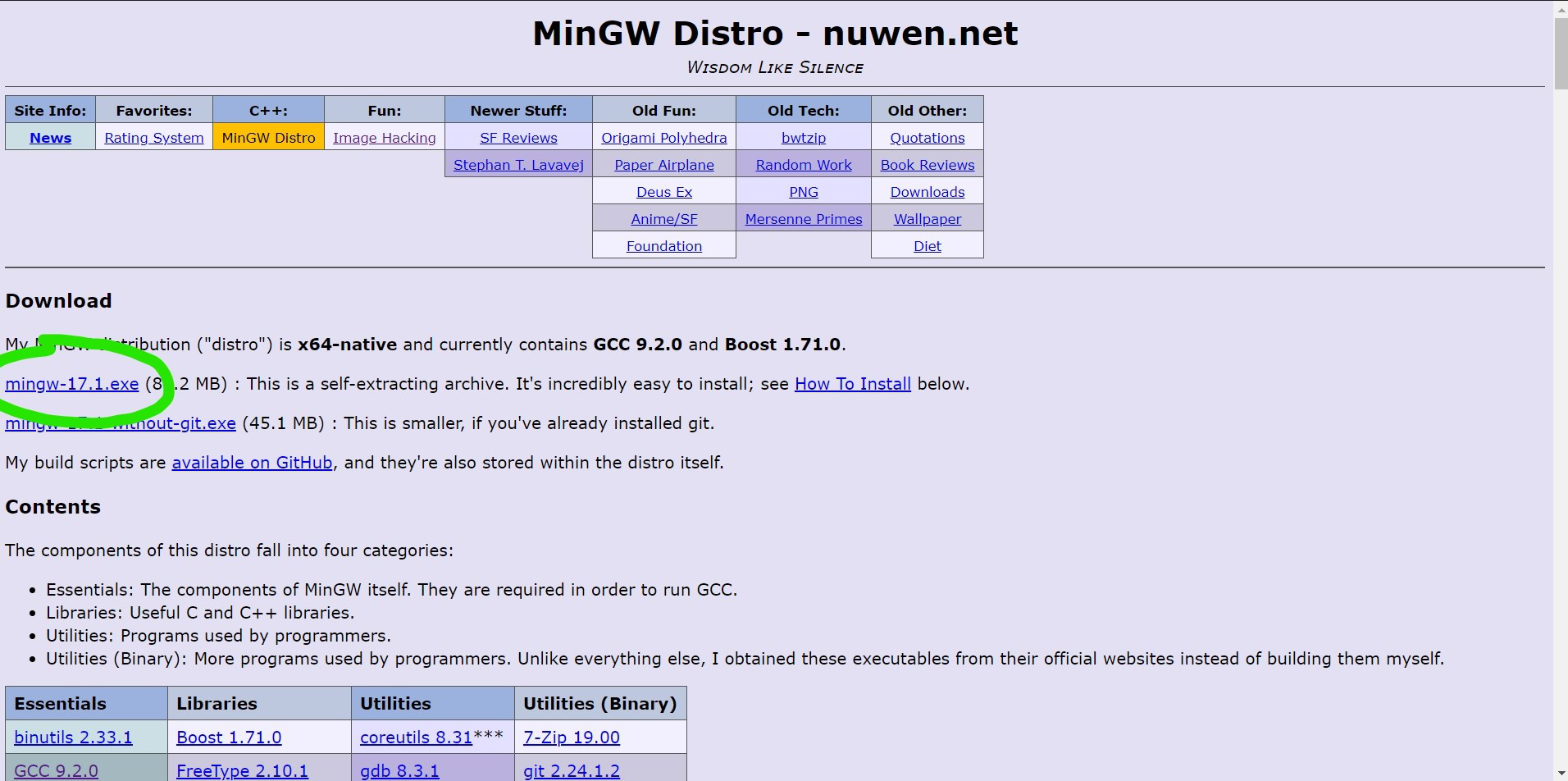
Step 2: Move MinGW Folder
After extraction, copy the MinGW folder to the C:\ drive.

Setting Up the Environment Path
To use GCC from the Command Prompt, add the MinGW bin directory to the system PATH.
Step 1: Copy the MinGW Bin Path
Open the MinGW folder and copy the path of the bin directory.
Example:
C:\MinGW\bin
Step 2: Add the Path Variable
Navigate to:
Control Panel -> System -> Advanced System Settings-> Environment Variables -> Path -> Edit -> New
Paste the copied path and save the changes.

Step 3: Verify Installation
Open Command Prompt and run:
gcc --version
If the installation is successful, the installed GCC version will be displayed.
Configuring Sublime Text for C++17
By default, Sublime Text may not compile programs using the C++17 standard. You can create a custom build system to enable C++17 support.
Step 1: Create a New Build System
Open:
Tools -> Build System -> New Build System
Paste the following configuration:
{
    "cmd": [
        "g++.exe",
        "-std=c++17",
        "${file_name}",
        "-o",
        "${file_base_name}.exe",
        "&&",
        "start",
        "cmd",
        "/k",
        "${file_base_name}.exe"
    ],
    "file_regex": "^(..[^:]*):([0-9]+):?([0-9]+)?:? (.*)$",
    "shell": true,
    "working_dir": "$file_path",
    "selector": "source.cpp"
}
Step 2: Save the Build File
Save the file with the .sublime-build extension.
Step 3: Select the Build System
Go to:
Tools -> Build System
Select the build system you just created.
Step 4: Run the Program
Press:
Ctrl + B
to build and run the C++17 program.

Configuring Code::Blocks for C++17
Step 1: Select GCC Compiler
Open:
Settings -> Compiler
Choose GNU GCC Compiler.
Step 2: Enable C++17
Under Compiler Settings, select the C++17 standard option.

Step 3: Configure Toolchain Executables
Switch to the Toolchain Executables tab and set the compiler installation directory to the MinGW folder stored in C:\.
Update the executable paths using the files available in:
C:\MinGW\bin

Configuring Dev-C++
Step 1: Add a Compiler Set
Open:
Tools -> Compiler Options
Click the + button to add a new compiler set.

Step 2: Select the MinGW Directory
Browse to the MinGW folder stored in C:\ and click OK.

Step 3: Switch Between Compilers
You can switch between installed compiler versions at any time using the compiler selection drop-down menu available in Dev-C++.

Verifying C++17 Support
Create and compile the following program:
#include <iostream>
using namespace std;

int main() {
    if constexpr (true) {
        cout << "C++17 is enabled";

    }
    return 0;

}
Output
C++17 is enabled
If the program compiles successfully, your system is properly configured for C++17 development.
