
In this article, we will learn how to compile and run C++ program in VS Code. There are two ways of doing that you can use any one of them as per your convenience. It is to be noted that a majority of competitive programmers use C++, therefore the compilation and execution of the program needs to be done quickly. Some methods which are discussed in this article almost automate the process of compilation and execution.
Program:
Let below be the code to demonstrate compilation and execution:
// C++ program to take the input of
// two numbers and prints its sum
#include <bits/stdc++.h>
using namespace std;

// Driver Code
int main()
{
    int a, b;

    // Input two numbers
    cin >> a >> b;

    // Find the sum
    int sum = a + b;

    // Print the sum
    cout << sum;

    return 0;
}
Using Integrated Command Line:
For compilation and creation of executable file run the below command:
g++ -std = c++11 -O2 -Wall programName.cpp -o programName.exe
Understanding different terms in above command:
- g++: tells the computer the given command is for g++ compiler.
- -std = c++11: the compiler follows C++11 standard, you can set it to -std = c++14 or -std=c++17 based on what you want to use.
- -O2: Optimizes the code
- -Wall: shows warnings about possible errors
- programName.cpp: refers to the c++ file to be compiled
- -o programName.exe: creates a executable file of the suggested name( here programName.exe).
Note: The name of cpp file and executable file need not be same.
Steps:
- Hover over terminal tab and select New Terminal.

- Command prompt will open with current directory.
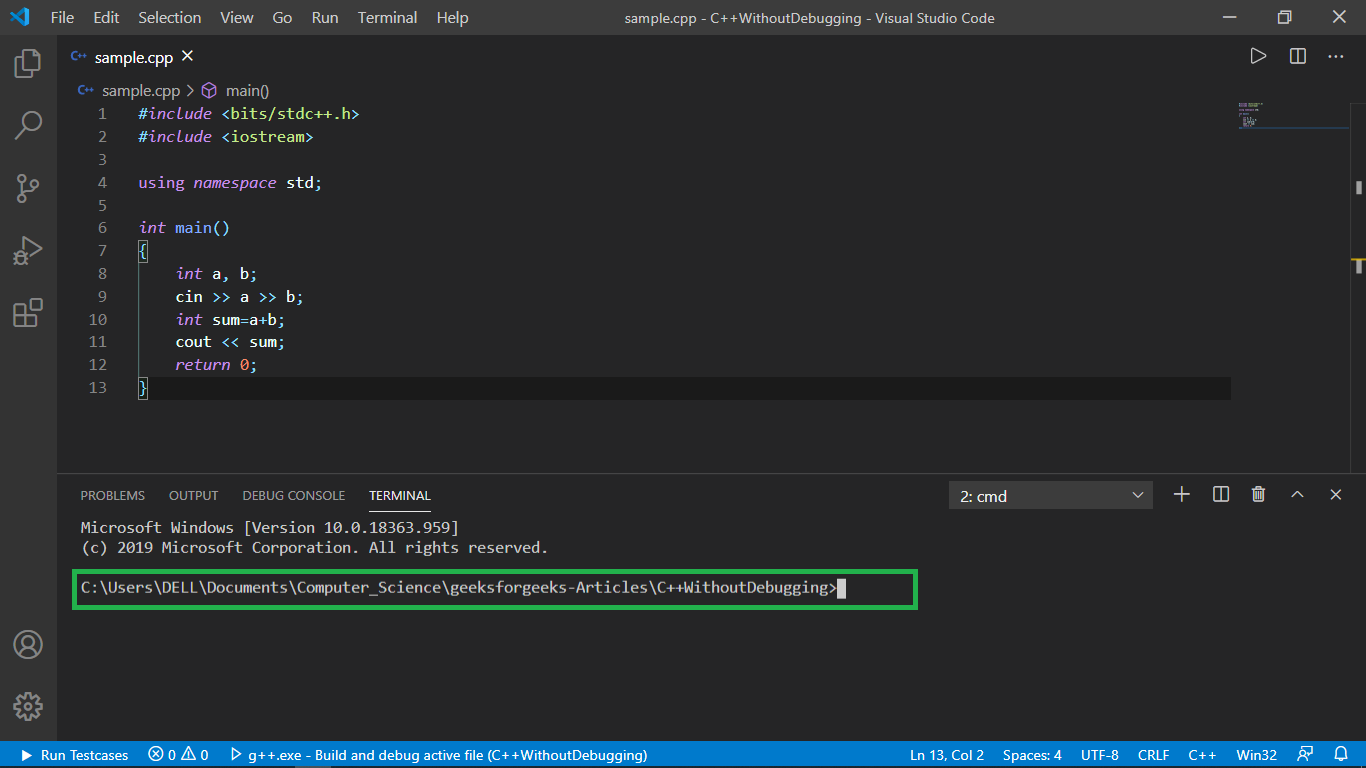
- Type the syntax given above with suitable program-name and executable file name.
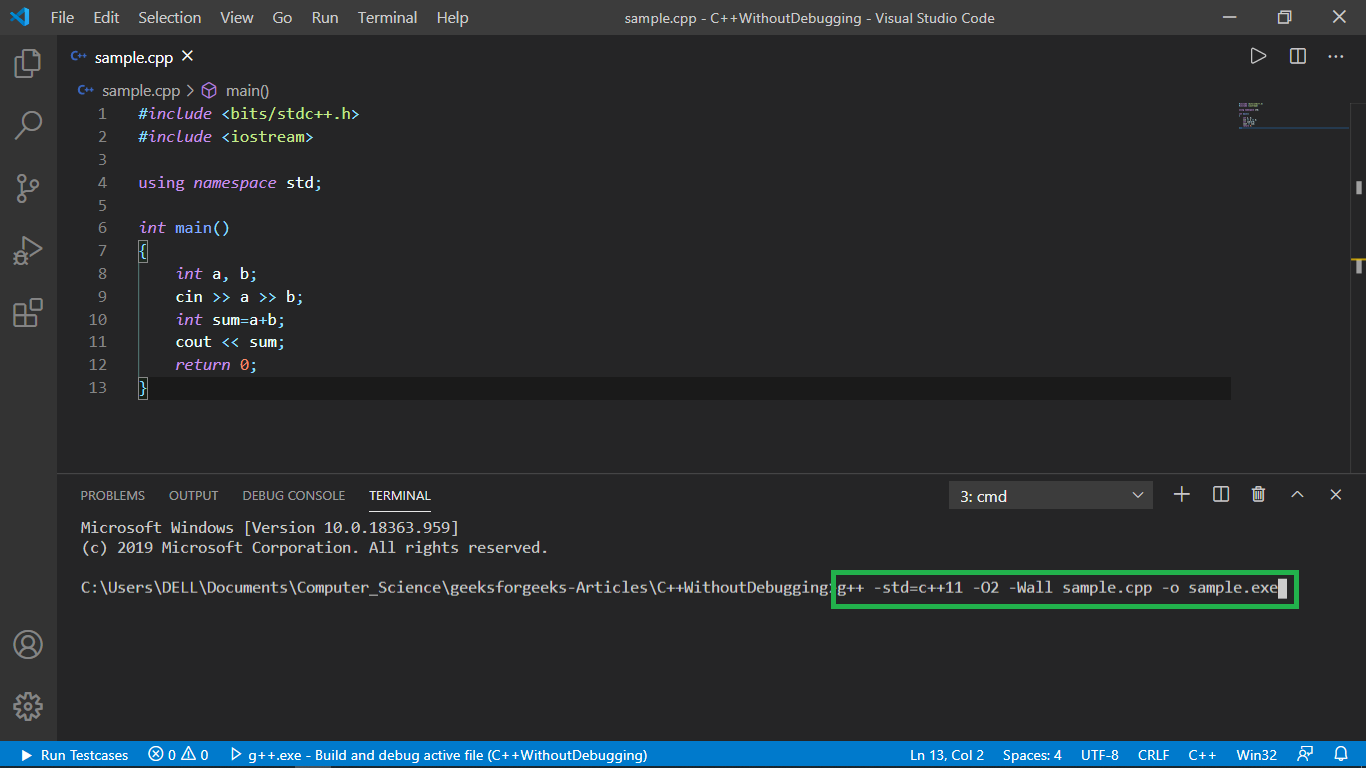
- Press Enter and
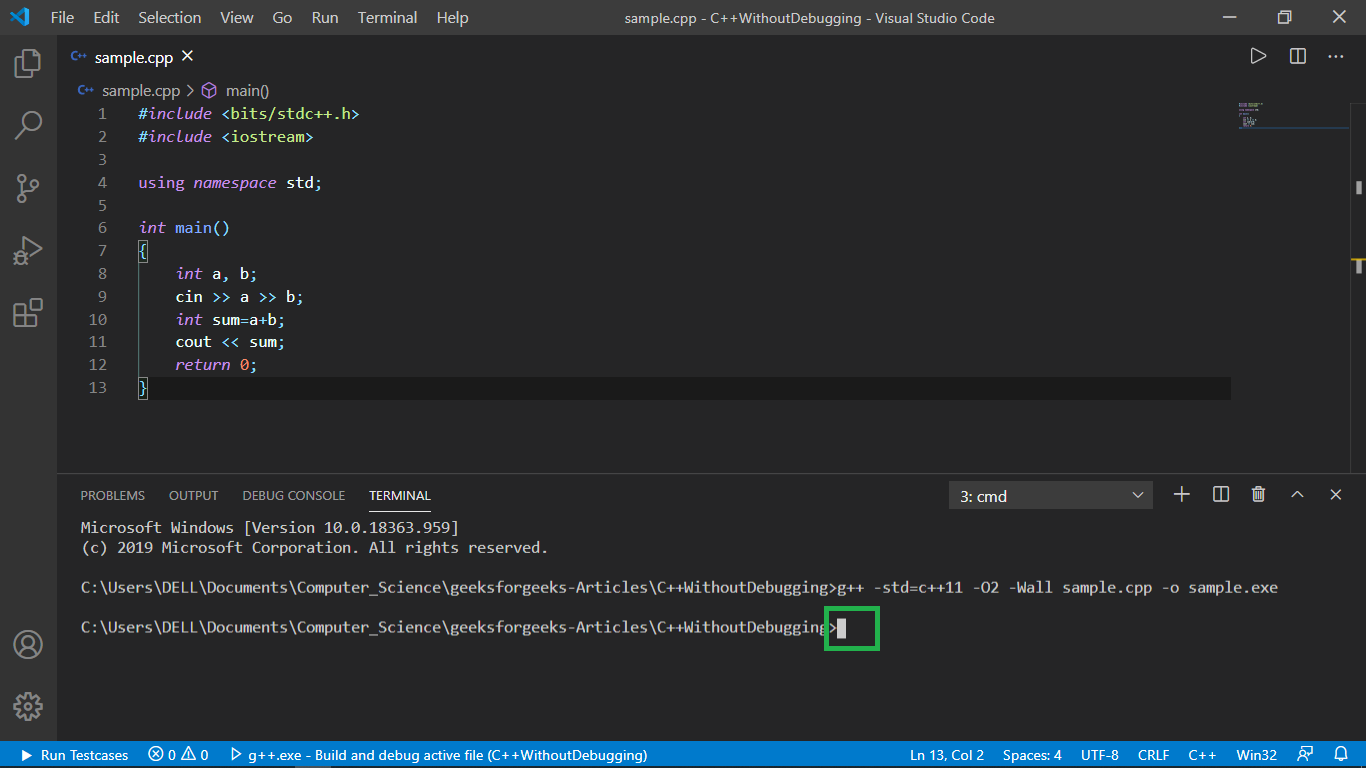
Method 1 - Calling Executable File and Managing Input/Output
Input/Output in command line itself:
- Pass the executable file to be run and press enter.
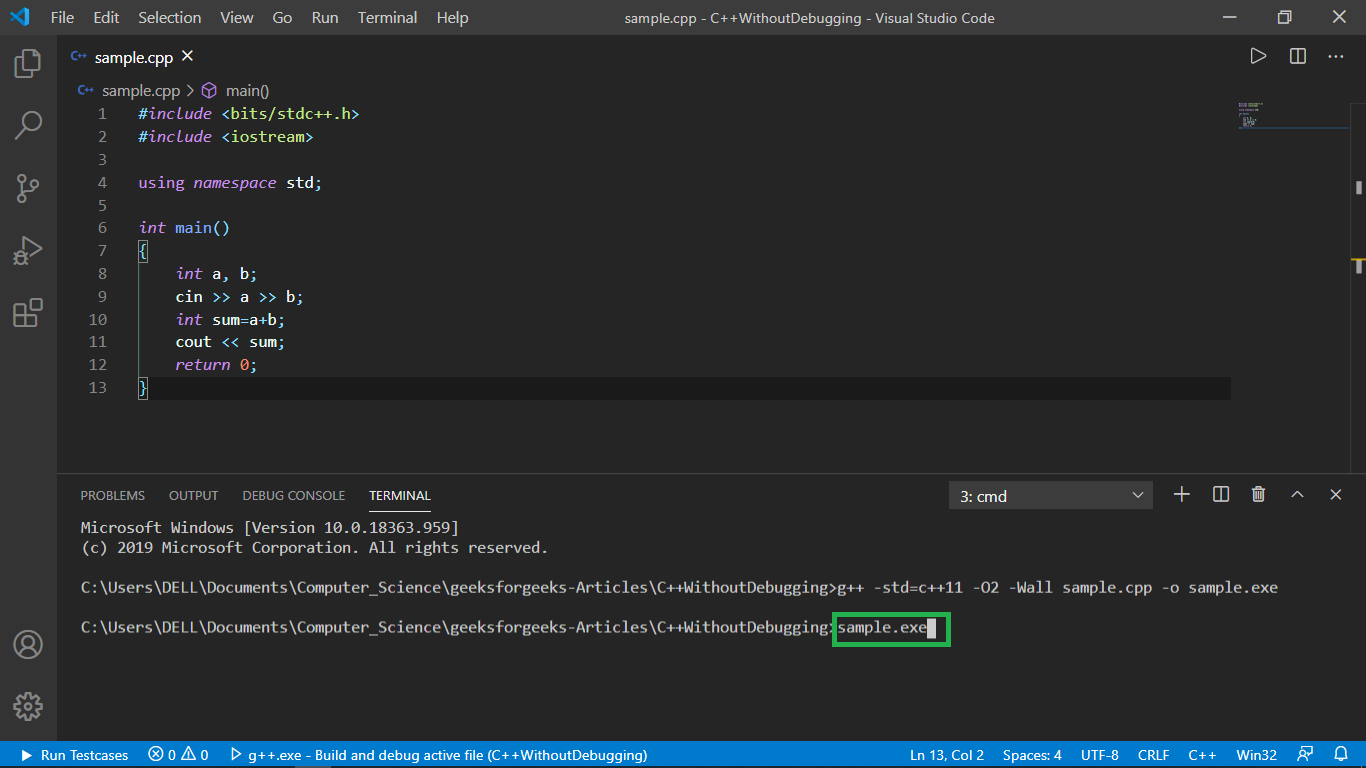
- Type the required input, each separated by space and press enter.
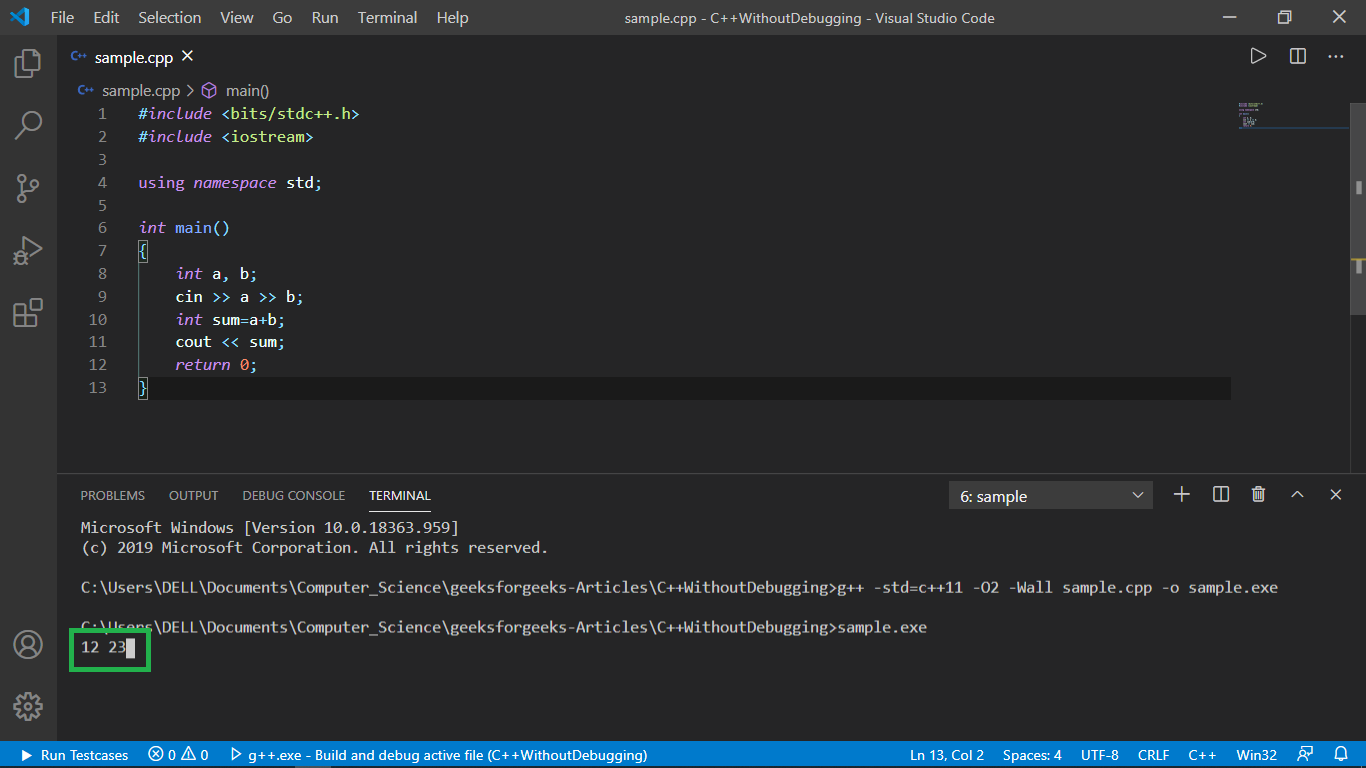
- The required output shall be displayed in a new-line of the command line as shown below.

Input/Output through text files:
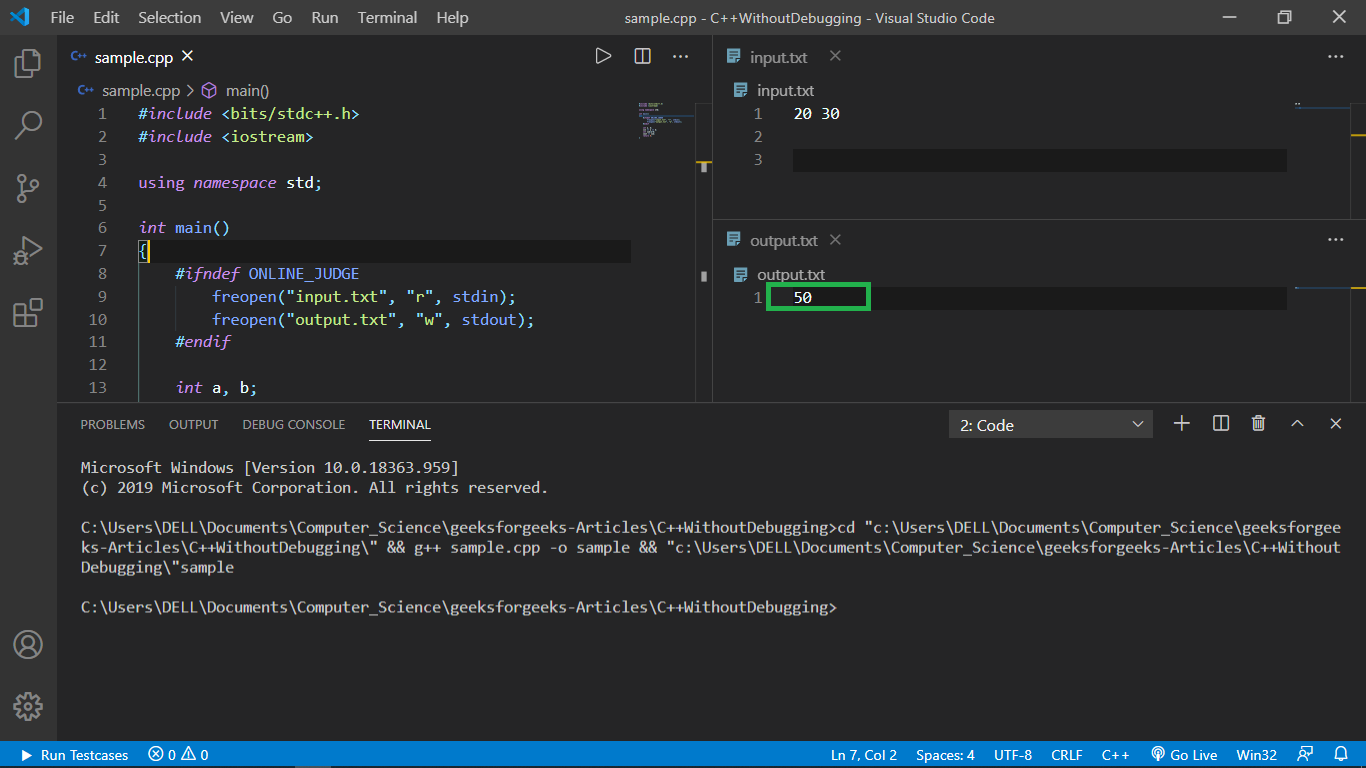
- Create two text files input.txt and output.txt. Make sure input.txt contains the required to be input.

- Paste the following code just inside your main() function.
#ifndef ONLINE_JUDGE
freopen("input.txt", "r", stdin);
freopen("output.txt", "w", stdout);
#endif
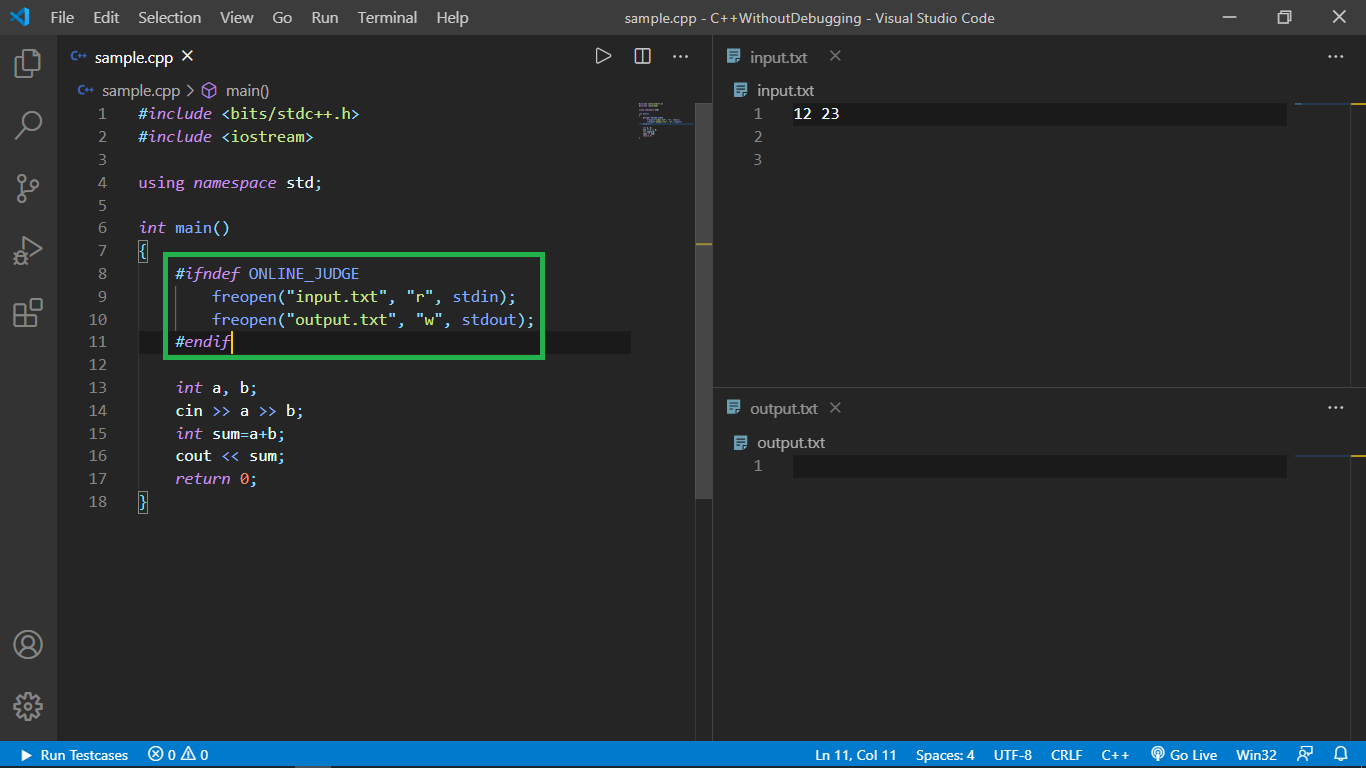
- Compile the new code again with preferably the same name for executable file.

- Pass the executable file to be run in the command line and press enter

- You would notice the output in output.txt file.

Method 2 - Using Code-Runner Extension:
Using the template created so far, we can easily upgrade to code runner. Below are the steps:
- Install the code runner extension as shown below:
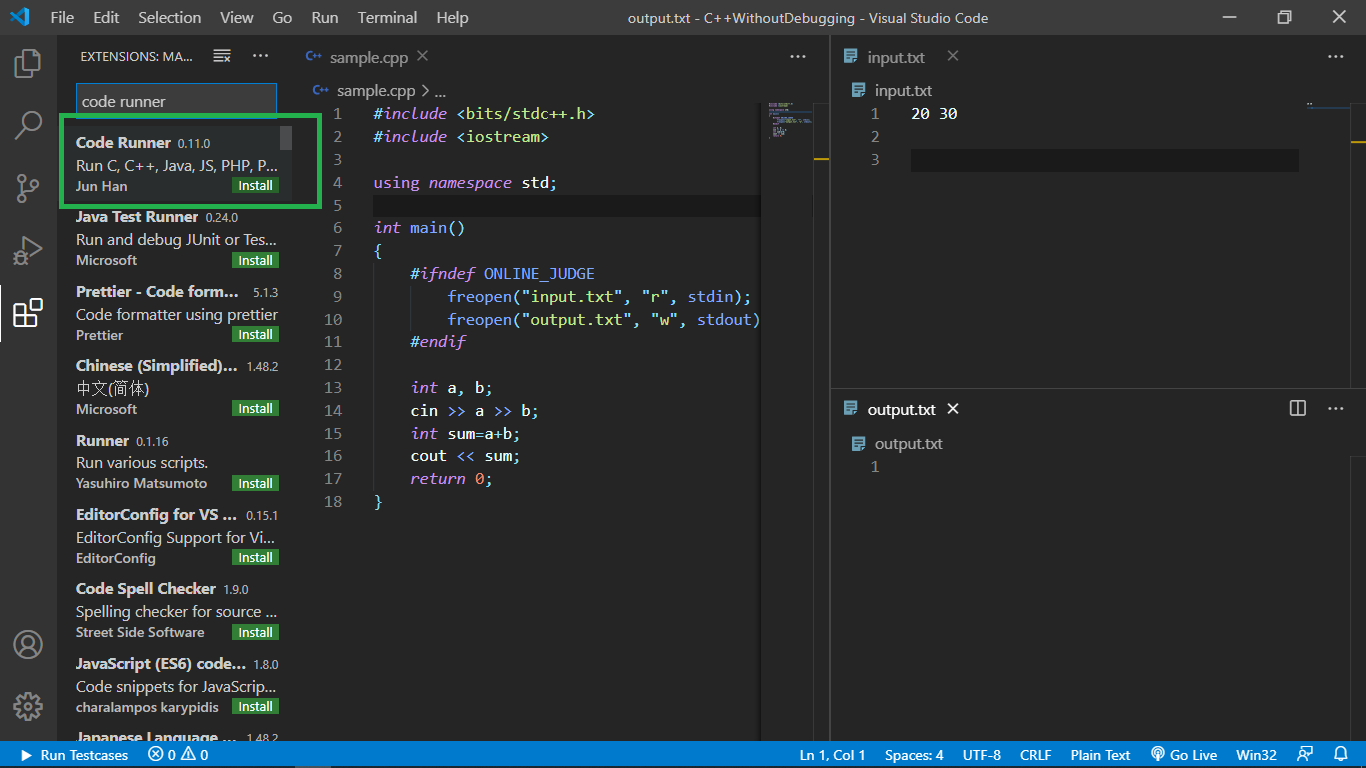
- Click on the play button on the top-right of the window as shown below:
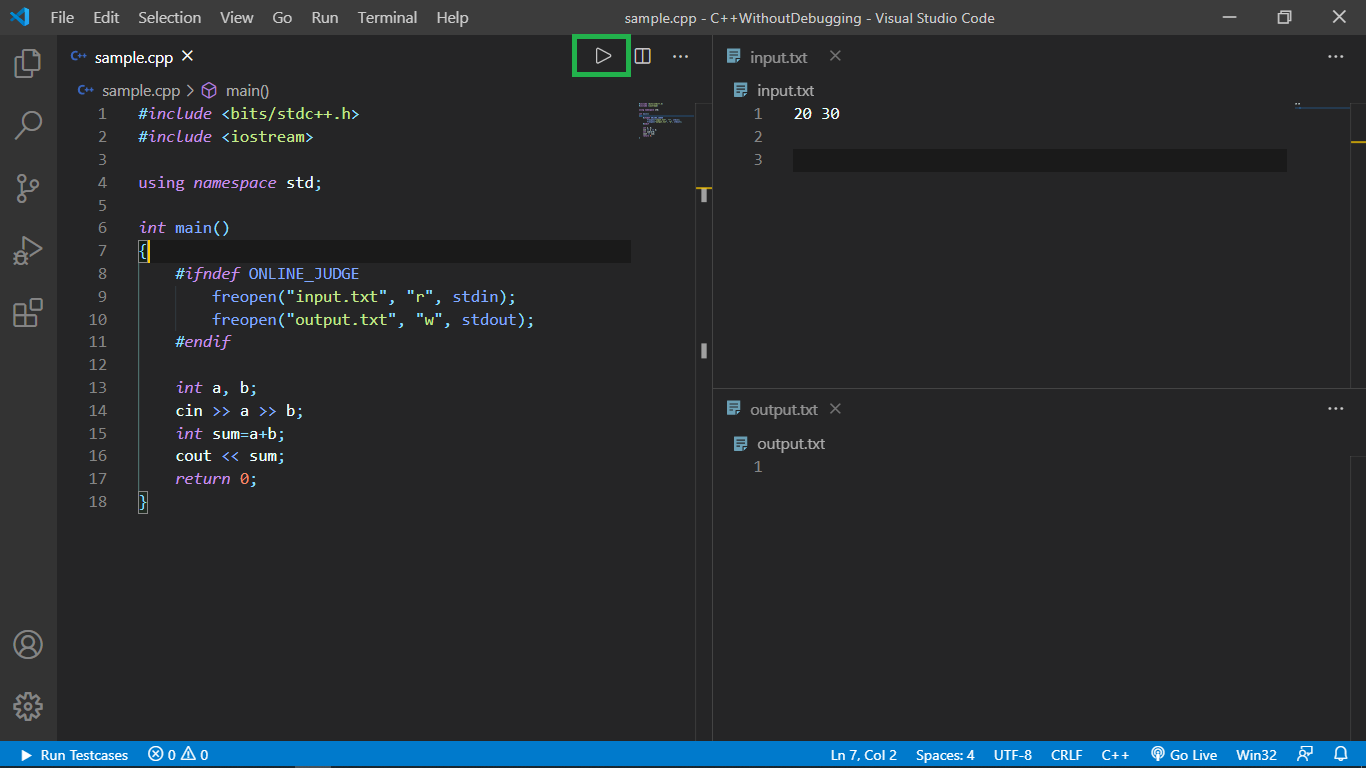
- The output of the program is displayed automatically in output.txt file.
Input/Output using Competitive Programming Helper (cph) extension:
- Firstly search and install cph by Divyanshu Agrawal

- Now, we are going to run a simple program and try to show learn how to use this ext.

- Using +New Testcase, we different test cases and their expected outputs respectively.

- Using Run All , we run all test cases

