
GeoPandas simplifies working with geospatial data. It extends the functionality of pandas by adding support for geographic objects such as points, lines, and polygons. If you're using Kaggle for your data analysis or machine learning projects, you can easily install and use GeoPandas to handle geospatial data.
Here's a step-by-step guide on how to install GeoPandas in Kaggle.
Step 1: Install GeoPandas Using pip
In Kaggle, you can install packages directly within your notebook using pip. To install GeoPandas, follow these steps:
- In your new notebook, create a new code cell and paste the following command:
!pip install geopandas - Run the cell by pressing Shift + Enter. The system will fetch the GeoPandas library from the PyPI (Python Package Index) and install it on your Kaggle environment.
Step 2: Import GeoPandas in Your Notebook
Once the installation is complete, you can start using GeoPandas in your notebook. To import the library, create another code cell and enter the following code:
import geopandas as gpdRun the cell, and you should now be able to use GeoPandas functions in your Kaggle notebook.
Step 3: Verify Installation
To verify that GeoPandas has been successfully installed and imported, you can check the version of GeoPandas with the following code:
import geopandas as gpd
print(gpd.__version__)
Output:
0.14.4This will print the installed version of GeoPandas, confirming that the installation was successful.
Step 5: Use GeoPandas to Work with Geospatial Data
Now that you have GeoPandas installed, you can start using it to read, manipulate, and visualize geospatial data.
import geopandas as gpd

# Example GeoDataFrame creation
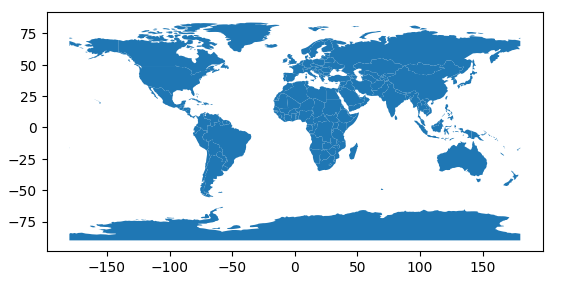
world = gpd.read_file(gpd.datasets.get_path('naturalearth_lowres'))
world.plot()
Output
You can also perform various geospatial operations like plotting maps, performing spatial joins, and calculating geometric properties.
