
Backups are an essential part of database management because they help recover important data during accidental deletion, system failure, database corruption, or cyberattacks. Amazon RDS provides multiple backup mechanisms that help users protect and restore their databases whenever required. Amazon RDS mainly provides two backup strategies:
- Automated Backups
- DB Snapshots
Both backup methods serve different purposes and are important for database recovery and long-term data protection.
Automated Backups
- Automated Backups are the default backup mechanism provided by Amazon RDS. These backups automatically store database changes and allow users to restore the database to any specific point within the retention period.
- Automated backups remain active from the time the DB instance is created until the instance is deleted.
Features
- Enabled automatically during DB instance creation.
- Supports point-in-time recovery.
- Backup retention period ranges from 1 to 35 days.
- Default retention period is 1 day.
- Works only when the DB instance is in the Available state.
- Automated backups are not supported when the instance is stopped, storage is full, or the instance has failed.
- Helps recover databases quickly after accidental data loss or corruption.
Configure Automated Backups in Amazon RDS
Step 1: Open the RDS Console
- Log in to your AWS account.
- Open the AWS Management Console.
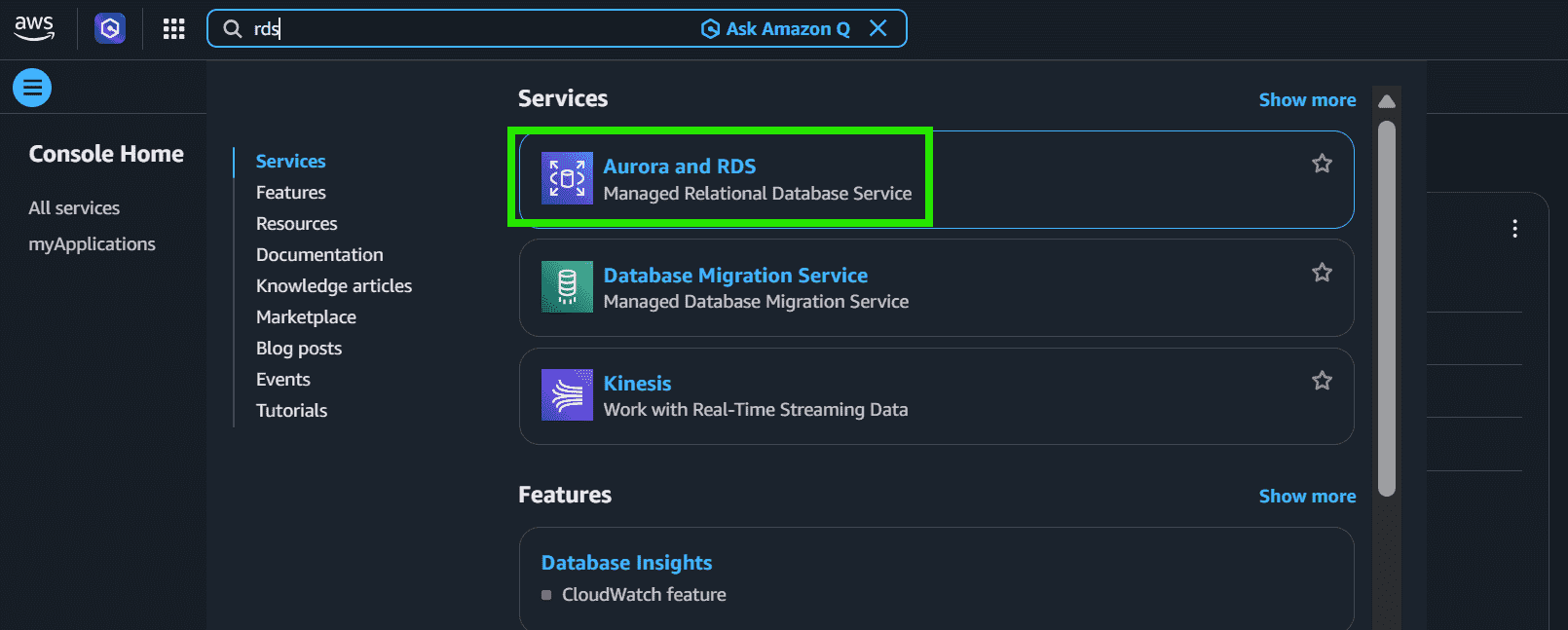
- Search for RDS in the Services search bar.
- Select Aurora and RDS.
Step 2: Open the Databases Section
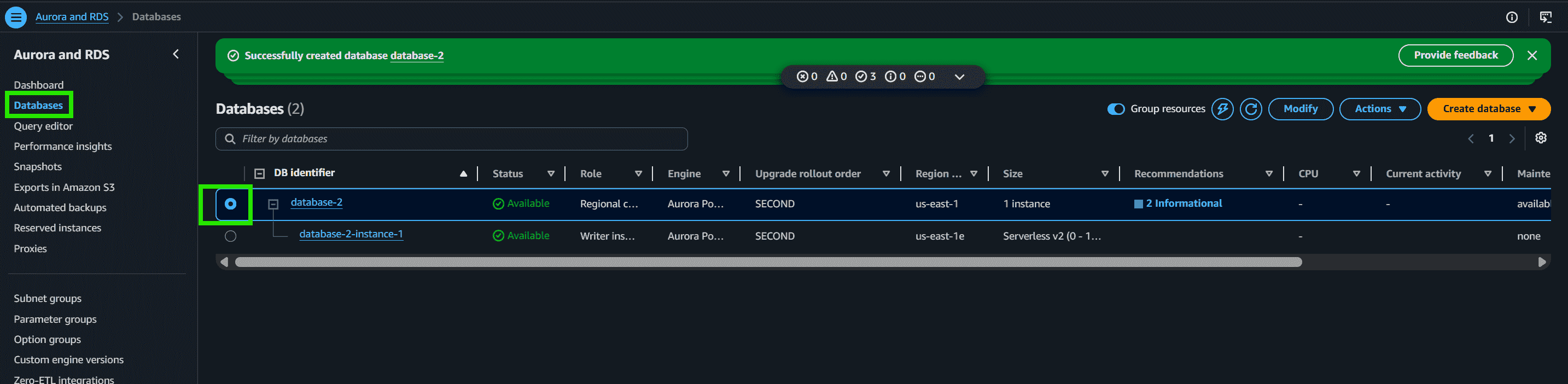
- From the left navigation pane, click Databases.
- Select the database instance for which you want to enable automated backups.
Step 3: Modify the Database Instance
- Click the Modify button.

Step 4: Configure Backup Retention Period
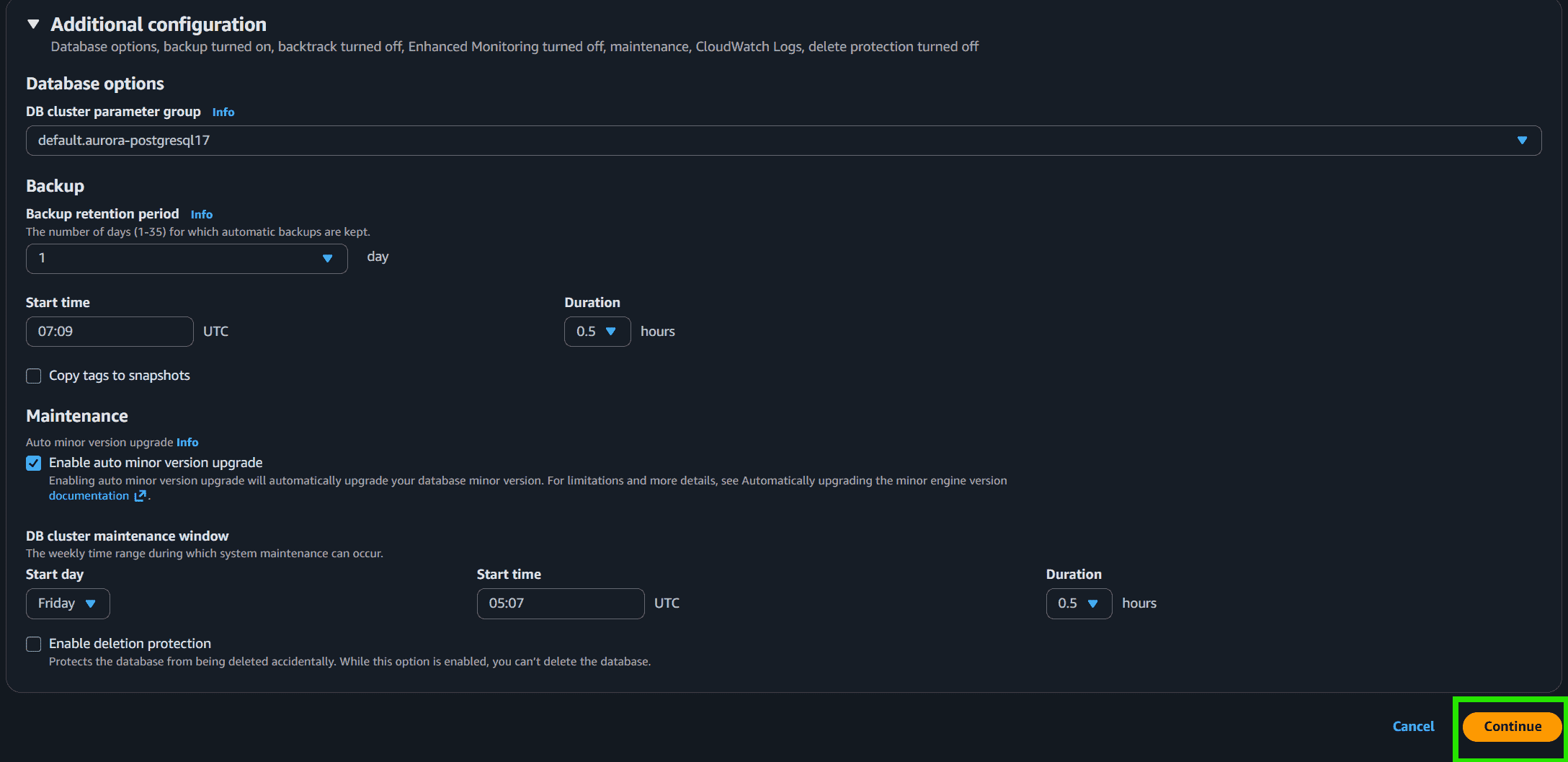
- Scroll to the Backup section.
- Locate Backup retention period.
- Set a value greater than 0.
- Example: 2 Day
- Click Continue
Step 5: Apply the Changes
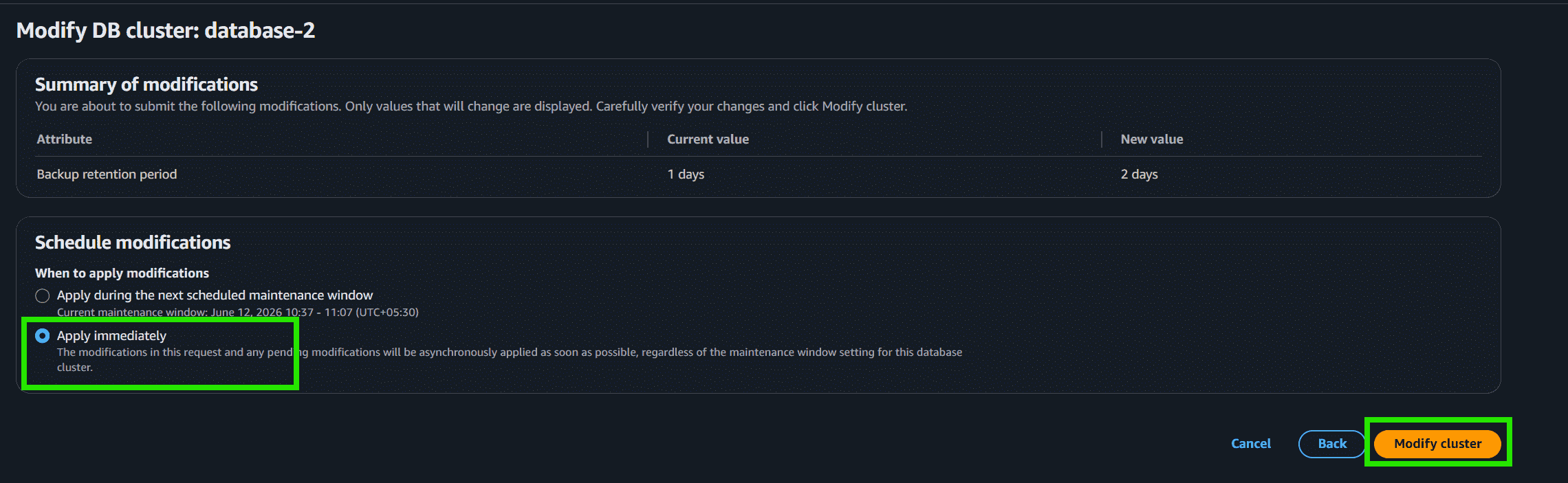
- Scroll to the bottom of the page.
- Select:
- Apply Immediately
- Click Modify DB Instance.
DB Snapshots
DB Snapshots are manual backups of an entire database instance. Unlike automated backups, snapshots are created manually whenever required.
Snapshots are non-editable backups and remain stored until they are manually deleted.
Features
- Manual backup method.
- No automatic expiration.
- Stored until deleted by the user.
- Can be copied across AWS Regions.
- Can be exported to Amazon S3.
- Useful before major database modifications or upgrades.
- Final snapshots can be created automatically during DB deletion.
Taking a DB Snapshot in Amazon RDS
Step 1: Open the RDS Console
- Log in to your AWS account.
- Open the AWS Management Console.
- Search for RDS.
- Select Aurora and RDS.
Step 2: Open the Databases Section
- From the left navigation pane, click Databases.
- Select the database instance for which you want to create a snapshot.
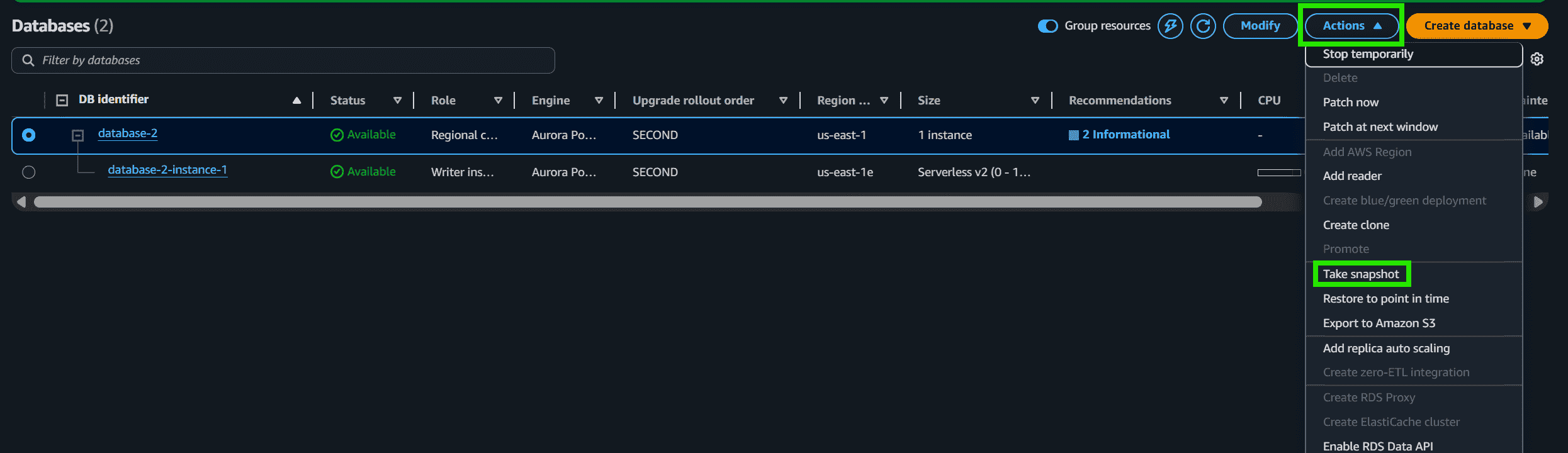
Step 3: Open the Actions Menu
- Click the Actions dropdown menu.
- Select Take snapshot.
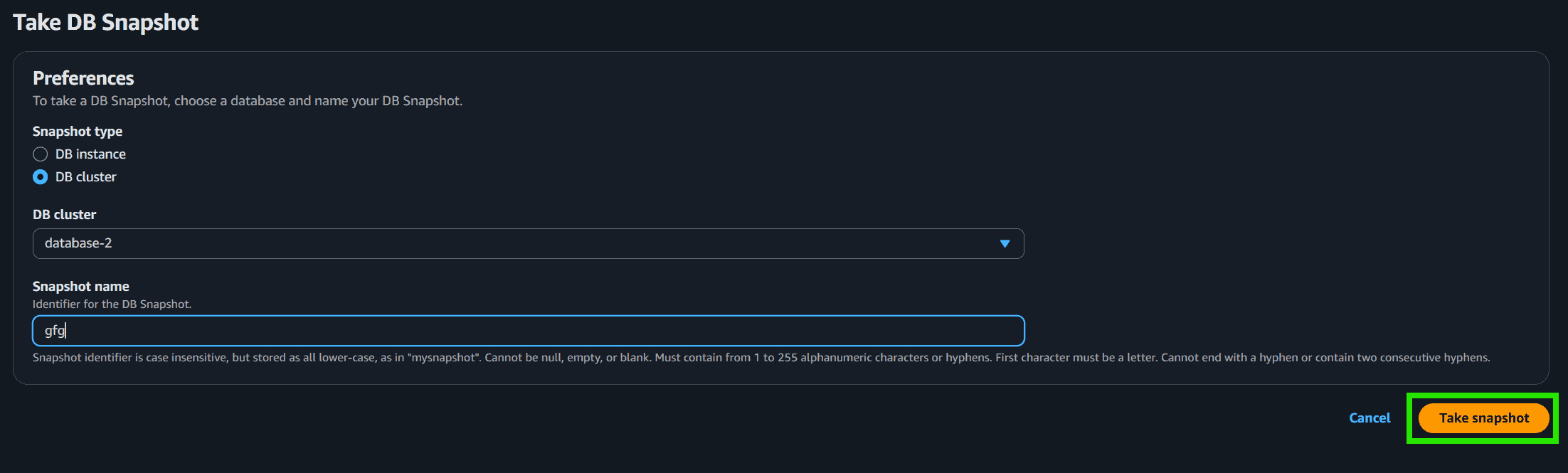
Step 4: Configure Snapshot Details
- In the Take DB Snapshot window:
- Enter the snapshot name.
- Review the database details.
- Click Take Snapshot.
- Amazon RDS will begin creating the snapshot.
Step 6: Verify Snapshot Creation
- From the navigation pane, click Snapshots.
- Verify that the snapshot status changes to Available.

Difference Between Automated Backups and DB Snapshots
| Feature | Automated Backups | DB Snapshots |
|---|---|---|
| Backup Type | Automatic | Manual |
| Point-in-Time Recovery | Supported | Not Supported |
| Retention Period | 1–35 Days | Stored Until Deleted |
| Automatic Creation | Yes | No |
| Cross-Region Copy | Limited | Supported |
| Best Use Case | Daily recovery | Long-term backup |
