
AWS Cost and Usage Reports (CUR) help users track AWS resource usage and estimated costs in detail. These reports provide the most comprehensive billing and usage data available in AWS. Users can generate reports based on hourly or monthly usage, specific AWS services, resources, and custom-defined cost categories for detailed cost analysis and billing management.
- Report files can be automatically delivered to an Amazon S3 bucket.
- Reports can be updated up to three times a day with the latest billing data.
- AWS provides APIs to create, retrieve, and delete Cost and Usage Reports programmatically.
Note: In AWS Organizations with consolidated billing, only the payer account can create and manage Cost and Usage Reports. Member accounts cannot generate separate billing reports, but costs can still be viewed individually for each member account.
Steps to Configure AWS Cost and Usage Reports
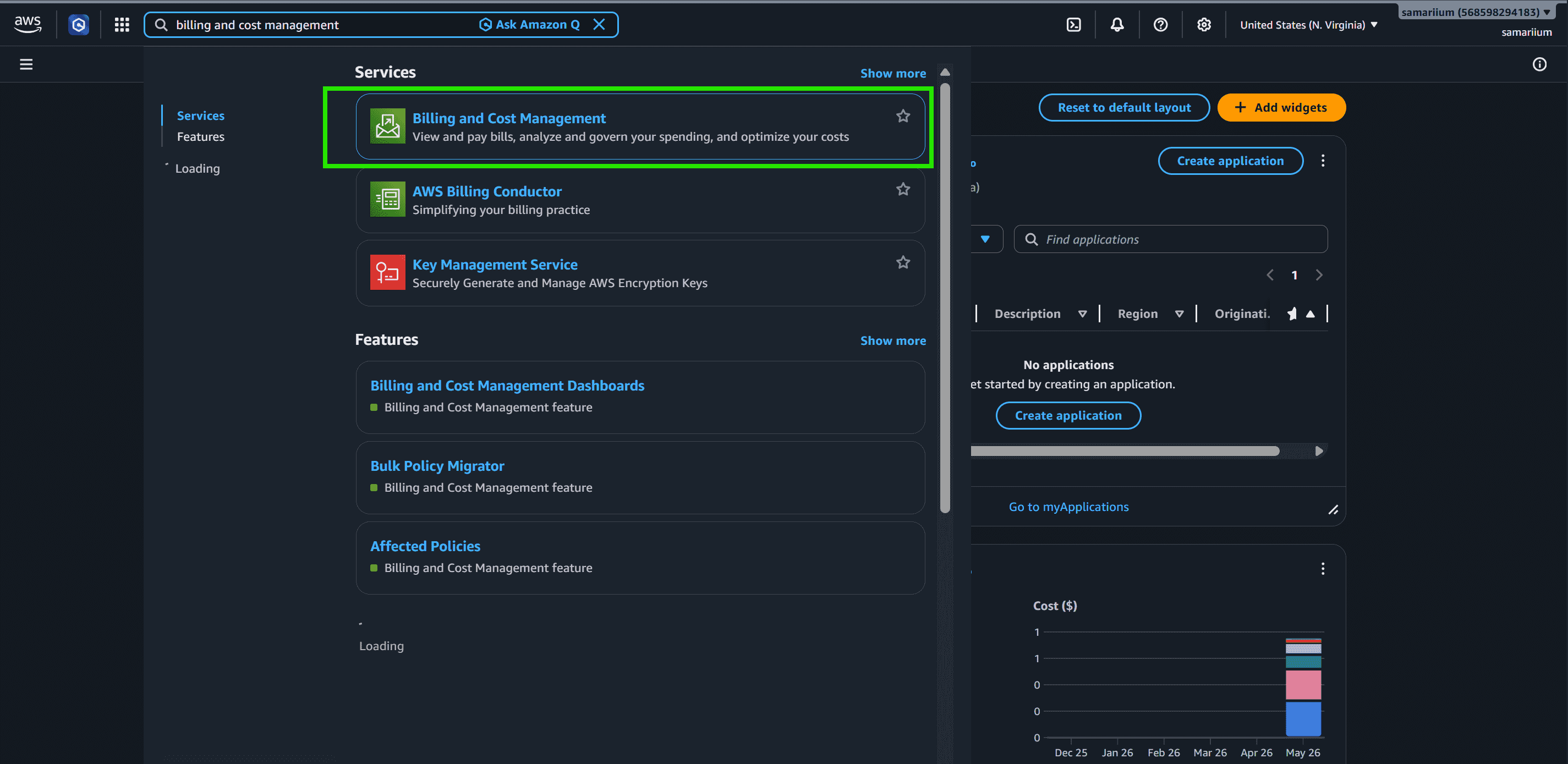
Step 1: First sign into the AWS Management Console and then navigate to the Billing and Cost Management console.
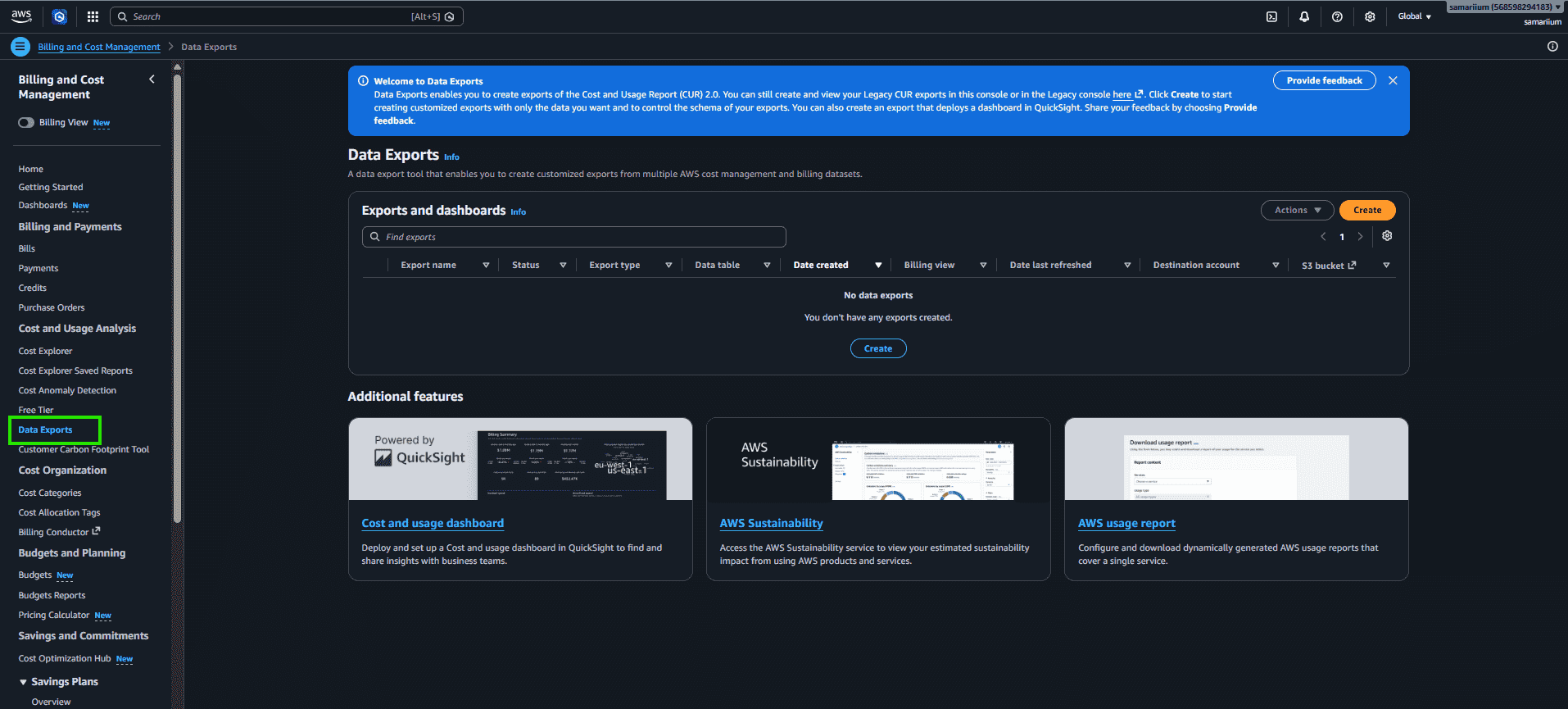
Step 2: Select Data Exports from the left sidebar under the Cost and Usage Analysis section.
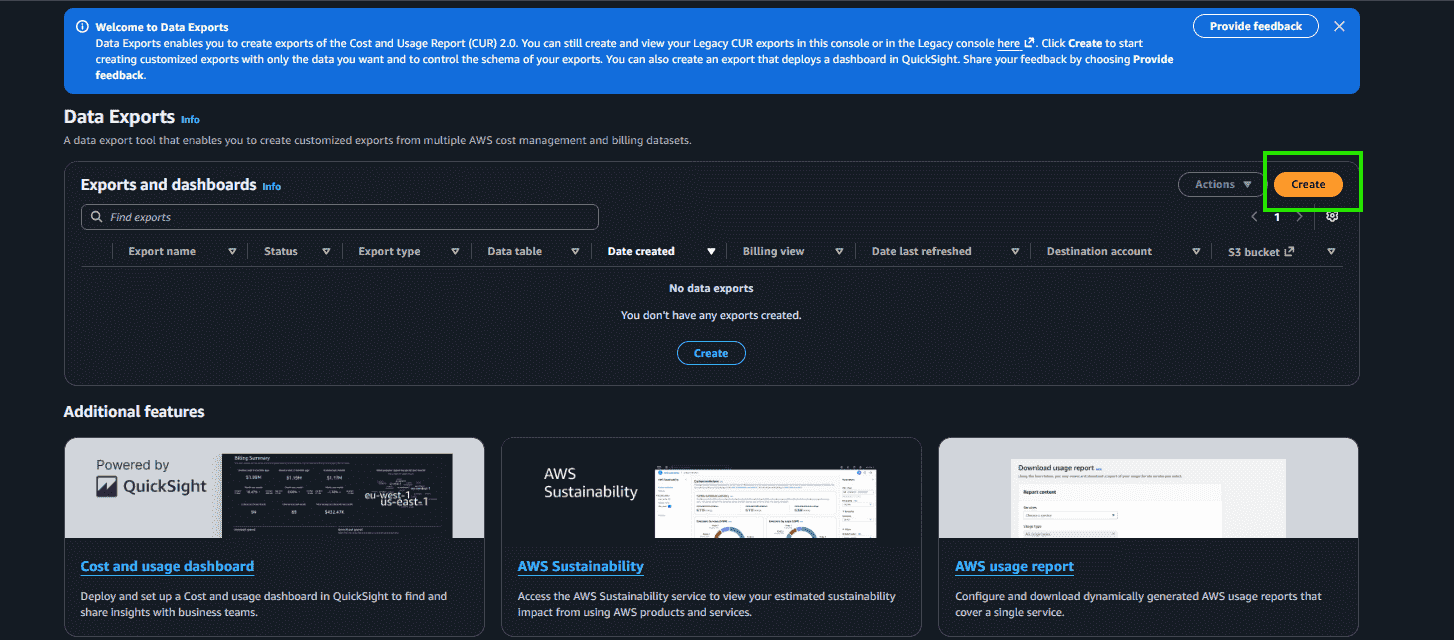
Step 3: Click on Create in the Data Exports dashboard to create a new AWS Cost and Usage Report.
Step 4: Configure the export settings for the AWS Cost and Usage Report by selecting the required report type, granularity, file format, and storage options. Use the following recommended settings:
- Export type: Standard data export
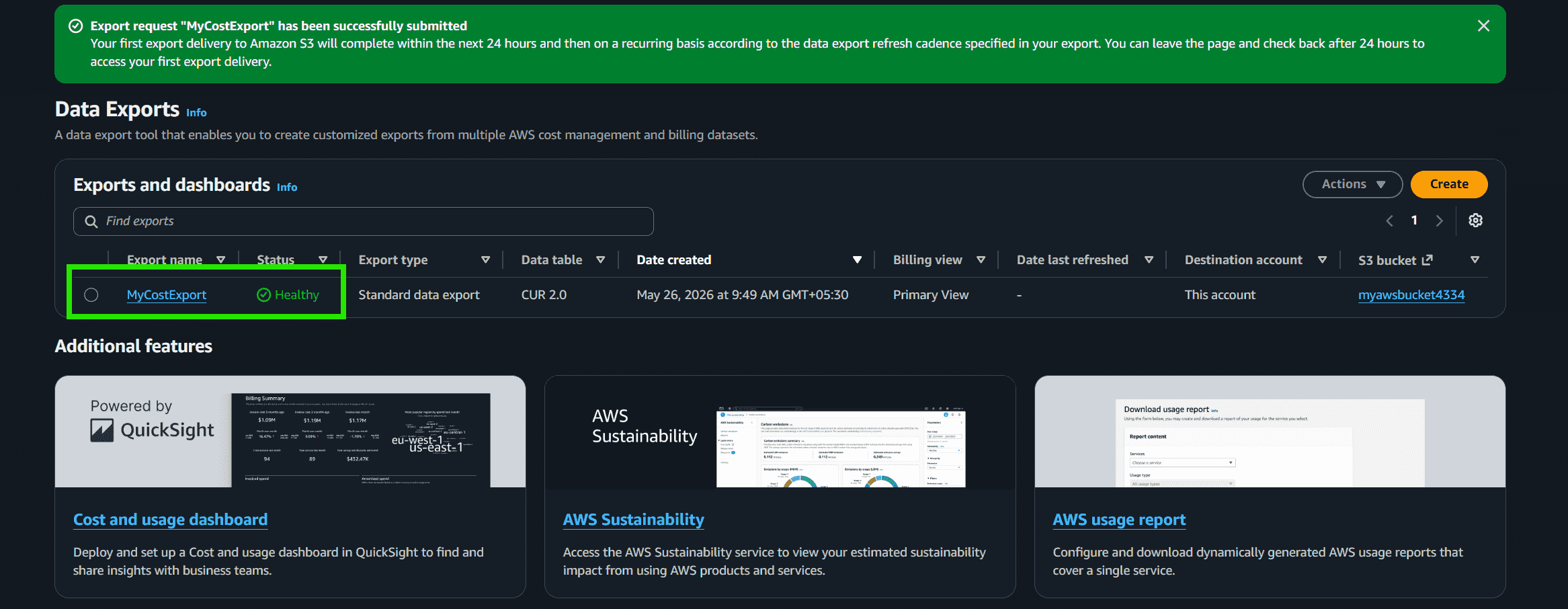
- Export name: MyCostExport
- Data table option: CUR 2.0
- Billing view: Primary view
- Include Resource IDs: Enabled
- Time granularity: Daily
- File versioning: Overwrite existing data export file
- Compression type & format: Parquet
- Storage account: This account
- S3 bucket: Select or configure your S3 bucket
- S3 path prefix: Enter a custom prefix name for report storage
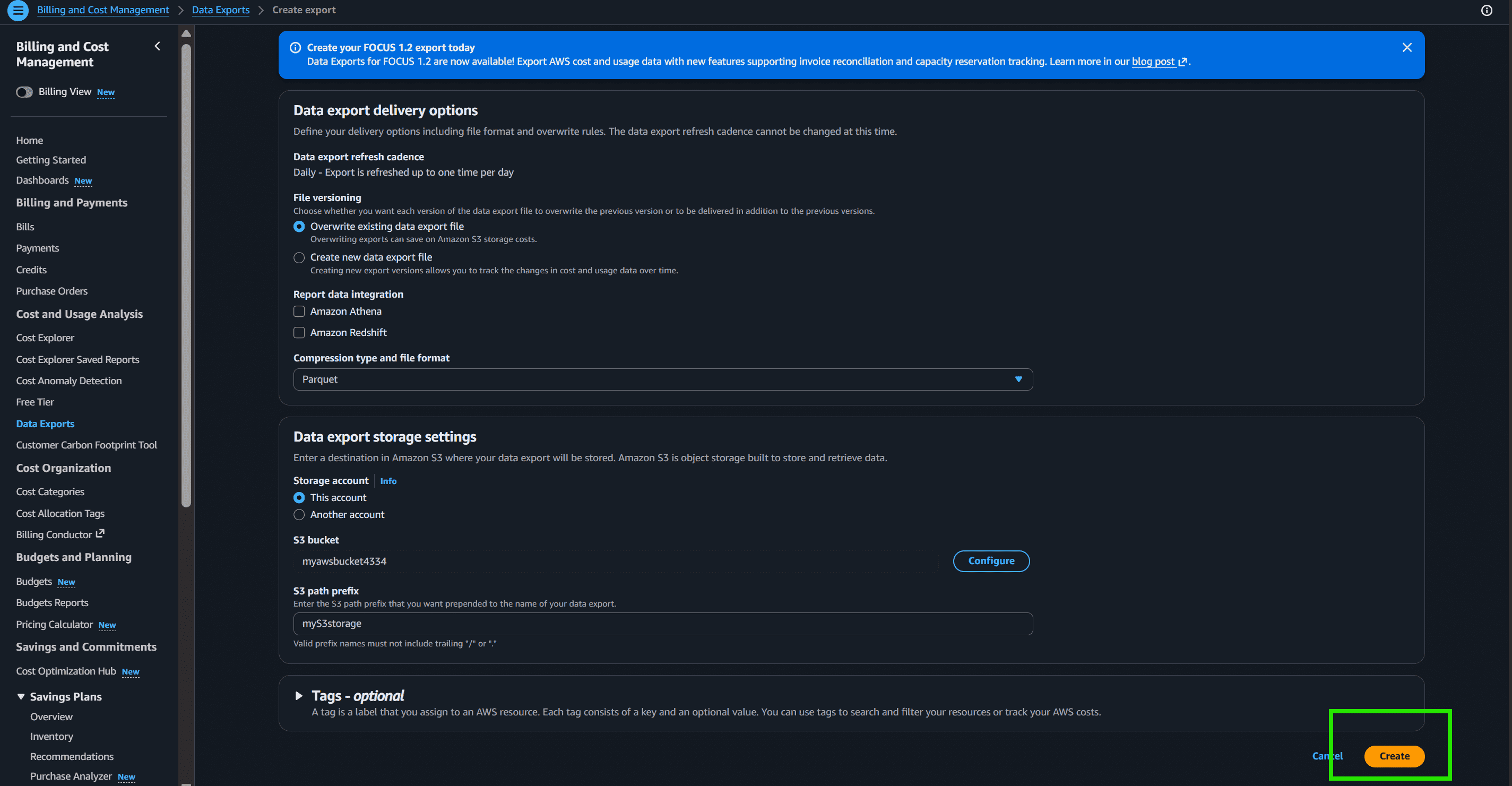
Step 5: The AWS Cost and Usage Report is successfully created and stored in the selected Amazon S3 bucket.
Note: Always stop or delete AWS resources after testing to avoid unwanted charges in your AWS account.
