
In this article, we will learn how to renew or revoke azure function keys. Azure function keys are used as authorization keys to the azure function app. We will go through step by step in the rest of the article to renew or revoke azure function keys.
Steps:
Step 1. Create a simple azure function app as shown in the article. After creating a function app we will create an HTTP trigger function as shown in the next step.
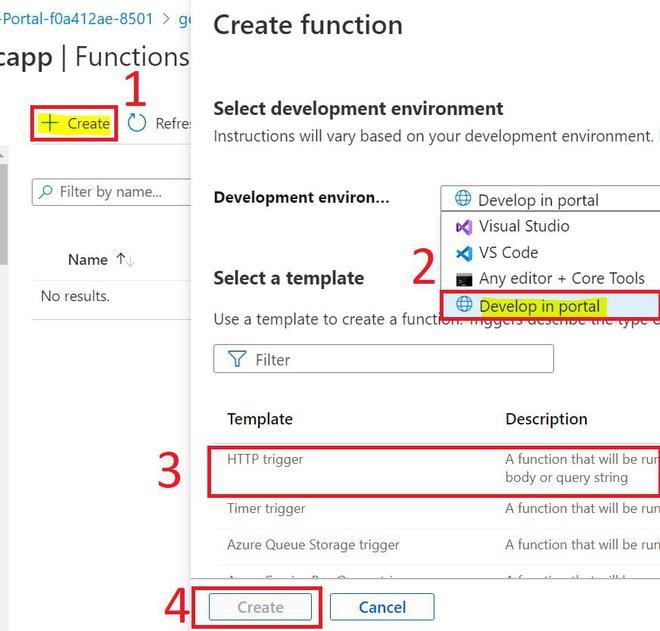
Step 2. Create an HTTP trigger function as shown below.
- You can choose your choice of development environment, for demo purposes I will choose "develop in portal".
- We will choose the Http trigger, which triggers the function app whenever it receives an HTTP request. We need to pass the azure function key as a parameter in the URL to authorize to function app.

- Click on Create to create the HTTP trigger function.
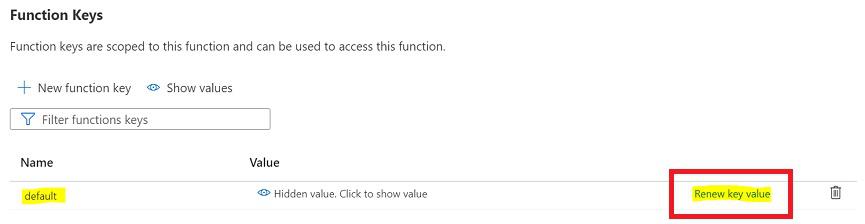
Step 3. After creating the HTTP trigger function, the page will forward to the function page, where you can write code and test. Now select the "Function keys" tab where we can see the default function key. We can create, renew and delete function keys on this page.

Step 4. Click on the "Renew key value" button to renew or revoke the azure function app keys in the Function Keys section. After clicking this you will get a prompt to confirm to renew the key as after renewing the key you cannot connect the Azure function with the older key.
Step 5. Click on Renew on the prompt to create a new function key, you need to use this new function key for further requests to your function.

Step 6. Azure will take a few seconds to create a new function key and will display a notification that the function key is created as shown below.

