
Amazon Redshift is a fully managed data warehouse service offered by AWS. The Redshift cluster is optimized for large-scale workloads handling and data processing. Organizations can efficiently query and manage huge amounts of structured data using Redshift. This makes it very popular for analytics, business intelligence, and applications based on data warehousing. With AWS CLI, Redshift clusters are easily managed by providing the total set of instructions to create, manage, and monitor Redshift clusters.
This tutorial has outlined some of the key AWS CLI commands that are used in the management of Amazon Redshift clusters: how to create a cluster, manage snapshots, handle configuration changes, and monitor performance from different aspects of the cluster. Through AWS CLI, you ensure that your cluster operations are timely performed with good resource utilization, automation of routine tasks, and, hence, more efficient and reliable data warehousing.
Primary Terminologies
- Amazon Redshift: Amazon Redshift is a cloud-based data warehousing service that allows the running of sophisticated queries against large sets of petabyte data. It is optimized for large-scale data analysis.
- AWS CLI: AWS CLI is a unified interface utility through which the services offered by AWS are managed. You can use this tool with a few command inputs to operate several AWS services, one of them being Redshift.
- Redshift Cluster: The cluster of nodes is used in Redshift which stores and processes data. A cluster may contain one or more nodes with a leading node and computation nodes.
- Leader Node: The lead node of a Redshift cluster that processes SQL queries, coordinates data distribution, and communicates with other nodes.
- Compute Node: The nodes in a Redshift cluster that execute the queries and send results back to a leader node
- Snapshot: A point in time backup of your Redshift cluster. You are enabled to restore a cluster to the state at the time of the snapshot.
- VPC (Virtual Private Cloud): This is AWS's private cloud through which you could make an instance of AWS services in a logically isolated virtual network. If you want better control and any security related to this service, you can deploy Redshift within a VPC.
Step-by-Step Process: Managing Amazon Redshift with AWS CLI
Step 1: Configure AWS CLI
Configure by using following command
aws configure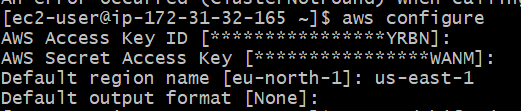
Step 2: Create a Redshift Cluster
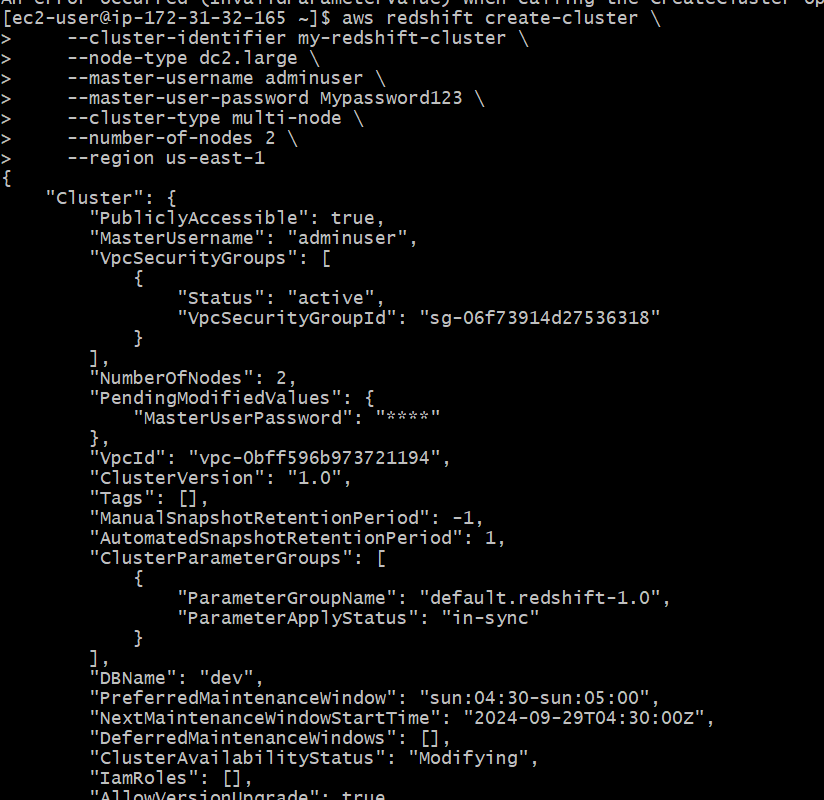
Use the AWS CLI to create a Redshift cluster. The following command creates a cluster with two compute nodes in the us-east-1 region:
aws redshift create-cluster \
--cluster-identifier my-redshift-cluster \
--node-type dc2.large \
--master-username adminuser \
--master-user-password mypassword \
--cluster-type multi-node \
--number-of-nodes 2 \
--region us-east-1
This command specifies the cluster identifier (my-redshift-cluster), node type (dc2.large), master user, password, cluster type, and number of nodes.
Step 3: Access and Manage Redshift Cluster
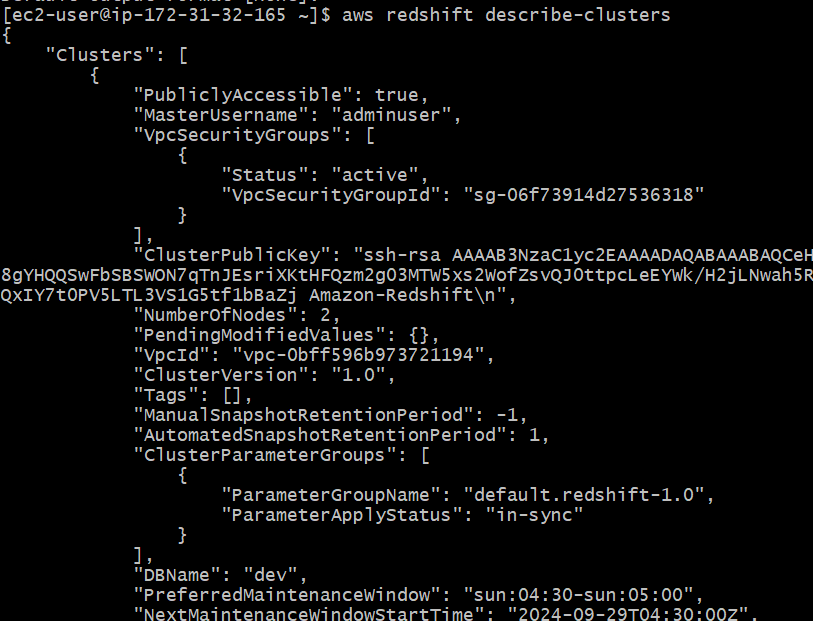
To retrieve the status or description of your Redshift cluster, use the following command:
aws redshift describe-clusters \
--cluster-identifier my-redshift-cluster
Step 4: Pause/Resume a Cluster
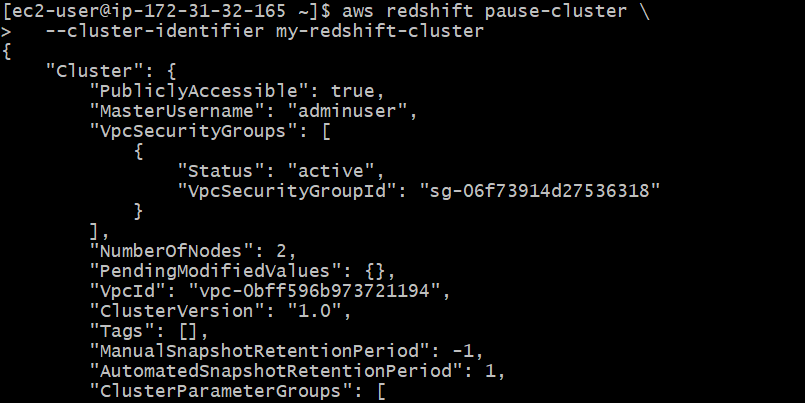
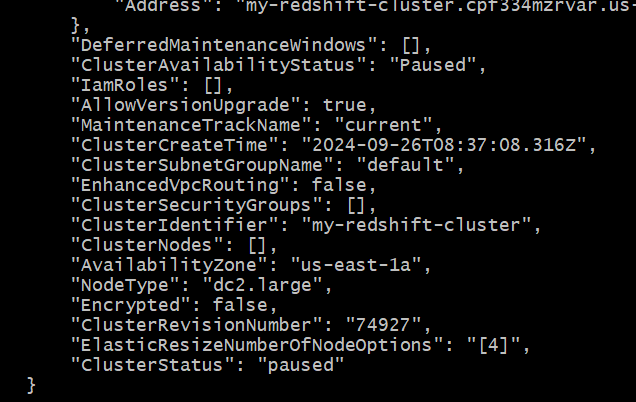
- Pause: (for cost savings when not using)
aws redshift pause-cluster \
--cluster-identifier my-redshift-cluster
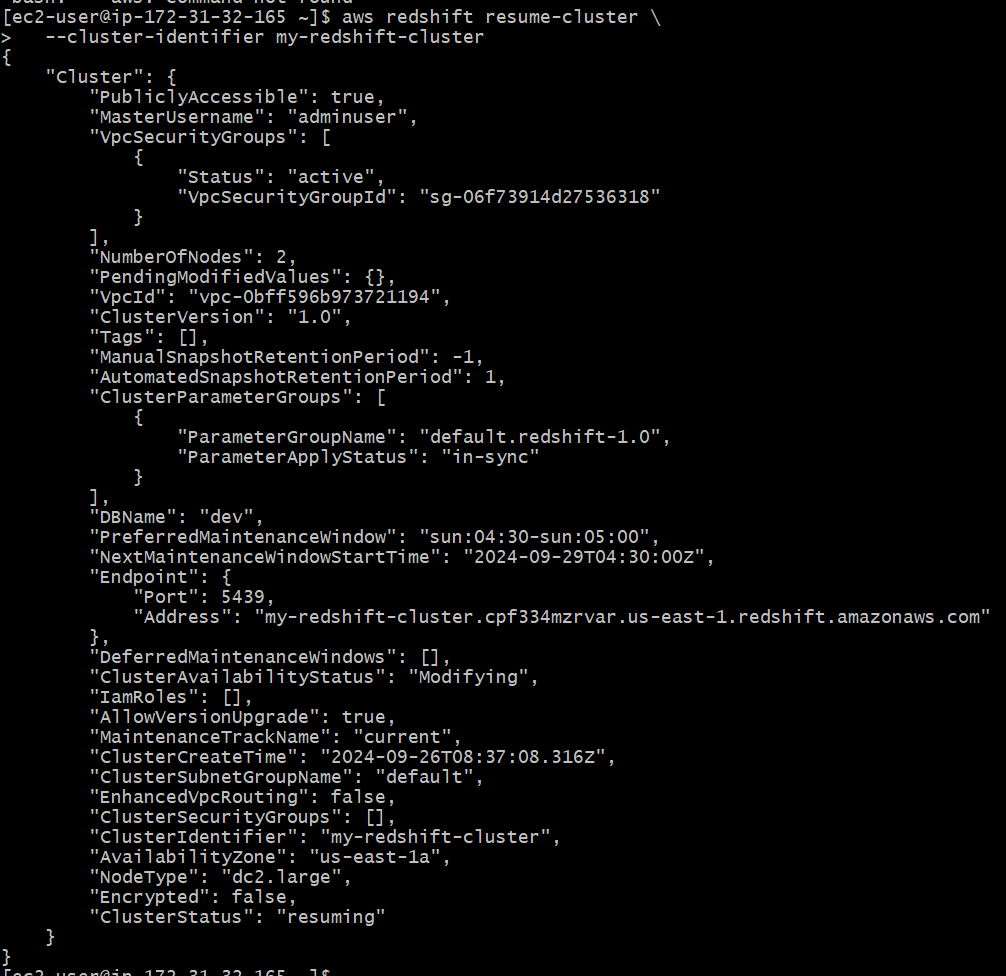
Resume the Redshift Cluster
aws redshift resume-cluster \
--cluster-identifier my-redshift-cluster
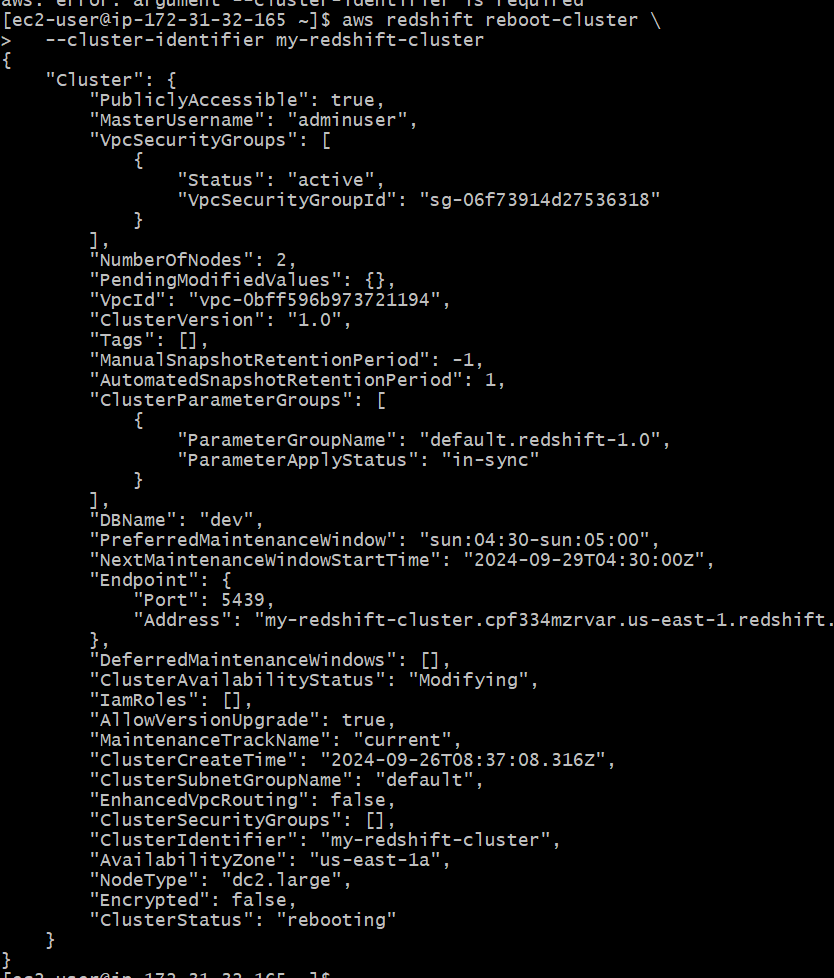
Step 5: Reboot a Cluster
- Reboots the Redshift cluster (helpful for troubleshooting).
Step 6: Delete the Cluster
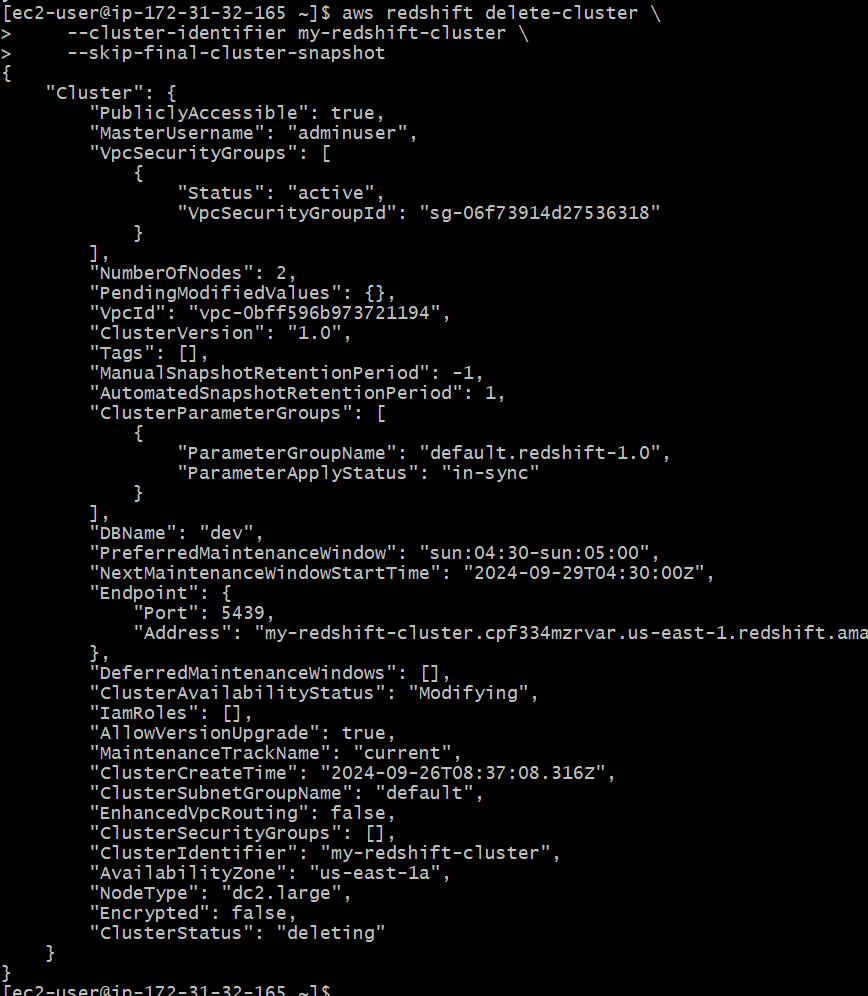
To delete the cluster after completing your tasks, execute:
aws redshift delete-cluster \
--cluster-identifier my-redshift-cluster \
--skip-final-cluster-snapshot
Conclusion
Amazon Redshift Cluster Management through the AWS CLI is a flexible and powerful way to manage your Data Warehousing. Whether this involves firing up a new cluster, changing configurations, snapshotting, or performance monitoring, the CLI provides an easy-to-use interface that can get these done quickly. This enables automating, scaling, and integrating with other AWS services and turns out to be a real gem for data engineers and administrators.
Mastering Redshift using the AWS CLI will make your life easier by automating tasks and reducing the levels of human intervention. Further, this will ensure that the analytics applications using these clusters get optimal performance, this approach helps in boosting productivity and also enhances reliability and security for your Redshift clusters, thereby enabling them to handle their data workloads with more precision and confidence.
What should I do if I encounter the error "ClusterNotFound" while describing my Redshift cluster?
The "ClusterNotFound" error typically occurs when the specified cluster identifier is incorrect or the cluster doesn’t exist. Verify that the cluster identifier is correct using:
aws redshift describe-clusters
What if I don't take a final snapshot before deleting a Redshift cluster?
If you do not take a final snapshot, your cluster will be deleted straight away without any backup of the data. You may face data loss here.
How do I view all the snapshots for my Redshift cluster?
Run the following command to list all snapshots:
aws redshift describe-cluster-snapshots \
--cluster-identifier my-redshift-cluster
