
Amazon DynamoDB is a fully managed NoSQL database service that provides fast, predictable performance with seamless scalability. In DynamoDB, data is organized into Tables, which consist of individual Items. Each item is composed of unique Attributes, allowing different items within the same table to have varying schemas.
- Designed to handle high-volume unstructured and semi-structured document data sets.
- It stores document data or key-value pairs redundantly across multiple Availability Zones.
- Dynamically partitions data across solid-state drives (SSDs) to accommodate growing storage and throughput requirements.
- Uses IAM policies to securely authorize user and application access at the table, item, or attribute level.
- Offers both On-Demand and Provisioned capacity modes to optimize operational costs and performance.
The following JSON snippets illustrate how items within the same table can possess entirely different attributes:
{
  "MovieID": 123,
  "Name": "Godfather",
  "Rating": 9.1,
  "Year": 1972
}
{
  "Director": "Quentin Tarantino",
  "MovieID": 200,
  "Name": "Pulp Fiction",
  "Year": 1994
}
Every DynamoDB table requires a designated partition key (acting as the primary key) to distribute items across physical partitions. This guide outlines the essential CRUD operations: creating, describing, updating, and deleting a table.
Managing Tables
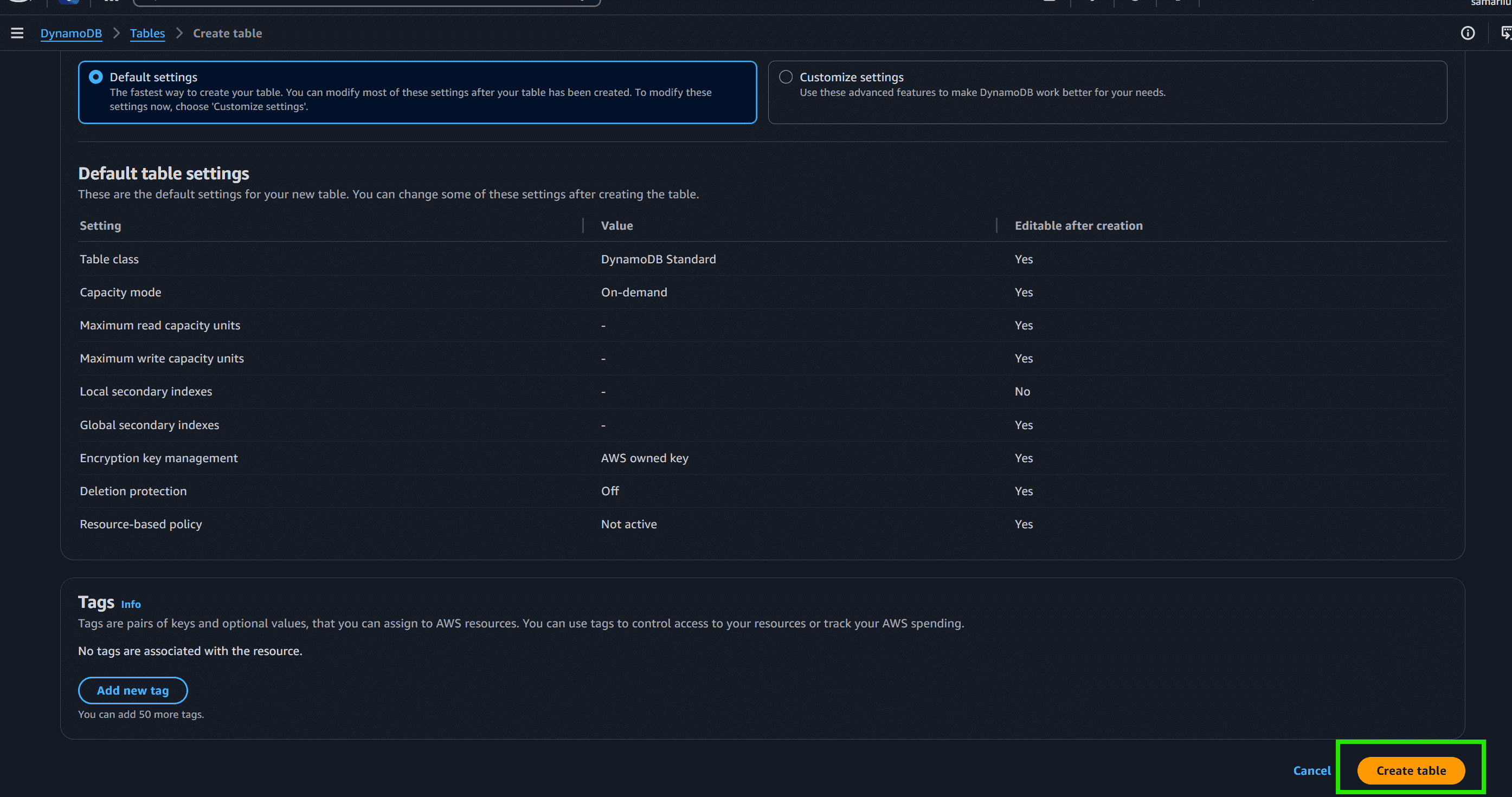
Step 1: Creating a DynamoDB Table
- Open the AWS Management Console and search for DynamoDB.
- Click on Create table.
- Enter the table name (e.g.,
geeksforgeeks) and partition key (e.g.,UserIDwith type String). - Keep the default settings.
- Click Create table.
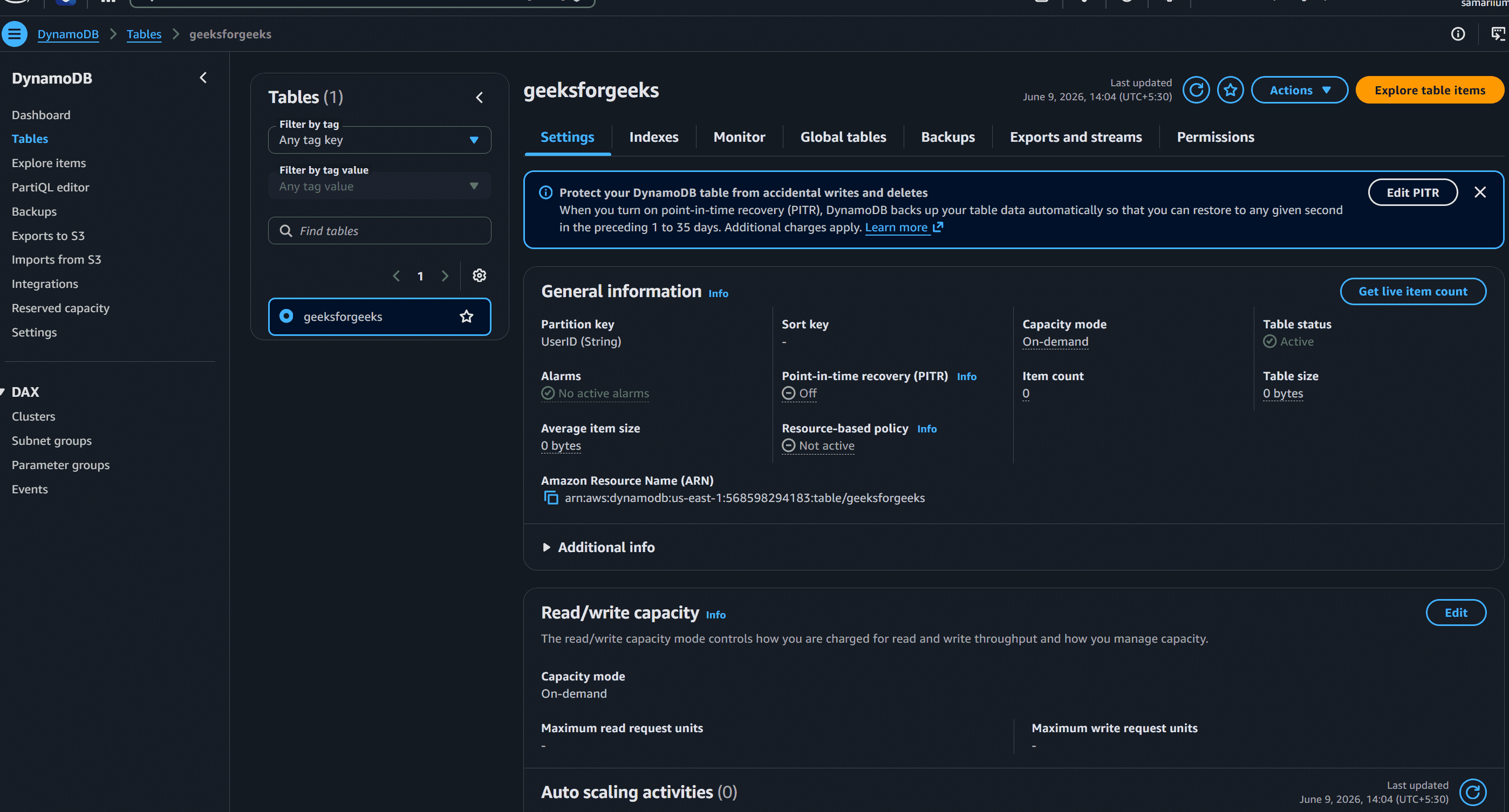
Step 2: Describing and Listing Tables
- Open the Tables section in DynamoDB.
- View all available tables in the current region.
- Select a table to open its dashboard.
- Review details like ARN, status, and partition key.
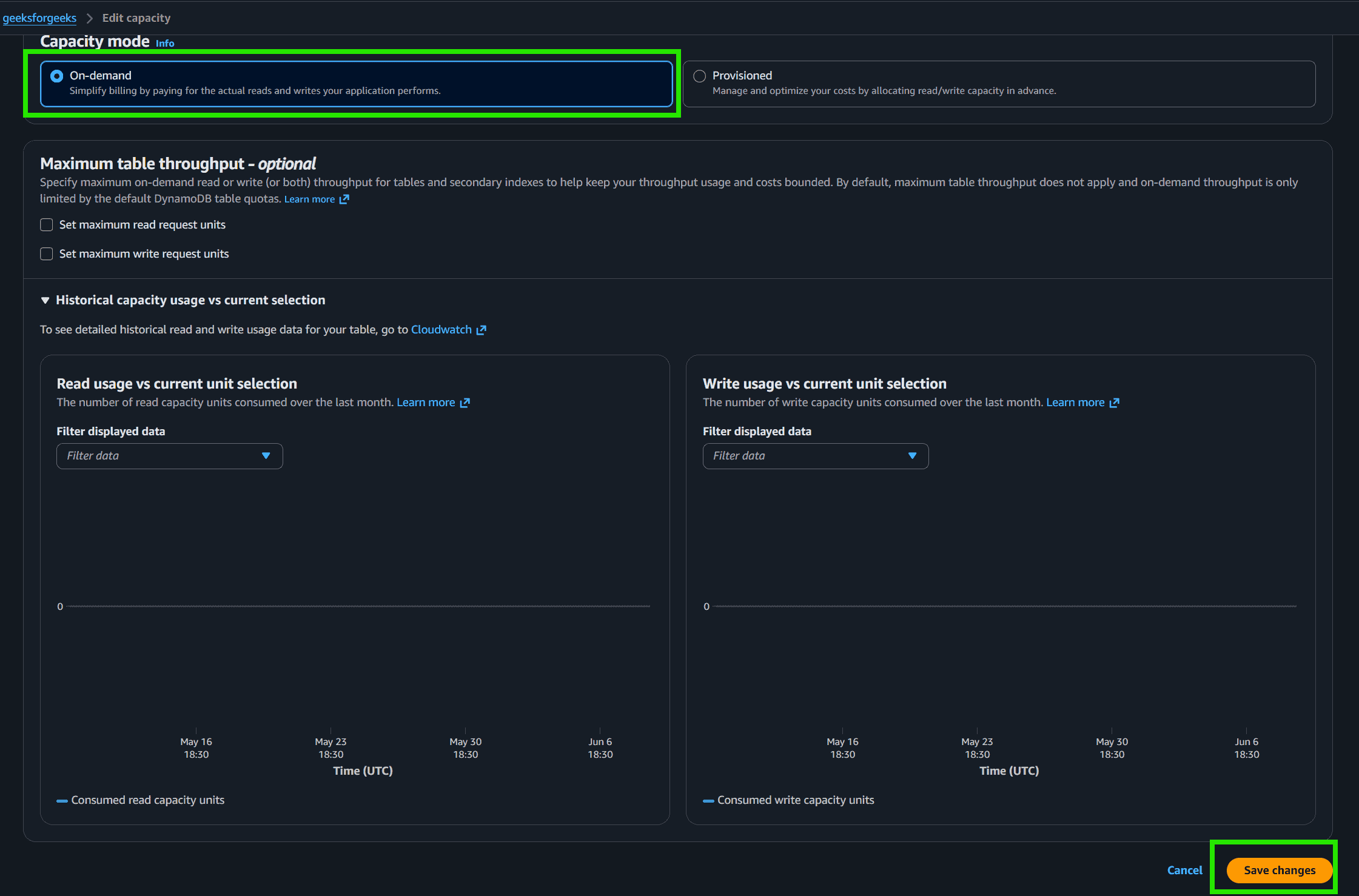
Step 3: Updating a DynamoDB Table
- Open the target table.
- Go to Additional settings.
- Click Edit under capacity mode.
- Change from Provisioned to On-Demand.
- Click Save changes.
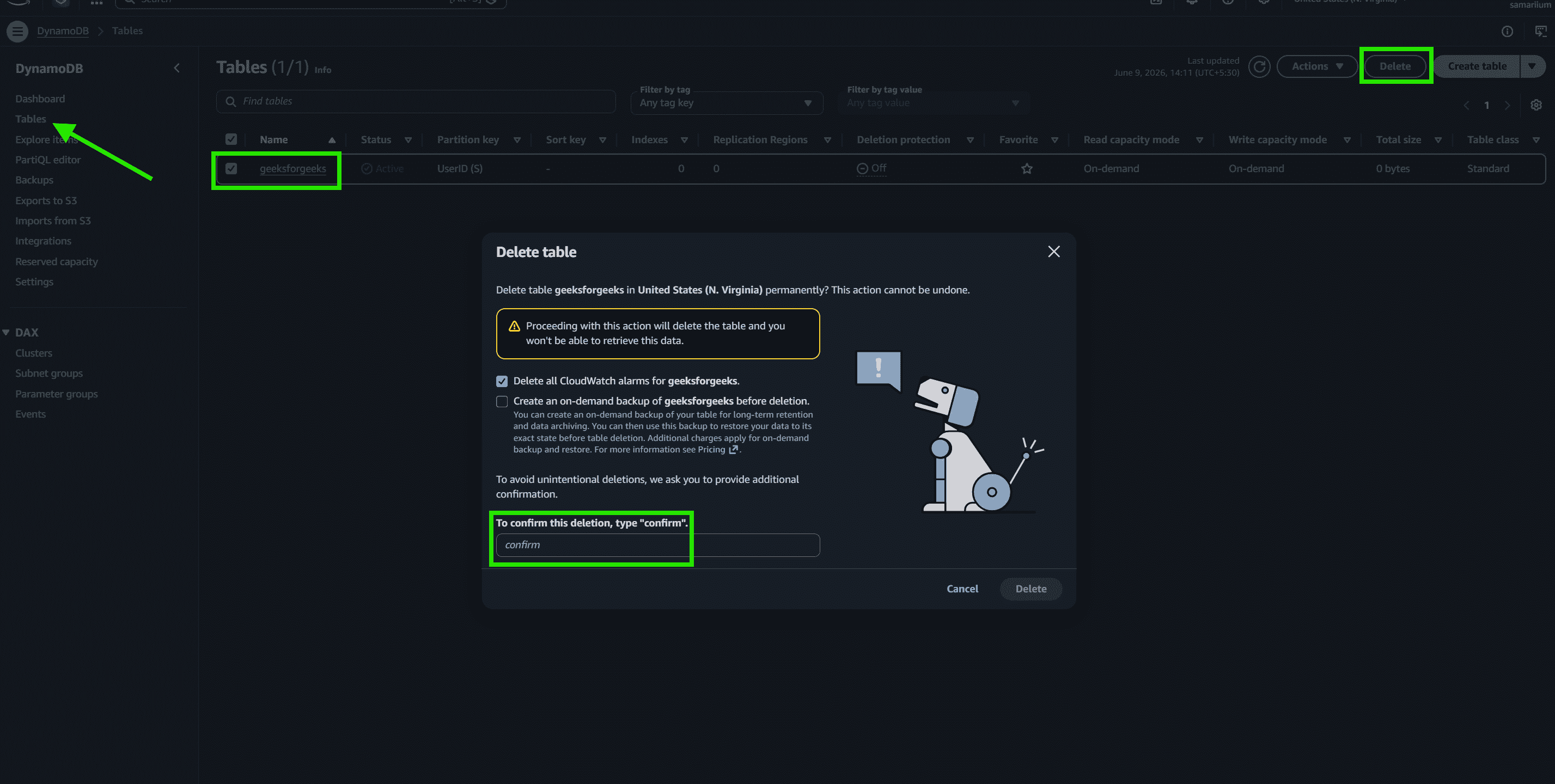
Step 4: Deleting a DynamoDB Table
- Open the Tables section.
- Select the table you want to delete.
- Click Delete.
- Type
confirm in the confirmation field. - Click Delete table.
DynamoDB Capacity Modes
- On-Demand Mode: Automatically scales database read/write throughput instantly to accommodate unexpected traffic spikes with zero capacity planning. Best for highly volatile workloads.
- Provisioned Mode: Allocates a set amount of read and write capacity units (RCUs and WCUs) per second. Allows organizations to maintain precise budgetary predictability and qualifies for AWS Free Tier limits.
