
Git Clone a Remote Repository creates a local copy of a remote Git repository for development and collaboration.
- Copies all files and commit history.
- Sets the remote repository as origin.
- Enables pulling updates and pushing changes.
Prerequisites
Before you start cloning a repository, ensure you have the following:
- Git Installed: Git must be installed on your machine. You can download it from Git's official website.
- Access to the Repository: Ensure you have the necessary permissions to clone the repository. This might require SSH keys or authentication tokens.
- Repository URL: The URL of the remote repository you want to clone. This can be an HTTPS or SSH URL.
Steps to Clone a Repository
Follow these steps to clone a remote Git repository:
Step 1: Open a Terminal or Command Prompt
Open your terminal (on macOS or Linux) or command prompt (on Windows).
Step 2. Navigate to the Desired Directory
Navigate to the directory where you want to clone the repository. Use the cd command to change directories. For example:
cd path/to/your/directoryStep 3: Clone the Repository
Use the git clone command followed by the repository URL. Here are examples for both HTTPS and SSH URLs:
Using HTTPS:
git clone https://github.com/username/repositoryUsing SSH:
git clone git@github.com:username/repository.git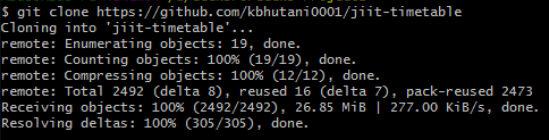
Step 4: Authenticate (if required)
Verifies access to the remote repository before cloning.
- HTTPS: Enter username and password (or token).
- SSH: Ensure SSH keys are configured and added to the SSH agent.
Step 5: Verify the Cloning Process
After the cloning process completes, you should see a new directory named after the repository. Navigate into this directory to start working on the project:
cd repositoryTroubleshooting Common Issues
Addresses common Git cloning errors related to authentication, access permissions, and repository configuration.
1. Permission Denied (publickey)
Indicates an issue with SSH key authentication during repository access.
- Occurs when the SSH key is missing or misconfigured.
- Ensure the correct SSH key is added to the SSH agent.
- Verify the key is linked to your GitHub account.
- Add the key using ssh-agent and ssh-add.
2. Repository Not Found
Occurs when the repository URL is incorrect or access permissions are missing.
- Verify the repository URL for typos.
- Ensure you have permission to access the repository.
3. Authentication Failed
Happens when invalid credentials are used during HTTPS cloning.
- Verify username and credentials.
- Use a Personal Access Token (PAT) instead of a password.
- Ensure the token has required permissions.
Tips for Efficient Cloning
Improves clone speed and reduces data usage by limiting history or targeting specific branches.
- Shallow Clone: If you only need the latest history and not the entire commit history, you can perform a shallow clone using the --depth option. This can speed up the cloning process:
git clone --depth 1 https://github.com/username/repository- Clone Specific Branch: To clone a specific branch, use the -b option followed by the branch name:
git clone -b branch-name https://github.com/username/repository