
Creating a newspaper in Google Docs is a simple and creative way to design newsletters, school projects, or announcements. Using tools like columns, headers, and images, you can easily replicate a newspaper-style layout.
Steps to Make a Newspaper on Google Docs
Step 1: Open the Document
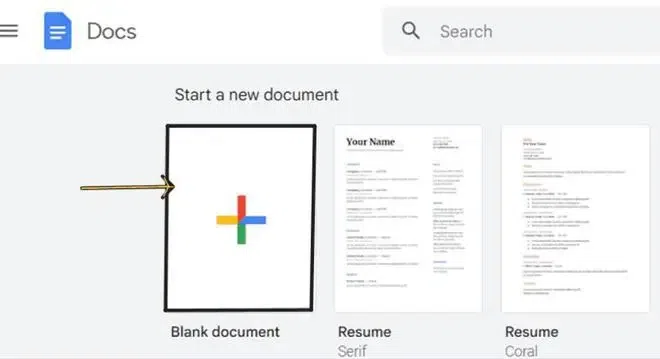
Go to Google Docs and click on Blank to create a new document.
Step 2: Set Up Columns
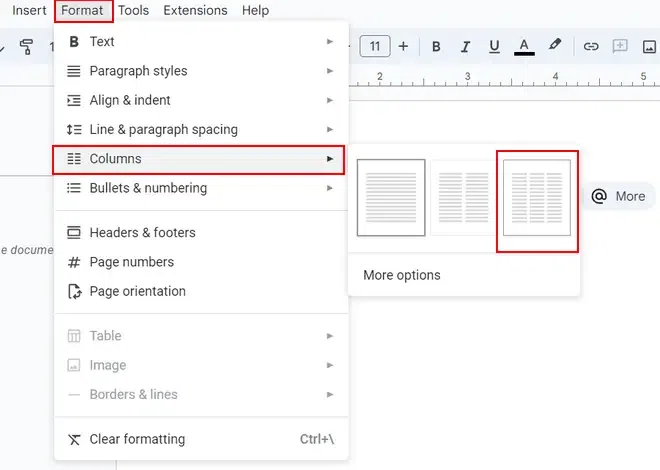
Go to Format > Columns and choose a layout (e.g., two or three columns) to create a newspaper-style structure.
To adjust column spacing:
Go to Format > Columns > More options and modify:
- Number of columns
- Spacing between columns
Step 3: Setting Up The Header
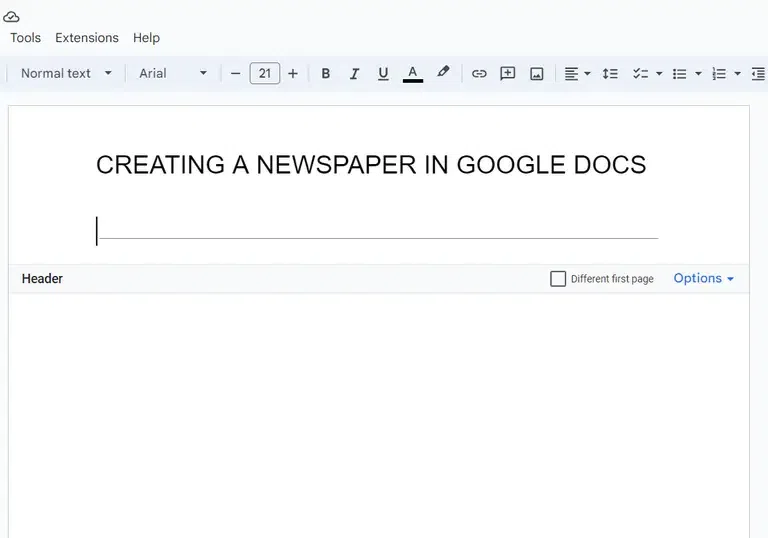
On your document double click on the top of the page to add a header to the newspaper. To add a line in the header go to "Insert" and click on the horizontal line option.
Step 4: Add Text and Images
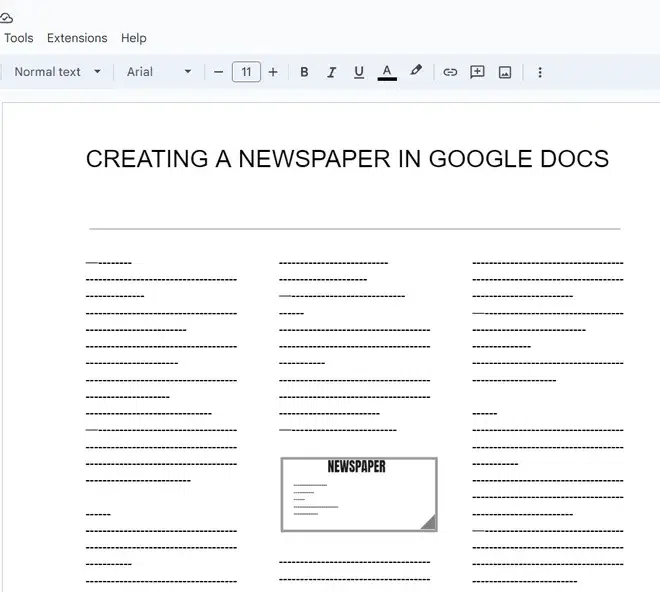
- Type your content into the columns
- To insert images: Go to Insert > Image and choose a source
Customize and Enhance the Google Docs Newspaper
To Customize and Enhance the Google Docs Newspaper:
- Use different fonts, sizes, and colors for headings and articles
- Add images to make it visually appealing
- Apply clear headings and sections for better readability
- (Optional) Use a pre-designed template for a quicker setup
