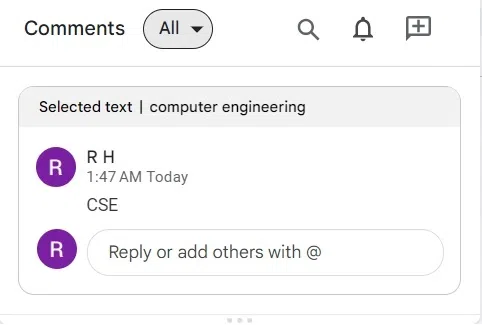
Comments in Google Docs are useful for collaboration, but you can remove them to clean up your document. It allows you to easily delete single comments or entire threads from the side panel or comment history.
Steps to Delete Comments from the Right Side of the Page in Google Docs
Here are the steps for managing comments in Google Docs:
Step 1: Open Google Docs and open the document
Visit Google Docs in any web browser on your desktop or laptop device. Open the document that has the comment in it to be deleted.
Step 2: Move your cursor over the comments on the right side
The comments made to the document are present outside the page of the document to its right side.
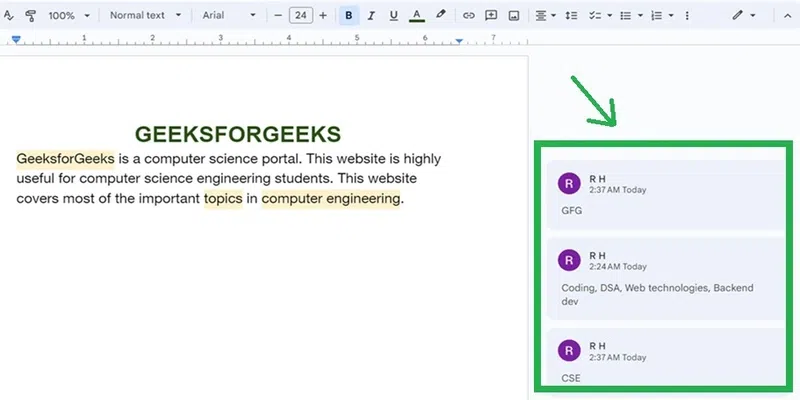
Move your cursor on any comment you want to delete. The three dots become visible on that comment.
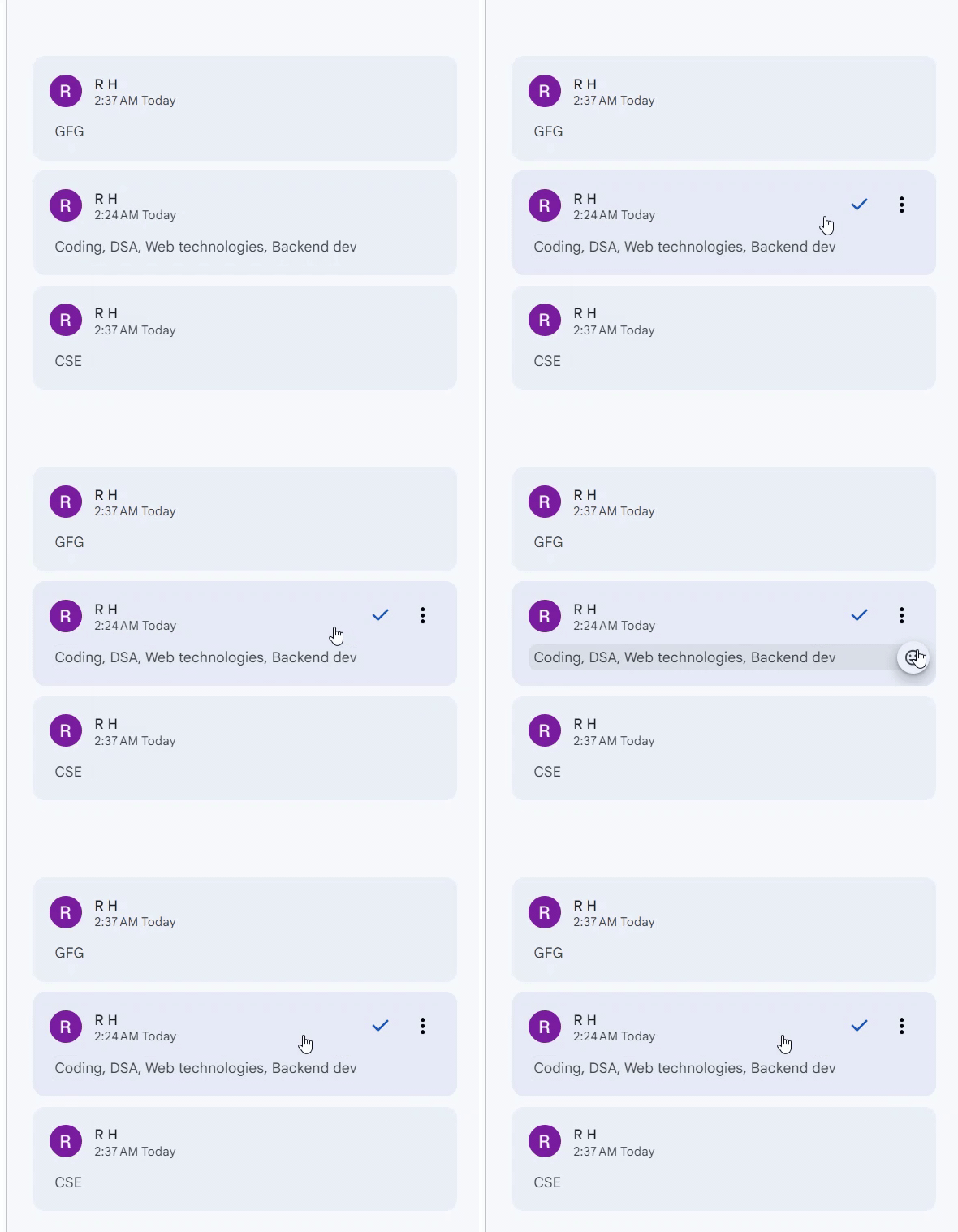
Step 3: Click on the three vertical dots on the comment you want to delete
Click on the three vertical dots "More options" on the comment you want to delete.
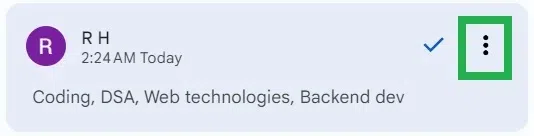
Step 4: Click on "Delete" in the dropdown
A dropdown of options appears. Click on "Delete" to delete that comment from the document.
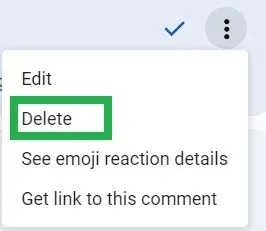
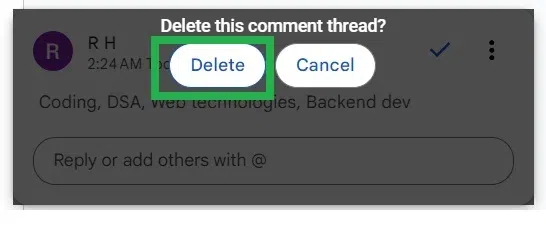
Step 5: Click "Delete" in the alert box to confirm deleting
An alert box pops up asking "Delete this comment thread?". Click on "Delete" in the alert box.
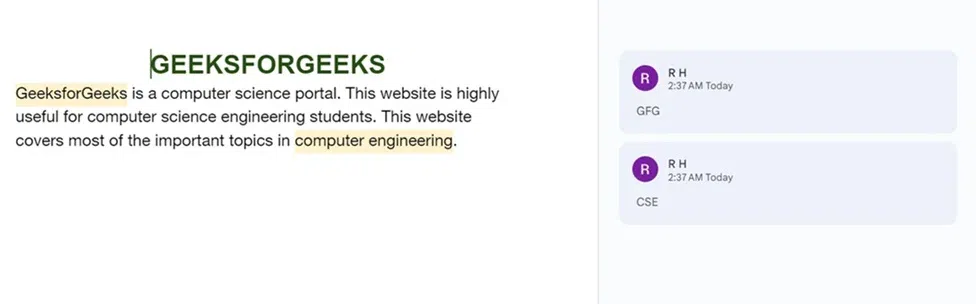
Step 6: Confirm the Comment is Deleted
That comment gets deleted from the document in Google Docs. Comment removed successfully in a document in Google Docs.
Another way to get rid of the Google Docs comments is to turn off comments in Google Docs: To turn off comments in Google Docs, change the document’s sharing settings to "Viewer" or "Commenter" for others, preventing them from adding new comments.
Steps to Remove Comments in Google Docs from Comment History
If you need to delete google comments history, then you can follow the steps given below:
Step 1: Open Google Docs and open the document in which the comment is to be deleted
Visit Google Docs in any web browser in your desktop or laptop device. Open the document which has the comment in it to be deleted.
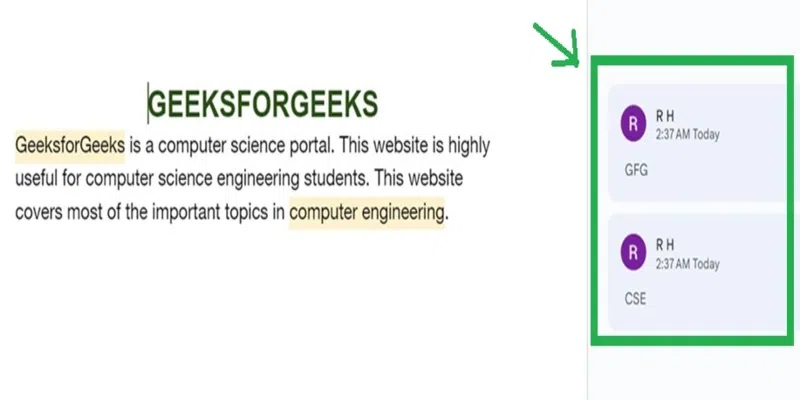
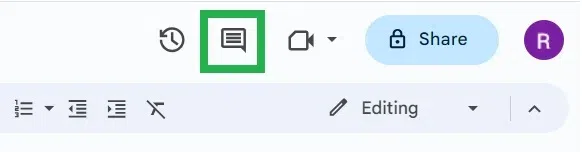
Step 2: Click on the "Open comment history" icon
Click on the "right-most" icon which is at the top right-most corner of Google Docs.
Step 3: Move the cursor on the comment to delete
A panel containing the list of all comments made to the documents is opened.
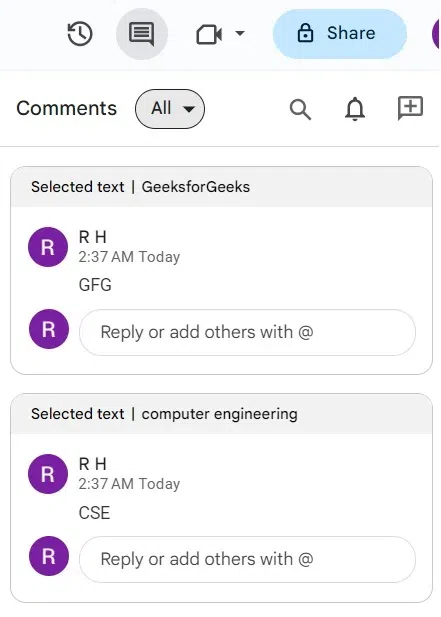
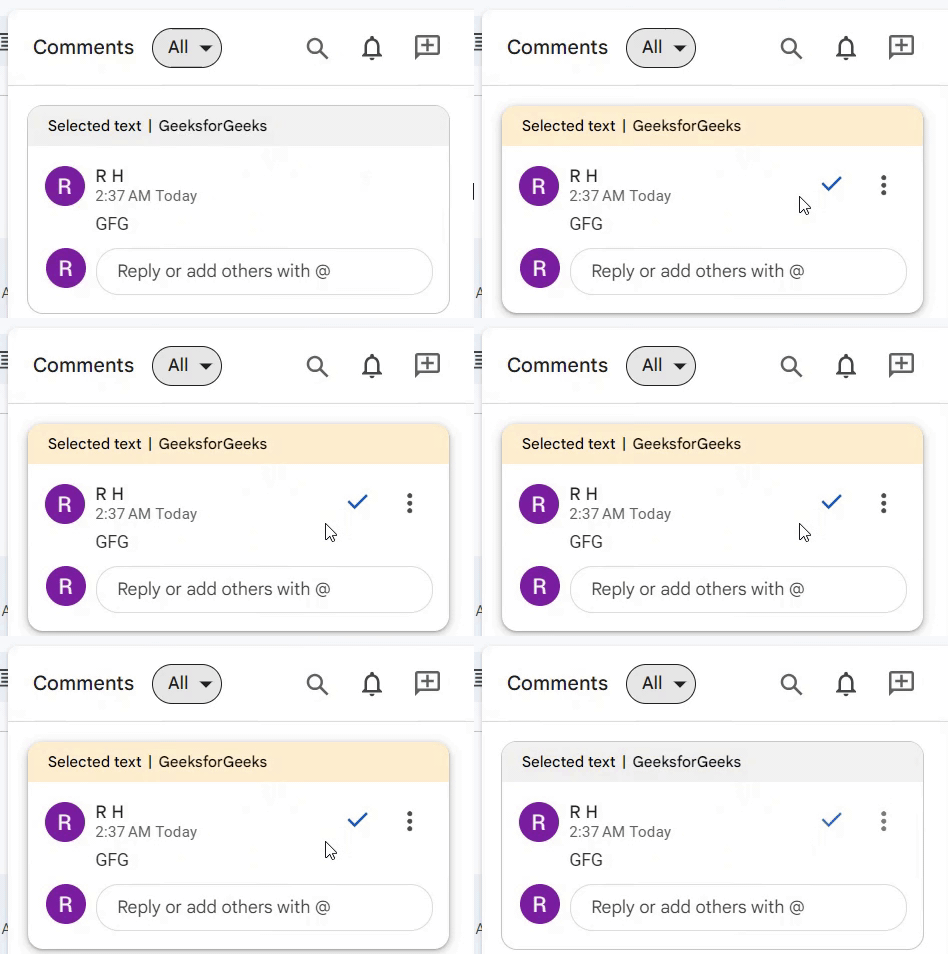
Move the cursor to the comment box you want to delete. The three dots become visible in that comment box.
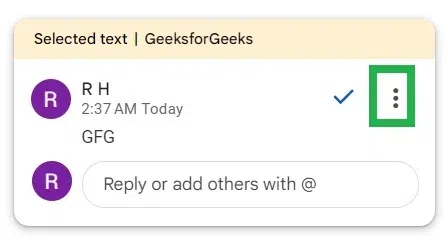
Step 4: Click on the three vertical dots on the comment box you want to delete
Click on the three vertical dots "More options" in the comment box you want to delete.
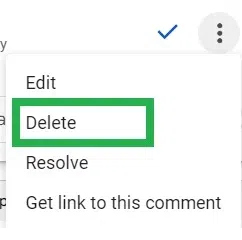
Step 5: Click on "Delete" in the dropdown
A dropdown of options appears. Click on "Delete" to delete that comment from the document.
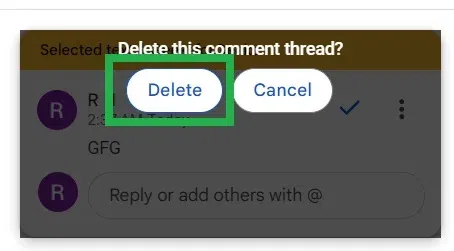
Step 6: Click "Delete" in the alert box to confirm deleting the comment
An alert box pops up asking "Delete this comment thread?". Click on "Delete" in the alert box to confirm deleting that comment from the document in Google Docs.
Step 7: Preview the Deleted Comment
That comment gets deleted from the document in Google Docs. Comment removed successfully in a document in Google Docs. Now on clicking the 'comment history' icon, all the other comments in the document except the deleted comment are present.