
Adding bullet points in Google Sheets is a simple way to organize and structure data for better readability. Although it doesn’t offer a built-in bullet feature, you can easily create bullets using keyboard shortcuts, the CHAR function, or custom formatting to make your spreadsheet content clearer and more visually appealing.
Methods to Insert Bullet Points in Google Sheets
There are several ways to insert bullet points in Google Sheets, each with its own advantages. Let’s get into the most effective methods:
Method 1: Copy and Paste Bullet Points
One of the simplest ways to add bullet points in Google Sheets is by copying and pasting them from another source, such as Google Docs or any other text editor.
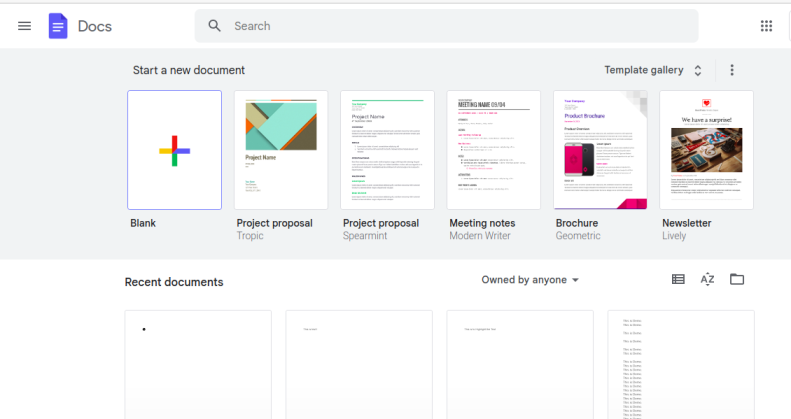
Step 1: Open Google Docs and Create a New Document
Visit Google Docs Official Website and open a new document by clicking on the blank "+" sign. After creating the document we can start with the process of inserting bullets.
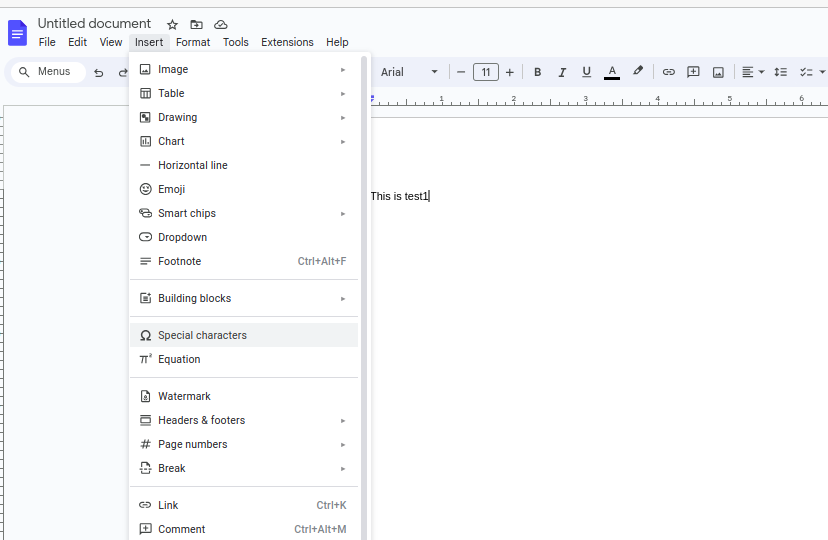
Step 2: Go to Insert and Select Special Characters
Locate a bullet point you wish to copy. You can copy from wherever you want like Google Docs. Open your Google Docs document and head to the top menu bar, then click "Insert" and choose "Special Characters."
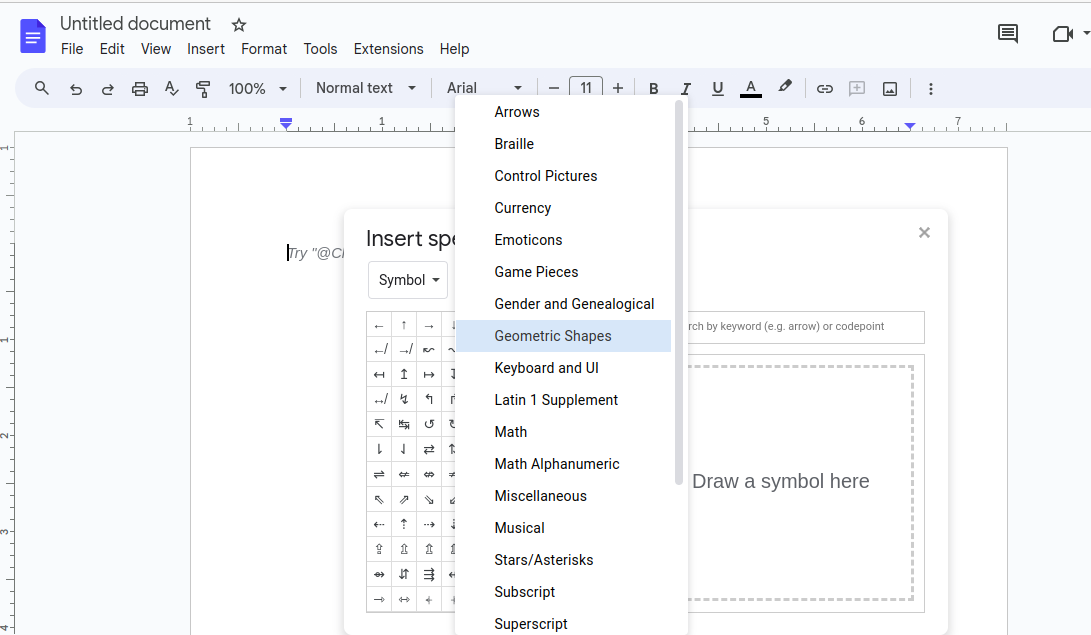
Step 3: Select Symbol and then Select Geometric Shapes from Drop Down Menu
Next, navigate to the two dropdown menus. In the first dropdown, opt for "Symbol," while in the other dropdown, choose "Geometric Shapes."
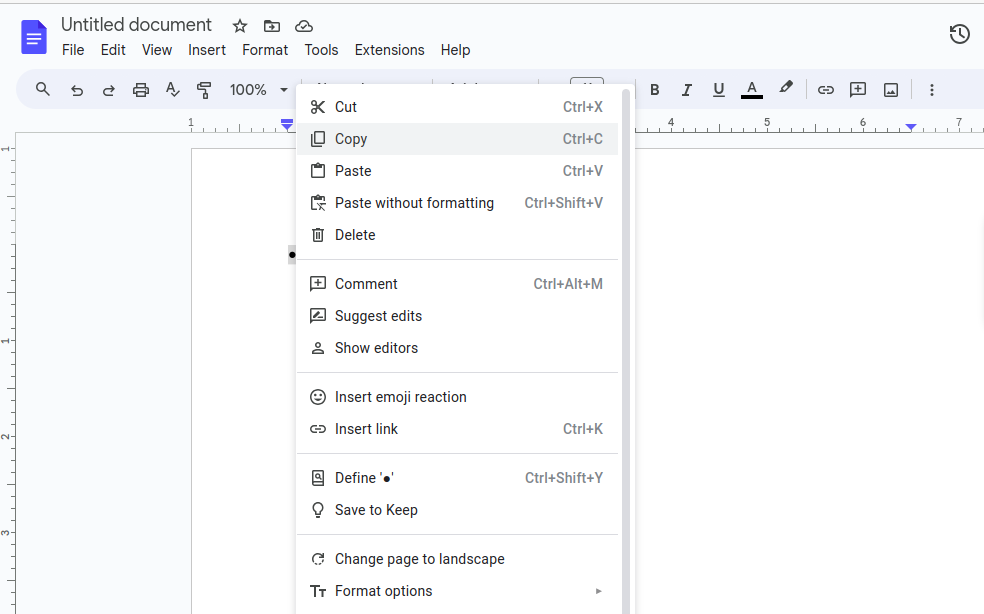
Step 4: Select Any Bullet and Copy
At this point, the assortment of bullet symbols will be visible within the box. Simply pick any symbol, and it will promptly appear in your document. To incorporate the selected bullet point into your content, copy it from the document—this action will place it onto your clipboard.
Step 5: Open Google Sheet, Select a Cell and Paste the Copied Bullet
Now open your Google sheet in which you want to paste the bullet that you have copied from Google document. Select a cell where you want to copy and past by pressing Ctrl + V in windows.
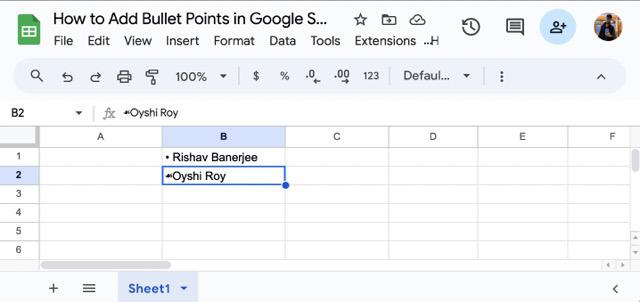
Quick Tip to Copy and Paste Multiple Bullet Points in Google Sheets
If you want to add multiple bullets in Google Sheets then press Alt + Enter (Windows) or Ctrl + Enter and Cmd + Enter (Mac) and then paste another bullet point.
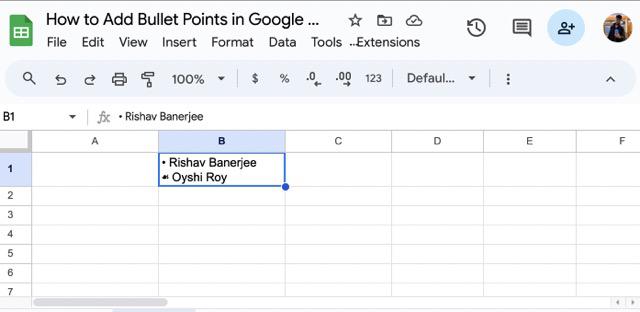
Method 2: Bullet Points Keyboard Shortcuts in Google Sheets
For users who prefer shortcuts, here’s a way to insert bullet points directly into your Google Sheets:
For Windows:
Press Alt + 7orAlt + 0149(using the numeric keypad)
For Mac:
Select Cell and press Option + 8
How to Use Keyboard Shortcuts for Bullet Points in Google Sheets
Now follow the steps given below to use keyboard shortcuts to insert bullet point in Google Sheets.
Step 1: Select a Cell
To insert bullet point into google sheet using the shortcut keys first go to your google sheet and select the cell where you want to paste your bullet.
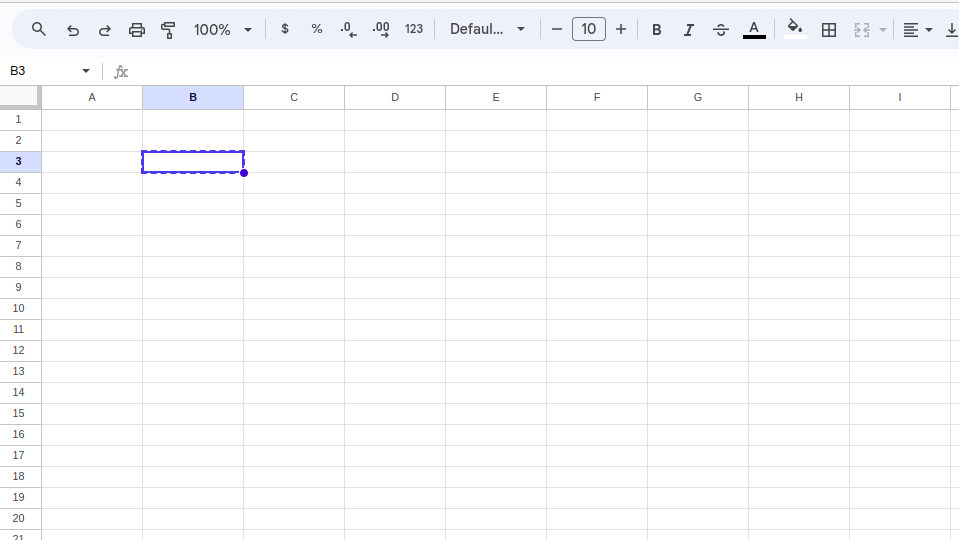
Step 2: Press the fn key and F2 Key to Edit
After selecting the cell, press the function (fn) key and F2 key together to edit in the cell.
.png)
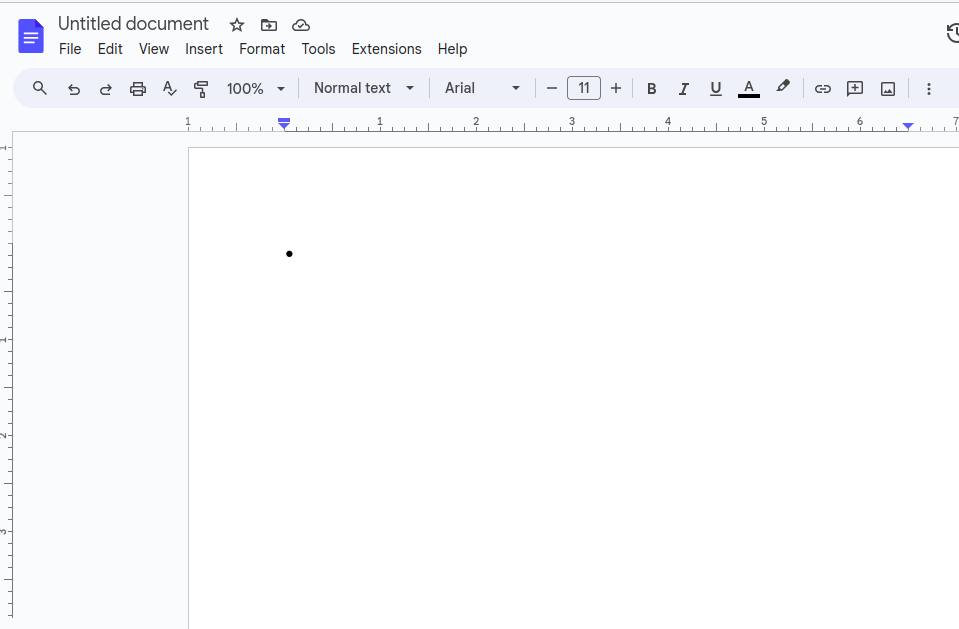
Step 3: Switch to Google Doc: Hold the ALT key and press the number 7 on the numeric keypad
After doing the above, hold the alt key on your keyboard and press number 7. Go to your google doc from where you can copy using ctrl+c and then paste into your google sheet using ctrl+v.
Method 3: How to Use CHAR Function for Bullets Points in Google Sheets
What are Bullet Point Unicode Number
Bullet Points have a specific Unicode number that you can use in the CHAR formula to get a bullet point as the result, below we have mentioned three unicode number of bullet that you can take reference for:
- Black circle =CHAR(9679)
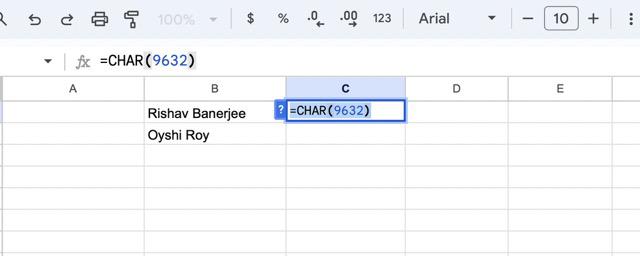
- Black square =CHAR(9632)
- Black right-pointing arrow =CHAR(9656)
Step 1. Use Char Function for Square Bullet
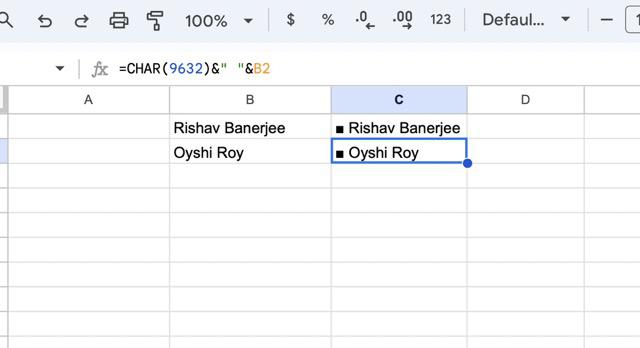
In an empty cell, type the equal sign followed by the CHAR function. For example, =CHAR(9632) for black square.
Step 2. Adding Space
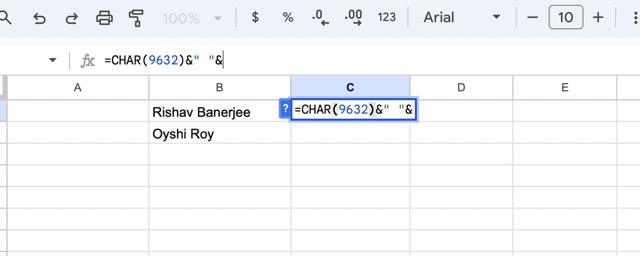
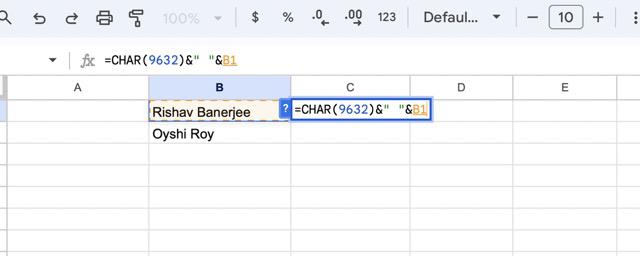
If you want a space between the bullet point and the name, then add a space between quotation marks (“ ”), and put it in between two ampersand symbol (&). e.g., &" "&.
Step 3. Press Enter
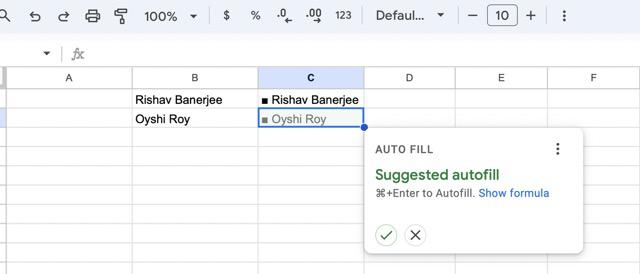
Choose the first element and press the Enter key. You will then encounter a prompt, as illustrated in figure 2. Click on the checkmark button, and this action will populate all the cells with the same bullet.
Method 4: Applying Custom Number Formats for Bullet Points in Google Sheets
If you’re looking for a more automated way to display bullet points in Google Sheets without manually adding them to each cell, the Custom Number Format feature can help.
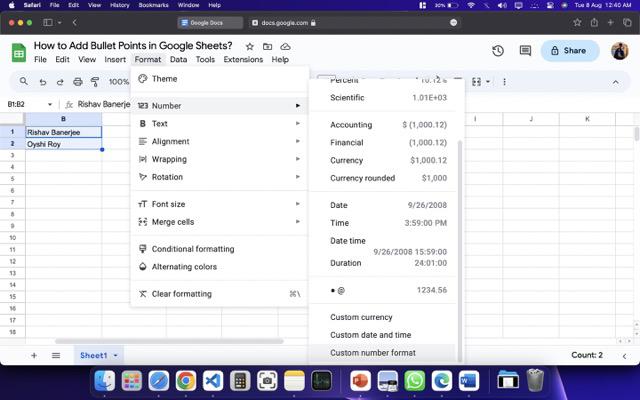
Step 1: Select a Cell, Go to Format and Click Number
Select the cells containing your list items and go to Format and select Number.
Step 2: Click on Custom Number Format
As you click on number option a further dropdown menu will open. Among different options provided you have to select the Custom Number Format. A custom number format box will open after that.
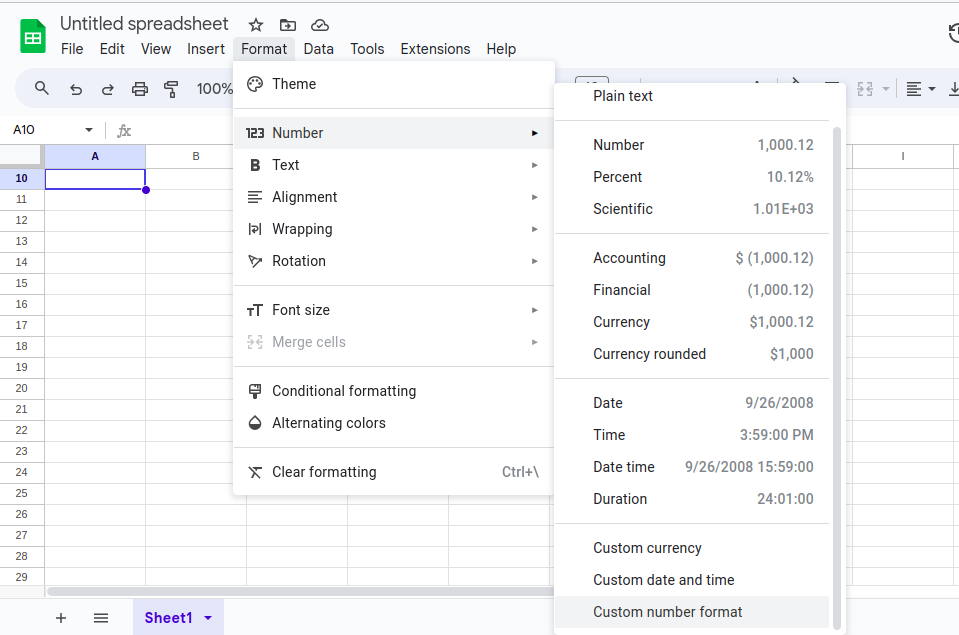
You will find the Custom Number Format option, as displayed in the image below.
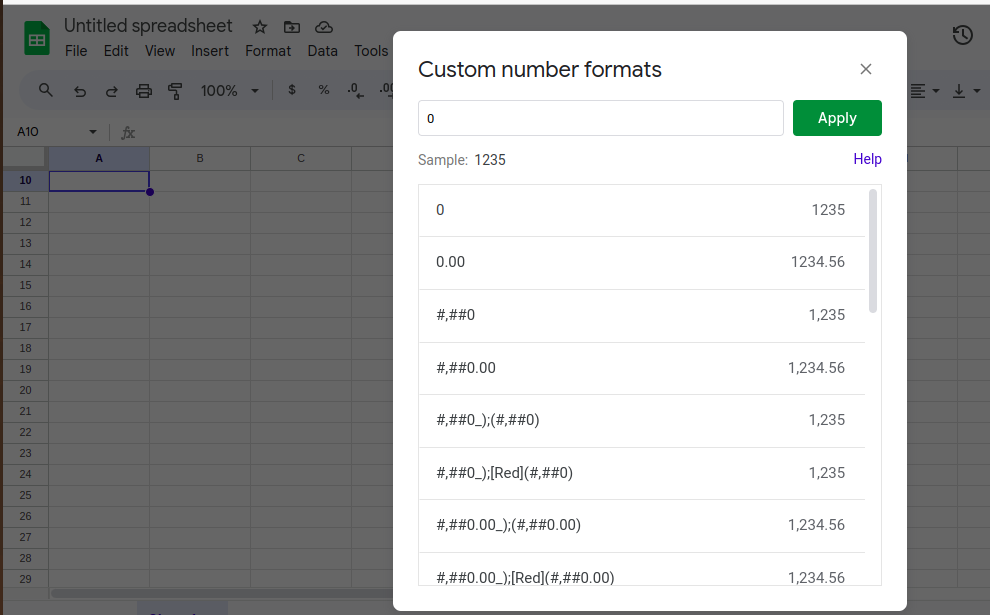
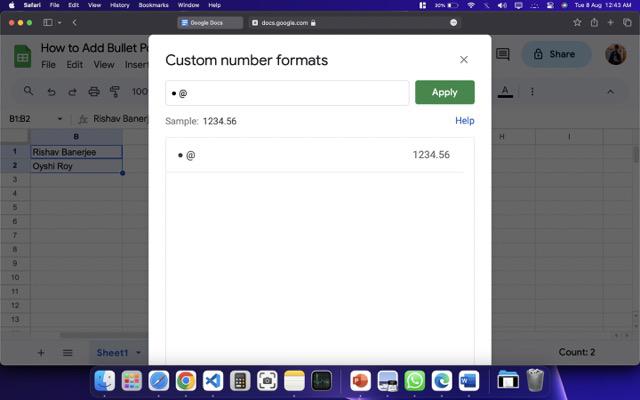
Step 3: Copy the Bullet Point from Doc and Paste it the box and Add @ next to it
To display a bullet point before the cell’s contents, use the format as " ● @ ".
Step 4: Click on Apply
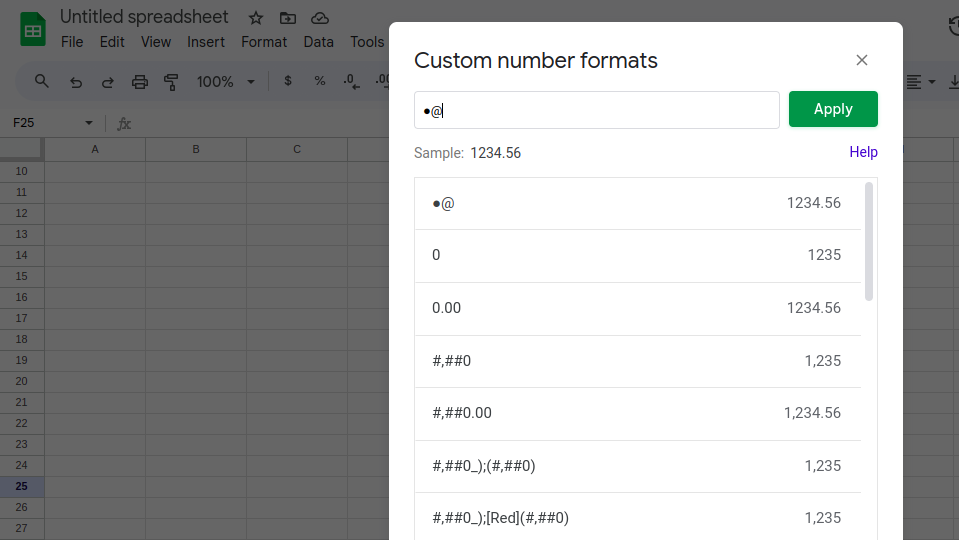
To the right of the textbox where you pasted your bullet point, there is a button labeled "Apply." Please click on this button.
Step 5: Preview Bullet in Google Sheet Cell
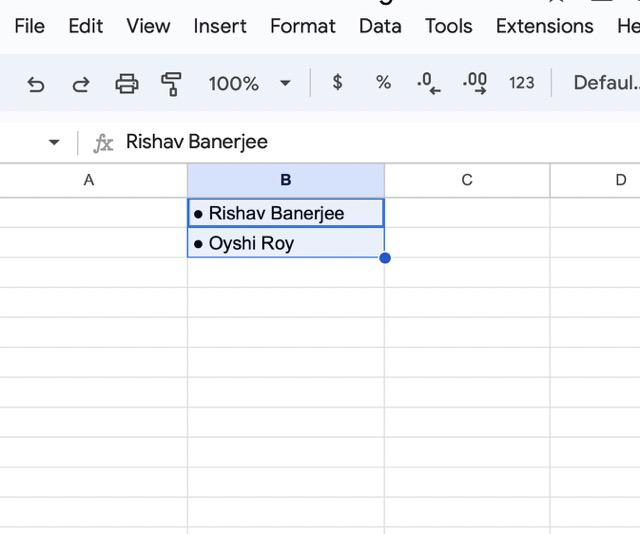
Now, the selected cells will display bullet points while keeping the cell contents unchanged.
How to Customize Bullet Points in Google Sheets
Though Google Sheets doesn’t have extensive bullet point customization options like Google Docs or Excel, you can still customize the appearance of your bullet points by:
- Changing Font Size: Use the toolbar to adjust the font size of the bullet point.
- Changing Color: Highlight the cell and change the font color to match your design.
- Using Conditional Formatting: Apply conditional formatting rules to change the appearance of your bullet points based on cell content.
Also Read:
