
Copying formulas in Google Sheets allows you to quickly replicate calculations across multiple cells, making it efficient and time-saving for repetitive tasks. Instead of manually typing out the same formula for each cell, you can simply copy it down a column, letting Google Sheets do the work for you. This saves time and reduces the chances of errors, ensuring consistency and accuracy in your calculations.
1. Google Sheets Copy Formula Down
Copying a formula downward in Google Sheets is a routine task, particularly beneficial for managing extensive datasets. Various methods are available, each suited to different situations.
2. How to Copy a Formula Down an Entire Column in Google Sheets
Here's a step-by-step procedure provided below for copying a formula down an entire column in Google Sheets,
Step 1: Open Your Google Sheet
Log in to your Google account and open the Google Sheet where you want to copy the formula.
Step 2: Enter Your Formula
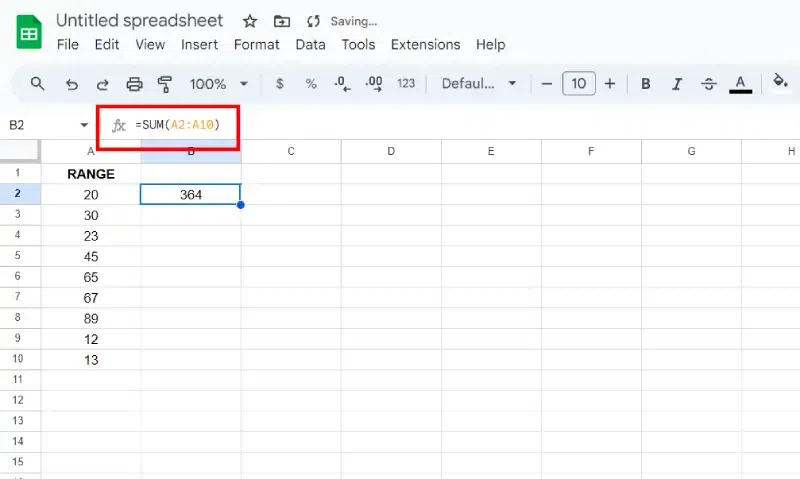
Click on the cell where you want the formula to start. Type in or create the formula you want to use for your calculation. For example, if you want to sum a range of numbers, you can type "=SUM(A2:A10)".
Step 3: Press Enter
After typing the formula, press Enter on your keyboard to apply the formula to the cell.
.webp)
Step 4: Select the Cell
Click on the cell where you entered the formula to select it.
Step 5: Move Your Cursor to the Bottom Right Corner
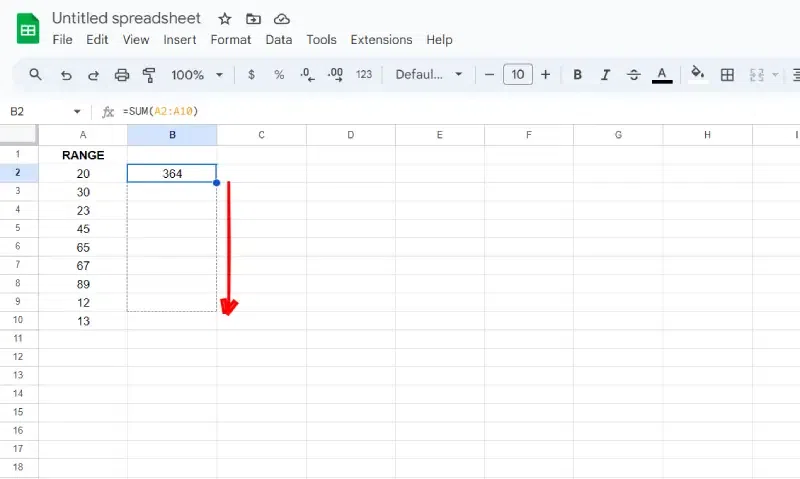
Hover your cursor over the bottom right corner of the selected cell. You should see a small square called the fill handle appear.
Step 6: Drag the Fill Handle Down
Click and drag the fill handle down the column to the last cell where you want the formula to be copied. As you drag, Google Sheets will automatically copy the formula to each cell in the column.
Step 7: Release the Mouse Button
Once you've reached the last cell, release the mouse button. Google Sheets will fill in the cells with the copied formula.
Step 8: Check Your Results
Double-check the cells to ensure that the formula has been copied correctly. Verify that the formula references the appropriate cells in each row.

3. Google Sheets Copy Formula Down Shortcut
- Utilize the fill handle to drag down the column.
- Double-click the fill handle to auto-fill adjacent cells with data.
- Select the formula cell, press 'Ctrl+Shift+Down arrow' to choose cells below, then press 'Ctrl+D' ('Cmd+D' for Mac).
- For Mac users, press 'Cmd+Enter' after selecting cells.
