
Google Sheets is a tool for data analysis and visualization, providing various features to help you understand your data better. One of these features is the ability to create scatter plots, which can visualize the relationship between two data sets. Sometimes, you may want to add a line of best fit or a trendline to make the data patterns clearer.
How to Create a Scatter Plot in Google Sheets
Follow these steps to create a scatter plot in Google Sheets quickly and easily.
Step 1: Insert your Data
Before you can create a scatter plot with a line in Google Sheets, you need to have your data ready. Make sure you have two columns of data in your spreadsheet, one for the x-axis (independent variable) and one for the y-axis (dependent variable).
In our example, we'll use a Salary dataset of x and y values.

Step 2: Create a Scatter Plot
Select Your Data: Highlight the data you want to include in your scatter plot. In our case, select both columns (X for 'Years of Experience' and Y for 'Salary').
.webp)
Step 3: Go to the Insert Tab and Select Chart
Click on the "Insert" menu at the top of Google Sheets and Choose the Chart from the displayed drop-down menu.

Step 4: Select Scatter Chart
Select the option of Scatter Chart from those.

Step 5: Preview the Scatter Plot
Your scatter plot will now be displayed in your Google Sheets document.
.webp)
How to Add a Trendline to a Scatter Chart in Google Sheet
Adding a trendline can help you understand the direction or pattern in your data. Here’s how to do it:
Step 1: Click on the Scatter Plot and Open the Chart Editor
Select the Scatter Plot by Clicking on it and then Customize Your Chart. In the Chart Editor panel on the right, click on the "Customize" tab then click "Series".

Step 2: Select the Trendline Type and Customize it
Scroll down until you see the "Trendline" section. Check the box next to "Trendline." Select the type of trendline you want to add. Options include Linear, Exponential, Polynomial, or Moving Average. Further customize your trendline by adjusting options like line color, opacity, and label.
.webp)
Step 3: Preview Your Scatter Plot with a Trendline
With the trendline added to your scatter plot, you can now analyze the relationship between your data points more effectively. The trendline provides a visual representation of the general direction or pattern in your data. For example, a linear trendline can show if the Salary is higher with higher Years of Experience.
.webp)
How to Edit Scatter Plots in Google Sheets
If you need to make changes to your scatter plot, follow these steps:
Step 1: Select the Scatter Plot and Open the Chart Editor
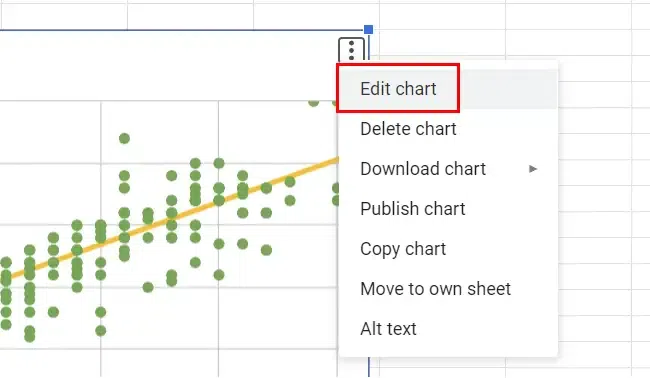
Click on the scatter plot you want to edit, then right-click and select Edit chart. The Chart Editor will appear on the right side of your Google Sheets document.
Step 2: Customize Your Chart Elements
Under the Customize tab, use the drop-down menu to edit different chart elements such as axes, series, or titles. Adjust the appearance, style, and content as needed.

Step 3: Preview Changes and Save
As you make edits, your scatter plot will update in real-time. Once you are satisfied with the changes, click Close to save your edits..
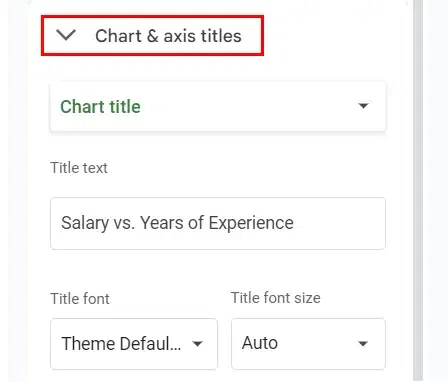
Step 3: Adjust Chart Elements
After selecting a chart element, you can make adjustments to its appearance, style, and content in the Chart editor. For example, you can change axis labels, modify the trendline, or adjust data series properties.
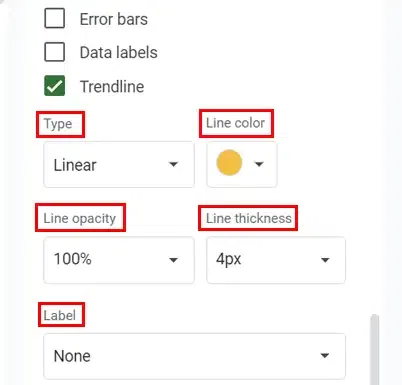
Step 4: Preview Changes and Save Your Edits
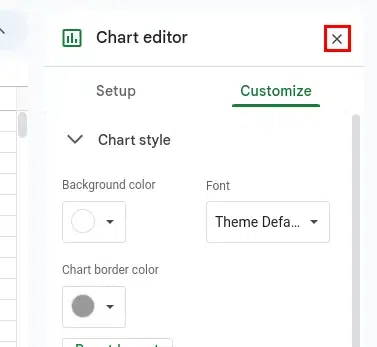
As you make edits, your scatter plot will update in real time. Preview how your changes affect the chart's appearance and functionality. Once you're satisfied with your edits, click the Close icon on the Right side of the Chart editor to save your changes to the scatter plot.
How to Remove Scatter Plots in Google Sheets
If you no longer need a scatter plot, you can easily remove it:
Step 1: Select the Scatter Plot
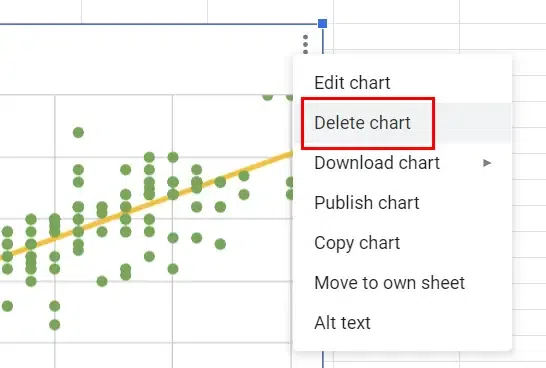
To remove a scatter plot, start by clicking on the scatter plot you want to delete within your Google Sheets document. Ensure the chart is selected.
Step 2: Delete the Scatter Plot
Under the "Edit Chart" section click on the "Delete Chart" option to delete the selected scatter plot from your document.
Step 3: Scatter Plot Removed
After confirming the deletion, the scatter plot will be removed from your Google Sheets document, leaving the rest of your data intact. Following these steps, you can easily edit and remove scatter plots in Google Sheets, allowing you to fine-tune your visualizations and manage your charts effectively.
