
Pie charts are a tool for visualizing data, offering a straightforward way to understand proportions and percentages at a glance. Perfect for breaking down categories in a dataset, they transform complex information into clear visuals. Google Sheets provides easy-to-use features to make a pie chart in Google Sheets, including options for 3D pie charts and a variety of customization settings to enhance clarity and effectiveness.
How to Make a Pie Chart in Google Sheets
This Google Sheets pie chart tutorial will guide you through creating and customizing a pie chart to visually represent your data. Pie charts are essential for highlighting proportions or percentages, making it easier to understand how parts contribute to a whole. Here’s how to create one:
Step 1: Open Google Sheets
Before creating a chart, ensure your data is well-organized. Open Google Sheets and either create a new sheet or use an existing one.
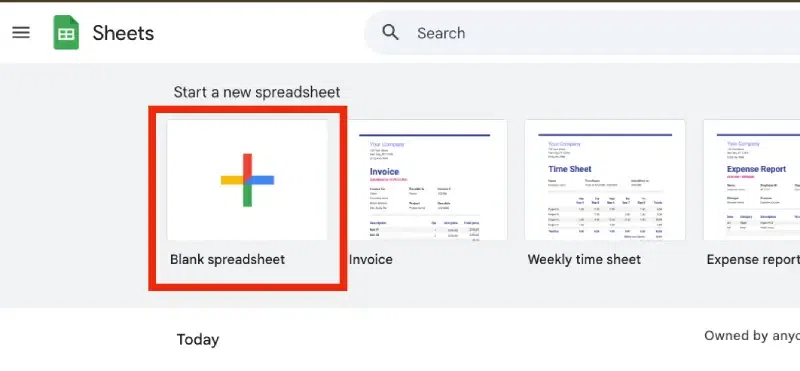
Step 1: Prepare Your Data
Open your Google Sheets file and organize your data into two columns:
- Column 1: Categories (e.g., Products, Expenses).
- Column 2: Numerical values corresponding to each category (e.g., Sales, Amounts).
Ensure your data is complete and there are no duplicate or missing values.
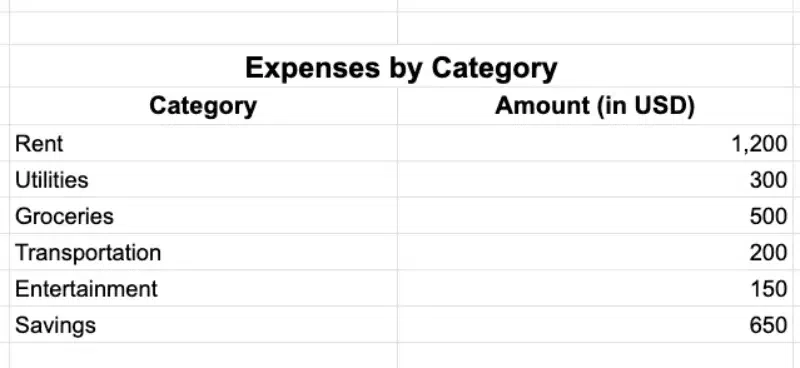
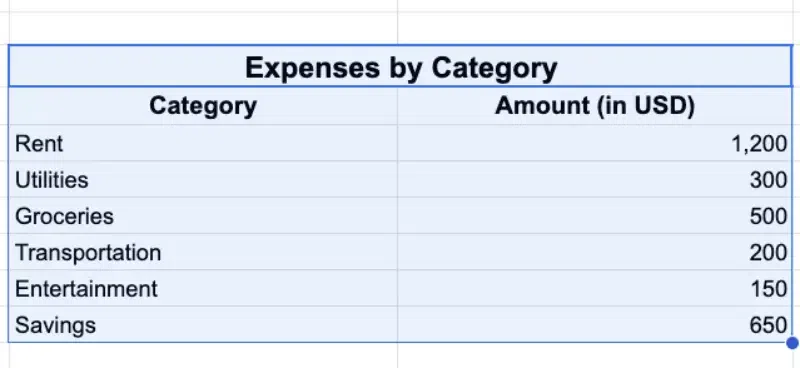
Step 2: Highlight Your Data Range
Select the cells that include the categories and their corresponding values. Double-check that all the required fields are highlighted before proceeding.
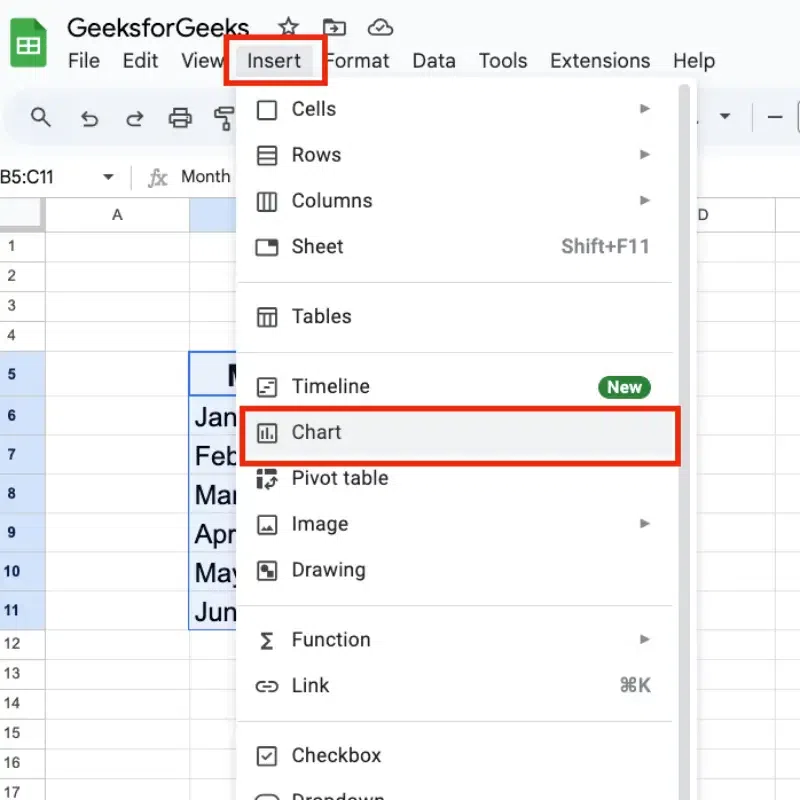
Step 3: Insert a Chart
Go to the Insert menu at the top of the screen. Select Chart from the dropdown. A default chart will appear in your spreadsheet.
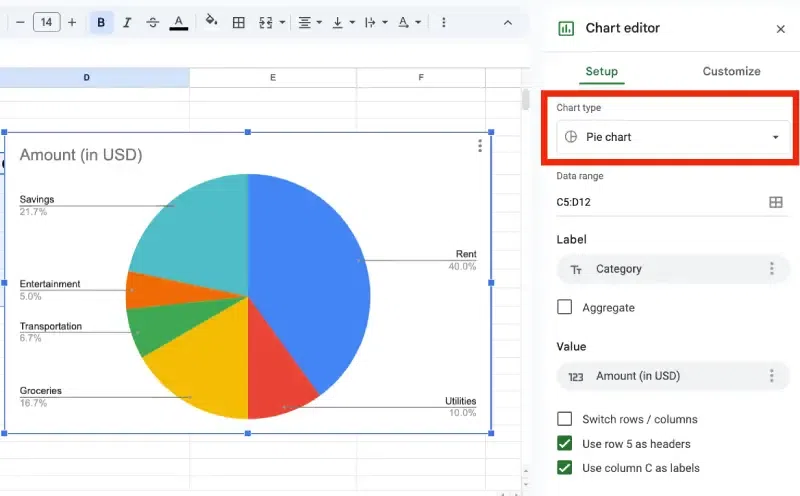
Step 4: Select Pie Chart as the Chart Type
- Open the Chart Editor panel on the right side of the screen.
- In the Setup tab, click the dropdown menu under Chart type.
- Select Pie chart from the list. Your chart will automatically update to reflect the pie chart format.
Step 5: Customize Your Pie Chart
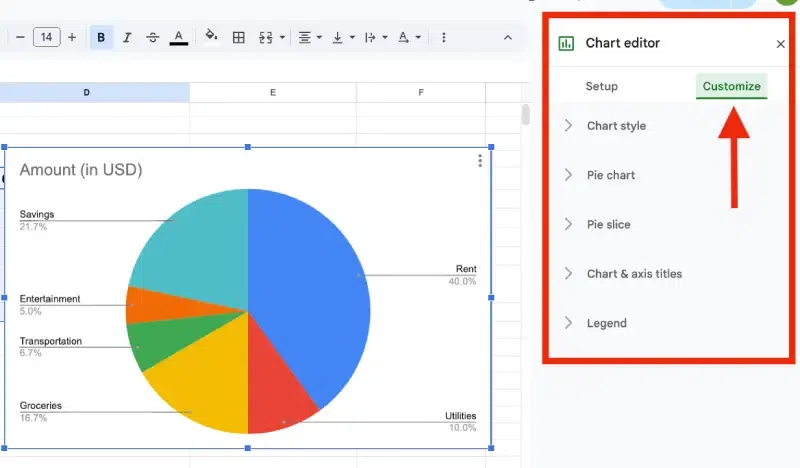
Google Sheets provides various customization options to enhance your pie chart's appearance:
- Chart Title: Add a descriptive title to explain what the chart represents.
- Slice Colors: Assign specific colors to each slice for better clarity.
- Legend Placement: Adjust the legend position (e.g., top, bottom, left, or right) or hide it if unnecessary.
- Data Labels: Display values or percentages directly on the slices.
- 3D Pie Chart: Enable the 3D effect for a visually distinct look, but use sparingly as it may affect readability.
Step 6: Finalize and Insert Your Pie Chart
- Once satisfied with your customizations, click the Insert button in the Chart Editor.
- The pie chart will be added to your Google Sheet. Drag and resize the chart as needed to fit your layout.
Creating and customizing pie charts in Google Sheets helps simplify complex data and ensures clear communication in reports or presentations.
How to Make a Pie Chart from Multiple Sheets in Google Sheets
Creating pie charts in Google Sheets from multiple sheets helps you consolidate and visualize data from different sources effectively. It’s particularly useful for comparing data like sales, expenses, or survey results across multiple categories.
Step 1: Organize Data in Each Sheet
Ensure each sheet has similar categories and values organized into two columns: one for categories and one for corresponding values. Consistency is key to combining data later.
Step 2: Add a New Sheet for Consolidation
Create a new sheet to combine the data from all other sheets. This new sheet will be the base for your pie chart. Name it “Consolidated Data” to keep things organized.
Step 3: Use Formulas to Combine Data
Pull data from other sheets into your new consolidation sheet using formulas.
- Type
=Sheet1!A1:B10to pull data from specific cells in another sheet. - Repeat for other sheets, ensuring all necessary data is included in the new sheet.
Step 4: Calculate Totals if Needed
If categories are repeated across sheets, calculate totals for each category in the consolidation sheet. Use the SUM formula, like =SUM(B2:B10), to add up values for the same category.
Step 5: Highlight the Data
Select the range of consolidated data in the new sheet. Make sure the category and value columns are included in the selection.
Step 6: Create the Pie Chart
Insert the pie chart using your highlighted data.
- Go to the Insert menu and select Chart.
- In the Chart Editor, choose Pie Chart as the chart type under the Setup tab.
Step 7: Customize the Pie Chart
Personalize your pie chart for clarity and style.
- Add a title for better understanding.
- Change slice colors to make the chart visually appealing.
- Adjust the legend placement for better readability.
Step 8: Save and Finalize
Double-check the chart to ensure it represents your data accurately. Save the file and adjust the size or position of the chart within the sheet as needed.
Pro Tip: Automate Updates with Formulas
Use dynamic formulas like
IMPORTRANGEor other Google Sheets functions to ensure that your pie chart reflects real-time changes in the source sheets. This way, new data added to any sheet will automatically update the pie chart without manual effort.By following these steps, you can efficiently consolidate data from multiple sheets into a single pie chart, providing a clear and visually compelling representation of your data.
Limitations of Pie Charts in Google Sheets
While pie charts in Google Sheets are useful, they have some limitations:
- Limited Customization: Aesthetics and design options are basic compared to dedicated visualization tools.
- Data Handling: Large datasets or multiple categories can make the pie chart cluttered and less effective.
- Mobile Challenges: Creating and editing pie charts on mobile devices can be less intuitive than on desktops.
Best Practices for Pie Charts
- Use Distinct Colors: Avoid similar shades for adjacent slices to improve readability.
- Limit Categories: Keep the number of slices manageable for clarity.
- Label Clearly: Always add meaningful titles, labels, or percentages for better understanding.
- Choose the Right Chart Type: For larger datasets or comparative analysis, consider using bar or line charts instead.
