
Exporting data from Google Sheets to a CSV file is a common task when you need to share or integrate your spreadsheet data with other applications, systems, or databases. The CSV (Comma-Separated Values) format is widely compatible and ideal for handling structured data in a lightweight and efficient manner.
1. How to Save Google Sheets as CSV, Excel, and PDF
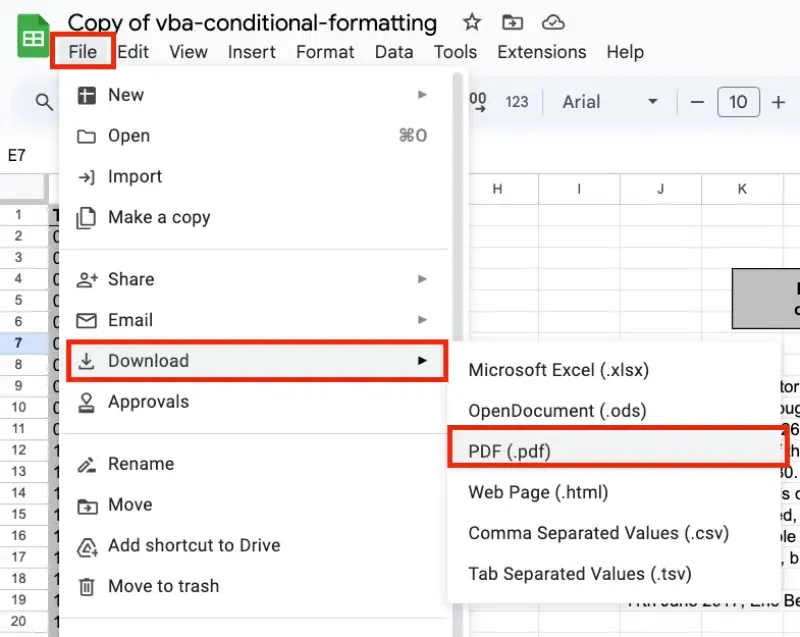
Here are the steps to export or save Google Sheets as CSV, Excel, or PDF:
Step 1: Open Your Google Sheet
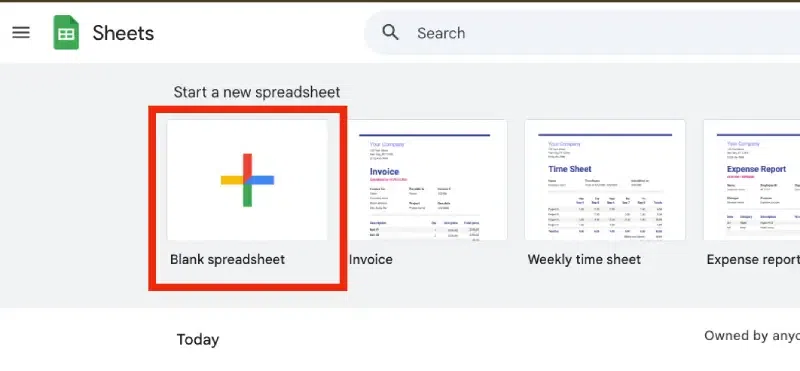
Open the Google Sheets document that contains the data you want to export or you can choose blank page.
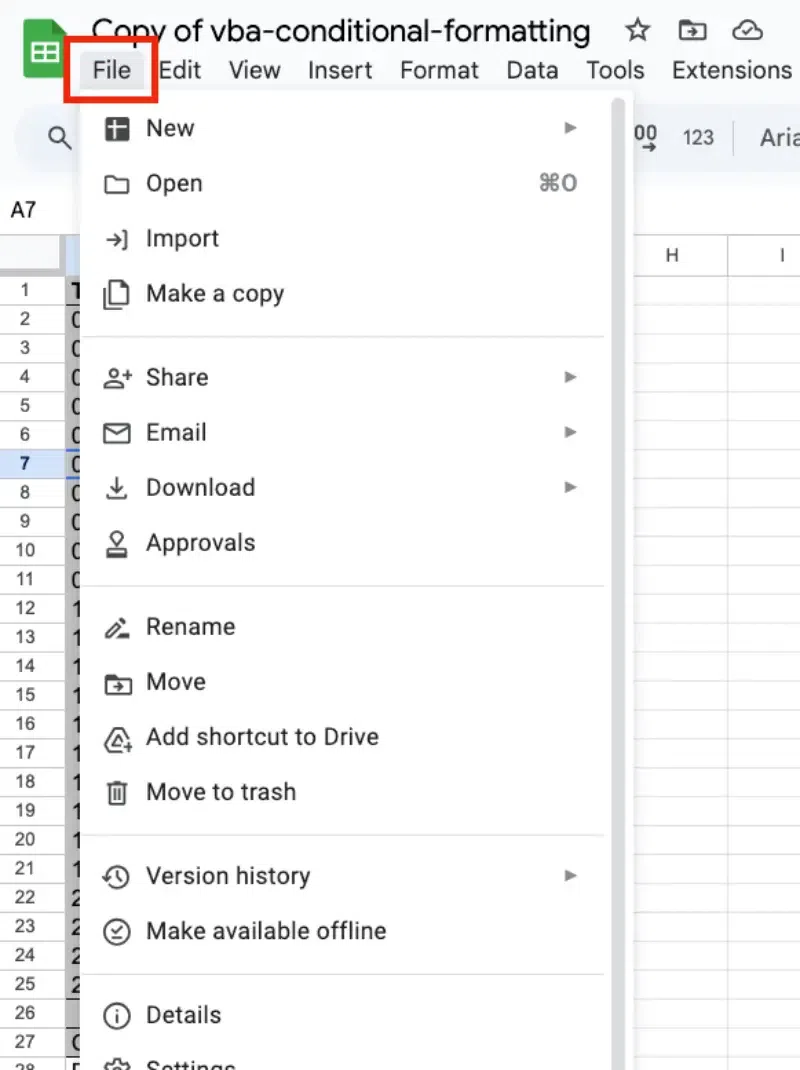
Step 2: Click on "File" in the Menu Bar
At the top-left corner of the screen, click on the File option to open a dropdown menu.
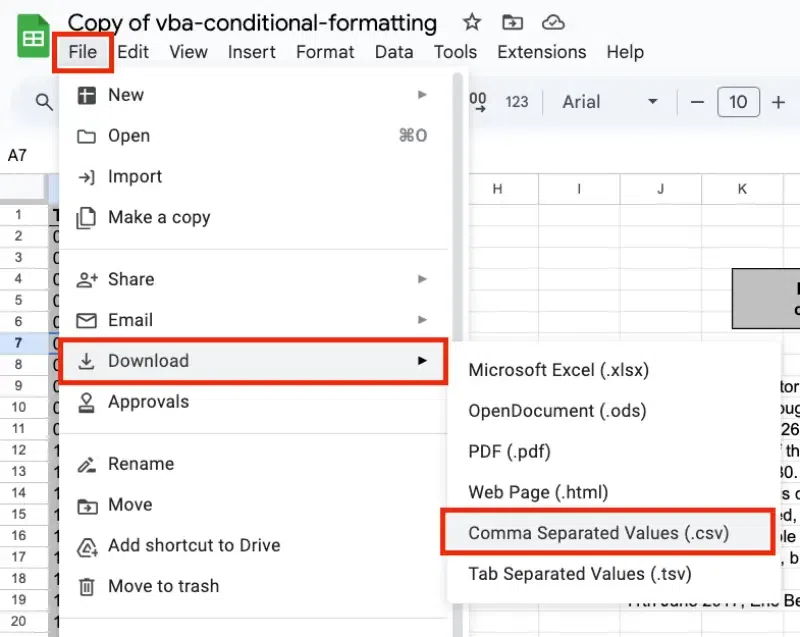
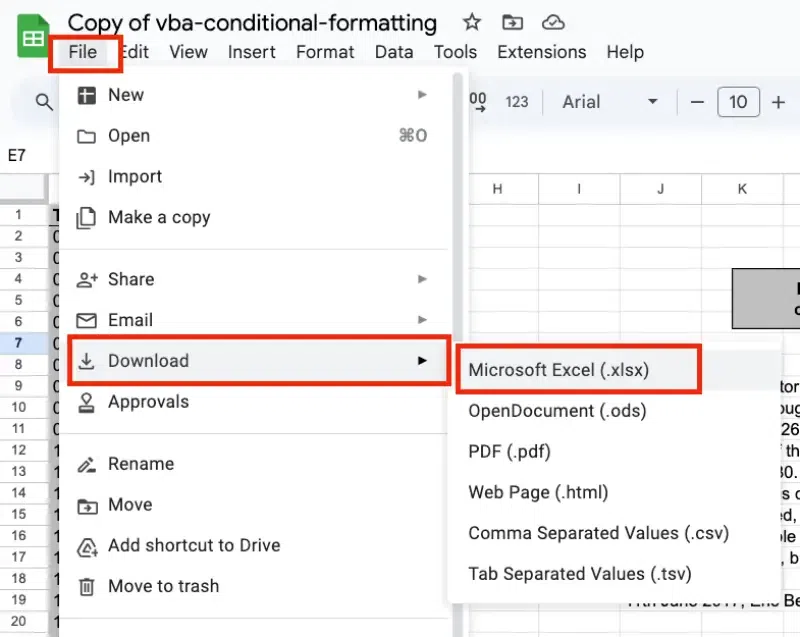
Step 3: Select "Download"
In the dropdown menu, Hover over Download to view the available file format options.
(I) Select Comma-separated values (.csv, current sheet) from the list.
(II) Click on Microsoft Excel (.xlsx) to select the Excel format.
(III) Click on PDF document (.pdf) to select the PDF format.
Optional: Adjust Export Settings
A settings window will appear with various customization options:
- Export Range: Choose whether to export the entire document or a specific sheet.
- Paper Size and Orientation: Set the paper size (e.g., A4, Letter) and choose between Portrait or Landscape orientation.
- Scaling: Adjust scaling to fit data properly on the page.
- Margins: Set margins (normal, narrow, or custom) as per your preference.
- Page Numbers: Enable or disable page numbers.

Step 4: Save the File
A download prompt will appear, allowing you to save the file to your computer. The file will only include data from the currently active sheet in your Google Sheets document.
Step 5: Verify the Exported File
Locate the downloaded CSV file on your computer. Open it in a text editor, spreadsheet software, or any compatible application to confirm the data has been exported correctly.
Tips for Exporting CSV Files
- Export One Sheet at a Time: Ensure the correct sheet is active, as Google Sheets only exports the current sheet.
- Check for Data Integrity: Double-check special characters, formatting, and large numbers, as they might not appear correctly in CSV files.
- Keep Backups: Always maintain a backup of your original Google Sheet before exporting to avoid accidental data loss.
