
The MAX function in Google Sheets is used to find the largest value from a set of numbers or a range of cells. It's particularly useful for identifying the highest value in a dataset, such as the maximum sales, scores, or any numerical data.
How It Works
- You provide a range or a series of numbers as the input to the MAX function.
- Google Sheets evaluates all the numbers and determines the largest value.
- The result is displayed in the selected cell.
- The MAX function ignores text, blank cells, and logical values unless they are entered directly into the function.
Syntax of Google Sheets MAX Formula
The formula of the MAX function in Google Sheets is:
MAX(value1, [value2,])
where,
- value1: (Required) The first number, cell, or range to consider.
- value2, (Optional) Additional numbers, cells, or ranges to consider.
1. How to Find the Highest Value in Google Sheets
Finding the highest value in Google Sheets is simple with the MAX function. It’s an essential tool to analyze numerical data in spreadsheets and quickly calculate maximum value from a range of numbers. Follow this guide to learn step-by-step how to use the MAX function for data analysis with MAX function effectively.
Step 1: Select a Cell
Click on the cell where you want the result to appear, for example, C1.

Step 2: Enter the Formula
Type the formula:
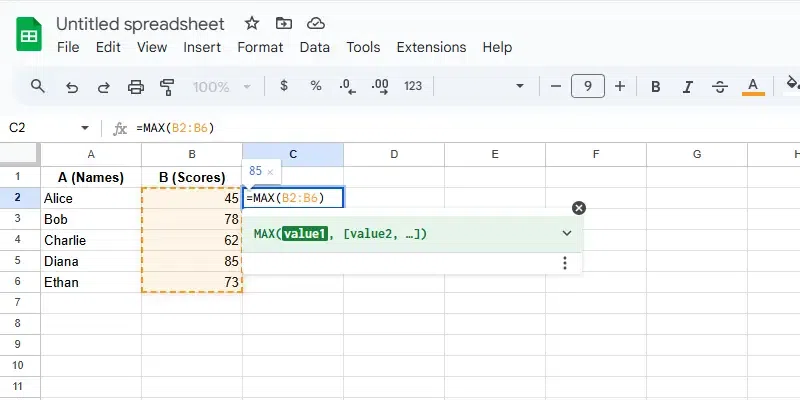
=MAX(B2:B6)
The range B2:B6 specifies the data you want to analyze. Adjust this range to match your dataset.
Step 3: Press Enter
- After typing the formula, press Enter on your keyboard.
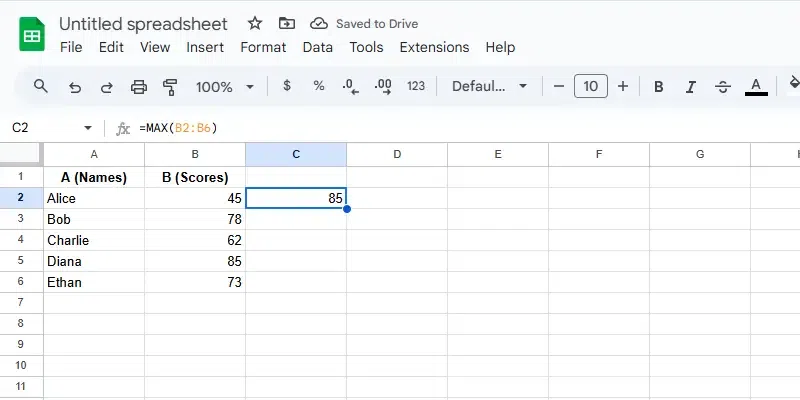
- Google Sheets will calculate the highest value in the range
B2:B6and display it in the selected cell (C1).
2. How to Find Largest Value with Conditions in Google Sheets
To calculate the maximum value in Google Sheets with specific conditions, you can combine the MAX function with other formulas like FILTER. This is useful for data analysis with MAX function when working with filtered datasets. Here’s how you can use MAX with conditions:
Step 1: Select a Cell
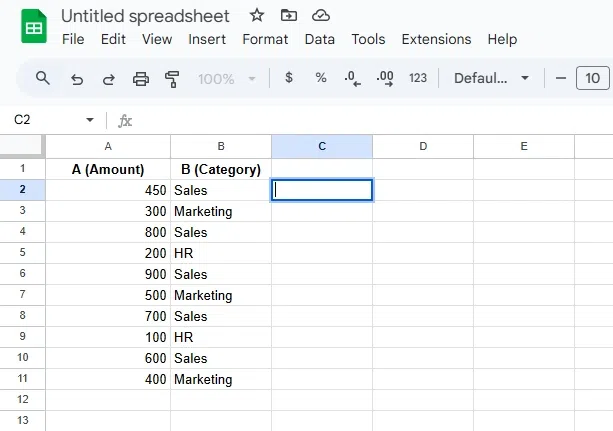
Click on the cell where you want to display the result.
Step 2: Enter the Formula
Type the following formula:
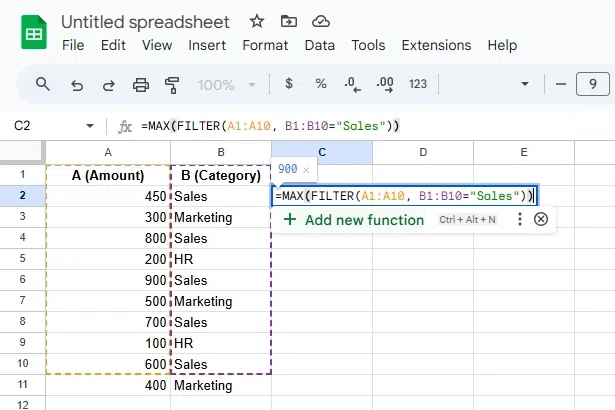
=MAX(FILTER(A1:A10, B1:B10="Sales"))
- FILTER: Extracts values from A1:A10 where B1:B10 matches "Sales".
- MAX: Finds the highest value from the filtered results.
Step 3: Press Enter
The maximum value that satisfies the condition will appear in the selected cell.
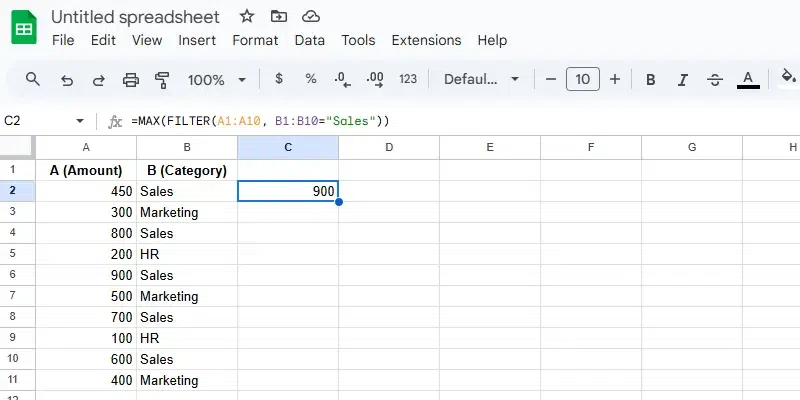
This approach allows you to perform advanced spreadsheet functions for more precise results.
Also Read:
