
Google Docs is one of the finest product services of Google Organization, which is a completely cloud-based, word processing tool that allows users and collaborators to actually create, edit, and simultaneously add content to the same document online. As we are writing and formatting the text into the document, it is very important to make it properly organized and neat.
When working with Google Docs, the ability to visualize non-printing characters—also known as "invisible"—can significantly enhance the editing and formatting process. These characters, which include spaces, tabs, and paragraph breaks, are essential for understanding the layout and structure of your document but do not appear in the printed or exported version. This feature is particularly valuable for writers, editors, and anyone needing precise control over document formatting.
In this article, we'll see how to show Non-printing characters (Invisibles) in Google Docs.
How to show Invisibles in Google Docs
It is important to remove unwanted invisibles to correct the formatting and alignment of your document. Here, we will see how to show Invisibles in Google Docs. Follow the below steps to view Invisibles in Google Docs in simple steps:
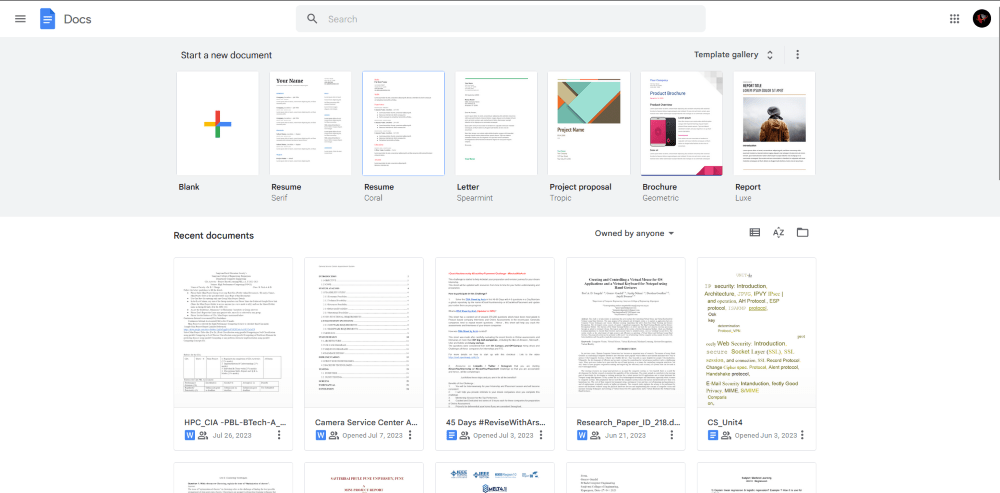
Step 1: Open Google Docs on your Browser
As Google Docs also offers its service through the website, we will view the Invisibles of our documents by using the Google Docs website.
Go to the Google Docs website, use the below URL to visit the Google Docs website.
https://workspace.google.com/products/docs/
Step 2: Open the Document
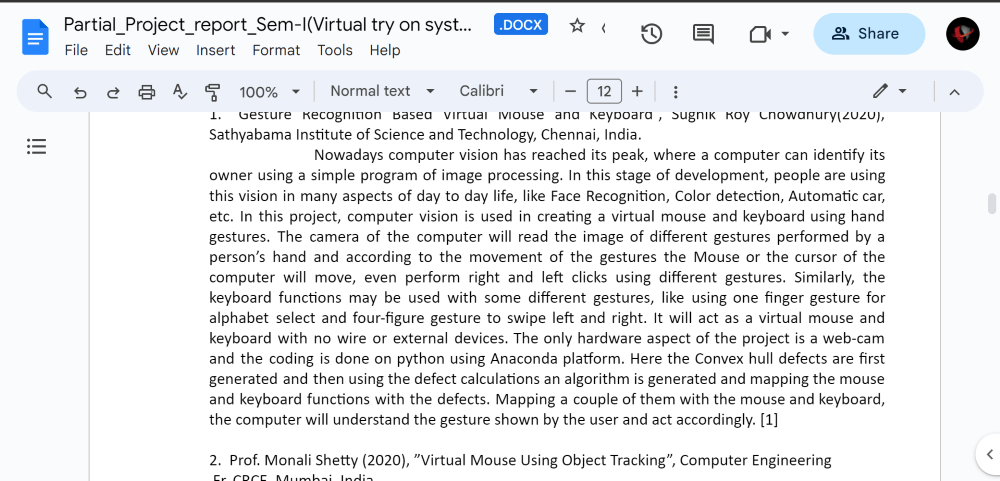
Once the website is opened, we initially need to open the document for which we need to view the Invisibles, so for that, we can upload the document from our local drive or we can also import it from Google Drive and other sources.
Step 3: Go to View Tab
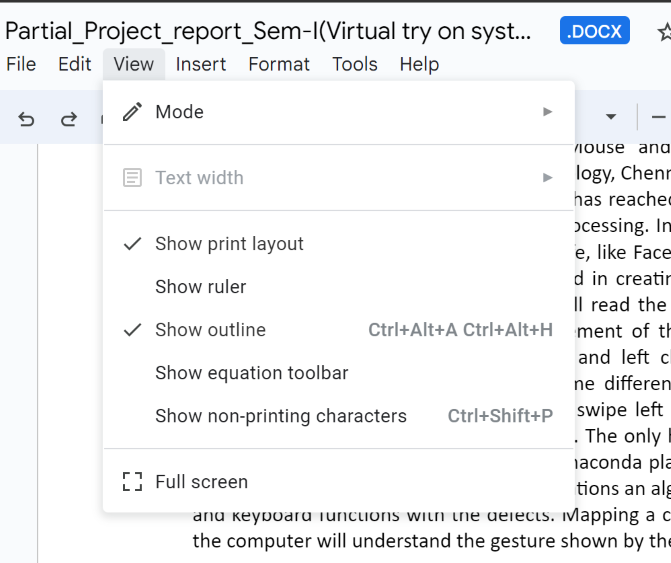
After uploading or opening the document from Google Drive or different upload sources, we need to click on the "View" Menu option, which is on the left corner of the main Docs screen.
Click on that option to view the detailed drop-down list in the View Menu.
Step 4: Select Non-Printing Characters
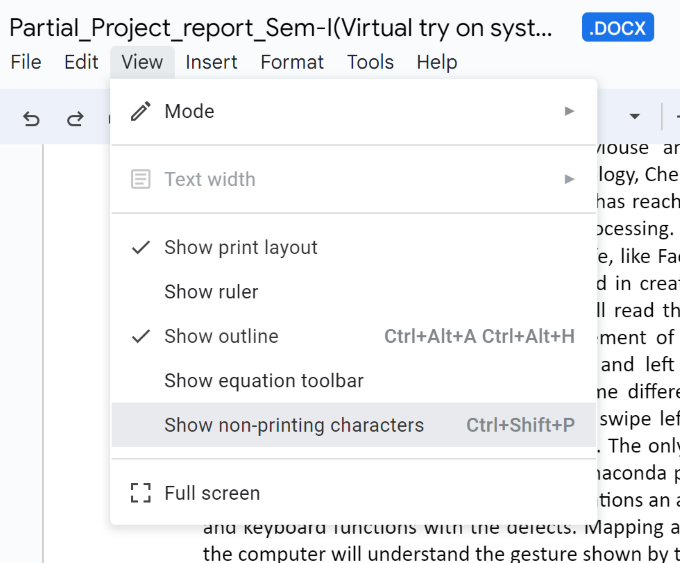
Now, as the drop-down list is displayed, we need to click on the option "Show non-printing characters". After clicking on this option the sidebar will immediately open on the left side of the screen showing the document outline.
Step 5: Select 
Now, at the complete bottom of the sidebar, we need to click on the icon that looks similar to the paragraph icon or the mark (¶).
Step 6: Invisibles Shown
Once clicking on that option, we as a user can view all the invisible including, space tabs, and line breaks that are hidden or, not visible in the initial state.
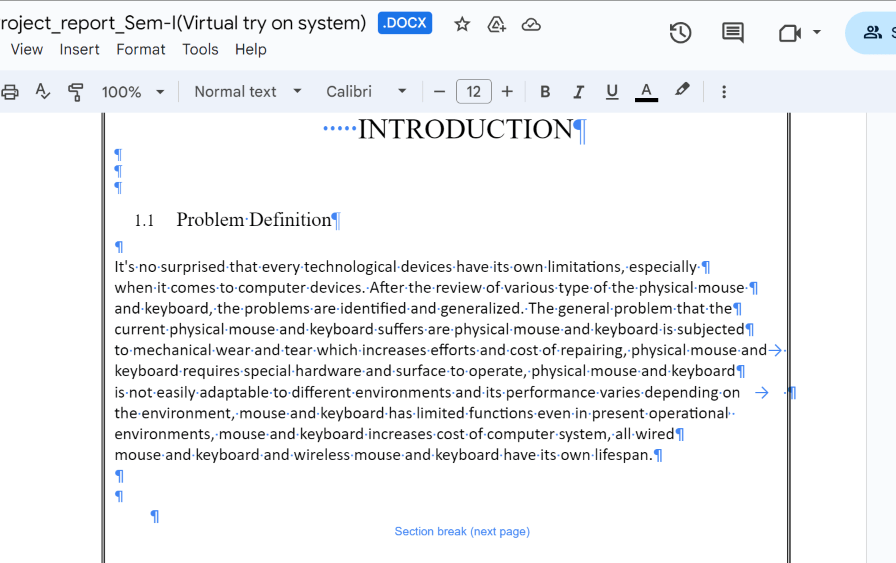
Note: There is no builtin-support to check Invisibles on Mobile Devices.
Hide Invisibles in Google Docs
To hide invisibles from your document follow the steps:
- In your document, Go to the View tab
- A drop-down menu will appear, Go to Show non-printing characters and click on it.
- You will see all invisibles are now hidden from your document.
Showing Invisibles in Google Docs: Benefits
Showing Invisibles in Google Dos to the user or the collaborators has different types of benefits and use cases. Below are some of the most useful benefits of showing Invisibles in Google Docs.
1. Identifying Formatting Problems:
In Google Docs, we work collaboratively, or we import text documents from different sources, like Google Docs or other sources. Some invisible characters can cause severe problems in formatting or may lead to inconsistencies of characters. By the use of invisible in Google Docs, we can spot the extra spaces, unwanted tabs, breaks, improper identification, or other problems to rectify the issues, and we can maintain the integrity of the document.
2. Maintaining Consistency:
Invisibles play an important role in keeping the document visually consistent. If we are discarding any hidden characters, writers or editors can ensure that there is uniform spacing or a proper alignment and paragraph breaks throughout the document, this looks and feels the better professional and visually appealing of our final document.
3. Controlling Word and Character Counts:
In some scenarios, there may be a strict policy to maintain the character counts or character limit. Invisible characters can impact the total count of the document. So by relieving these invisible, we can keep track of our actual word and character usage accurately. This can ensure the proper character counts and we can shrink up or down the characters.
Conclusion
In conclusion, displaying or viewing the invisible characters in Google Docs can optimize and enhance the performance and the document editing experience for the user. If we display these hidden characters and format these marks properly, we can ensure consistent formatting can prevent some layout issues or problems this will completely make our document professional and more readable.
