
The Android Debug Bridge (abbreviated as ADB) is a programming tool for debugging Android-based devices. The daemon on the Android device communicates with the server on the host PC through USB or TCP, which communicates with the end-client users via TCP. Google has been making open-source software under the Apache License available since 2007. Features include a shell and the ability to backup data. The ADB software runs on Windows, Linux, and macOS. It has been abused by botnets and other malicious software, for which mitigations like RSA authentication and device whitelisting have been developed.
Different Ways to Install android-tools-adb on Ubuntu
On Ubuntu 20.04, there are three options for installing android-tools-adb. Apt-get, apt, and aptitude are all available. Each installation strategy will be described in detail in the following sections. You may select any of them.
Method 1: Using the apt-get command
This is the most common method to install packages on Ubuntu.
Step 1. Update the apt-get Package Database
Using the following command, update the apt database using apt-get.
sudo apt-get update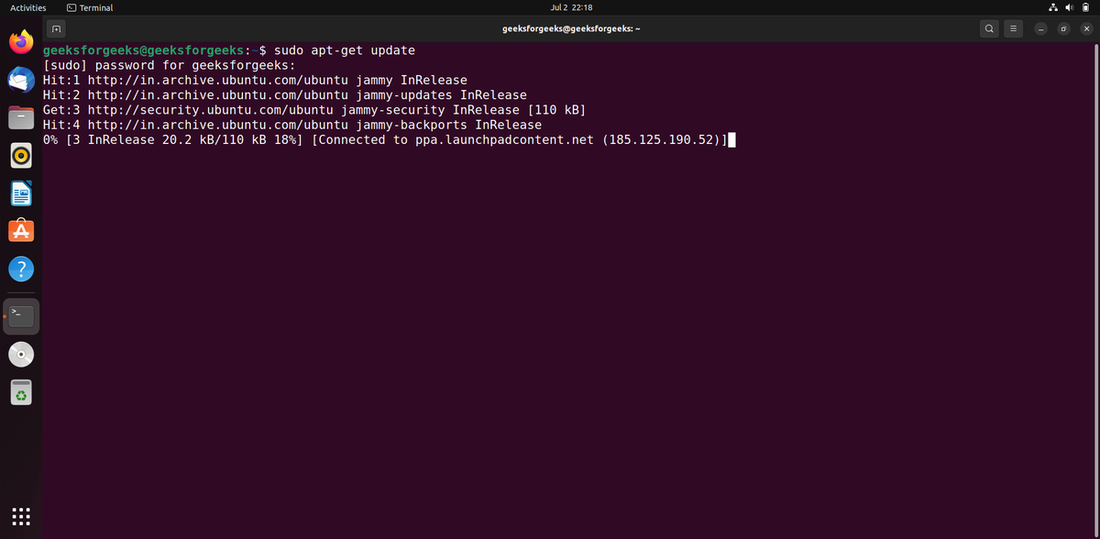
Step 2. Install android-tools-adb
After upgrading the apt database, we can use apt-get to install android-tools-adb by performing the following command:
sudo apt-get -y install android-tools-adb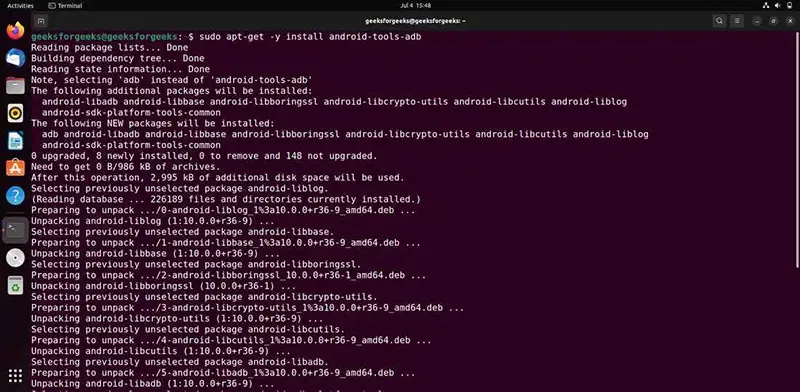
Step 3. Verify Installation
After the installation is complete, verify that ADB is installed correctly by running:
adb versionMethod 2: Using apt
apt is another package manager available on Ubuntu. It offers a more user-friendly interface compared to apt-get, though the installation process remains similar.
Step 1. Update the apt Package Database
The apt database will be updated using the following command.
sudo apt update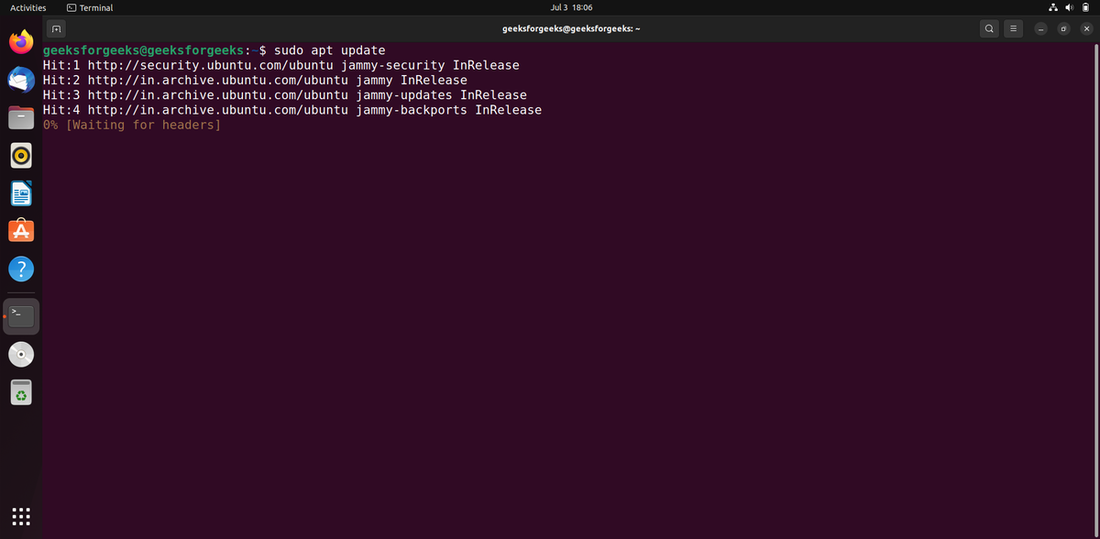
Step 2. Install android-tools-adb
After upgrading the apt database, we can use apt to install android-tools-adb by performing the following command:
sudo apt -y install android-tools-adb
Step 3. Verify Installation
After the installation is complete, verify that ADB is installed correctly by running:
adb versionMethod 3: Using aptitude
Step 1. Update the apt-get Package Database
If you want to use this method, you may need to install aptitude first because it is not normally installed by default on Ubuntu. Use the following command to update the apt database with aptitude.
sudo aptitude update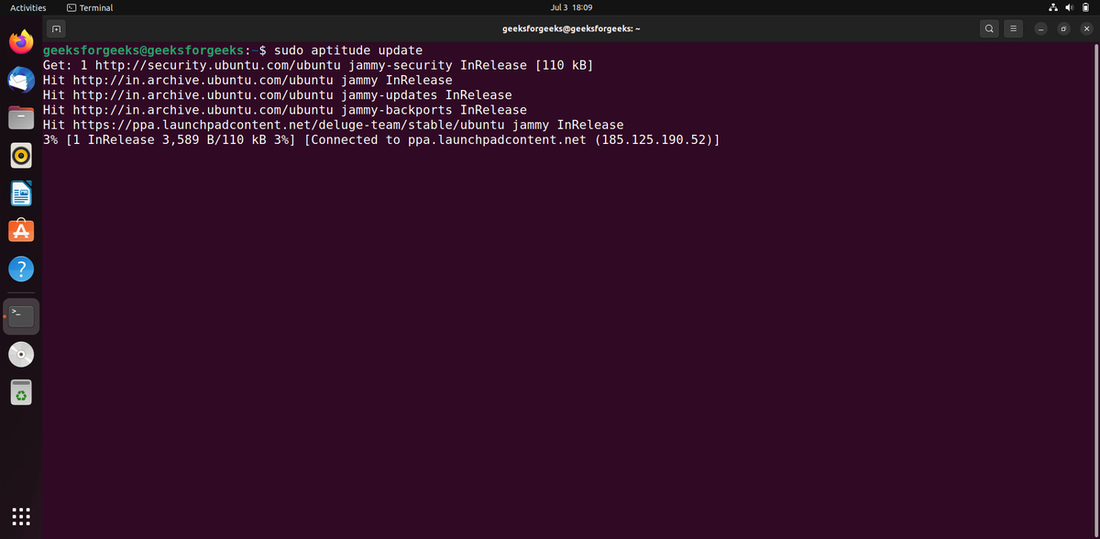
Step 2. Install android-tools-adb
After upgrading the apt database, we can use aptitude to install android-tools-adb by performing the following command:
sudo aptitude -y install android-tools-adb
Step 3. Verify Installation
After the installation is complete, verify that ADB is installed correctly by running:
adb versionConclusion
ADB is a versatile tool that every Android developer should have in their toolkit. ADB allows you to interact with your device from your development machine. Ubuntu 20.04 offers multiple ways to install ADB—using apt-get, apt, or aptitude and here we covered each in detail letting you choose the one that works best for you.
