
Java development requires the Java Development Kit (JDK) to build and run applications. OpenJDK is the free and open-source version of Java that includes all the essential tools for development. It is widely used on Linux systems because it is stable, easy to install, and supported by most distributions.
Why OpenJDK matters:
- It provides all the necessary tools (JRE, JVM, and compiler) required to develop and run Java applications.
- It is free, reliable, and officially supported across most Linux distributions, making it a trusted choice for developers.
How to Install OpenJDK in Linux
Follow the below step-by-step procedure to complete the installation of OpenJDK in Linux. All the steps are performed here in this guide on Ubuntu Linux distribution.
Step 1: Update Your System
Before installing any software, update your system packages.
sudo apt update
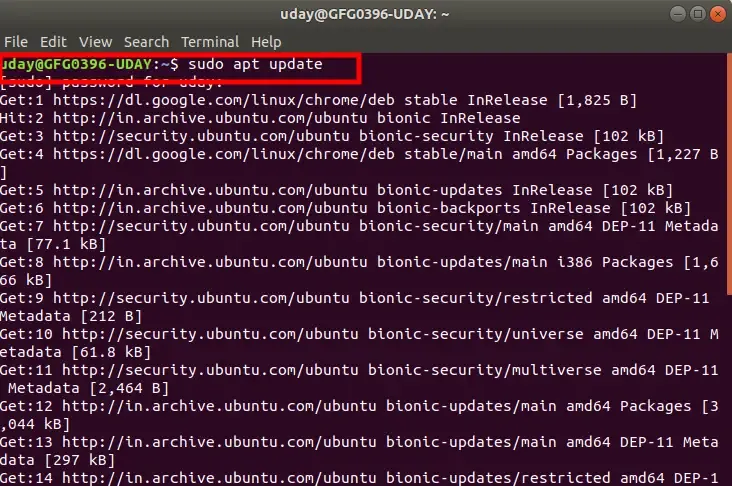
- Then upgrade existing packages:
sudo apt upgrade
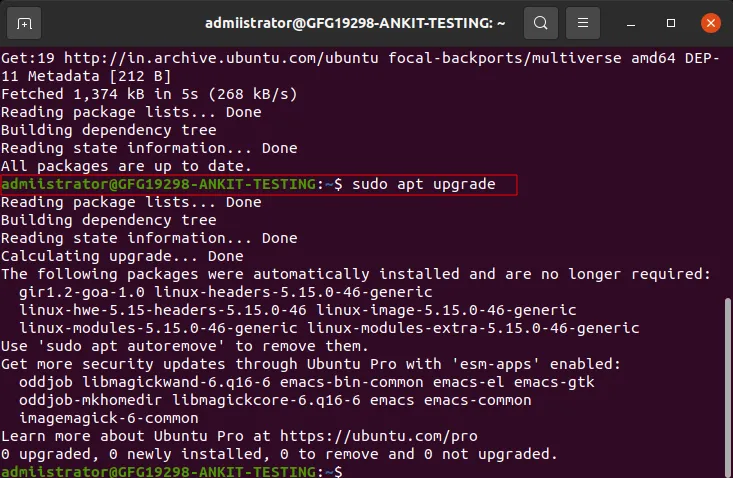
- This ensures your system has the latest package information and updates installed.
Step 2: Check Available OpenJDK Versions
To see available OpenJDK versions:
sudo apt search openjdk
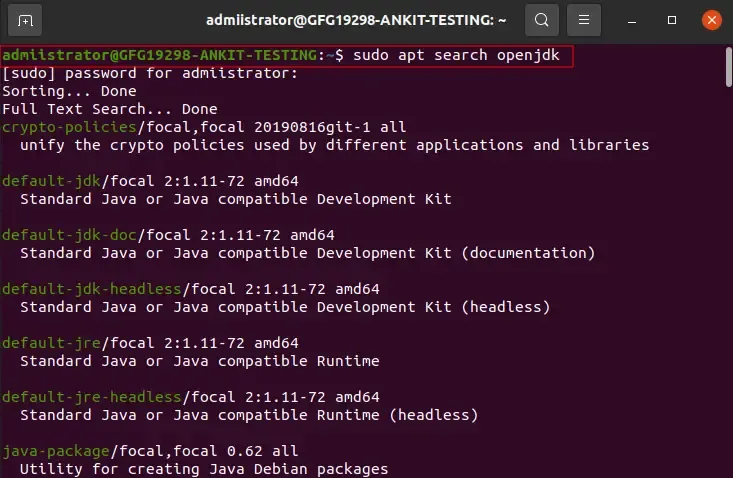
Note: After this command you need to enter you password.
- This will display a list of available OpenJDK versions. As of now, the latest stable version is OpenJDK 21.
Step 3: Install the Latest Version of OpenJDK
To install OpenJDK 21, run this command:
sudo apt install openjdk-21-jdk

Note: Make sure you are connected with internet while opting this command
- This command installs the OpenJDK Development Kit (JDK), which includes the Java Runtime Environment (JRE) and development tools like the
javaccompiler.
Step 4: Verify the Installation
After installation, confirm that OpenJDK is properly installed by checking the Java version:
java -version
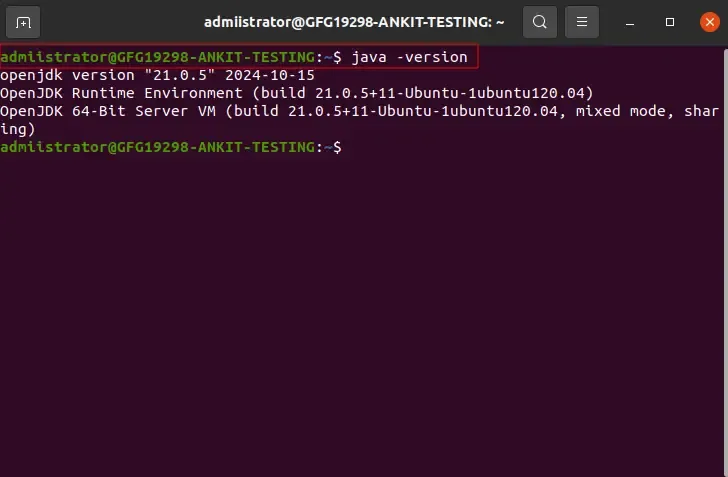
- The output should look something like this:
openjdk version \"21.0.1\" 2025-01-01
OpenJDK Runtime Environment \(build 21.0.1\+12-Ubuntu-1\)
OpenJDK 64-Bit Server VM \(build 21.0.1\+12-Ubuntu-1, mixed mode, sharing\)
- If you see this, OpenJDK is successfully installed on your system.
Step 5: Set OpenJDK as the Default Java Version (Optional)
If you have multiple versions of Java installed, you can set OpenJDK 21 as the default version by running:
sudo update-alternatives --config java
- This command will show a list of installed Java versions.
Step 6: Configure the Environment Variables (Optional)
For some applications, you might need to set the JAVA_HOME environment variable. To do this, follow these steps:
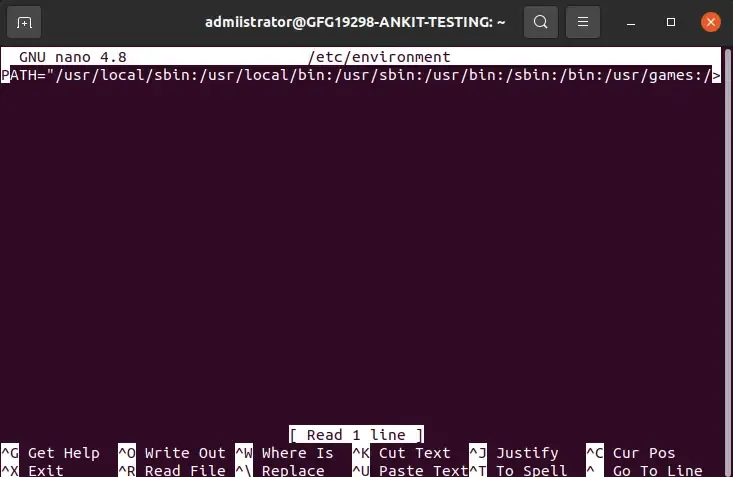
- Open the environment file using a text editor:
sudo nano /etc/environment
- Add the following line at the end of the file:
JAVA_HOME=\"/usr/lib/jvm/java-21-openjdk-amd64\"
- Save and close the file. Then, reload the environment variables:
source /etc/environment
- Verify the
JAVA_HOMEvariable:
echo $JAVA_HOME
- This should display the path you set.
