
EasyUI is an HTML5 framework for using user interface components based on jQuery, React, Angular, and Vue technologies. It helps in building features for interactive web and mobile applications saving a lot of time for developers.
In this article, we will learn how to design a menu button using jQuery EasyUI. The menu button is part of the drop-down menu. It is associated with a link button and menu. The link button is displayed while the menu is hidden.
Downloads for EasyUI for jQuery:
https://www.jeasyui.com/download/index.php
Syntax:
<div class="menubutton">
</div>
Properties:
- plain: It sets true to show plain effect.
- menu: A selector to create a corresponding menu.
- menuAlign: It sets the alignment of the top-level menu.
- duration: It defines duration time in milliseconds
- showEvent: The event that causes the menu to appear.
- hideEvent: The event that causes the menu to disappear.
- hasDownArrow: It defines the display of the down arrow icon.
Methods:
- options: It returns the options object.
- disable: It disables the menu button.
- enable: It enables the menu button.
- destroy: It destroys the menu button.
CDN Link: First, add jQuery Easy UI scripts needed for your project.
<script type="text/javascript" src="jquery.min.js"></script> <!--jQuery libraries of EasyUI --> <script type="text/javascript" src="jquery.easyui.min.js"> </script> <!--jQuery library of EasyUI Mobile --> <script type="text/javascript" src="jquery.easyui.mobile.js"> </script>
Example:
<!DOCTYPE html>
<html>
  <head>
    <meta charset="UTF-8" />
    <meta
      name="viewport"
      content="initial-scale=1.0,
               maximum-scale=1.0, user-scalable=no"/>

    <!-- EasyUI specific stylesheets-->
    <link rel="stylesheet" type="text/css"
          href="themes/metro/easyui.css" />

    <link rel="stylesheet" type="text/css"
          href="themes/mobile.css" />

    <link rel="stylesheet" type="text/css"
          href="themes/icon.css" />

    <!--jQuery library -->
    <script type="text/javascript"
            src="jquery.min.js">
    </script>

    <!--jQuery libraries of EasyUI -->
    <script type="text/javascript"
            src="jquery.easyui.min.js">
    </script>

    <!--jQuery library of EasyUI Mobile -->
    <script type="text/javascript"
            src="jquery.easyui.mobile.js">
    </script>

    <script type="text/javascript">
      $(document).ready(function () {
        $("#gfg").menubutton({
          disabled: true,
        });
      });
    </script>
  </head>

  <body>
    <h1>GeeksforGeeks</h1>
    <h3>EasyUI jQuery menubutton widget</h3>

    <a id="gfg" class="easyui-menubutton">Menu 1</a>
  </body>
</html>
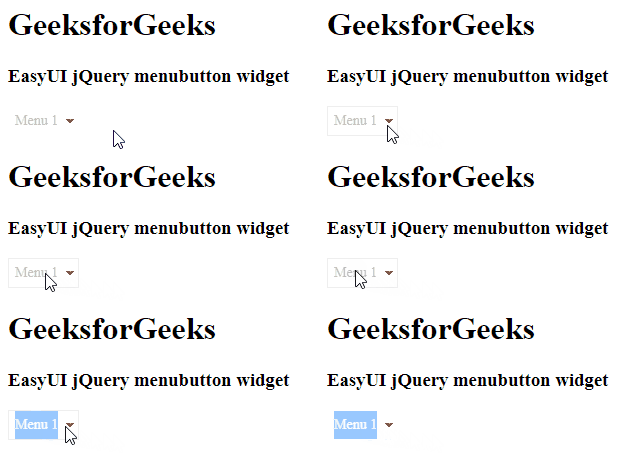
Output:
Reference: http://www.jeasyui.com/documentation/
