
Microsoft Office includes tools for documents, spreadsheets, and presentations. It also provides its users with beautiful page formatting. It is achieved through functionality, and one of them is paragraph indenting.
- Paragraph indenting in Microsoft Word adjusts paragraph lines away from document margins for better readability.
- It can be set using paragraph settings in the Home or Layout tab.
There are three ways to achieve paragraph indenting in MS WORD.
Method 1
Step 1: Select the paragraph by click on the right cursor at the start and click on the left cursor and start selecting all the lines in the paragraph.
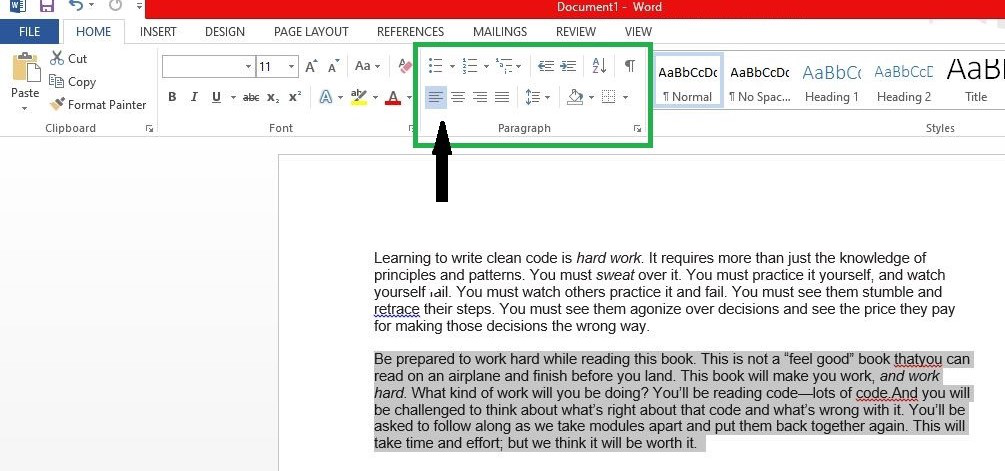
Step 2: Then, click on the symbol as shown in the picture above, in the Paragraph section of the Home tab.
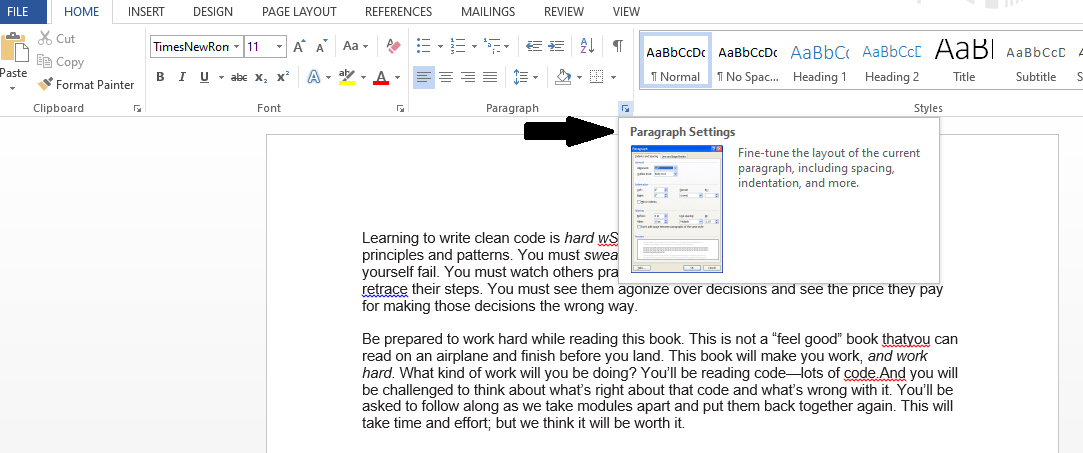
Method 2
Step 1: Click on the arrow on the bottom right corner of the paragraph section of the Home tab to access paragraph settings, as shown in the figure above to enter space formatting manually or to perform manual indentation of the paragraph.
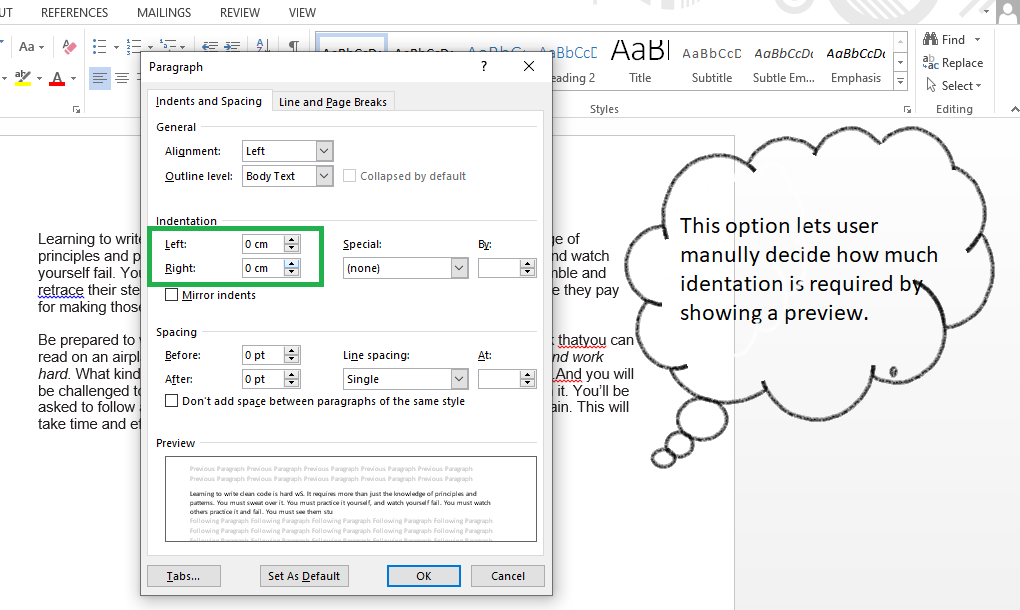
Step 2: A paragraph settings window pops up as shown in the figure above. Now select the Indents and Spacing tab and under the indentation section, enter the about of spacing you would like to provide in terms of centimeters to the paragraph.
Step 3: A Preview pane at the end displays how the formatting looks in the document. Then after being satisfied with the desired indentation, one has to click the OK button to save the paragraph settings
Method 3
Step 1: After selecting the paragraph use the following command for indenting your paragraph
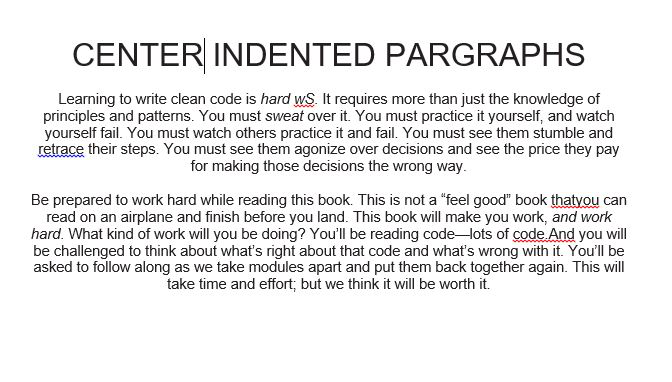
- Ctrl + E: for Center Indenting
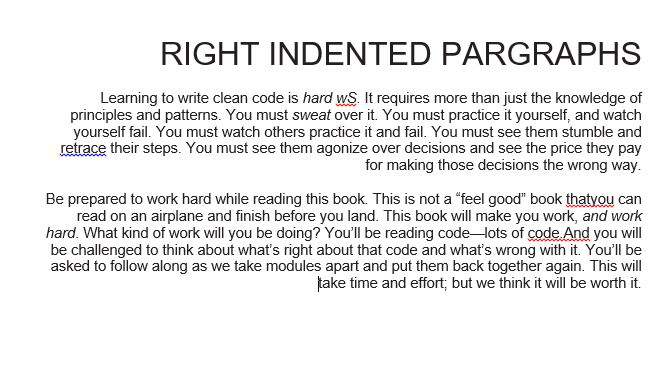
- Ctrl + R: for Right Indenting
- Ctrl + L: for Left Indenting
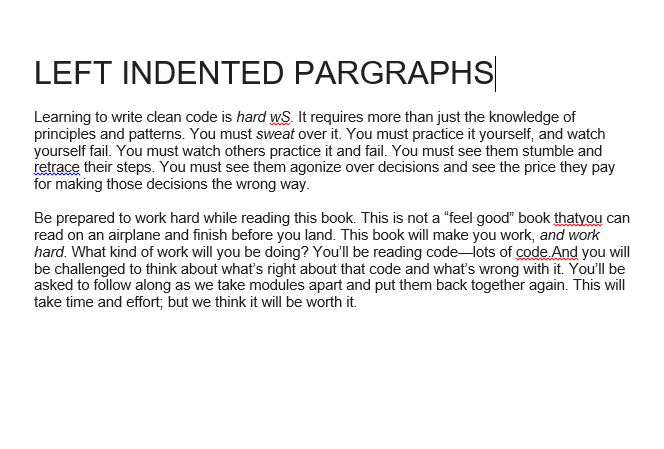
Step 2: After indenting, we get the following results:
- Left indented Paragraph:
- Right Indented Paragraph:
- Center Indented Paragraph:
Additional shortcuts:
- Ctrl + M: Increase indent
- Ctrl + Shift + M : Decrease indent
Note: One can also indent only one line, just we need to select a line instead of a paragraph.
