
Dependencies are external packages or libraries that a Node.js project needs to run properly and are managed using npm.
• Installed using npm to add required functionality to a project.
• Can be installed locally (project-specific) or globally (system-wide).
• Listed in package.json to manage and track project requirements.
Concept of Global Package Installation
Global installation of dependencies in Node.js allows packages to be installed system-wide so they can be accessed across all projects without reinstalling them individually.
• System-Wide Access: Packages can be used from any project on the system.
• Single Installation: Eliminates the need to install the same package multiple times.
• Executable Commands: Provides global command-line tools accessible from anywhere.
Installing Dependencies Globally in Node.js
To install a package globally using npm, you can use the -g or --global flag. This flag tells npm to install the package globally, making it accessible system-wide.
Using npm
The primary way to install a package globally is by using the npm install -g command. Here’s the general syntax:
npm install -g <package-name>Example
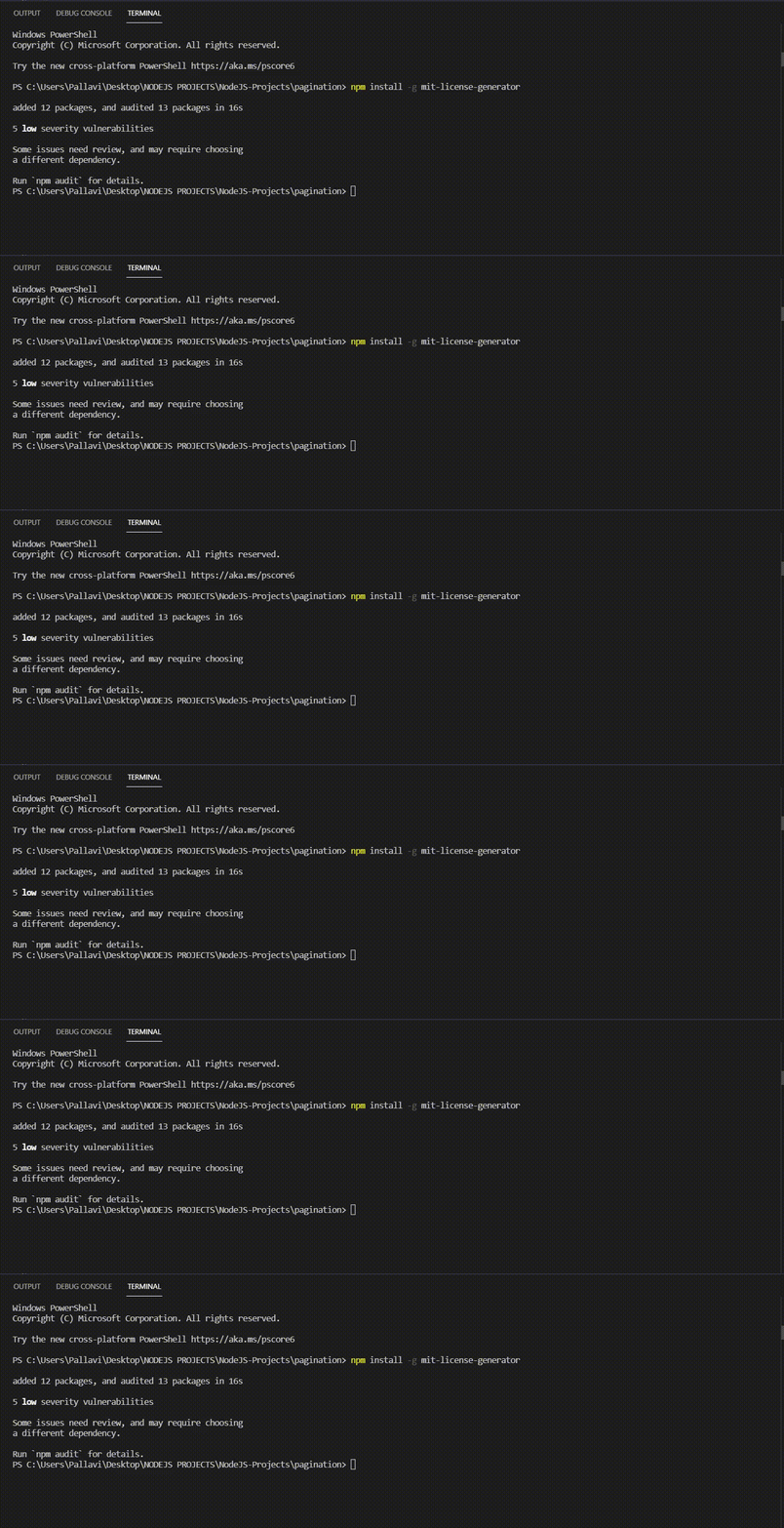
npm install -g mit-license-generatorOutput:
Check if the Package is Installed Globally
To verify that the package has been installed globally, you can use the following command:
npm list -gOutput:

Uninstalling a Global Package
If you no longer need a globally installed package, you can uninstall it using the npm uninstall -g command:
npm uninstall -g <package-name>Location of Global Packages
When you install a package globally, npm installs it in a system-wide directory. The exact location varies depending on your operating system:
- macOS/Linux: Global packages are typically installed in /usr/local/lib/node_modules.
- Windows: On Windows, global packages are installed in %AppData%\npm\node_modules.
You can check the global installation path by running:
npm config get prefixThis will display the directory where globally installed npm packages reside.
Usage of Global Installation
Global installation is used to make Node.js tools and packages accessible system-wide across all projects.
- Reusability Across Projects: Use the same package in multiple projects without reinstalling it.
- Command-Line Accessibility: Run tools like webpack or eslint from anywhere in the system.
- Simplified Usage: Execute globally installed tools without navigating to specific project folders.
- Cleaner Projects: No need to add global tools to each project’s package.json.
Best Practices for Global Installation
While global installation is a powerful feature of npm, it’s essential to follow best practices to ensure you’re using it effectively:
- Install command-line tools globally: Tools like create-react-app, webpack, and eslint can be installed globally for use across projects.
- Use local installation for project dependencies: Libraries such as React or Express should be installed locally to prevent version conflicts.
- Manage Node.js versions with nvm: Use nvm to switch between different Node.js versions when needed.
- Remove unused global packages: Regularly uninstall unnecessary global packages to maintain a clean system.
Local Vs Global Installation
Local vs Global Installation explains the difference between project-specific and system-wide package installation in Node.js.
Local Installation | Global Installation |
|---|---|
Installed in the node_modules directory of a specific project | Installed globally on the system and available to all projects |
Command: npm install <package-name> | Command: npm install -g <package-name> |
Automatically added to package.json dependencies | Not added to package.json (unless added manually) |
Accessible only within that project | Accessible from anywhere on the system |
