
When you open a browser and enter a URL, NGINX can receive that request and return the requested page or resource. It is an open-source web server known for high performance, stability, and efficient request handling. In practice, NGINX can route traffic to the right file or application, making it useful for serving websites and handling large numbers of requests smoothly.
- It can route requests to the correct file, page, or backend service.
- It is widely used for performance, stability, and efficient traffic handling.
- It helps websites respond faster and manage traffic more reliably.
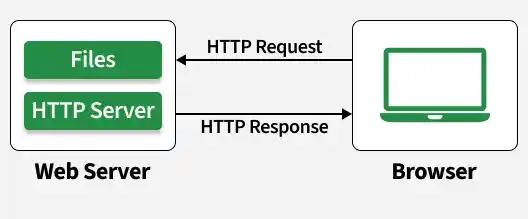
Need of a dedicated Webserver
Suppose we develop our application on Django or Node. All such frameworks have built-in development servers to host your project. But whenever someone tries to host that application on the production level with built-in development servers, you'll get a tough time handling all the requests while experiencing downtimes while just handling 30-40 concurrent requests.
Nginx is a dedicated web server that has solved efficiency issues and provided us with an optimum way to handle 1000s of requests concurrently.
Web server for reverse proxy, caching, and load balancing.
NGINX handles web traffic by routing requests to backend servers, caching frequently used content, and balancing load across multiple servers to improve speed and reliability.
- Reverse proxy for backend routing
- Caching to reduce repeated processing
- Load balancing across servers
- Event-driven architecture for efficiency
- Low resource usage with high scalability
For understanding the further configuration settings of Nginx, we need to get a glimpse of Nginx understands before that.
Nginx uses the Master-Slave architecture, where we have a master who reroutes our request to any of the workers under it by distributing the load on the server, then the Proxy cache is looked for faster response, else after failing to do So the webpage is loaded from the memory itself. An image demonstration will help to understand this structure more clearly.
Nginx Architecture
Nginx follows a master–worker architecture, configured through the nginx.conf file, where different contexts define how processes, connections, and optimizations are handled.
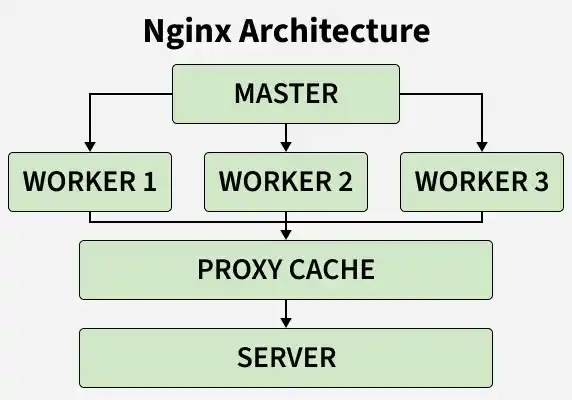
1. Core Process Model
Handles how Nginx runs internally.
- Master Process: Manages configuration, starts, and controls worker processes
- Worker Processes (
worker_processes): Handle incoming requests; usually set equal to CPU cores - Connections (
worker_connections): Maximum connections each worker can manage
2. Request Handling Capacity
Defines how many clients Nginx can serve.
- Total connections ≈
worker_processes × worker_connections - Helps estimate scalability and load handling
3. Logging System
Tracks activity and errors for monitoring and debugging.
access_log: Records client requests and responseserror_log: Stores errors and runtime issues
4. Performance Optimization
Improves speed and efficiency.
- Caching: Serves repeated content faster
gzipCompression: Reduces response size (best for large files)
Install Nginx on Linux (Ubuntu like distros)
First of all, open the terminal in your Linux distro and then type in the following commands to install Nginx on your system.
# Update your system
sudo apt-get update

# After updating your system
# Install nginx using CLI, press Y to allow it to install
sudo apt-get install nginx

# Enabling Firewall
sudo ufw enable
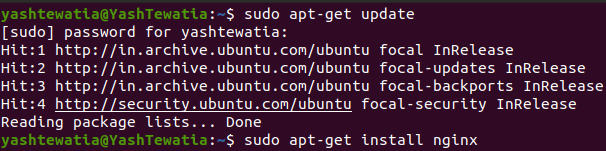

These are some steps to installing Nginx and enabling the firewall in Linux. Let's check the version and proceed ahead to starting the server.
# checking Nginx version
nginx -v
# if output is -> nginx version: nginx/1.xx.x (ubuntu)
# you have successfully installed it
Now we need to add the rules to the firewall so that your server can get requests on Http and Https ports.
# This commands tells you all the configuration
# that your firewall know which can be added
sudo ufw app list

# Here you'll see the output and from available options,
# you shall see (Nginx Full, Nginx HTTP, Nginx HTTPS)
# Let's add these rules to your firewall
sudo ufw allow 'Nginx Full'
sudo ufw allow 'Nginx HTTP'
sudo ufw allow 'Nginx HTTPS'
Now we need to see the status of the rules that we added to the firewall.
# To check status
sudo ufw status
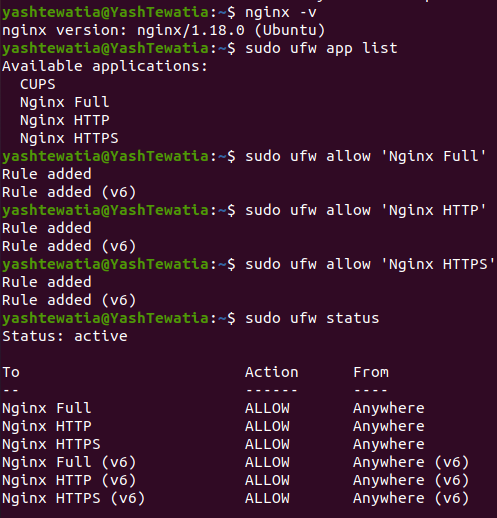
Now we will check if our server is running.
# To check the status of the server
sudo systemctl status nginx
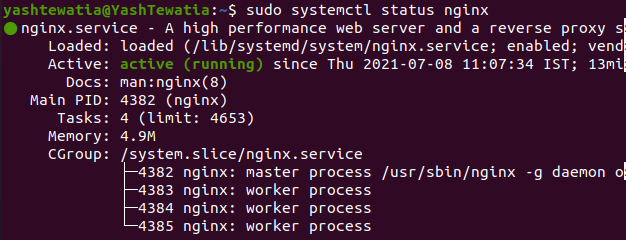
If you can see active (running) under the Active heading, then your server is running.
Install Nginx on Windows
Step 1: Download the mainline version of NGINX for Windows, such as nginx-1.21.1.zip, from the official website.
Step 2: Extract the ZIP file to any folder on your system, then open the extracted folder and run nginx.exe. Allow firewall access if Windows asks for permission.
Step 3: Open your browser and go to http://localhost/ to check whether NGINX is running. If the welcome page appears, the server has started successfully.
Step 4: To understand the default page, open the conf folder and edit the nginx.conf file using Notepad or any text editor.
Step 5: Inside nginx.conf, check the http -> server -> location block to see how requests are handled. By default, NGINX serves the html/index.html file, which is why the welcome page appears on localhost.
