
A Button’s color in Kivy is controlled by the background_color property (an RGBA tuple with values from 0 to 1). This article shows examples that demonstrate how to set a button color and change it at runtime.
This example creates a minimal app with a single red button.
from kivy.app import App
from kivy.uix.button import Button

class BasicColorApp(App):
    def build(self):
        b = Button(text='Red', background_normal='', background_color=(1,0,0,1))
        return b

if __name__ == '__main__':
    BasicColorApp().run()
Output
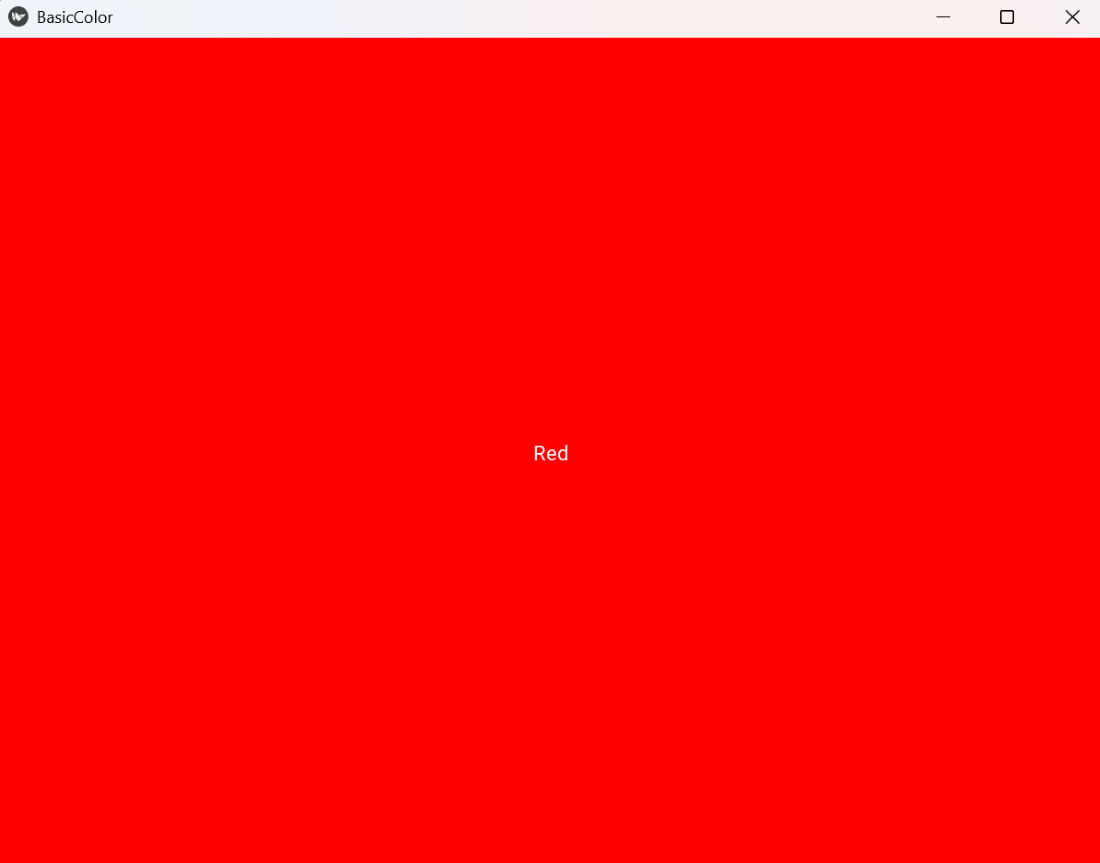
Explanation:
- App: base class for Kivy applications; build(): returns the root widget shown on screen.
- Button(...): creates a button widget. text: sets the label.
- background_color=(r,g,b,a): RGBA tuple (range 0–1) that tints the button background.
- background_normal: disables the default background image so background_color produces a flat color.
Syntax
Button( text='OK', background_normal='', background_color=(r,g,b,a), color=(r,g,b,a), size_hint=(None,None), size=(w,h), on_press=callback, on_release=callback )
Parameters:
- text: text to display
- background_color: RGBA color for the button (0–1).
- background_normal: set to '' to use a flat color instead of the default image.
- color: RGBA color of the button text.
- size_hint/size: manual sizing when size_hint is (None,None).
- on_press/on_release: events you can bind to functions.
Examples
Example 1: This code shows two side-by-side buttons with different flat colors.
from kivy.app import App
from kivy.uix.boxlayout import BoxLayout
from kivy.uix.button import Button

class TwoColorsApp(App):
    def build(self):
        r = BoxLayout(orientation='horizontal', spacing=10, padding=10)
        r.add_widget(Button(text='Blue', background_normal='', background_color=(0,0.7,1,1)))
        r.add_widget(Button(text='Green', background_normal='', background_color=(0,0.8,0.3,1)))
        return r

if __name__ == '__main__':
    TwoColorsApp().run()
Output
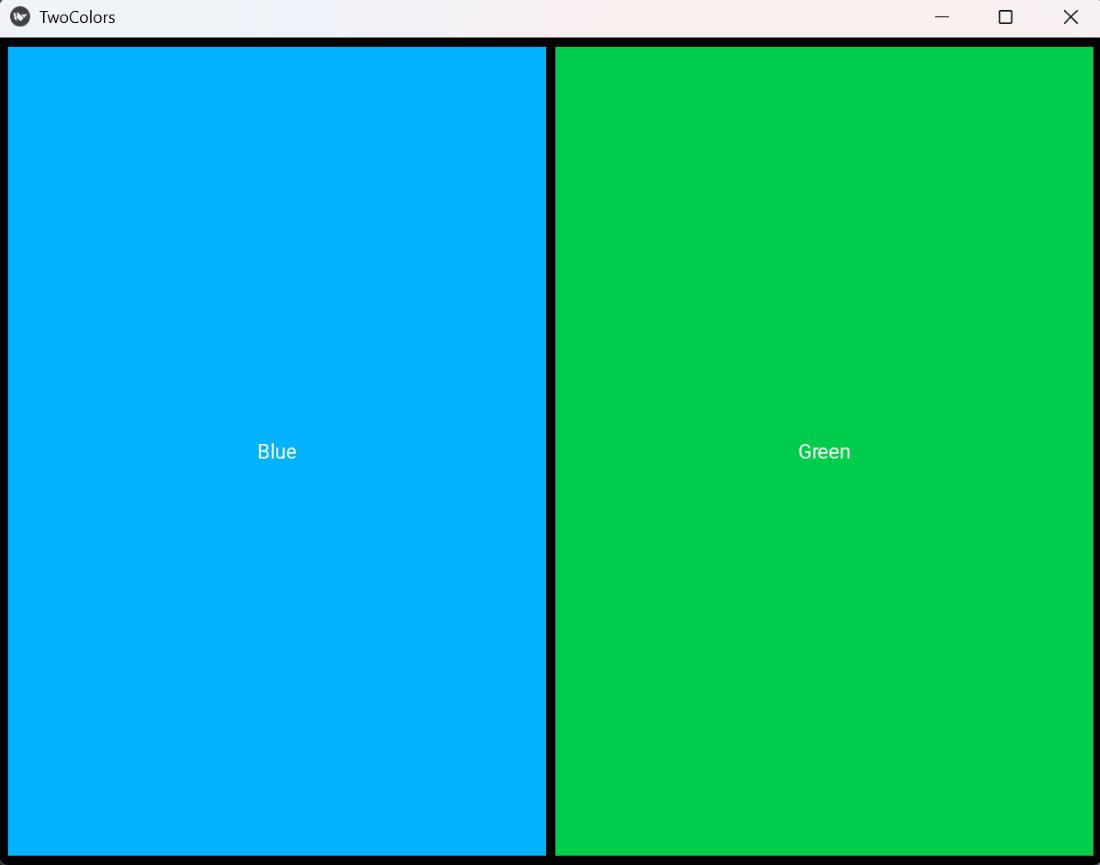
Explanation:
- BoxLayout(orientation='horizontal'): arranges children horizontally.
- add_widget(): adds each button to the layout.
- Each Button(...) uses background_normal='' so background_color renders as a flat color.
- spacing and padding control spacing around/between buttons.
Example 2: This code assigns a random flat color to the button each time it is released.
from kivy.app import App
from kivy.uix.button import Button
import random

class RandomColorApp(App):
    def build(self):
        b = Button(text='Random', background_normal='', background_color=(0.5,0.5,0.5,1))
        def on_release(inst):
            inst.background_color = (random.random(), random.random(), random.random(), 1)
        b.bind(on_release=on_release)
        return b

if __name__ == '__main__':
    RandomColorApp().run()
Output
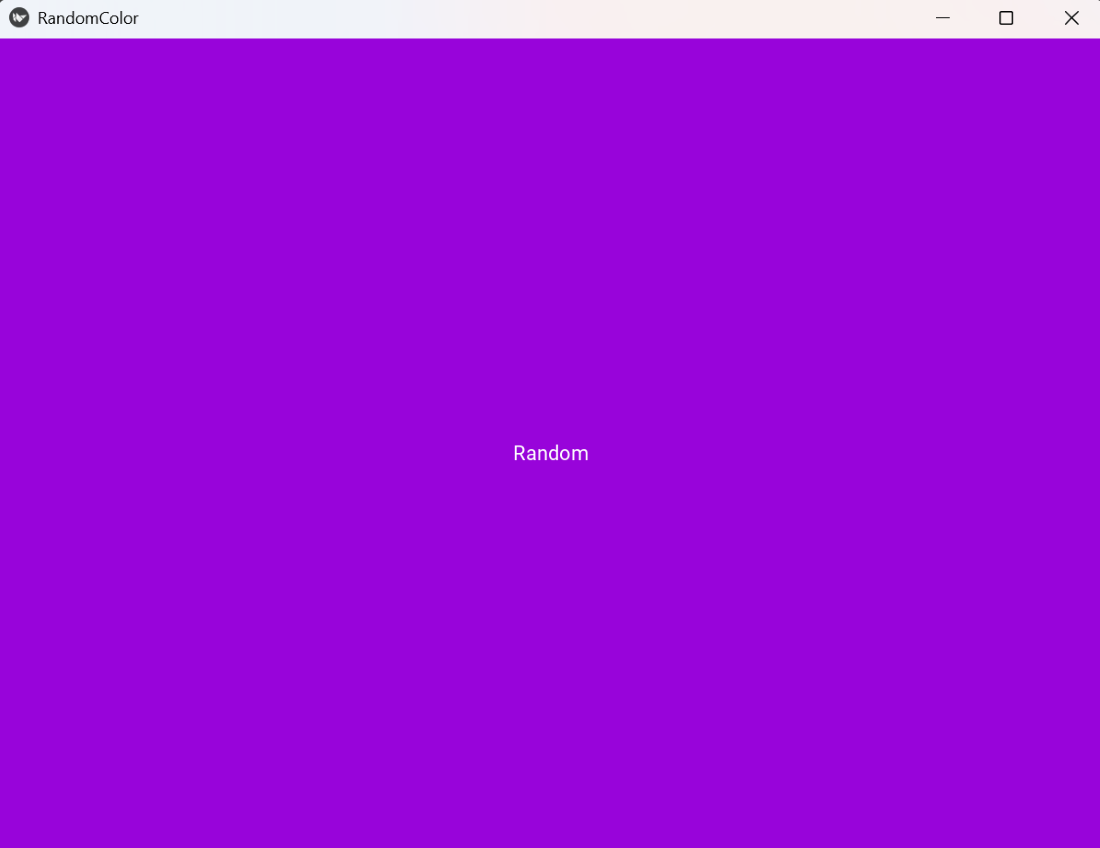
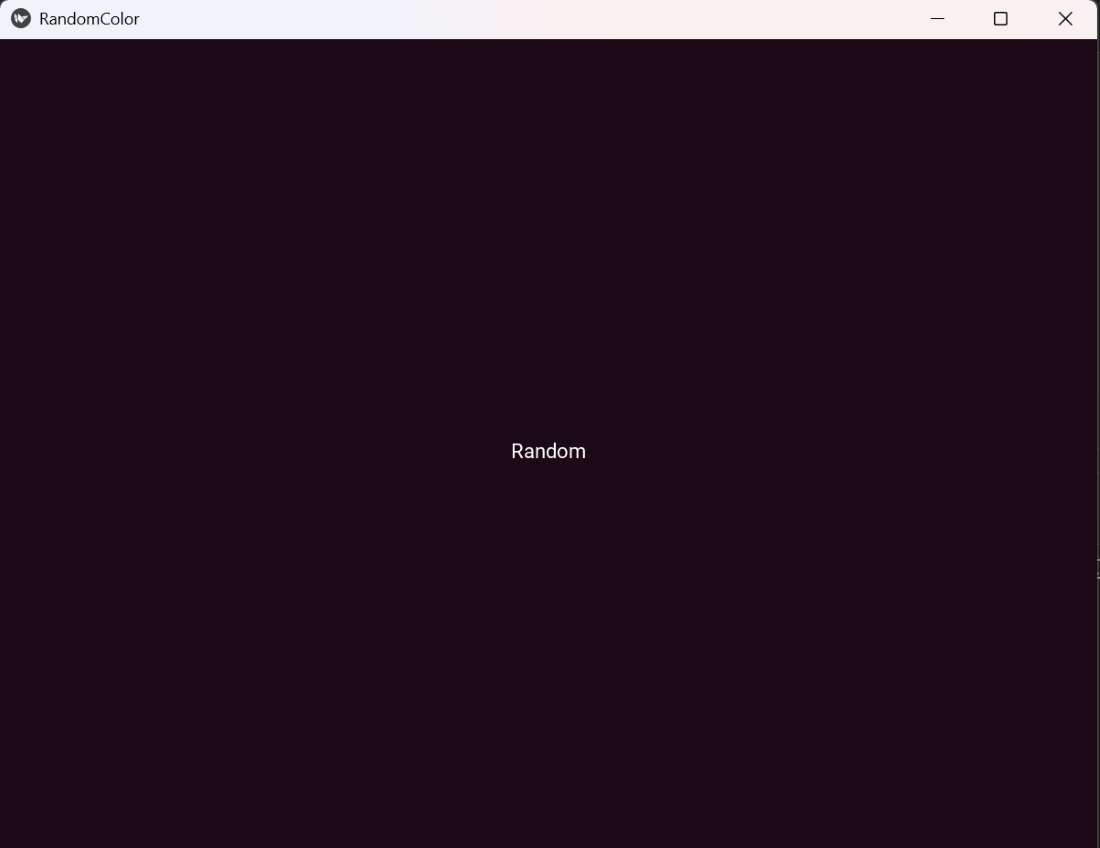
Explanation:
- random.random(): returns a float in [0.0, 1.0], suitable for RGBA components.
- bind(on_release=on_release): triggers after the user lifts the finger/mouse; good for finalizing the action.
- Setting inst.background_color updates the displayed color immediately.
